3- Download and Install the local client
To allow your Web Dashboard talk to your phones, you need to install a small “bridge” software on your computer called the Local Client. Without this, the dashboard cannot send commands to your devices.
🛠️ Before you start
-
System Requirement: The client is Windows only. Ensure you are using a PC running Windows 10, 11 or Windows Server 2016 or above.
-
Purpose: This app stays open in the background so your tasks can run 24/7, make sure you don’t close it or turn your PC off, otherwise the automation will stop.
📥 Step 1: Download the app
Log into your SM Tasker Web Dashboard. Look at the bottom left corner of the sidebar. You will see a dark blue button labeled DOWNLOAD (as shown in the image below).
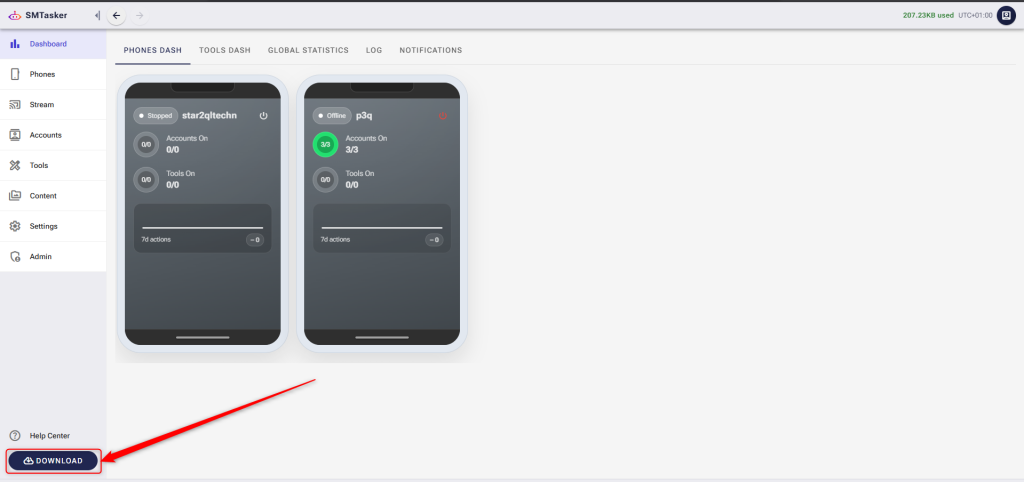
-
Click the Download button.
-
Wait for the
.exefile to finish downloading to your computer.
⚙️ Step 2: Install on Windows
-
Locate the downloaded file (usually in your “Downloads” folder).
-
Double-click the file to start the installation.
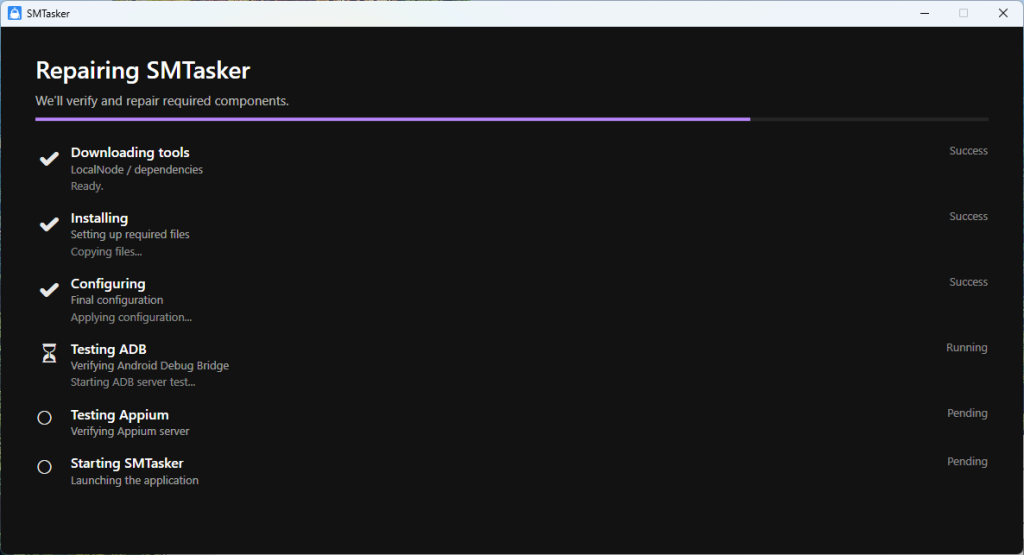
🛡️ Dealing with Windows Warnings
Sometime Windows might show a blue popup saying “Windows protected your PC.”
-
Don’t worry: This is a standard safety prompt.
-
What to do: Click “More Info” and then click the “Run Anyway” button to start the installation.
⚠️ If a Step Fails (Like ADB Testing)
As you see in the progress screen above, the app checks your “ADB” connection. This is the “bridge” that lets the software talk to your phones.
-
Try Again: If a red “Failed” message appears on any step, simply click the Retry button.
-
Still Stuck? If clicking Retry does not fix the problem, please Contact Our Support Team and we will help you get it running.
✅ How do I know it worked?
Once installed, you will see a small message that the app is minimized to the system tray.
Now that you installed the local client, you are ready for the next step.
👉 Next step: Get your android phone ready.