Plug in Your Phone and Confirm Connection
This guide will help you connect your phone to SM Tasker and confirm it’s ready to use.
Before you start: your phone must already be configured to accept ADB connections. If you haven’t done that yet, follow this guide first:
Get your Android phone ready
Step 1: Open the Phones page
In your SMTasker dashboard:
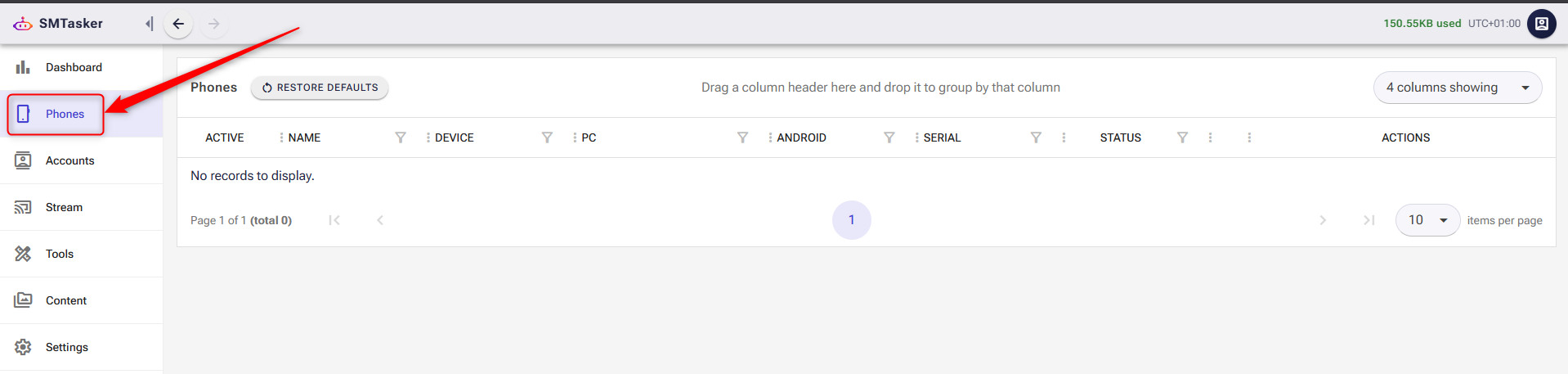
- Click Phones from the left sidebar
Step 2: Connect your phone
- Plug your Android phone into your computer using a USB cable
- Wait a few seconds
- The page refreshes automatically every 20–30 seconds
If your phone does not appear after that, refresh the page manually
Step 3: Confirm the connection
- Your phone will appear in the list on the Phones page as shown in the screenshot below
- You should see details like the device name and status
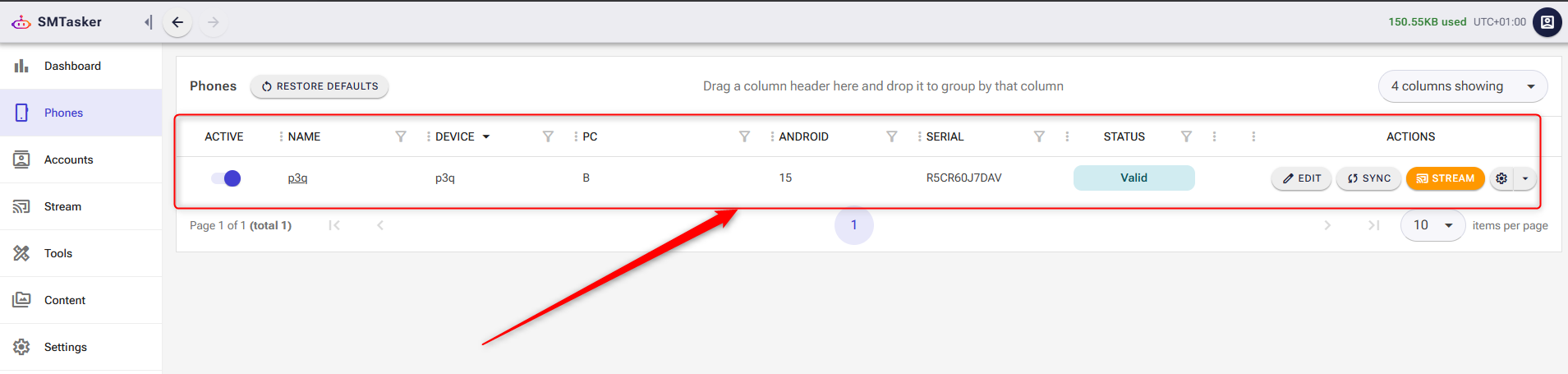
👉 If your phone appears in the list, it is successfully connected.
⚠️ Don’t see your phone?
- Make sure your phone is properly plugged in
- Try reconnecting the cable if needed
What’s next?
Now that your phone is connected:
👉 Next step: Run your first phone automated actions