Run Your First Phone Automated Actions
So you’ve got your phone plugged in and showing up on the SM Tasker dashboard – awesome! Now comes the fun part: setting up your first automated actions and watching your phone do the work for you.
We’ll walk you through it step by step so nothing gets confusing. Let’s go!
Step 1: Go to the Tools Page
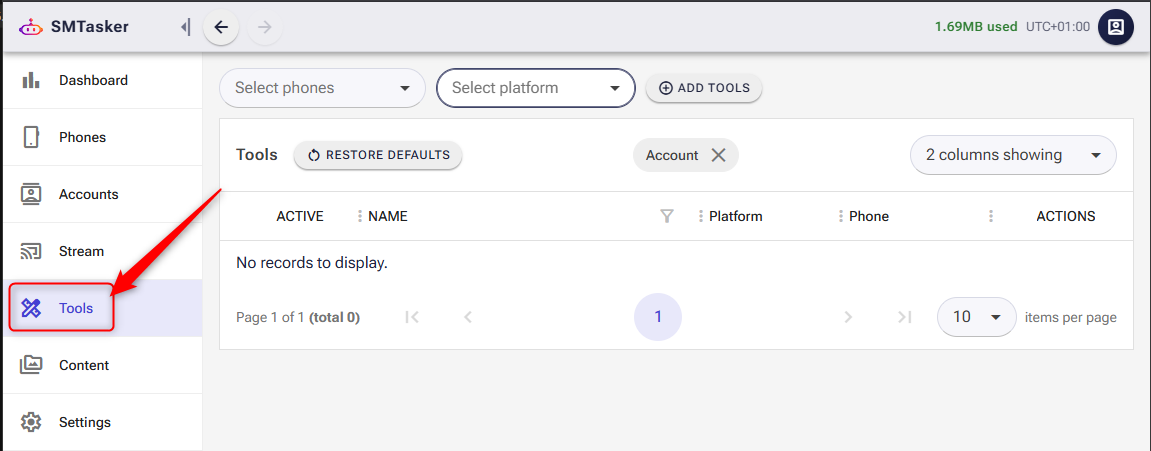
On the left sidebar of your web dashboard, click Tools. This is your command center – it’s where all your automated actions (we call them “tools”) live.
If this is your first time here, the page might look empty. That’s totally normal – we’re about to fix that.
Step 2: Add Your First Tools
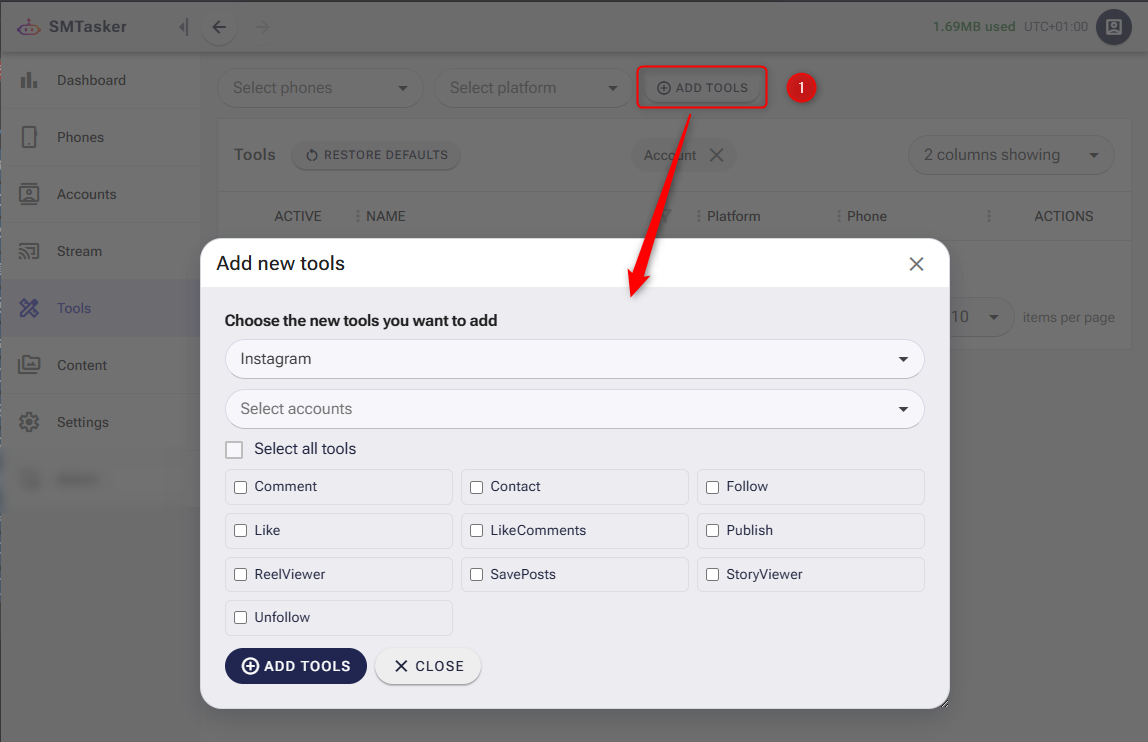
At the top of the Tools page, you’ll see an ADD TOOLS button. Click it.
A popup will appear asking you to configure your new tools:
Pick Your Platform
First, choose the platform you want to automate from the dropdown – either Instagram or TikTok. Pick whichever one matches the account you’ve got logged in on your phone.
Select Your Account
Next, use the Select accounts dropdown to pick which social media account these tools should run on. This is the account SM Tasker detected from your phone when you plugged it in.
Choose Your Tools
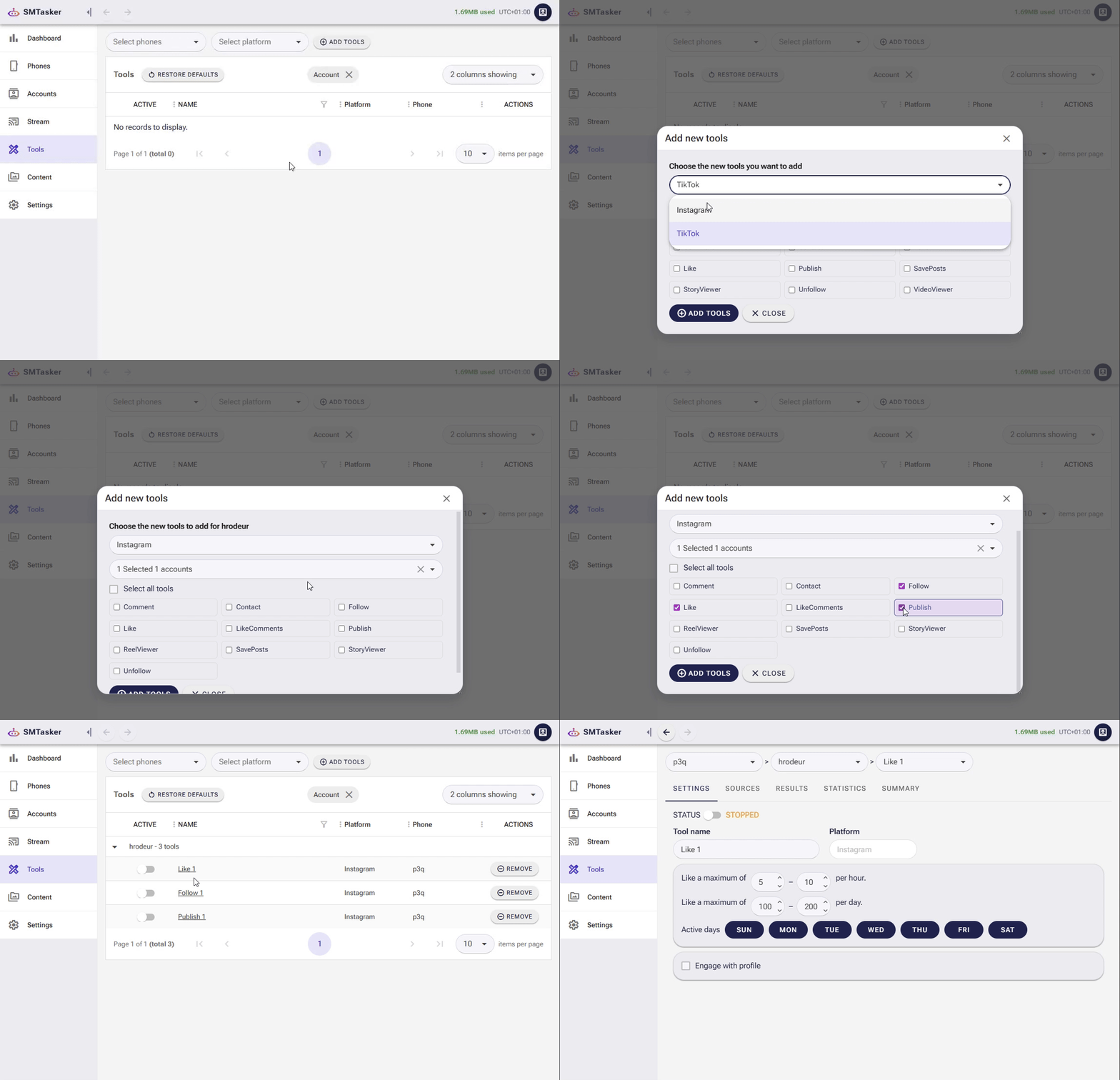
Now the fun part – check the boxes for the actions you want to automate. Here’s what each one does:
- Like – Automatically like posts based on hashtags, users, or your explore feed
- Follow – Follow users from specific sources
- Unfollow – Unfollow users you’ve previously followed
- Comment – Leave comments on posts
- Contact – Send direct messages
- Save Posts – Save posts to your collections
- Story Viewer – View stories automatically
- Reel Viewer – Watch reels automatically
- Like Comments – Like comments on posts
- Publish – Schedule and publish content to your accounts.
Quick Tip: If you’re just getting started, we recommend starting simple. Pick Like and Follow first – they’re the easiest to set up and a great way to learn how everything works. You can always add more tools later.
Check the tools you want, then hit the ADD TOOLS button at the bottom of the popup. Done!
Step 3: Configure Your Tool Settings
Now you’ll see your new tools listed on the Tools page. Click on any tool name (for example, Like) to open its settings.
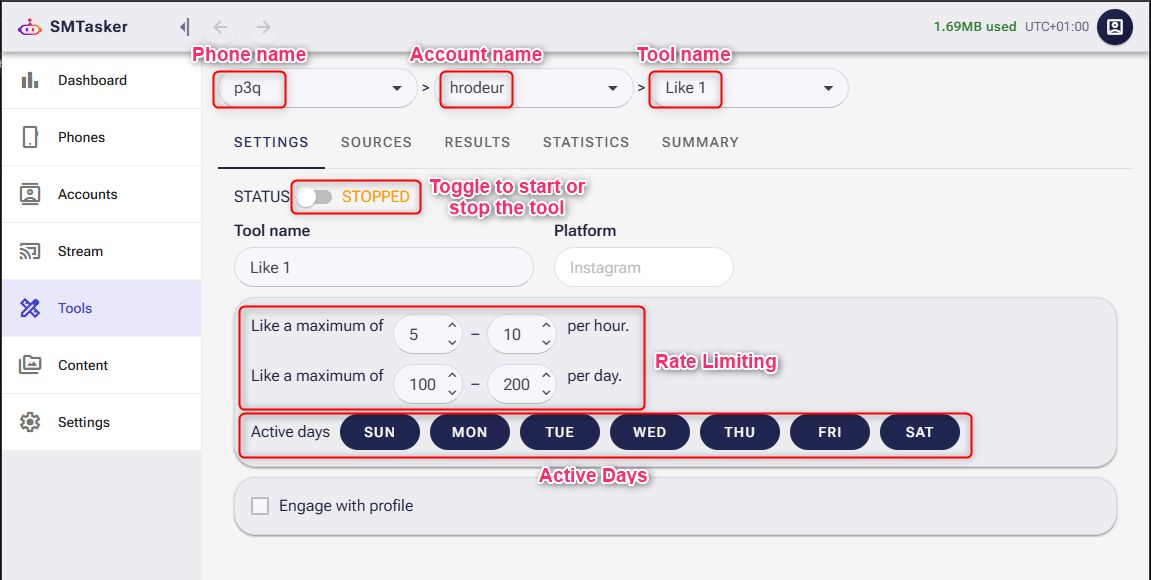
You’ll land on the SETTINGS tab with a few important things to configure:
Status Toggle
At the top you’ll see a STATUS toggle. This controls whether the tool is active or paused. Leave it off for now while we finish setting things up – we’ll turn it on in a minute.
Rate Limits
This is important – it controls how fast your tool runs. You’ll see two settings:
- Per hour: How many actions to perform per hour. Example: 5–10 per hour.
- Per day: The maximum number of actions per day. Example: 50–100 per day.
Important: Don’t go crazy with these numbers! Start low and slow. Social media platforms can flag accounts that do too many actions too fast. We recommend starting with 5–10 per hour and 50–100 per day when you’re getting started. You can always increase later once things are running smoothly.
Active Days
Pick which days of the week the tool should run. All days are selected by default (SUN through SAT), which is usually fine. But if you want your account to look more natural, you could turn off a day or two – real people don’t usually engage 24/7.
Engagement Options
You’ll see some extra options at the bottom:
- Engage with profile – When checked, the tool will also visit the user’s profile while performing actions (makes it look more natural)
- Just browsing / Open to interaction / Want to connect – These control how aggressively the tool interacts. Start with “Open to interaction” for a balanced approach.
Step 4: Add Your Sources
Now click the SOURCES tab. This is where you tell the tool where to find users to interact with.
Depending on the tool, you’ll see different source types. For example, the Like tool gives you:
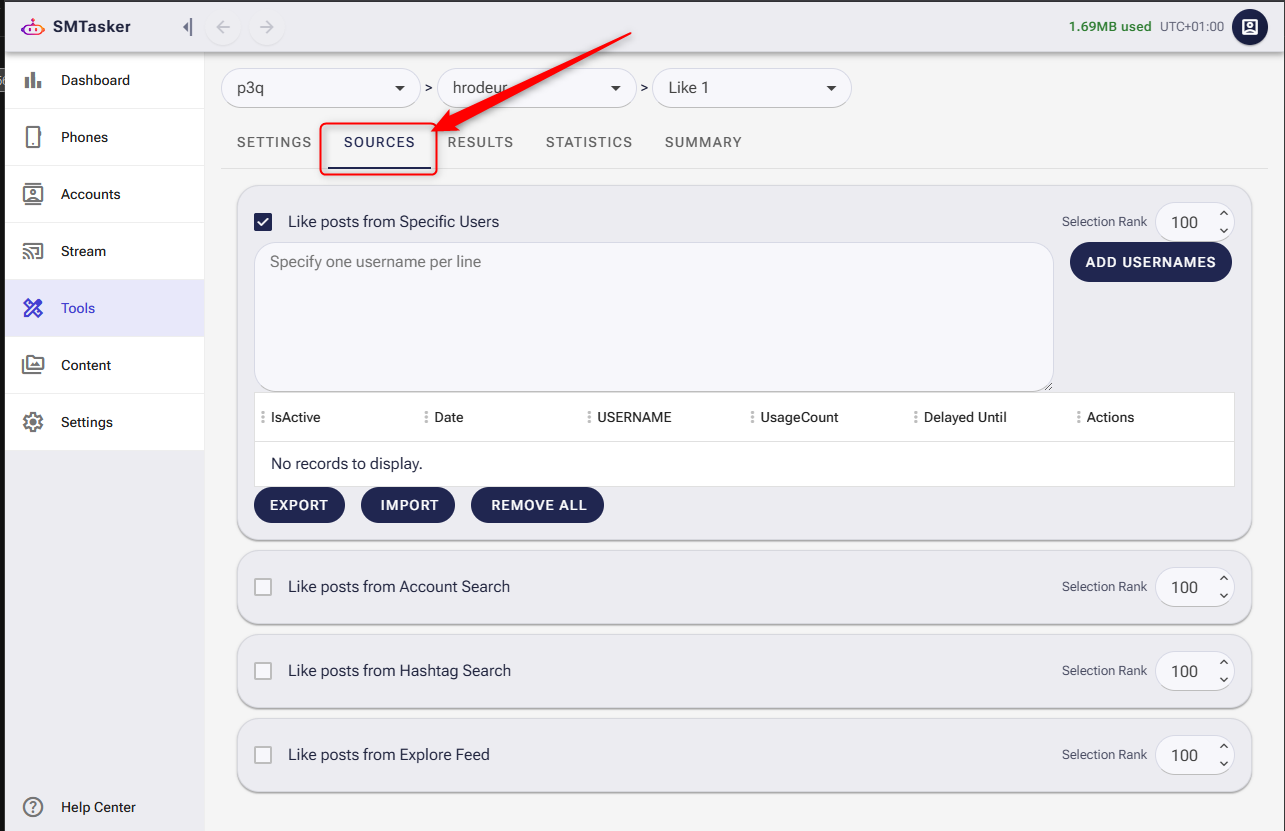
Like Posts from Specific Users
Type in usernames (one per line) of accounts whose posts you want to like.
Hit ADD USERNAMES to save them.
Like Posts from Account Search
Search for accounts by keyword. SM Tasker will find accounts matching your keywords and like their posts.
Like Posts from Hashtag Search
Type in hashtags (one per line, use # for hashtags, e.g., #nature). SM Tasker will find posts with those hashtags and like them.
Hit ADD HASHTAGS to save them.
Quick Tip: Start with 2–3 hashtags relevant to your niche. Don’t pick super broad ones like #love or #instagood – go for hashtags that your target audience actually follows. Think #coffeeshopvibes instead of #coffee.
Like Posts from Explore Feed
Enable this to like posts that appear in your explore/discover feed. It’s a great hands-off option since the platform’s algorithm does the targeting for you.
Step 5: Turn It On!
Now that your settings and sources are configured, go back to the SETTINGS tab and flip that STATUS toggle to ON. You’ll see it change to STARTED in green.
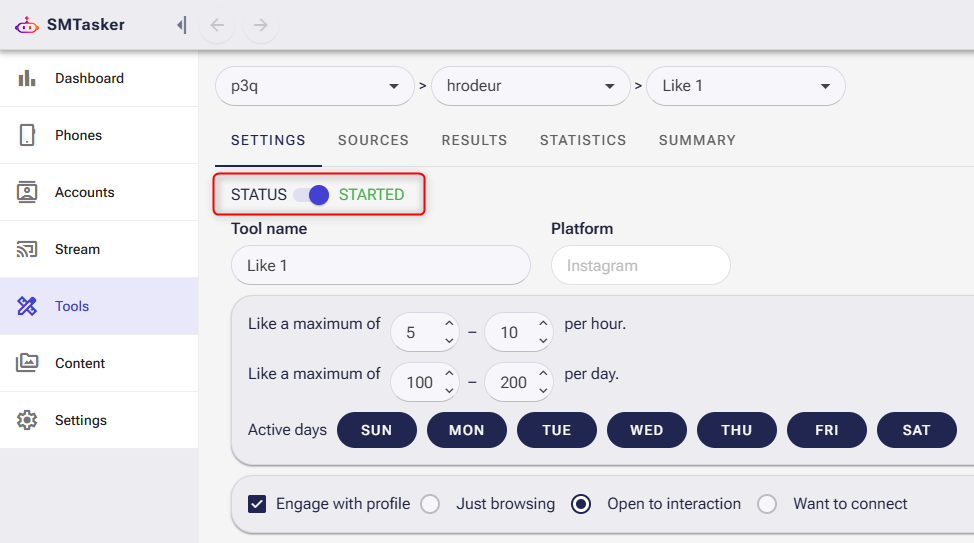
That’s it – your tool is now live! SM Tasker will start performing actions on your phone automatically based on the schedule and limits you set.
Repeat this for any other tools you added. Configure each one with its own settings and sources, then toggle them on when ready.
Step 6: Monitor Everything from the Dashboard
Head back to the Dashboard (click it in the left sidebar) to see everything running in real time.
Phones Dash
Click the PHONES DASH tab to see your phone’s status at a glance. You’ll see a phone card showing:
- Online/Offline status – Whether your phone is connected
- Accounts On – How many accounts are active
- Tools On – How many tools are currently running
- 7d actions – A mini chart showing your action count over the last 7 days