Getting started
How to Set Up SmTasker for Instagram Automation – Super Easy Guide
We’ll go step by step so you don’t get stuck. Grab your Android phone (sorry, no iPhones for now – this needs Android), a USB cable, and let’s do this.
Step 1: Create Your SmTasker Account
You’ll need a SmTasker account, so if you haven’t done this yet, go to https://smtasker.com/get-started/ , pick a package and create your account.
After you’ve created an account you will receive an email with your login details and the login dashboard, follow that link and login to your new web Dashboard.
Step 2: Download and Install the local client
In order for the web dashboard to be able to connect with your local plugged in phone and schedule all tasks, you will need to download and install a local client app on your computer.
After you’ve logged into your web dashboard look in the bottom left corner – there’s your download link. Click it to grab the app. It is Windows only so make sure to install it on your Windows running computer. Double click the download in order to install it.
Step 3: Get Your Android Phone Ready
Your phone needs to talk to the computer, so we turn on “Developer Options” first. It’s hidden on purpose, but easy to find.
Turn On Developer Options
- Open Settings on your phone (gear icon).
- Scroll down to About Phone (or About Device).
- Find Build Number (tap Software Info or Android Version if you don’t see it).
- Tap Build Number 7 times. You’ll see “You are now a developer!” pop up. Sweet!
- Go back to Settings – now you see Developer Options near the bottom.
Turn On USB Debugging
- Tap Developer Options.
- Scroll to USB Debugging and toggle it ON.
- If a popup asks to “Allow USB Debugging,” hit OK.
Quick Tip: Revoke any old authorizations first if it asks – safer that way.
Common Phone Problems and Fixes
Stuck? Here’s the usual stuff:
USB Debugging grayed out or won’t turn on? (Mostly Samsung new phones)
- Go to Settings > Battery and Device Care > Device Protection (or Security & Privacy or Additional security settings)
- Find Auto Blocker > Tap it, enter your PIN.
- Turn OFF Block Settings Changes (or similar).Check “Maximum restrictions” (if needed). Go back and try USB Debugging now.
- If the issue continues, go back into the Auto Blocker settings and make sure “Maximum restrictions” is also turned off, as this can block USB connections
- Re-enable USB Debugging: Go back to Developer options, and USB Debugging should now be accessible and allow you to turn it on.
Phone not detected?
- Try a different USB cable/port (data cable, not just charging).
- On phone, swipe down notification shade when plugged in > Tap “USB Charging” > Pick File Transfer or MTP.
- Restart phone and computer.
“Allow from this computer?” popup not showing?
- Unplug/replug cable
- In Developer Options, tap Revoke USB Debugging Authorizations > Replug and allow.
Different brands (Samsung, Xiaomi, etc.) might vary a bit, but this covers 90%. If you followed the steps correctly and it still doesn’t work, feel free to send a quick message to support and they will help you out.
Step 4: Plug In and Finish Setup
- Connect your phone to computer with USB
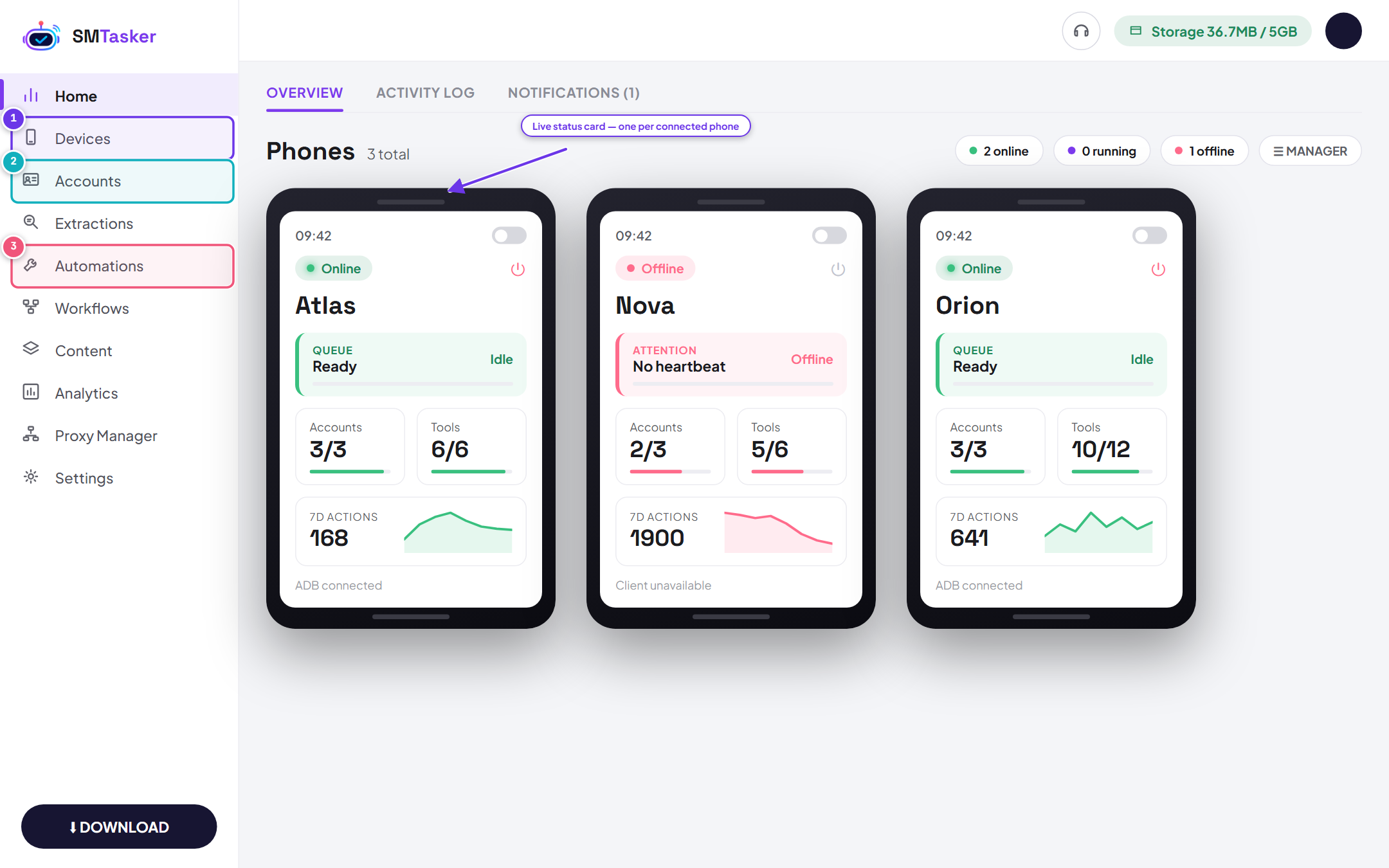
- Back on your web dashboard – your phone shows up!
- It will do a quick checkup of your Instagram account and pick up your account from there, no need to login if you’re already logged in on the phone.
- Set your tasks: likes, follows, etc. Hit start – and watch it go!
Step 5: Running Sm Tasker on an emulator
Emulators let you run 5-20+ “phones” at once. Perfect for testing or big campaigns. However take care as they could leave footprints and Instagram can pick up on that sometimes. Phones are always the best choice. Here’s the popular ones that work great with Sm Tasker:
Top emulators to grab
- BlueStacks: Super popular, easy for beginners. Free version rocks.
- LDPlayer: Fast and lightweight, loves automation tasks.
- NoxPlayer: Old-school reliable, good for multi-instances.
- MuMu Player: New kid, runs smooth on mid-range PCs.
- Genymotion (paid): Pro-level, but crazy customizable.
Download tip: Get them from their official sites (bluestacks.com, ldplayer.net, etc.). Install like any game.
Emulator Setup – Same Phone Steps, Virtual Style
- Launch the emulator after install. It’ll boot like a phone.
- Enable Developer Options – Exact same as real phone: Settings > About Phone > Tap Build Number 7 times.
- Turn on USB Debugging: Settings > Developer Options > Toggle USB Debugging ON. Some emulators need extra: In emulator settings, enable Root Access if asked (makes it trust your computer faster).
- Phone shows up in your dashboard, no need for you to do anything else. Just make sure you installed Instagram and are logged into the account you want to automate
Common Emulator Hiccups:
- Slow performance? Close other apps, bump RAM/CPU allocation in emulator settings (give it 4GB+ RAM).
- Instagram detects emulator? Use Magisk root + hide modules, or pick LDPlayer which masks better.
- Multiple instances? Most let you clone – run 10 at once, each with own Instagram.
Your SmTasker is crushing it now. Real phone for personal, emulators for scale. Questions? Hit our support team – we’re quick. Go grow that Instagram like a boss!