Your setup key. Your current code.
Online 2FA Authenticator & TOTP Code Generator
Get a time-based authentication code from your existing secret key, right in your browser. No account name, email, password or sign-in required.
A public demonstration
One key. A fresh code when time changes.
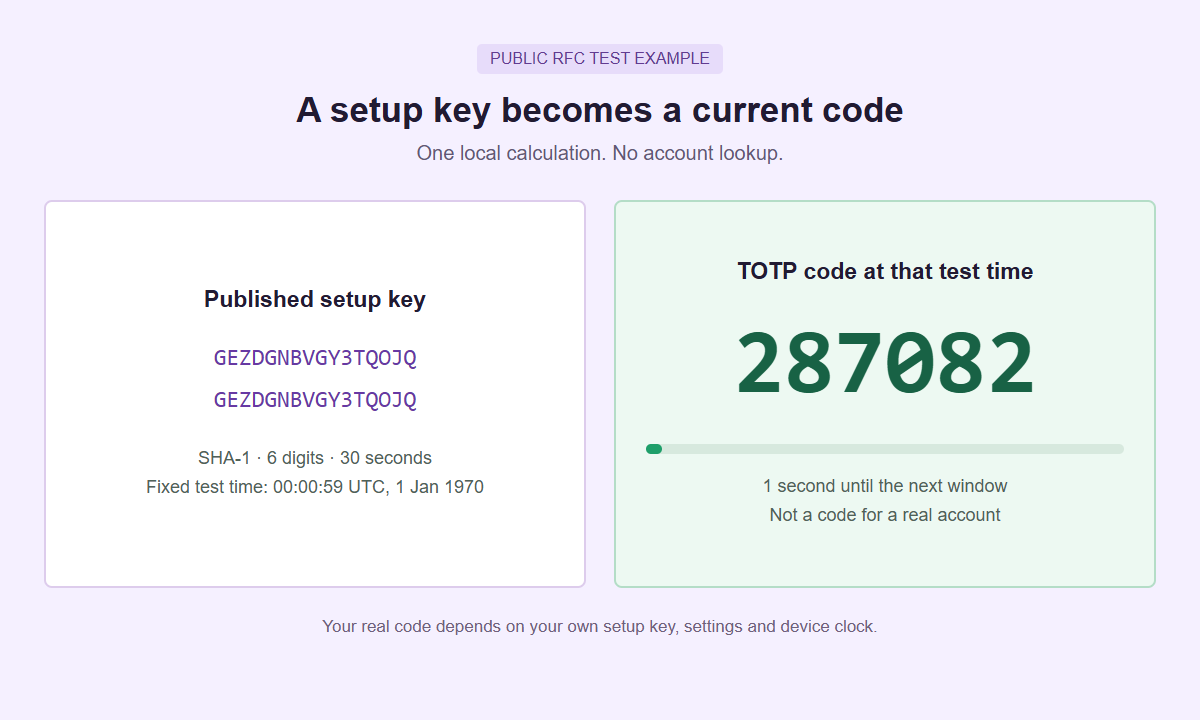
A published test key at a fixed test time, not a real account. Your own code depends on your key, settings and device clock.
Only the secret is needed
Generate a current authentication code
Use the manual setup key supplied when you enabled authenticator-app 2FA. Keep the default settings unless your original setup specifies otherwise.
The isolated generator does not send your key or code to the page around it. Ordinary site analytics are separate. No saved history, project file or secret-key export is created. Open the generator on its own if needed.
Supply your existing key
Paste the raw Base32 secret, not a password, QR link or one-use recovery code. No platform selector or account identity is collected.
Match the original settings
The default is SHA-1, six digits and 30 seconds. A raw secret does not reveal a service’s algorithm, code length or time period.
Use the code while it is current
Copy the code into the account’s authenticator-code prompt. The tool uses your device time and cannot verify acceptance on the service.
Understand what an online TOTP generator actually does
A TOTP code comes from a shared secret, the current time, and agreed calculation settings. The account provider establishes that secret during authenticator enrollment. This page uses a key you already possess; it does not create an account enrollment or discover which account a key belongs to. The same input can produce plausible-looking numbers even when you have selected the wrong account or an obsolete key. Before using a real credential, identify its source through your own protected records and confirm that the destination is asking for an authenticator code.
Treat the setup key as the reusable credential and the displayed number as its temporary output. Copying one current number does not transfer the whole authenticator enrollment, while exposing the key can let someone calculate later numbers. Do not paste either into a shared campaign brief or a support conversation. The generator has no identity fields because an email address, username, profile name, or platform label is unnecessary for this calculation. That also means it cannot catch a mismatch between your chosen key and the sign-in page you intended to use.
The supported method is TOTP, not counter-based HOTP. This tool does not receive SMS messages, approve push requests, use passkeys, look up recovery keys, verify backup codes, or bypass account protection. It neither logs in nor tests a live account. If the sign-in screen requests another method, return to the provider choices rather than trying to turn that credential into a setup key. For the distinction between these materials, read the setup key versus backup code guide before entering anything sensitive.
Enter only the raw Base32 setup key
Use the manual setup secret supplied for the intended enrollment. The accepted key contains 16 to 256 Base32 characters: letters A-Z and digits 2-7, excluding ordinary spaces and any valid trailing padding. Lowercase letters are normalized to uppercase. Optional spaces mean plain ASCII spaces, such as those used to group a printed key; tabs, line breaks, and nonbreaking spaces are not interchangeable. The entire pasted input also has a 512-character ceiling. A formatted note containing labels, punctuation, or several lines is not a raw key, even when a secret appears somewhere inside it.
Base32 also has structural rules. An allowed character count does not make every arrangement valid: incomplete encoding groups, incorrect equals-sign padding, or invalid trailing bits are rejected. If your original key includes padding, keep it exactly as supplied; do not add random equals signs to satisfy an error. Compare with the original trusted enrollment record instead of guessing missing characters. The digits 0, 1, 8, and 9 are outside this alphabet. A visual resemblance between a letter and a number is a reason to check the source, not permission to silently substitute one.
A complete otpauth URI and a QR image are not accepted inputs. A URI may package a secret together with issuer, account, and parameter information, while a QR code is an image carrying enrollment data. This generator does not scan, import, or unpack either format. Use a trusted manual-key option if the service provides one, or continue with a compatible enrollment method outside this page. Do not add your password, account email, recovery-code list, or the current six-digit output to the field. None supplies the reusable raw secret this tool requires.
Match the explicit settings to the enrollment
The defaults are SHA1, six digits, and a 30-second period. Advanced controls also offer SHA256 or SHA512, eight digits, and a 60-second period. Choose alternatives only when the enrollment instructions call for them. The raw secret does not carry those settings, and this page does not autodetect them. A key with a particular length is not evidence that it belongs with a particular algorithm. Likewise, selecting a longer output does not upgrade an existing enrollment; it changes the calculation and may make its output incompatible with the service.
For a practical example, imagine an internal test service whose authorized setup record explicitly specifies SHA256, eight digits, and 60 seconds. Those three values must be selected together here. Leaving the defaults would still generate a number, but it would be the result of a different configuration. This is a fictional configuration example, not a claim that a named platform uses it or that an account was tested. When instructions are missing, consult the provider or your approved administrator rather than cycling through combinations on a live sign-in form.
Select Get code after the key and settings are ready. Editing any of them invalidates the current result and disables copying until you generate again. This avoids carrying an old number forward under newly selected settings. Clear removes the working key and result but retains the selected settings. Review all three controls before beginning another real-key session. The public demo is different: loading it explicitly selects SHA1, six digits, and 30 seconds, so demo settings should never be mistaken for a record of your own enrollment.
Read the countdown and copy a current code
The device clock supplies the time used by the generator. It needs an accurate date and current instant, and this page does not synchronize with a network time service. Use your operating system time synchronization when necessary. You do not need to manually change timezone or set the displayed clock to UTC: a correct device clock can display your local timezone while still providing the right underlying timestamp. Changing city labels to chase a working code confuses display preferences with clock accuracy and can introduce a new problem.
The countdown shows time remaining in the current local calculation window, not a guaranteed acceptance deadline from the account provider. Starting the generator halfway through a 30-second window does not give the number a fresh 30 seconds. If little time remains, wait for the next window before copying. While the active inputs stay unchanged and the page remains visible, the display updates automatically. Repeatedly selecting Get code within the same time window normally produces the same result; it is not a request for a new independent challenge.
Copy code copies only the current code, not the setup key, settings, or an account report. If the browser blocks automatic copying, the tool selects the code and offers manual copying through the keyboard or device menu. Keep leading zeros when entering the result. Switching away can clear the generator, so copy before moving to the destination and use the copied number promptly. Clearing the page does not erase the system clipboard. If a code fails, use the TOTP troubleshooting guide instead of repeatedly submitting guesses.
Know the isolation and clearing boundaries
The generator runs in an isolated sandbox and calculates with a bundled local OTP library. There is no generation API call or server upload of the entered key or generated code. The surrounding page is not sent those values or the selected settings through generator messages. That is a boundary around the calculation, not a claim that loading the website itself requires no network requests. It also does not establish that a browser, operating system, extension, or the surrounding page is trustworthy. Use a device and browsing environment you have reason to trust.
The key and current result are cleared when the tab becomes hidden and on pagehide. The generator also clears on page restoration and freezing, so returning through browser navigation is not a saved-session feature. Moving to another tab, minimizing the browser, or changing apps can therefore require entering the key again. Select Clear when finished even if you plan to close the page shortly. This behavior reduces how long the tool keeps a working credential, but it cannot promise secure erasure of every browser-memory copy or data previously captured elsewhere.
There is no tool-managed storage, account history, saved authenticator list, PDF report, or downloadable project. The tool does not automatically read the clipboard. Your clipboard manager, browser extensions, screen capture, and other device software remain outside its control, including anything retained after you select Clear. An untrusted surrounding page or extension could also replace the interface. Isolation is not an absolute security guarantee. Keep confidential keys out of shared screens and ordinary notes, and maintain any necessary recovery material separately through an approved protected method rather than expecting this tab to become a vault.
Finish with a demo, a recovery plan, or a clear next step
Use Try public demo to inspect the masked input, settings, countdown, and copy behavior without introducing a private account credential. The demonstration key is published and shared, so its output has no private ownership. Never register that key as protection for a real account or treat a demonstration code as a recovery credential. A useful practice session is to load the demo, change the digit count, notice that the result is invalidated, and then generate again. That demonstrates the local workflow without claiming anything about a live service.
For an actual account, keep recovery planning separate from generating today’s number. Store provider-issued backup material where you can reach it if your normal authenticator becomes unavailable. If a setup key was exposed or replaced, clearing this page does not revoke it at the provider. Use the provider security process to replace the enrollment and complete whatever confirmation it requires. An old key can remain syntactically valid and continue generating numbers after its association with the account has ended; this page has no account connection that could identify that change for you.
Before leaving, confirm that you have used the intended destination, clear the working input, and handle any copied material according to your device policy. If you lack the current secret, stop here and use an existing enrolled method or the provider recovery process. The generator cannot reconstruct a key from an email address, previous output, or backup code. Keep nonsecret notes about enrollment ownership and where recovery instructions are held, without adding credentials to routine work documents. The free tools directory covers separate tasks; none of those next steps is triggered by generating a TOTP code.
Find the right account context
Platform and troubleshooting guides
The same TOTP method can serve different accounts. These guides explain setup keys, sign-in differences and the next useful check. Instagram and Threads share one focused guide.
Instagram and Threads 2FA
Set up Instagram authentication codes, understand linked and separate Threads logins, and prepare backup access before changing devices.
Read the guideTikTok 2FA
Separate authenticator codes from email and SMS, review Security Checkup, and prepare for a lost phone.
Read the guideYouTube and Google 2FA
Secure the Google Account behind YouTube and keep channel permissions separate from authenticator credentials.
Read the guideFacebook Profile and Page 2FA
Configure Facebook authentication-app codes, distinguish profile security from Page permissions, and prepare native recovery codes.
Read the guideLinkedIn 2FA
Protect your personal LinkedIn sign-in and understand how authenticator codes, app prompts, and Page access differ.
Read the guideX / Twitter 2FA
Set up an authentication app for X, distinguish other security checks, and prepare backup access.
Read the guideSnapchat 2FA and Recovery
Follow Snapchat’s authentication-app setup, distinguish Login Codes from other checks, and create a Recovery Code before you need it.
Read the guideReddit 2FA
Protect Reddit password logins, understand Google and Apple sign-in, and keep native backup codes ready.
Read the guideTOTP Troubleshooting
Separate input errors, clock drift, settings mismatches, and replaced keys without treating a generated code as account verification.
Read the guideSetup Keys and Backup Codes
Distinguish reusable setup secrets, enrollment QR codes, temporary TOTP numbers, and provider-issued backup credentials.
Read the guideQuestions about the online authenticator
Can I paste a QR code or an otpauth link?
No. Enter only the raw Base32 setup key, with 16 to 256 Base32 characters and optional ordinary ASCII spaces. Valid trailing padding is supported. The tool does not scan QR images, parse enrollment URIs, or accept account metadata.
Does the key tell the tool which settings to use?
No. SHA1, six digits, and 30 seconds are defaults, not detected account settings. SHA256, SHA512, eight digits, and 60 seconds are explicit alternatives that must match your enrollment.
Will my setup key still be here after I switch tabs?
No. Hiding the tab clears the key and result, as do pagehide and restoration. Copy a current code before leaving if needed. The clipboard is not cleared, and the tool makes no secure-memory-erasure promise.
Does a displayed code prove that my account will accept it?
No. The page calculates locally without checking an account. A wrong clock, mismatched settings, obsolete enrollment, wrong destination, or provider restriction can prevent acceptance. Only the service controls its sign-in decision.
Can this recover an account when I have lost my authenticator?
Only an existing current TOTP setup key enables this calculation. The tool cannot recover missing keys, look up or verify recovery credentials, receive SMS, approve push requests, use passkeys, or bypass two-factor authentication.
Separate account work
Explore supported routines with SMTasker
SMTasker is a separate option for supported social account routines. This generator does not send it keys, log in to accounts, or provide automatic 2FA integration.