Practical AI help for your real workspace
Skye and MCP prompts that turn a blank chat into useful work
You do not need to know every SMTasker screen before asking for help. Use these examples to inspect your workspace, build automations, diagnose problems, improve sources, organize schedules, create reports, and coordinate multiple accounts with Skye or a compatible AI assistant connected through MCP.
Inside this guide
Start with the job you need done
Each example gives you a prompt to adapt, the problem it solves, the access it needs, and the result you should review.
21 detailed prompts
Skye and MCP examples
A real report created by Skye
Turn a busy workspace into one clear daily report
This example brings the important details from an SMTasker workspace with three connected Android phones into one structured, read-only snapshot.
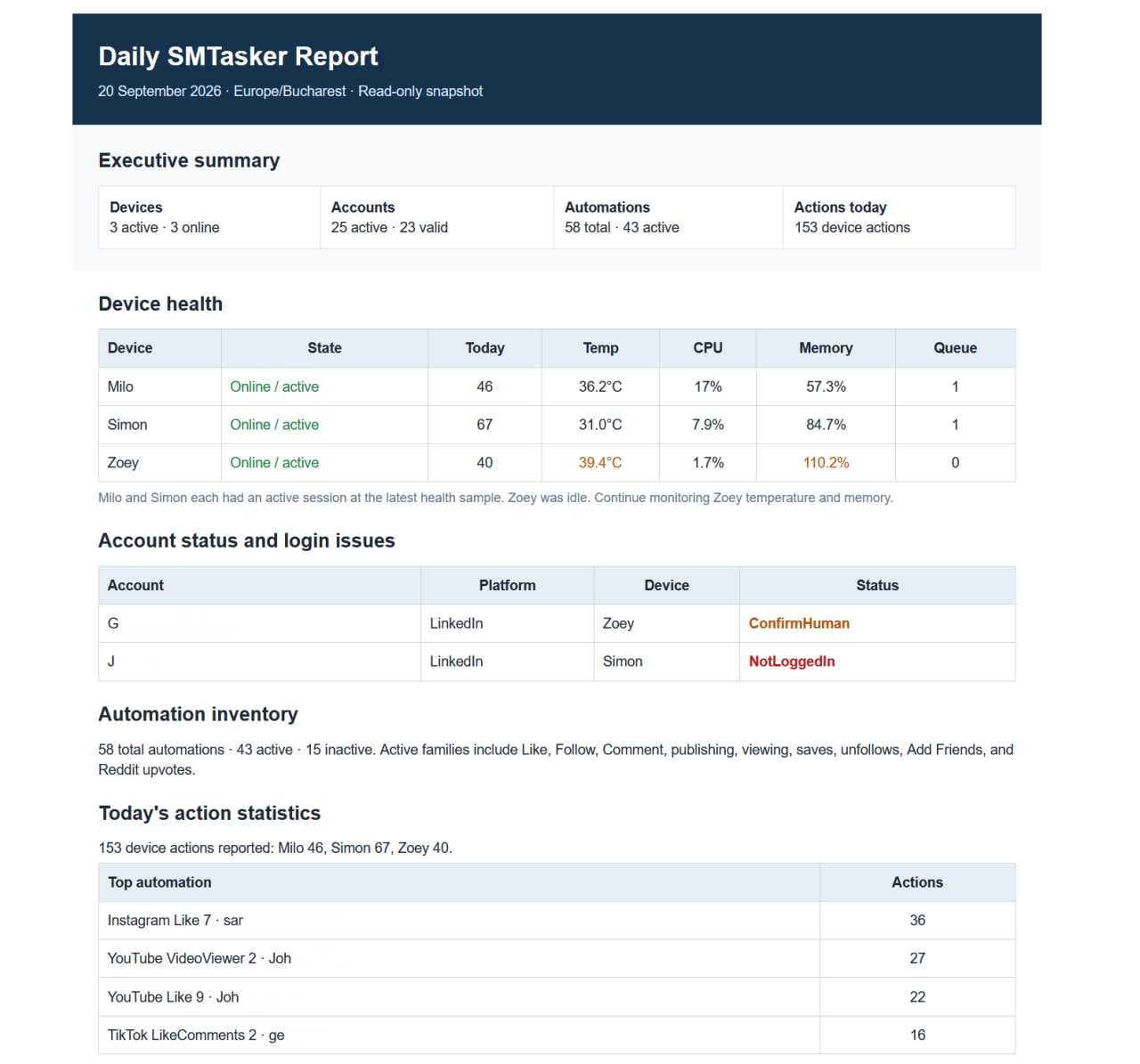
One instruction, structured output
See what needs attention without checking every screen
Skye can turn the current state of your SMTasker workspace into a clear, read-only daily snapshot, so you can review what needs attention without opening every screen.
“Create a read-only daily report for my SMTasker workspace. Summarize device health, account status, active automations, today’s activity, errors, and the items I should review first. Do not change anything.”
You can also narrow the request to one device, one client, selected accounts, or a specific date range.
Connect before using the prompts
Not set up yet? Start with the AI route you want to use
Skye and an external MCP assistant use different keys and approval systems. Follow the matching setup guide first, test one read-only question, then return here and choose a practical prompt.
Skye works inside SMTasker
Skye uses your connected OpenAI or Anthropic provider. It can explain your setup, investigate problems, prepare supported changes, and present change sets for your approval inside the application.
External AI works through MCP
A compatible external assistant uses a SMTasker personal API key and only the MCP tools and permissions currently available to that connection. Begin with Read data. Add Make changes only when you deliberately want the assistant to perform supported writes.
Before copying a prompt
Give the assistant six pieces of useful context
A precise request produces a practical answer. Replace the bracketed placeholders, keep the first task focused, and state what the assistant must preserve.
Name the target
Use the exact device, account, platform, automation, client group, or campaign name.
Describe the outcome
Say what you want to understand, configure, compare, repair, or report.
Set the scope
Specify one account, selected accounts, one device, or the complete workspace.
Protect what should remain
Mention settings, sources, status, schedules, or accounts that must not change.
Define permission
Ask for analysis only, a proposal for review, or a supported change after approval.
Choose the output
Request a short checklist, comparison table, ranked diagnosis, or before-and-after plan.
Find the right starting point
Choose what you want AI to help with
Start with the problem in front of you. Each area below includes three complete examples, and every prompt can be narrowed to one account or expanded to a selected group.
Workspace orientation
Understand what exists, what is active, and what needs attention first.
Build workflows
Turn a goal into a reviewable automation or publishing setup.
Troubleshooting
Find why a device, account, or automation is not producing work.
Sources and targeting
Inspect coverage, remove gaps, and make inputs more relevant.
Schedules and limits
Compare settings, stagger work, and standardize selected rules.
Audits and reports
Turn logs and results into priorities, trends, and next steps.
Multi-account operations
Coordinate several accounts without losing exceptions or ownership.
Workspace orientation and first-day questions
Use these prompts when you have just connected Skye or an MCP assistant, inherited an existing setup, or simply do not know which screen deserves attention first.
Build a one-page map of the entire workspace
Works with: Skye or external MCP with Read data.
Inspect my SMTasker workspace without changing anything. Create one compact table showing every connected device, the accounts assigned to it, each account’s platform, active automations, and current automation status. Flag devices with no accounts, accounts with no automations, stopped automations, and automations that appear to be missing a usable source. End with the five items I should review first. If a field is unavailable, mark it as unavailable instead of guessing.
What it solves: It replaces a long manual tour of Devices, Accounts, and Automations with one operating map. It is especially useful after importing accounts or taking over a workspace configured by someone else.
What to review: Check that the assistant used real account and device names. If the response is generic, confirm that Skye has workspace context or that the external conversation has the SMTasker MCP connection enabled.
Explain one account in plain English
Works with: Skye or external MCP with Read data.
Explain the current setup for account [ACCOUNT NAME] as if I am new to SMTasker. Tell me which device and platform it uses, which automations exist, which are active or stopped, what sources they use, when they can run, and where their limits apply. Then tell me what the account is currently prepared to do and what is still incomplete. Do not make changes.
What it solves: Settings make more sense when they are translated into the outcome they create. This prompt connects separate controls into a simple description of the account’s current operating plan.
What to review: Ask a follow-up about any unfamiliar setting. A useful next message is: “Explain why that setting matters here and show me where I can verify it in SMTasker.”
Create a ranked first-action list
Works with: Skye or external MCP with Read data.
Review my current devices, accounts, automations, schedules, sources, and recent available errors. Do not change anything. Give me a ranked list of the ten most important items to review, ordered by how much they prevent useful work. For each item, include the exact target, the evidence you found, why it matters, and one next check I can perform. Separate blocking problems from optional improvements.
What it solves: Beginners often spend time polishing settings while a disconnected device or empty source prevents the automation from running at all. Ranking the findings keeps the first session focused on blockers.
What to review: The assistant should separate facts from suggestions. If evidence is missing, ask it to label the item as a hypothesis and tell you what data would confirm it.
Build and launch automation workflows
Describe the result you want instead of searching for every individual control. These prompts help turn the goal into a proposed setup while keeping the work stopped until you review it.
Prepare a first automation from a business goal
Works best with: Skye. External MCP requires Read data and Make changes plus the relevant automation tools.
Help me prepare a [AUTOMATION TYPE] automation for [ACCOUNT NAME] on [PLATFORM]. The account is for [BUSINESS OR NICHE], and I want it to [DESIRED OUTCOME]. Inspect the current account and device first. Propose suitable sources, active days, operating hours, limits, and any required content or instructions. Keep the automation stopped. Show the complete proposal and explain every setting before I approve anything.
What it solves: You can begin with an outcome such as publishing prepared media, finding relevant posts, or engaging a defined audience. Skye translates that goal into the parts SMTasker needs.
What to review: Confirm the exact account, automation type, sources, status, and any text or content instruction. A proposal is not the same as an applied configuration.
Add the missing pieces to an existing workflow
Works best with: Skye. External MCP support depends on the tools exposed to the connection.
Review [AUTOMATION NAME] for [ACCOUNT NAME]. I want this workflow to [OUTCOME], but do not rebuild settings that already work. Identify only what is missing or contradictory across status, schedule, limits, sources, filters, content, and device readiness. Prepare the smallest change set that completes the workflow, preserve all unrelated values, and keep its current active or stopped status. Wait for approval before applying.
What it solves: Existing automations rarely need a full reset. This prompt asks for a narrow correction so a useful source list, schedule, or tuned limit is not overwritten unnecessarily.
What to review: The proposed change should be limited to the missing pieces. If too much is included, ask Skye to split the work into smaller change sets.
Adapt a proven setup to another account
Works best with: Skye. External MCP requires supported read and write tools.
Use [SOURCE ACCOUNT / AUTOMATION] as a reference for [TARGET ACCOUNT / AUTOMATION]. Compare them first. Prepare a plan that copies the workflow structure and the settings I select, but keeps the target account’s own device assignment, login, current status, audience-specific sources, and [OTHER EXCEPTIONS]. Show a before-and-after table for every value that would change. Do not apply or start anything until I approve it.
What it solves: Reusing a working structure saves time, but a blind copy can erase the distinctions that make each account useful. This prompt asks for consistency with explicit exceptions.
What to review: Pay special attention to sources, active hours, content folders, and status. These are often the parts that should remain account-specific.
Troubleshooting devices, accounts, and automations
A good diagnostic prompt asks for evidence, checks the full path from device to source, and avoids changing several variables before the cause is clear.
Find why an automation is not running
Works with: Skye or external MCP with Read data.
Diagnose why [AUTOMATION NAME] on [ACCOUNT NAME] is not running. Do not change anything. Check the connected device and local client, account state, automation status, active days and hours, current limits, usable sources, recent results, summary entries, and relevant errors. Separate confirmed blockers from possible causes. Tell me the most likely cause, the evidence for it, and the first manual check I should make.
What it solves: A stopped workflow can have several causes that look identical from the dashboard. This prompt follows the complete chain instead of assuming the first visible warning is responsible.
What to review: Verify the highest-ranked cause in the app. If a change is needed, request a separate proposal after the diagnosis so the original evidence stays clear.
Explain a sudden drop in completed actions
Works with: Skye or external MCP with access to the relevant results and statistics.
Investigate the drop in completed actions for [ACCOUNT OR AUTOMATION] during [DATE RANGE]. Compare it with [PREVIOUS DATE RANGE]. Review available status changes, device availability, schedule, limits reached, source availability, results, summary entries, and errors. Show the comparison in a table, then rank the likely explanations by evidence. Do not change settings or increase limits.
What it solves: It distinguishes a real configuration problem from a shorter operating window, an exhausted source, a reached limit, or an unavailable device.
What to review: Check whether both periods contain comparable active time. A lower count means little if the device or automation was intentionally stopped during one period.
Turn several errors into a recovery checklist
Works with: Skye or external MCP with Read data.
Review recent errors for [DEVICE / ACCOUNT / WORKSPACE] and group repeated messages by likely root cause. Build a recovery checklist ordered from the least disruptive check to the most disruptive action. For every step, tell me what result confirms or rules out that cause. Do not restart, reconnect, delete, or edit anything. Stop the checklist as soon as one step would require a change and ask for approval.
What it solves: Repeated log messages can make one issue look like many. Grouping them into causes creates a shorter and safer troubleshooting path.
What to review: Look for the exact affected device and time. Do not approve a broad repair if the evidence points to one account or automation.
Sources, filters, and audience targeting
Sources decide where many automations look for work. Use AI to find empty or conflicting inputs, clarify the intended audience, and prepare focused revisions without resetting unrelated settings.
Audit source coverage across selected automations
Works with: Skye or external MCP with Read data and source visibility.
Audit the sources used by [SELECTED ACCOUNTS OR AUTOMATIONS]. Do not change anything. Show which source methods are enabled, how many usable entries each contains, and whether the parent automation is active or stopped. Flag empty enabled sources, populated sources that are not enabled, duplicates, and automations with no usable source. Group the findings by account and put blockers first.
What it solves: A list can contain targets without being used, while an enabled method can have nothing to process. The audit reveals both silent gaps in one view.
What to review: Confirm that the source method is supported by that automation and platform. An entry count alone does not prove the source is relevant.
Refine targeting for a specific audience
Works best with: Skye. External MCP requires supported source write tools.
Review the current sources for [AUTOMATION NAME] on [ACCOUNT NAME]. The intended audience is [AUDIENCE DESCRIPTION], with emphasis on [TOPICS / LOCATIONS / ACCOUNT TYPES] and exclusions for [EXCLUSIONS]. Explain which existing sources fit, which look too broad, and what gaps remain. Prepare a revised source proposal, but preserve the automation’s limits, schedule, filters, and current status. Show removals and additions separately and wait for approval.
What it solves: It translates an audience description into a cleaner source plan while protecting the settings that control when and how the automation runs.
What to review: Read every proposed source. Ask for a smaller test list if the assistant suggests a large replacement at once.
Use results to decide which sources deserve attention
Works with: Skye or external MCP when both source and result data are available.
Compare the available results associated with sources for [AUTOMATION / ACCOUNT] during [DATE RANGE]. Only evaluate sources with enough recorded activity to make the comparison meaningful. Show activity volume, successful outcomes available in SMTasker, errors, and any missing data. Group sources into keep testing, investigate, and replace. Explain the evidence, but do not edit any source list.
What it solves: Instead of treating every source equally, it turns recorded outcomes into a review queue. The assistant must state when the available sample is too small.
What to review: Make sure the suggested decision uses data SMTasker actually records for that tool. If an outcome is unavailable, it should not be inferred.
Schedules, limits, and consistent account rules
These prompts help you understand why similar accounts behave differently, coordinate work on shared devices, and update one rule without flattening every account into the same configuration.
Compare settings and show only meaningful differences
Works with: Skye or external MCP with Read data.
Compare [AUTOMATION TYPE] settings across [ACCOUNT LIST]. Show only values that differ: status, active days, operating hours, hourly and daily limits, execution interval, source methods, filters, and other available behavior settings. Put the values side by side and explain which differences are likely intentional versus which deserve review. Do not change anything.
What it solves: It answers “why does this account behave differently?” without forcing you to compare several long settings screens manually.
What to review: Differences are not automatically errors. Client goals, time zones, platform, and account stage can justify different schedules or limits.
Stagger account activity on the same device
Works best with: Skye. External MCP requires supported schedule write tools.
Review the accounts and active automations assigned to [DEVICE NAME]. Prepare a schedule that avoids unnecessary overlap while keeping each account within [PREFERRED TIME WINDOW OR TIME ZONE]. Preserve all current limits, sources, filters, and active or stopped states. Show the current and proposed windows in a timeline or table, identify any conflict you cannot solve, and wait for approval before changing schedules.
What it solves: Multiple accounts on one phone can compete for the same operating window. A coordinated plan makes the queue easier to understand without changing what each automation does.
What to review: Confirm the time zone and the device assignment before applying. A technically neat schedule is wrong if it shifts work outside the intended local hours.
Change one policy across a selected group
Works best with: Skye. External MCP requires Make changes and the appropriate tools.
For [SELECTED ACCOUNTS] only, prepare this change: [EXACT RULE, SUCH AS ACTIVE DAYS OR DAILY LIMIT]. Preserve every other setting, including sources, filters, schedules not named in the request, and each automation’s current status. Exclude [ACCOUNTS OR AUTOMATIONS]. Show a before-and-after table with one row per affected automation. Do not apply until I confirm the complete list.
What it solves: A broad request becomes a controlled batch change with a visible target list and explicit exceptions.
What to review: Count the affected automations and read the exclusions. If one account needs a different rule, remove it from the batch and handle it separately.
See how settings can be compared and copied from the Automations dashboard →
Analytics, audits, and reports
Logs and statistics become much more useful when the question names a time period, comparison, target, and decision. Ask for evidence and next steps, not just a pile of totals.
Create a daily operating brief
Works with: Skye or external MCP with access to current workspace and activity data.
Create a read-only operating brief for today. Include device availability, automations that are stopped or blocked, completed actions by account and automation, limits already reached, repeated errors, and accounts with no activity during their expected window. Put urgent blockers first, then items to monitor, then normal activity. Keep the summary concise and link every finding to the exact account, device, or automation.
What it solves: It turns a morning review into a single prioritized status report instead of a sequence of dashboard checks.
What to review: A zero result should be compared with the expected schedule and status. An automation that was intentionally stopped should not be reported as a failure.
Compare this week with the previous week
Works with: Skye or external MCP when the required statistics are exposed.
Compare the last seven complete days with the previous seven complete days for [ACCOUNT GROUP OR WORKSPACE]. Show completed actions, successful outcomes available for each tool, errors, active time, and accounts with the largest increase or decrease. Normalize the explanation when an account had fewer active days. End with three findings supported by data and three suggested checks. Do not change anything.
What it solves: A raw action total can be misleading. This prompt asks the assistant to consider active time and identify where a change is large enough to investigate.
What to review: Confirm both date ranges are complete and comparable. Ask which accounts or fields were excluded because data was unavailable.
Prepare a recurring account-health report
Works best with: Skye. Email and report scheduling are currently unavailable through the external MCP connection.
Prepare a recurring account-health report for [DAYS AND TIME] in [TIME ZONE]. Cover [SELECTED ACCOUNTS OR ALL ACCOUNTS]. Include device availability, automation status, completed activity, repeated errors, missing sources, limits reached, and the five items that need attention. Show the proposed schedule, included accounts, report sections, and configured destination before I approve it. Do not send a report now.
What it solves: It moves a useful audit from an occasional manual task to a consistent operating rhythm inside Skye.
What to review: Verify the time zone, recipient or report destination, selected accounts, and first scheduled run. A saved schedule does not prove delivery; check the result after the first run.
Multi-account and agency operations
At larger scale, the difficult part is not clicking the same setting many times. It is preserving client boundaries, exceptions, device capacity, and a clear record of what will change.
Create a client-by-client health view
Works with: Skye or external MCP with Read data.
Build a read-only account-health view grouped by [CLIENT TAG / ACCOUNT GROUP / NAMING PATTERN]. For each group, show devices, accounts, active and stopped automations, missing sources, repeated errors, and activity during [DATE RANGE]. Add a short status of healthy, needs review, or blocked, with the evidence behind it. Keep clients separate and do not expose one group’s details inside another group’s recommendations.
What it solves: Agencies can review the whole operation without losing the client boundary that makes the report actionable.
What to review: Check how groups were identified. If naming or tags are inconsistent, correct the grouping before relying on totals.
Roll out a tested improvement without erasing exceptions
Works best with: Skye. External MCP requires supported read and write tools.
I tested [SETTING OR WORKFLOW CHANGE] on [REFERENCE ACCOUNT] and want to adapt it to [TARGET ACCOUNT GROUP]. Compare every target with the reference first. Prepare a rollout that changes only [NAMED VALUES], keeps each target’s sources, device, content, time zone, and active or stopped state, and excludes [EXCEPTIONS]. Show the full target list and before-and-after values. Wait for approval and apply in small batches of [BATCH SIZE].
What it solves: It separates a proven rule from account-specific data and makes a large update reviewable before it spreads.
What to review: Use a small first batch. Verify its saved settings and results before approving the remaining groups.
Plan where a new batch of accounts should live
Works best with: Skye. External MCP availability depends on exposed device and account-management tools.
Help me plan the onboarding of these accounts: [ACCOUNT LIST WITH PLATFORM AND CLIENT]. Review current device assignments and account counts. Propose where each new account should be added, identify devices that need attention before receiving more accounts, and suggest a clear naming and tagging structure. Do not create accounts or change assignments yet. Return an onboarding table and a step-by-step implementation order.
What it solves: It makes device capacity and account ownership visible before accounts are added, reducing cleanup later.
What to review: Confirm device availability, platform support, and the account-to-client mapping. Treat the plan as preparation until the actual account sessions exist and are verified.
A reusable control line
Add this ending whenever the request could change your workspace
The most useful prompt is often the original request plus one clear approval boundary.
Inspect the current values first. Show me the exact targets and a before-and-after plan. Preserve everything I did not name. Do not apply, start, stop, delete, send, or publish anything until I approve the proposal.
With Skye, keep Permissions on Ask for permission. With an external MCP assistant, the real boundary is the permission on its SMTasker key and the approval controls of that AI client. A read-only key cannot write even if a prompt asks it to.
Know the current boundary
Ask the assistant what it can actually access before relying on a template
Skye and MCP evolve with SMTasker. A prompt cannot create a capability that is not available to the selected platform, tool, workspace, connection, or permission level.
For external MCP, ask the assistant to list its available SMTasker tools first. The current MCP documentation also notes that email and scheduling are not exposed through MCP. Use Skye for the recurring-report example above.
Use this capability check
List the SMTasker tools available in this conversation. Separate read-only tools from tools that can make changes. Explain which parts of my request you can complete, which are unavailable, and which require different permission. Do not change anything.
If the answer does not contain real SMTasker tools or workspace details, verify the connection before continuing.
Setup and deeper guidance
Connect the right assistant, then verify the result in SMTasker
These Knowledge Base guides cover the connection, permissions, first real workflow, activity history, and result screens used by the examples above.
Start with Skye
Follow a complete example from the first question to an approved automation change.
Connect an external AI
Create a read-only key, connect with Streamable HTTP, and verify activity.
Connect Codex
Use the beginner walkthrough for a local Codex connection to SMTasker.
Understand automations
See how tools are added and why status, settings, and sources all matter.
Read activity
Learn what each Activity Log entry contains and how to narrow the view.
Interpret results
Understand the Results, Statistics, and Summary tabs used in reports.
FAQ
Questions about using these prompts
Do I need to copy a prompt word for word?
No. Keep the structure, replace the bracketed fields, and remove checks that do not matter for your task. Exact account, device, and automation names are more important than preserving every sentence.
Should I use Skye or an external MCP assistant?
Use Skye when you want to work inside SMTasker and review its proposed change sets there. Use MCP when you prefer a compatible external AI client or want to combine SMTasker context with work in that assistant. Available external actions depend on the tools and key permissions exposed to that connection.
Why should I begin with read-only access?
Read-only access lets you learn what the assistant can retrieve and how it interprets your workspace without authorizing changes. When you need a write, use a narrowly scoped request, review the target and before-and-after values, then verify the saved result in SMTasker.
Can the same prompt work across all platforms?
The structure often can, but the available automations and settings differ by platform. Ask the assistant to verify what exists for the selected account before it prepares a plan.
What if the assistant invents a setting or cannot retrieve a field?
Tell it to distinguish retrieved facts, unavailable data, and suggestions. Do not approve a change based on a field it could not inspect. Verify important values in the SMTasker interface and Activity Log.
Should I include my API key in a prompt?
No. Enter provider and SMTasker keys only in their dedicated secure settings. Never paste a key into a Skye message, external chat, screenshot, or support request. Revoke and replace a key if it is exposed.
Start with one useful question
Let AI inspect the workspace before you spend time clicking through it
Connect Skye or a compatible MCP assistant, choose one prompt from the category that matches your problem, and ask for evidence before changes. The first useful answer will usually lead to a much better second question.