Useful words, no retyping
Image to Text Converter & Screenshot OCR
Turn text in a screenshot or image into a draft you can actually edit. Extract English printed text in your browser, check it against the picture, then copy or download your corrected version.
From pixels to a reusable draft
Read it. Correct it. Use it.
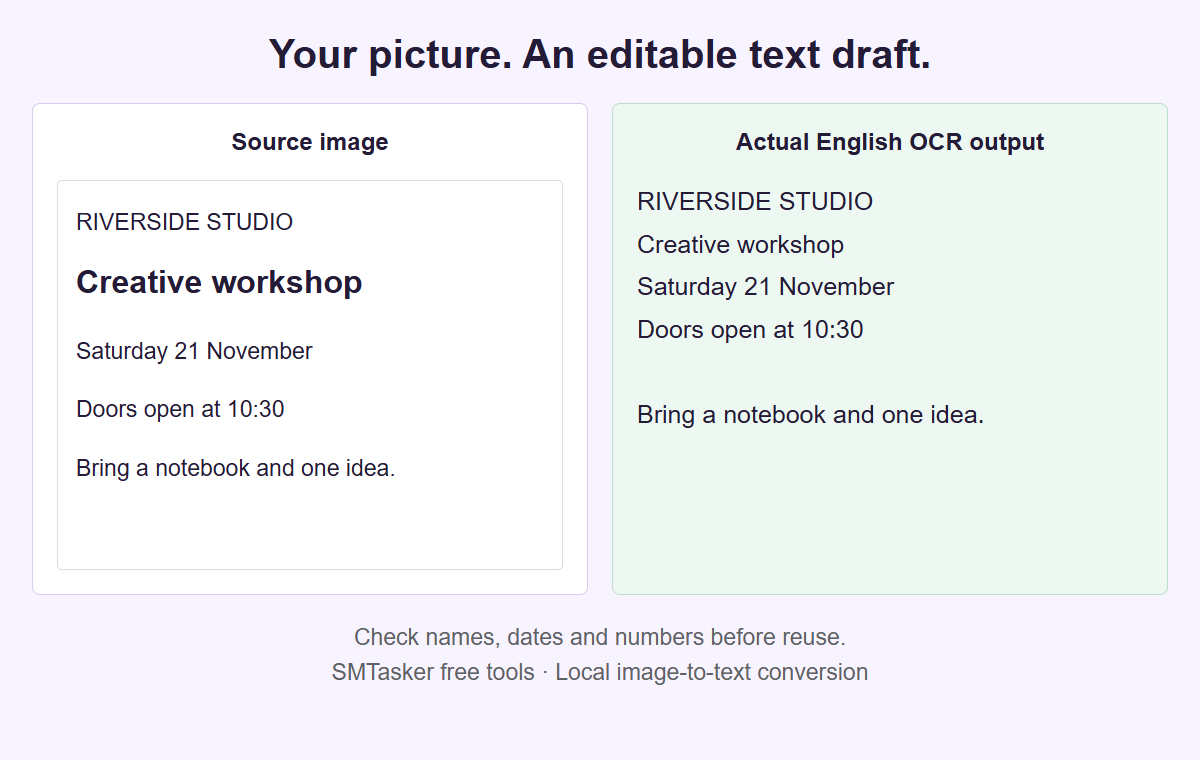
A fictional event card, recognized by this tool. Optical character recognition gives you a starting draft, not a guarantee that every word is correct.
Keep the picture beside the words
Extract text, then check the details
Choose one JPEG or PNG. The English model loads when you start recognition. Larger pictures are reduced to a 2,000-pixel processing edge; your original file stays unchanged.
Downloads and copied text can contain private information. Exports keep your reviewed text, not the source image, filename or discarded OCR wording. A saved text review does not restore the picture.
Your source image
No image selected. Platform changes the context label, not the English recognition model.
Your reviewed text
One quick review makes it useful
- Compare names, dates, prices and web addresses.
- Remove interface labels you do not need.
- Keep the line breaks that carry meaning.
This tool reads image text, not image meaning. It does not translate, generate alt text, retrieve a social post or publish your draft.
The image and text are processed locally, without a private-data upload, social login or background saving. The recognition engine and English model download from this website. Normal website analytics are separate from the tool’s local processing.
Start with readable pixels
Use a sharp screenshot or picture of printed English text. Turn sideways content before recognition, and choose the arrangement that matches it.
Let OCR create the first draft
A local recognition worker turns the prepared image into text. Small type, decorative fonts and busy backgrounds may need another source image.
Keep the version you checked
Correct the text beside the image before copying it. Your text review and PDF exclude the photograph, not the words you chose to keep.
Recover words you can reuse, not a finished message
An image can contain useful wording that is awkward to type again: a workshop notice, a product instruction, a slide heading, or the visible part of a saved screenshot. This converter reads supplied pixels and returns editable text. It does not understand the whole picture or decide which words matter to your next task. Start with a simple purpose, such as recovering the room and arrival instructions from a notice you created. That purpose helps you remove unrelated interface labels during review without treating a shorter result as evidence that the original image contained less information.
The initial recognition model reads printed English. Handwriting, translation, picture descriptions, and automatic alt text are outside this tool. A decorative letter may look clear to a person yet be read as punctuation, while a photograph with no printed words may return nothing useful. Start your review with the details a recipient needs: a name, quantity, time, location, or complete instruction. Check each against the picture before rewriting the surrounding sentence. For an old notice, compare its event details with your current brief as well; faithful recovery of last month’s room number would still be wrong for a new reminder.
The context selector covers Instagram, TikTok, YouTube, Facebook, LinkedIn, Threads, X (Twitter), Snapchat, and Reddit. These nine choices label the editorial task; they do not select different recognition algorithms or connect accounts. An Instagram quote graphic and a YouTube thumbnail use the same English OCR process, even though their review questions differ. Choose the context that makes the handoff understandable, then judge the visible material itself. A platform label cannot recover a hidden caption, search an account, fetch a remote picture, or establish the order of several frames that you have not supplied.
Choose a readable local file within the input limits
Select one actual static JPEG or PNG from your device. The file must be no larger than 10 MiB, with positive dimensions, no side above 8,000 pixels, and no more than 16 megapixels in total. All these limits apply together: a narrow file can still exceed the side limit, and a compressed file can still contain too many pixels. Animated PNG, malformed images, and unsupported types are rejected. Renaming another format to end in .png does not convert it. PDF input and remote image addresses are not accepted, so prepare a local picture separately when necessary.
Use the clearest source you already have rather than repeatedly saving a small preview. If you need only one notice from a busy screen, prepare a separate crop in an image editor before selecting it here. Leave the first and last letters intact and keep enough surrounding space to see where each line begins. Cropping is your preparation step, not an automatic feature of this converter. Do not enlarge a blurry word and assume new detail has appeared. Where a name is already unreadable in the source, ask its owner for the correct spelling instead of guessing from context.
The browser respects embedded photo orientation during decoding. The tool then prepares an opaque white canvas and only reduces size when needed, keeping the longest processing side at or below 2,000 pixels. Smaller sources are not enlarged. Transparent areas therefore meet white rather than retaining transparency for recognition, which matters when pale lettering originally relied on a dark background. Compare the stated decoded source dimensions with the actual processing dimensions. These measurements describe the supplied and prepared geometry, not the amount of readable text, a quality score, or a promise that every small footer will survive the reduction. The prepared canvas contains at most four million pixels, separate from the sixteen-million-pixel input ceiling. Acceptance of a large original does not mean recognition uses its full resolution; inspect small lettering in the actual processing view before trusting the recovered footer.
Match rotation and layout to the visible arrangement
Choose rotation deliberately from 0, 90, 180, or 270 degrees. Use the prepared view to confirm that the letters are upright before running recognition. Rotation here is a quarter-turn choice, not automatic orientation detection, deskewing, or perspective correction. A notice photographed at a slant may still need a better source prepared elsewhere. If the decoded picture is already upright because the browser respected its orientation information, leave the extra rotation at zero. Applying another quarter turn just because the original camera was held sideways can turn a correctly displayed notice into a worse recognition source.
Auto layout lets the engine segment the page without automatic orientation detection. Block treats the supplied content as one uniform text block. Sparse looks for separated text areas and does not establish a meaningful reading order between them. For a plain paragraph, begin with Block; for a notice with a heading, address, and isolated corner label, compare Auto or Sparse. These are layout assumptions, not levels of quality. There is no mode that promises perfect recognition, and switching the platform context does not tune the layout for a particular social application or its visual design conventions.
Change one setting at a time when investigating a poor result. First make the picture upright, then choose a layout that matches its arrangement, and finally compare the new words with the same source. Keep any wording you need before changing settings because a changed source or setting invalidates the existing recognition and exports. A different line order in Sparse is not evidence that the picture changed. It is a reason to rebuild the order manually from visible relationships. No threshold adjustment, automatic cleanup filter, or hidden text recovery is promised by these three layout choices.
Work through a notice with names and instructions
Consider a fictional notice prepared by Morrow Print Lab. Line one says Paper fitting session; line two says Host: Lena Voss; line three says Room C7, 17:25; line four says Bring 3 sample sheets. The studio needs these words for a plain text reminder, not a new image. Its local JPEG decodes to 3,000 by 1,800 pixels and is below the input limits. With zero additional rotation, preparation reduces it to 2,000 by 1,200 pixels. If an extra 90-degree turn were needed, the prepared dimensions would instead be 1,200 by 2,000. That change describes geometry, not a different session or a new text version.
Suppose the first result reads Lena V0ss and Room C7, 17:2S. Both errors are plausible enough to escape a quick glance. Compare the host line with the notice and correct the zero to the letter o. Check the time separately and replace the final S with 5 only because the printed source supports 17:25. Do not correct the room to C1 because that room is more familiar. The point of the example is the review method, not a claim about the exact output the engine will produce for a particular picture, font, or device.
Keep the four source lines separate while checking them, then decide whether the reminder needs a different arrangement. If you combine them into one sentence, make that an explicit editorial change after recovery: Paper fitting session with Lena Voss in Room C7 at 17:25. Bring 3 sample sheets. Confirm the name, room, time, and quantity again in the new version. A recipient may act on only one small detail, so a clean opening phrase does not excuse a wrong final digit. Retain the original notice separately whenever another reviewer needs to inspect the evidence behind your corrections.
Review the text in small, deliberate passes
Read once for missing or duplicated lines before polishing spelling. Compare the top, middle, and bottom of the image so a small footer is not forgotten. Then check names and identifiers character by character: capital I, lowercase l, and the number 1 can be easy to confuse. Review quantities with their units and punctuation rather than as isolated digits. A decimal point, minus sign, or slash can change an instruction even when every surrounding word looks reasonable. If the source does not settle a detail, leave it unresolved in your separate notes and ask for confirmation before sharing.
Reviewed text is limited to 12,000 Unicode codepoints and 128 KiB of UTF-8 data. Recognition that exceeds a limit is rejected rather than silently cut to fit. Codepoints, words, lines, and UTF-8 bytes are different counts, so read their labels instead of treating them as interchangeable length measures. A visible symbol can involve more than one codepoint, and non-English characters may require several bytes even though this tool only supplies an English recognition model. Stay within both text limits when editing. A successful count says the text fits the contract; it does not say the wording is correct.
Line endings from CRLF or CR become LF. Other valid Unicode, tabs, and punctuation are preserved rather than automatically rewritten, and lines are not unwrapped into prose by default. Decide yourself whether a break separates instructions or merely reflects the width of the original design. Remove an unwanted interface label only after checking that it is not part of the message. Editing reviewed text keeps the source geometry but regenerates the export data from your current wording. The tool does not keep the initial OCR as a second exportable truth beside your corrections, so save distinct review versions deliberately when needed.
Treat empty results and interruptions as review decisions
An empty recognition result can be valid. The picture may contain no readable printed English, its letters may be too small, or the chosen arrangement may not suit the layout setting. An explanation accompanies an empty result, and exports need nonblank reviewed text. Compare the source again and decide whether a clearer image, a different layout, or manual transcription is appropriate. If you type the words yourself, work one line at a time and compare the first and last word of each line afterward. That simple boundary check helps catch a skipped footer or duplicated heading before the text becomes a reminder.
Recognition has a 120-second deadline, and Cancel terminates the active recognition worker. A new worker does not start until initialization or termination cleanup has settled. This can make cancellation look less immediate than simply hiding a progress indicator, but it avoids overlapping recognition jobs. Wait for the page to become ready before trying another source. Leaving the page cancels active work; returning through browser history does not mean an old job is still running. Do not interpret a stalled progress value as an accuracy measure, and do not repeatedly launch the same unreadable picture expecting a guaranteed improvement.
Changing the selected image, platform context, layout, or rotation invalidates recognition, the prepared preview, the report, and exports. Run recognition again for the changed setup rather than distributing an older result under new settings. Text edits are different: they preserve the recorded source geometry while updating the reviewed export content. Keep those two kinds of change clear when comparing versions. If a colleague receives a revised text review, tell them whether you corrected words against the same source or recognized a different picture. Identical dimensions alone cannot prove that two reviews came from the same image.
Save a text review without saving the source image
Recognition runs in the browser using locally served OCR assets, without uploading your image or sending it to a recognition API. No social login, account access, or remote picture fetching is involved. This describes the conversion workflow, not a promise that the whole website makes no ordinary network requests. There is no persistent image or text storage for this tool and no autosave. Keep the source in your own storage if you need it later. Closing the page is not a substitute for deliberately downloading work that you intend to retain or hand to another reviewer.
Save review explicitly downloads a versioned JSON text review. It contains the reviewed text, platform context, layout, rotation, decoded source dimensions, processing dimensions, counts, and method details. It does not contain the original image, original filename, or raw OCR output. Geometry helps explain how the text was prepared, but it cannot reconstruct the picture or establish its identity. This is not an editable image project. A file named after a campaign can still reveal sensitive wording inside, so inspect the actual reviewed content before saving it into a shared folder or sending it outside the team.
Reopening accepts only the strict saved-review format, up to 1 MiB, rather than arbitrary JSON, a PDF, or a photograph. It restores a text review and clears the input image and preview; it does not restore a recognition source. To compare the words with pixels again, locate your separately retained original and start a fresh recognition workflow as needed. Do not assume the saved dimensions authenticate that image. A useful handoff names the separately held source in your existing task record while keeping that private filename out of the tool exports. Save later edits explicitly because reopening does not enable autosave.
Choose a text export and finish the manual handoff
Copy text and TXT contain only the reviewed text. CSV, saved-review JSON, and the PDF review carry the complete reviewed wording plus geometry, context, and method details. None includes the source photo, its original name, or the raw recognition output. The PDF has three review pages with a declared text excerpt and full reviewed TXT and JSON attachments. It is not a complete searchable reproduction of the original image. A short visible excerpt does not limit the attached wording, so read the complete review before sharing. Export files can contain private text even when they contain no picture.
Choose TXT when the next person only needs words to edit, and use the structured review when preparation details matter. Give the recipient a concrete check line in your separate task note: Lena Voss; C7; 17:25; 3 sheets. Ask them to compare those details and the line breaks with the retained notice, then use the complete reviewed wording for the reminder. The tool does not post, schedule, rewrite, or transfer the review into a social account. If a PDF viewer does not expose attachments conveniently, use the separate TXT or saved-review download instead of assuming the visible excerpt is complete.
Once the wording is checked, explore SMTasker Get Started for a separate account workflow, with your team manually choosing the reviewed text and its destination. There is no automatic import from this converter or promise that recovered text becomes a scheduled post. For questions about supported setup and troubleshooting inside SMTasker, see Skye AI Manager. Keep the final packet practical: the current text revision, a reference to the source held elsewhere, and the next editing task. For the workshop example, that task might be placing the checked room and time into the studio’s reminder draft.
Make the recovered text useful
Platform and screenshot OCR guides
Recover a caption, check a slide, or prepare a cleaner handoff. Choose the context that matches the text you need.
Instagram Quote Recovery
Recover a quote, its credit, and visible caption fragments from local Instagram images without mixing source wording with a new caption draft.
Read the guideTikTok Instruction Recovery
Recover short instruction overlays from separate local frames, check verbs and quantities, and rebuild the sequence with a manual source log.
Read the guideYouTube Visual Text Recovery
Recover thumbnail headlines, endcard wording, and visible chapter references while keeping artwork text separate from titles, links, and spoken transcripts.
Read the guideFacebook Announcement Text
Recover a community notice, reconcile its dates and numbers, and prepare a checked announcement without losing practical details.
Read the guideLinkedIn Slide Text Review
Recover wording from a slide or quote image, preserve its scope and attribution, and build a professional draft without inflating the claim.
Read the guideThreads Quote and Attribution
Recover a discussion quote, verify its speaker and surrounding limits, and keep your own question distinct from the source statement.
Read the guideX Screenshot Text Review
Review text recovered from an X screenshot, inspect domains and look-alike characters, and preserve the statement around the excerpt.
Read the guideSaved Snap Overlay Text
Recover a short printed overlay from your own saved Snap, check the event details, and hand off reviewed wording without the photograph.
Read the guideReddit Help Screenshot Text
Turn your own help screenshot into checked text, preserve code and error details, and prepare a readable question for manual posting.
Read the guideScreenshot OCR Cleanup
Diagnose small text, sideways images, mixed reading order, and weak contrast with a controlled screenshot cleanup workflow.
Read the guideImage Text Review Checklist
Check wording line by line, resolve names and numbers, record a human sign-off, and choose the right private text export for a handoff.
Read the guideQuestions about extracting image text
Does the converter upload my image or fetch a social post?
No. Recognition uses one local image in your browser without an image upload, OCR API, account connection, or remote image fetching. The platform selector labels context only. There is no autosave.
Which pictures and languages are accepted?
Use one static JPEG or PNG no larger than 10 MiB, no more than 16 megapixels, and no side above 8,000 pixels. The initial model is for printed English, not handwriting or translation. PDF and animated PNG input are not supported.
Will OCR preserve every name, number, and line break correctly?
No accuracy is promised. Compare the reviewed text with the source, especially names, numbers, punctuation, and line order. Auto, Block, and Sparse are layout choices; they do not certify the result.
Does Save review keep my image for another session?
No. It explicitly downloads reviewed text plus geometry, context, counts, and method details in JSON, without the image, original filename, or raw OCR. Reopening restores text review only and clears the image and preview.
Does the PDF include the full text or original picture?
It has three review pages with a declared excerpt and complete reviewed TXT and JSON attachments. It omits the original picture, original filename, and raw OCR, and is not a searchable copy of the original image. Check all private reviewed wording before sharing.
After the wording is checked
Give the reviewed text a clear next step
Explore SMTasker separately for supported account work. Keep source comparison, text revisions, and the manual choice of destination in your workflow.