A familiar situation. Your own punchline.
Social Meme Maker
Turn your own pictures and captions into a meme. Use classic outlined text, a caption above the image, or two pictures that make the comparison clear.
An original two-panel starter
One small change. Seventeen revisions.
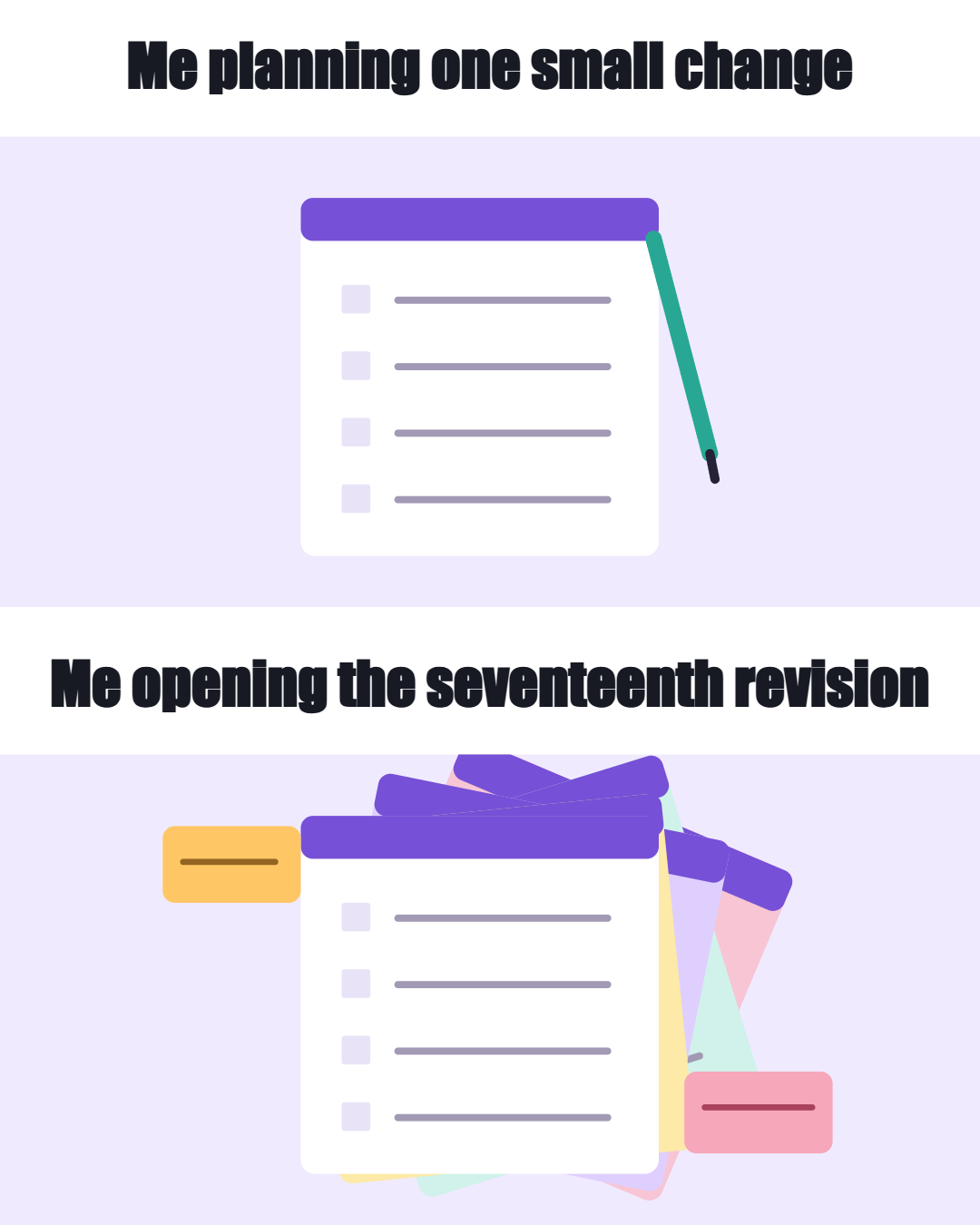
Start with an original scene, or use two pictures from your own camera roll.
Make the contrast clear
Your pictures. Your words.
Choose a layout, keep the whole caption readable and export a clean image without an advertising watermark.
Set up the joke
Caption B is stored but not drawn in Caption above.
Up to 240 Unicode characters and six explicit lines per caption. Long captions fit down to 24 output pixels or show an error.
Your meme preview
Canvas and caption style
Canvas presets are preparation sizes, not a native crop or upload check. Small pictures may soften when enlarged.
Local editing: still PNG, JPG or WebP, up to 15 MiB, 40 MP and 12,000 pixels per edge. Photos become prepared PNGs up to 2,048 pixels per edge, 4 MP and 2 MiB each. Saved JSON and PDF attachments can contain both prepared photos, including unused pictures and pixels outside the visible crop. PDF pages are rasterized; retain text notes for full wording. No autosave, social login or photo upload. Ordinary site resources still load.
How the image comes together
Keep the setup and the payoff connected
Choose the relationship
Use one picture for a reaction or two for a contrast. Each photo keeps its own focus and zoom.
Fit all the words
Captions wrap and fit inside their own space. Matching bands keep two-picture comparisons aligned.
Keep the editable version
Download a clean image for posting and save the project separately when revisions may follow.
Begin with one contrast the picture can actually show
A clear image meme connects a visible situation with a short change in expectation. The picture should contribute something the words cannot supply alone. Start by writing what a viewer expects and what the image reveals instead. For a hypothetical library puzzle evening, the expectation is a quiet attempt to finish one small puzzle before closing. The reveal is a table where everyone is still sorting edge pieces into careful groups. The humor belongs to the familiar detour from doing a task to organizing it. Nobody needs to be embarrassed, and no invented visitor quote or attendance result is necessary to make the idea concrete.
Decide what the image needs to accomplish before opening a starter preset. A light recap image, a comparison for a discussion, and an internal review draft need different surrounding information. In the puzzle example, the image will provide a recognizable observation, while the companion text will identify the activity. It will not serve as the official notice of opening hours or the next event. Write that separation into a short working brief. Keeping one role for the picture prevents the captions from collecting a joke, a schedule, a question, and a promotional message all at once.
Test the idea with a plain description: “One puzzle box, then a table full of sorted pieces.” If the relationship is unclear, a brighter color or larger font will not repair it. Choose another view, reduce the number of objects, or rewrite the contrast before styling anything. A useful meme does not require a famous face or an established internet reference. Ordinary objects can make an original observation when their relationship is easy to recognize. Keep the brief outside the tool with any proposed companion text, because the editable meme project is a design record rather than a complete editorial planning system.
Match the idea to one of the four layouts
The classic layout places one caption in the upper part of picture A and another in the lower part. It works when one scene contains the whole situation and has enough visual space for both blocks. The caption-above layout puts the wording above picture A instead. Choose it when the photograph needs to remain unobstructed or one complete statement is stronger than a setup and reply. Caption B is inactive in that layout but can remain stored in the project. Do not rely on it to finish a thought that the visible artwork leaves incomplete.
The side-by-side layout uses two pictures with matching caption bands. It makes a comparison visible at once and establishes a left-to-right sequence. The stacked layout presents the same kind of relationship vertically, with wider picture areas that can be easier to inspect on a narrow screen. Both layouts make one composite image. They do not create a carousel, a video sequence, or multiple native photo attachments. Pick the arrangement that protects the important objects in both pictures. The gutter is a controlled separation between panels, not an invitation to fill the middle with another paragraph of explanation.
Try the eight original editable starter presets when you want to see how captions, scenes, and layouts relate. Their built-in drawings are examples created for the maker, not stock photographs, famous meme images, account screenshots, or content retrieved from current trends. You can edit the wording and replace the pictures after choosing a starting point. Do not treat a preset as a suggested account strategy or a prediction that its joke will perform well. If your own observation requires a different structure, choose the appropriate layout directly. The useful starting point is the one that makes your particular comparison clearer, not the one that looks most familiar.
Prepare local pictures with the whole source in mind
Choose local PNG, JPEG, or WebP files. Each original source must fit the 15 MiB limit, the maximum 12,000-pixel edge, and the 40-megapixel bound. A file can pass one limit and fail another: a small compressed file may still contain too many pixels. Read the actual rejection message instead of renaming the extension or repeatedly selecting the same incompatible source. Keep an untouched original separately when it matters to your archive. The meme maker prepares a bounded image for composition; it is not an archival photo manager or a way to recover detail from a small, blurry original.
Prepared pictures are normalized PNGs within 2048 pixels on an edge, 4 megapixels, and 2 MiB each. This reduces what the editor carries but does not guarantee that every detail from a large source survives. Select a photograph whose important objects remain understandable after preparation. For the puzzle example, a top-down view of several clearly separated edge-piece groups is better than a wide room photograph where the pieces occupy a tiny corner. If you need a smaller local source for another production step, the image resizer is a separate preparation option. Review any resized copy before substituting it for the source you intended to use.
Inspect the complete picture before uploading, not only the area you expect to crop. A noticeboard, reflected screen, or handwritten name can remain in the prepared image even when it falls outside the visible frame. Normalization removes original filenames and metadata, not unwanted pictured information. Use a properly cleaned source or take another picture if the content should not enter an editable handoff. There is no source-URL importer, social-account scraper, or remote image search here. A single-image design needs only picture A, but a project can retain an earlier picture B. Include that inactive picture when deciding whether the saved project is appropriate to share.
Write complete captions before adjusting their appearance
Give each visible caption one job. In a two-part joke, the first establishes the expectation and the second changes it. In a comparison, parallel wording often makes the relationship easier to read. Write the full proposed lines first, then remove words that merely repeat what the pictures show. The maker accepts up to 240 Unicode code points and six explicit lines in each caption. These are editing limits, not recommended caption lengths or social-platform character allowances. A small number of unusually wide words can need more space than a longer line of narrow ones, so the final composition still needs inspection.
Choose heavy or sans lettering and test the uppercase setting with your actual words. Adjust foreground, outline, and background colors according to the scene, not only a preferred palette. The requested font size runs from 28 to 96 reference pixels. Outline thickness runs from zero to eight reference pixels, while the panel gutter runs from zero to 32. These controls are scaled for the output; their numbers are not a statement about the size of letters on someone’s phone. Use a caption band when a busy photograph prevents a stable letter edge rather than trying to solve every contrast problem with a thicker outline.
The renderer fits the complete visible captions, with a minimum of 24 output pixels, or refuses a composition it cannot fit. It does not quietly remove the ending or replace it with an ellipsis. That behavior protects the words, not the quality of the joke or the reader’s experience. If a design is refused, shorten a line, reconsider an explicit break, or choose a layout with more suitable space. If it fits, read it at a practical narrow viewing width anyway. Check the final word of each block and the visual detail beneath it. A technically complete caption can still be awkwardly paced or too demanding for the image’s role.
Treat platform choices as preparation contexts
The maker offers nine contexts: Instagram, Facebook, LinkedIn, TikTok, YouTube, Snapchat, Threads, X, and Reddit. A context helps you organize the intended use of the static image. It is not a login, native composer, upload connection, or assurance that the same artwork suits every placement. For example, a static comparison prepared for a conversation is different from a video, an animated reaction, or an image used in a platform-specific post type. Start from what your audience needs to understand and inspect the actual destination before using the export. Selecting a platform does not convert the picture into another media type.
There are four canvas shapes: square at 1200 by 1200, portrait at 1080 by 1350, vertical at 1080 by 1920, and landscape at 1600 by 900. These are the tool’s preparation sizes, not official maximums, universal recommendations, or guarantees against platform cropping. A wider canvas can make a side-by-side comparison comfortable in the editor but small on a phone. A taller canvas can give the scene more room while changing the balance between pictures and caption bands. Review the whole arrangement after changing shape rather than assuming all elements retain the same apparent prominence.
Each picture has separate horizontal and vertical crop focus from zero to 100 and zoom from 100 to 300 percent. Start near the center, identify the object the joke depends on, and adjust focus before zooming aggressively. These are bounded crop controls, not freeform dragging or object rearrangement. If the essential relationship cannot survive the crop, change the source or layout. Save a separate project before preparing a materially different version, because one editable file is not a history of every platform adaptation you considered. Keep the final destination check outside the tool’s preview; it displays your composition, not a certified reproduction of every native interface or placement.
Revise a puzzle-night draft by changing one decision at a time
Build the library example with two staged local pictures: a closed puzzle box beside an empty working area, followed by a table with edge pieces sorted into groups. Begin with “ONE PUZZLE BEFORE CLOSING” and “THE EDGE PIECES CALLED A MEETING”. This is an original proposed joke for the example, not a report from a named library or a quotation from an attendee. Try a side-by-side square composition first. The first picture needs enough empty table to suggest a modest plan; the second needs enough separation between groups for the sorting detour to be visible. Avoid adding an unrelated timer or an invented deadline to intensify the scene.
Suppose the draft’s second picture looks like scattered clutter at phone width. Keep the words unchanged and switch to stacked pictures. The wider image area may make the organized groups easier to see. Adjust the second crop to retain several groups rather than one oversized piece. Now review the wording. If “BEFORE CLOSING” makes the scene sound like a real opening-hours announcement, change the setup to “ONE QUICK PUZZLE” and leave the payoff alone. Compare that revision at the same layout and size. You have now tested two separate decisions, which makes the reason for keeping each change easier to explain to another editor.
Ask a reviewer to name the contrast without hearing the brief. If they say “the puzzle was difficult”, point neither at the pieces nor at the intended meaning. Record the misunderstanding and reconsider the scene. A photograph of sorted edge pieces beside unopened interior-piece groups might communicate preparation more clearly than a busy table. When the relationship works, prepare a companion sentence identifying the staged activity and a description that includes both labels. Save the approved image and project together under an identifiable revision in your own folder. This is a manual editorial process; the maker does not rank alternatives, measure comprehension, or choose the supposedly most shareable line.
Choose the export according to what the recipient needs
Use a clean PNG or JPG when someone needs the finished static artwork. Open the downloaded file at full size to check the complete captions, then at a narrow display size to check practical reading. These exports contain the visible picture content, which can still be private even without metadata. PNG is a useful reference for crisp lettering; inspect the actual JPG if that is the format you intend to use. Neither format becomes an animation, carries native stickers, or automatically adds a description field to a platform post. Keep the complete caption text available through the tool’s text/copy output when you need a separate wording record.
Save the editable JSON for future revisions or a deliberate source handoff. The full project is bounded at 8 MiB and can include prepared pictures, settings, and caption text. It is not just a list of harmless slider values. Pixels outside the visible crop and a retained inactive second picture may be recoverable from the project. Original filenames and metadata are removed during image preparation, but that does not sanitize the scene itself. Review the source pictures in full before forwarding JSON. Local processing means this image work happens in the browser, not that downloaded files remain confidential once you distribute them.
Use the styled PDF for review when someone needs the design together with its editable project attachment. It is not a substitute for inspecting what the attachment contains, nor is it the ordinary image file to upload as a meme. The visible pages include image content, and the attached project may include more of the prepared sources than the current crop shows. Treat artwork, JSON, and PDF as different sharing decisions. There is no cloud autosave or automatic publishing behind these downloads. Save the files you need before leaving the page, and keep private working material separate from the public image you have approved.
Finish with a clear review and a separate publishing handoff
A useful final check has three parts: read the exact words, inspect the visible evidence, and verify the surrounding context. Read both caption endings rather than assuming the preview kept them. Look for a cropped object that changes the joke’s meaning. Then compare the image with the companion text so a staged scene is not accidentally presented as a factual event report. Prepare an image description that preserves the contrast and relevant lettering. The manual alt text writer can help organize that description, but you must review the picture and enter the final wording in the destination’s available controls yourself.
Resolve problems at the layer where they occur. An unclear object needs a better source or crop. A cramped caption needs a wording, line-break, or layout decision. A project rejected on import needs the actual valid project file, not a renamed screenshot or a manually improvised schema. Canceling a media operation retains the previous valid design; wait for the interface to settle and confirm which picture is active before exporting again. If you need several distinct deliverables, prepare and save them deliberately one at a time. The maker is not a batch campaign exporter, shared approval queue, or archive of every version opened during the session.
For recurring work, keep the approved image, companion text, description, owner, and intended use together in your own production record. The content calendar generator can help plan separate items once those decisions are clear. SMTasker is a different operational product for supported account work with Android devices and a Windows or macOS local client. The free meme editor does not import its project into that app or tell any account to publish. Evaluate a supported routine on its own merits, with human review of assets and actions. A finished meme solves a small communication task; it does not establish future reach, remove the need for judgment, or guarantee a particular audience response.
Put the image in context
Platform and meme-design guides
Find a specific use case, then return to the same editor with a clearer idea of what the image needs to say.
Instagram meme maker
Use a ceramic-studio process joke to connect a recognizable image with a readable feed caption.
Read the guideTikTok Meme Maker
Prepare a baking-reaction image or a photo-sequence asset without pretending it is an edited video.
Read the guideYouTube Meme Maker
Make an original image Post for a teaching channel, with a specific joke about practice and progress.
Read the guideFacebook meme maker
Give a volunteer-group joke enough context to make sense beyond the people who were there.
Read the guideLinkedIn meme maker
Turn design-team scope creep into an honest visual comparison, ready for an editorial review.
Read the guideThreads Meme Maker
Keep a moving-house or DIY comparison conversational, with supporting context outside the image.
Read the guideX (Twitter) Meme Maker
Pair a software-release joke with concise X copy, rather than imitating a native post screenshot.
Read the guideSnapchat Meme Maker
Frame a static event-story image so the caption and its visible action still belong together.
Read the guideReddit Meme Maker
Use keyboard-build details that give a hobby-community meme a specific, understandable point.
Read the guideTwo-Panel Memes
Compare a meal-prep plan with the result using two pictures, parallel captions and consistent framing.
Read the guideMeme Text Readability
Fit every word deliberately, choosing outlines or caption bands without hiding important image details.
Read the guideQuestions about making your meme
Is this an AI meme generator or a popular-template search tool?
No. You write the captions and choose local pictures or original built-in drawings. Eight editable starter presets provide example compositions across four layouts. There is no AI generation, popular-meme search, or prediction of audience response.
Which pictures can I upload?
Use local PNG, JPEG, or WebP images within 15 MiB, 12,000 pixels per edge, and 40 megapixels. Prepared PNGs are bounded at 2048 pixels per edge, 4 megapixels, and 2 MiB each. The complete editable project is limited to 8 MiB.
What happens if my caption does not fit?
The maker fits the complete visible text down to its 24-output-pixel minimum or refuses the composition. It does not hide the ending with an ellipsis. Shorten the wording, adjust explicit breaks, or choose a more suitable layout, then inspect the result at a narrow viewing size.
Are my cropped-out picture details removed from every export?
No. The public PNG or JPG shows the rendered composition, but JSON retains prepared source pictures and the PDF includes that project as an attachment. They may contain pixels outside the crop or an inactive second picture. Review all pictured content before sharing.
Does choosing a platform publish the meme or guarantee its placement?
No. All nine platform choices are preparation contexts, including X. Canvas sizes are the maker’s working formats, not native-placement guarantees. Download the image and review it manually in the intended destination; there is no social login or automatic posting.
The next step is an operational decision
Evaluate a supported routine on your own setup
Start a five-day SMTasker trial to assess supported account work with Android devices and a Windows or macOS local client. Keep asset approval and the final publishing decision explicit, without treating an exported meme as an automatic instruction.