One moment. Every audience’s local time.
Social Media Time Zone Converter & Posting Planner
Turn a planned local date and time into a clear handoff across time zones. Check the audience’s calendar date, handle clock changes, and keep your publishing checkpoint in a PDF or calendar file.
The date matters as much as the hour
Same launch. Different local dates.
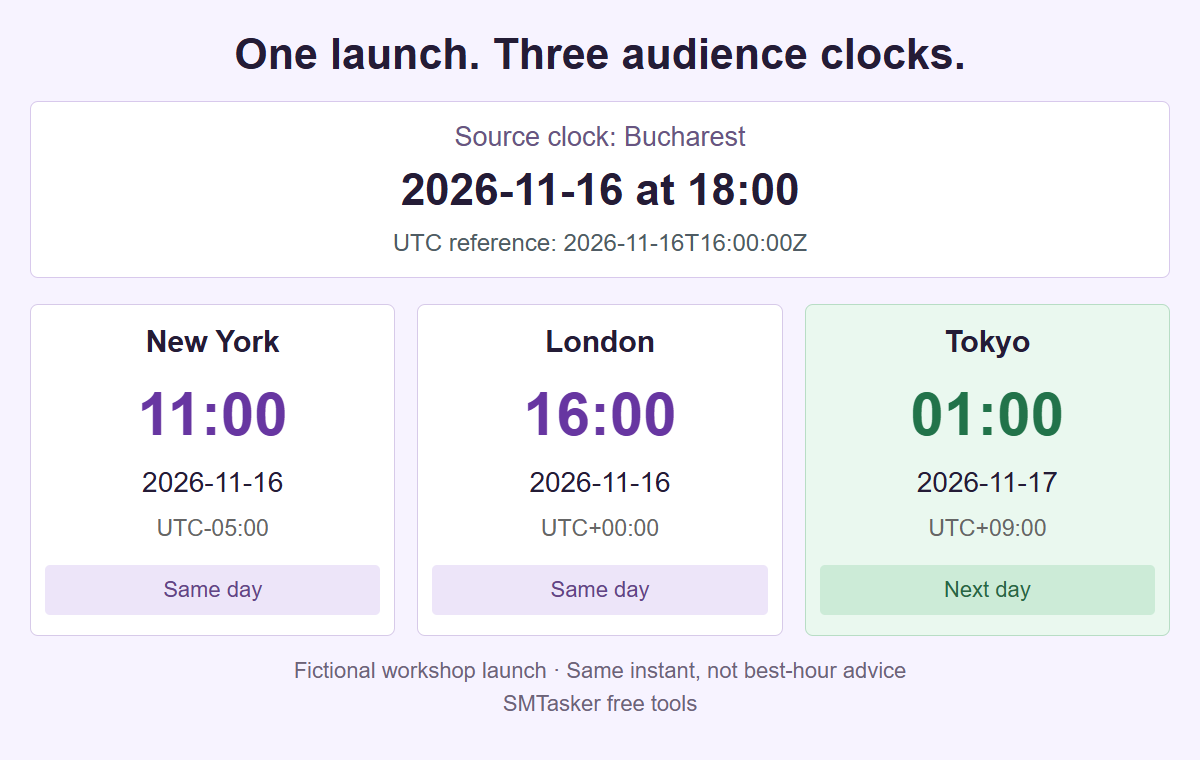
A fictional workshop launch converted by this tool. These times describe one supplied moment, not a recommendation about when your audience is most active.
Make the clock reference explicit
Build a time plan everyone can read
Choose the date, local clock time and source zone. Add the audience zones you need, then check the complete date and UTC offset for each one.
Exports include the plan title, source settings and every selected audience zone. A calendar file creates one checkpoint, not a social post. Importing calendar exports more than once can create duplicate events.
Your planned moment
One shared instant
| Audience zone | Local date and time | Date shift |
|---|
Date shifts are relative to the source’s calendar date. Every row represents the same instant, not a separate recommended posting hour.
Before the handoff
- Keep the full date beside the time.
- Check which clock your publishing workflow uses.
- Rebuild the plan if the date or source zone changes.
Time-zone rules come from your browser. Future rules can change. This is not an audience-activity analyzer, a recurring schedule or an automatic posting tool.
Your plan is processed in this browser without a private-data upload, account connection or background saving. Save project creates an explicit local backup. Platform is a planning context, not a different conversion algorithm.
Start with a dated source clock
A city, date and local time identify the intended clock reference. A fixed offset remembered from another month may not match it.
Resolve the shared instant
The tool rejects missing clock times. When an hour repeats, choose the earlier or later occurrence explicitly before exporting.
Carry the dates into the handoff
Use the full audience table and UTC reference, or download one calendar checkpoint. Publishing remains a separate action.
Start with one decision about the planned moment
A useful time plan begins with a complete instruction: a particular date, a clock time, and the city whose clock supplies that time. Tuesday at six is not enough when the editor and publisher live in different regions. This converter turns your supplied local instruction into one UTC instant, then shows that same moment in the audience zones you select. It answers what time this chosen moment means elsewhere. It does not decide when your audience is active, discover followers, or select a publishing hour. Choose the intended moment with the responsible person before treating its converted rows as instructions.
The Platform selector has nine labels: Instagram, TikTok, YouTube, Facebook, LinkedIn, Threads, X (Twitter), Snapchat, and Reddit. All nine are manual editorial contexts. They identify the work you are preparing without changing the conversion method or connecting a social account. A YouTube release and an Instagram asset handoff can use different titles and human checks while relying on the same timezone calculation. No label establishes a native platform timezone, changes an account setting, or gives the page permission to publish. Keep the actual destination and the person responsible for it in your separate production record.
Decide whether the plan represents a public release, an internal asset deadline, or a review checkpoint. Those events can share a campaign but should not share an ambiguous name. If a designer must deliver a file before publication, calculate that delivery checkpoint separately rather than assuming the converter will subtract preparation time. One project describes one supplied starting moment, not a sequence of posts or a recurring calendar. A precise event title and an explicit source zone give the recipient enough context to ask the right question when a time looks unexpected, instead of quietly substituting their own local clock.
Enter the source date, city, and title deliberately
Set Source timezone to the supported city that defines your instruction. Do this even when that city matches where you are sitting: the tool does not infer the source from your device. The initial example date is fixed, not a shortcut for today. Enter a real Gregorian date from 2000 through 2100 using YYYY-MM-DD, and a minute-precision time using the 24-hour HH:mm form. For example, 18:00 means six in the evening; 06:00 means six in the morning. An impossible date or malformed clock value must be corrected before a time plan can be built.
Use a short, recognizable title such as Community workshop launch rather than a private client instruction. Titles are required, stay on one line, and allow 1 to 100 Unicode codepoints with a separate limit of 512 UTF-8 bytes. Leading and trailing space is trimmed, and equivalent Unicode text is normalized to NFC. Control characters, bidirectional formatting controls, and broken Unicode sequences are rejected. The practical rule is to enter a plain event label that a colleague can recognize without hidden formatting. Text is treated as a title, not interpreted as HTML or used to create an arbitrary destination link.
Choose Calendar hold minutes only for the length of an optional calendar reservation. The value must be a whole number from 5 through 180. It does not describe video length, the time needed to finish an upload, or a period during which a post will execute. If the publishing checkpoint is 18:00 and the hold is 30 minutes, the starting instant is still 18:00 in the chosen source zone. Agree preparation deadlines elsewhere. Keeping the event label, starting instruction, and hold length distinct prevents a reviewer from mistaking an internal half-hour reservation for a promise about publication behavior.
Read audience rows as dates as well as clock times
Add between one and eight distinct audience zones from the curated list of 25 supported zones. This is a fixed city selection, not a search across every timezone in the world. The rows retain the order you supply, so put the people who need to check the plan in a useful review order. You may include the source zone among the targets; an identical date and time in that row is an honest same-zone result. If a required city is absent, do not replace it with a place that merely has the same offset today and assume their future rules match.
Each result identifies the full zone, local date, weekday, clock time, and UTC offset. Read these together. An offset such as +02:00 tells you the relationship to UTC at this particular instant; it is not a permanent promise about that city throughout the year. UTC appears with +00:00. The date is especially important near midnight, when colleagues can be attending the same event on different local days. A row showing tomorrow does not mean the converter delayed that audience. It means the single chosen instant falls after midnight on that local calendar while another city remains on the source date.
The day difference compares the target calendar date with the source calendar date. It does not divide elapsed hours by 24, which would be misleading around clock changes. Treat same day, previous day, and next day as reading aids alongside the actual written dates. A handoff saying only 01:00 loses the information the recipient most needs: which night to act. Copy the complete dated row when communicating across regions. If you are coordinating a date-sensitive offer, check whether its wording should name the source date, each local date, or a clearly stated reference zone; the conversion cannot make that editorial choice.
Check the November 16 Bucharest example
Select Load example to prepare Community workshop launch with the source set to Europe/Bucharest, the date set to 2026-11-16, and the time set to 18:00. The selected targets are America/New_York, Europe/London, and Asia/Tokyo. Build time plan resolves Monday, November 16 at 18:00 in Bucharest, offset +02:00, to 2026-11-16T16:00:00Z. That UTC reference is the shared instant for every audience row. Do not enter 16:00 while leaving Bucharest selected unless you intentionally want a different event; UTC and the source clock are two descriptions with different zone labels, not interchangeable bare numbers.
The New York row is Monday, November 16, 2026 at 11:00 with offset -05:00. London is Monday, November 16 at 16:00 with offset +00:00. Tokyo is Tuesday, November 17 at 01:00 with offset +09:00, so its local date is one day after the source date. All three describe the same moment as Bucharest at 18:00, not three separate release slots. A reviewer in Tokyo should receive November 17 with the time. Writing November 16 beside every city would create a wrong instruction even though the Tokyo clock figure itself had been copied correctly.
With a 30-minute hold, this example ends at 2026-11-16T16:30:00Z. The duration reserves calendar time only; the converter does not keep a post running for half an hour. Use the example to practice checking source, UTC, and target dates before replacing it with your own instruction. The fictional workshop title carries no verified event details. For a different kind of handoff, the Instagram asset delivery guide, TikTok creative handoff guide, and YouTube release coordination guide each follow a separate practical case. Their platform context does not alter the shared calculation.
Resolve daylight saving problems without guessing
Some local clock readings do not exist when a region moves its clocks forward. If you request such a source time, the converter rejects it rather than silently shifting it to a later valid time. Ask the event owner for a new valid instruction, then rebuild the plan. A guessed correction can change the intended release or leave a colleague relying on a different agreement. The problem belongs to the source wall-clock instruction: converting an already resolved UTC instant into an audience city does not create an extra decision about which target clock reading to choose.
When clocks move back, a source date and time can occur twice. The default repeated-time choice rejects that ambiguity so you can resolve it deliberately. Earlier chooses the earlier UTC instant; Later chooses the later one. These choices refer to the two real occurrences, not to a preference for an earlier or later publishing hour. Review the candidate offsets with the event owner and record the selected occurrence in your handoff. If a local time has only one occurrence, there is only one result regardless of that choice setting. A setting left on Earlier does not move ordinary dates forward or backward.
Timezone rules come from the host browser Intl/ICU data, used through the conversion library. This is not a live timezone-rule feed, and the supported date range is an input limit rather than a guarantee about future government decisions. Recheck a distant plan near its execution date with the responsible team, especially if local clock rules have changed. Recalculate each dated event instead of carrying a remembered city difference into another season. The daylight saving planning guide focuses on these checks. A valid conversion establishes what the supplied rule data says, not whether someone has confirmed staffing or the suitability of the chosen hour.
Save an editable plan and rebuild after changes
Build time plan creates results for the current inputs. Changing the source date, time, zone, audience list, title, platform context, repeated-time choice, or hold length invalidates those results and their exports. Build again before sharing a revised instruction. This matters even when the edit looks cosmetic: a new title attached to an older set of times would be a misleading handoff. Clear plan clears the working plan, while Load example replaces it with the fixed demonstration. Save anything you need before deliberately replacing it; the page is not an account-backed history of earlier decisions or an automatic recovery service.
Save project downloads the editable, versioned JSON project. Open project accepts that strict saved format up to 1 MiB, not a spreadsheet, calendar event, PDF, or arbitrary JSON document. A structurally valid unfinished project may have no target zones or retain a source time that still needs daylight saving resolution. Saving that draft does not prove it can produce a result: analysis requires at least one target and one resolved source instant. Use this distinction when passing unfinished work to another editor. Tell them the remaining decision in your separate task notes instead of describing a saved draft as an approved time plan.
An invalid imported project does not partially replace the current plan. Correct the file or open a valid project before continuing; a valid saved project can replace a currently incomplete draft without first making that old draft usable. Processing stays in the browser without an account connection or a private-data upload for conversion. Standard website analytics are separate from this local work. There is no autosave, so deliberately retain the downloaded project if you need to resume later. Name your own local revisions clearly, and verify the reopened title and dates before building; a file named final can still contain an earlier instruction.
Choose exports with their full disclosure in mind
Copy plan, Download CSV, and Download PDF are handoff formats, not publishing commands. They preserve the complete timing report and project, including the title, settings, source information, and every selected audience zone with its converted details. The PDF also carries full JSON and CSV report attachments. A compact visible report does not remove that attached data. Before sharing, check the title for confidential campaign names and review the complete zone list. There is no automatic redaction. If a recipient should receive less information, prepare a separate appropriate project and build it rather than assuming a hidden or shortened display changes the export scope.
Download calendar creates an ICS file containing one UTC calendar hold. Its summary uses your title, and its description includes the source and all audience dates, times, and offsets, plus the fixed tool address. The event start and end represent the resolved instant and the chosen elapsed duration. They do not create separate events for each target or publish social content. No attendees, alarms, recurring rule, invitation, or automatic import is added. You decide whether to import the file into a calendar and must check that calendar independently. A successfully downloaded file is not evidence that anyone has received or accepted the hold.
Importing the calendar file twice can create duplicate events, including when you download a fresh copy of the same plan. Check for an existing hold before importing again, and handle replacements in your calendar deliberately. The elapsed duration can cross a local clock change, midnight, or a year boundary; the end instant remains the start plus the chosen minutes, not a second independently entered wall time. Keep the report and calendar file together only when both are needed. Neither is the editable project format for Open project, and neither connects to a scheduler. A calendar reservation is a reminder of a manual responsibility, not execution of that responsibility.
Finish with a clear owner and a dated handoff
Before sending the plan, confirm the event meaning, approved starting instruction, selected repeated-time occurrence if relevant, and the person who will act. Keep approvals, asset references, and ownership in your existing workflow because this converter has no team approval service. Ask a recipient to read back the complete local date and time, not just acknowledge a screenshot. In the Bucharest example, Tokyo should confirm Tuesday, November 17 at 01:00. That short check can expose a copied source date, an assumption about the device clock, or confusion between the asset deadline and the later public release before those mistakes reach the publishing step.
Choosing the hour and converting it are separate tasks. If you need to examine supplied historical posting results, the Best Time to Post Analyzer is a separate tool, not a feature or recommendation hidden in this converter. If you need to arrange multiple content items, use the Content Calendar Generator separately and check each relevant dated checkpoint. This page does not generate a campaign calendar, infer audience activity, or establish that one hour will perform better than another. Its output is useful because the chosen instant is explicit, not because it predicts an outcome.
For a campaign spanning several local dates, continue with the global campaign planning guide and keep each event independently identified. Return to all free tools when the next task is about copy, assets, or a different planning problem. Explore SMTasker separately for supported account routines after your team has settled the timing decision. The free conversion does not automatically transfer into that workflow. Your final handoff should leave no doubt about the exact title, source zone, UTC instant, audience dates, and person responsible for any manual action that follows.
Put the time plan into context
Platform and time-zone planning guides
Work through a specific handoff, or explore daylight saving and multi-market campaign planning in more detail.
Instagram Asset Handoffs
Coordinate a December carousel delivery across London, New York, Bucharest, and Singapore without confusing asset readiness with publication.
Read the guideTikTok Creative Handoffs
Set a March creative review across Los Angeles, London, Paris, and Tokyo, then recheck the next checkpoint when their clock differences change.
Read the guideYouTube Release Coordination
Coordinate a December 31 film release whose audience dates extend into January 1, with explicit ownership, public wording, and a calendar reference.
Read the guideFacebook Event Time Zones
Check an event promotion across local dates, distinguish the announcement from attendance, and hand organizers one clear time reference.
Read the guideLinkedIn B2B Time Reviews
Coordinate a B2B announcement review across offices, check the March offset mismatch, and separate approval from the publication decision.
Read the guideThreads Conversation Handoffs
Plan a discussion checkpoint across midnight, pass unanswered topics between colleagues, and keep the local date attached to every handoff.
Read the guideX Campaign Update Times
Resolve a repeated New York clock hour for a concise campaign update, preserve the previous-day audience date, and pass on an exact release reference.
Read the guideSnapchat Creator Handoffs
Coordinate a creator asset checkpoint across Los Angeles, London, Tokyo, and Sydney without confusing file delivery with publishing.
Read the guideReddit Conversation Coverage
Map a seed-library discussion checkpoint to contributor cities, then plan a separate human handoff for answering community questions.
Read the guideDaylight Saving Time Checks
Resolve the New York 2026 repeated 01:30 and missing 02:30 cases, check elapsed calendar holds, and avoid carrying seasonal offsets into later dates.
Read the guideGlobal Campaign Calendar Handoffs
Prepare a year-end campaign checkpoint across eight audience zones, preserve one UTC anchor, and hand over a single calendar hold without recurrence.
Read the guideQuestions about planning across time zones
Does choosing a platform schedule or publish a post?
No. All nine platform labels are manual editorial contexts. They use the same conversion method and do not connect accounts, establish native timezone settings, schedule posts, or publish anything.
Which source dates and audience zones can I use?
Enter a real date from 2000 through 2100 and a 24-hour HH:mm time. Choose the source explicitly and add one to eight distinct targets from the fixed list of 25 supported zones. The device timezone is not inferred as your source.
What happens to a missing or repeated daylight saving time?
A nonexistent source time is rejected rather than shifted. A repeated time is rejected by default until you choose Earlier or Later for the earlier or later UTC occurrence. Ordinary times have only one occurrence.
What information is included when I export a plan?
The title, source, and all selected audience zones are retained, without automatic redaction. PDF attachments include the full JSON and CSV report, including the project. Save project is the separate editable JSON format for Open project.
Will the calendar file run the publishing task?
No. It contains one UTC calendar hold with the title and all audience timing details, not a post or scheduler connection. Import is manual, and importing twice can create duplicates. Hold minutes measure elapsed calendar time only.
After the timing decision
Keep account work separate from conversion
Explore SMTasker for supported account routines while your team keeps responsibility for assets, timing approval, and the manual publishing handoff.