Managing Media Folders: Your Content Library for Auto-Publishing
The Publish tool needs a content source to draw from — that’s the Media Folder. Think of it as the queue that feeds your posting schedule: you upload content to…
This article covers everything involved in setting up and managing Media Folders — from creating your first folder and understanding media specs, to choosing between sequential and random publishing order and keeping your content buffer healthy over months of continuous operation.
Where to Find Media Folders
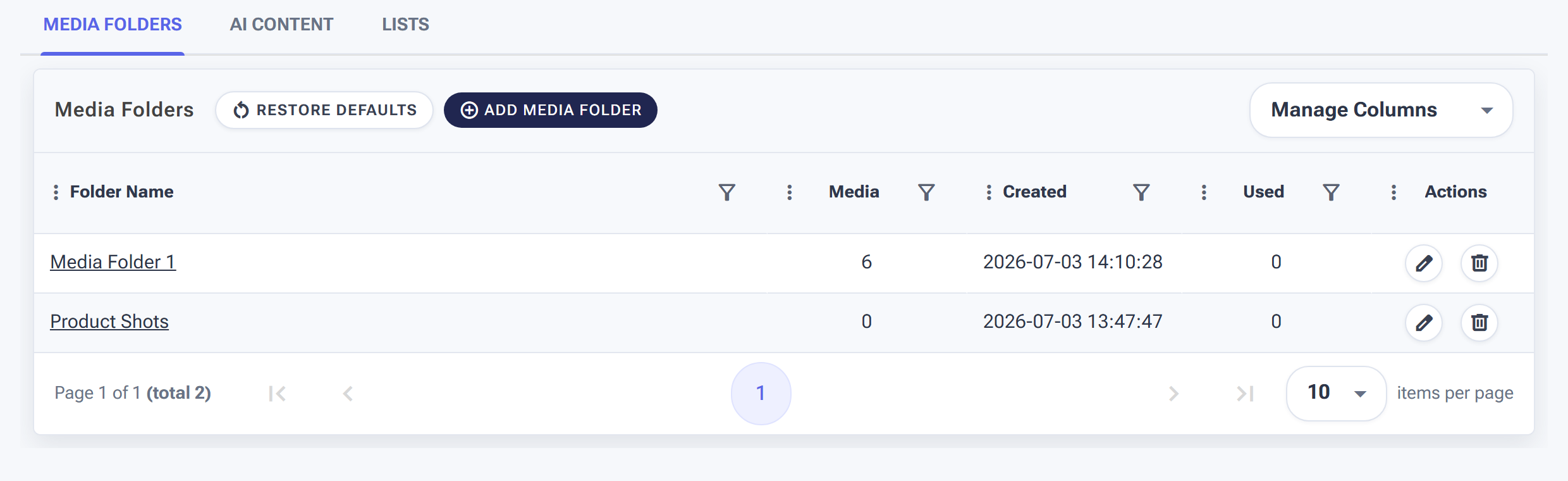
Content → Media Folders: each folder shows how many media files it holds and how often it’s been used by Publish.
Go to Content > Media Folders in the SM Tasker dashboard. This is where you create, organise, and manage all your content libraries. Each folder acts as an independent queue — you can have multiple folders for the same account, each feeding a different Publish automation with different content types or campaign themes.
Creating and Naming Folders
Click Create Folder to add a new Media Folder. Give it a name that makes its purpose immediately clear — you’ll be managing multiple folders across potentially multiple accounts, and ambiguous names (“Content 1,” “New Folder”) become a source of confusion fast.
Naming conventions that work at scale:
| Naming Approach | Example | Best For |
|---|---|---|
| By account + content type | FitnessAccount_Reels, FitnessAccount_Quotes | Managing multiple content formats per account |
| By account + platform | ClientA_Instagram, ClientA_TikTok | Cross-platform accounts with platform-specific content |
| By campaign + date batch | SummerPromo_May2026, ProductLaunch_Jun2026 | Time-bound campaigns where content is tied to a specific window |
| By content pillar | Tips_Videos, Testimonials, BehindTheScenes | Accounts with distinct content categories that publish on different cadences |
Supported Media Types and Specifications
SM Tasker publishes the media you upload directly to each platform. To avoid upload errors or rejected posts, match your content to the specifications each platform enforces.
| Format | Specs | Notes |
|---|---|---|
| Single image (JPG/PNG) | Square: 1080×1080px Portrait: 1080×1350px Landscape: 1080×566px |
Portrait (4:5) gets the most feed real estate; preferred for engagement |
| Carousel (multiple images) | Same as single image; up to 10 slides | All slides should use the same aspect ratio for consistent display |
| Reels (MP4) | 9:16 vertical, 1080×1920px 15 sec – 90 sec recommended |
Highest discovery reach of any IG format; prioritise if you have video content |
TikTok
| Format | Specs | Notes |
|---|---|---|
| Video (MP4) | 9:16 vertical, 1080×1920px 15 sec – 60 sec for growth accounts |
TikTok is video-first; images exist but video is where discovery happens |
| Photo slideshow (JPG/PNG) | 1080×1920px or 1080×1080px | TikTok photo posts have grown in reach; viable for text-heavy or infographic content |
Threads
| Format | Specs | Notes |
|---|---|---|
| Text post | Up to 500 characters | Threads is text-first; text-only posts often outperform media posts for engagement |
| Image (JPG/PNG) | Up to 10 images per post | Pair images with a substantive caption — images alone perform worse on Threads than on IG |
| Video (MP4) | Up to 5 minutes | Short clips work; longer video is better suited to IG Reels or TikTok |
Note: Platform specifications change periodically. If you encounter upload errors, check the platform’s current developer documentation for updated limits.
Uploading Content: Individual vs. Bulk
SM Tasker supports both individual file uploads and bulk uploads to a Media Folder.
Individual upload — add one file at a time. Use this when you’re adding a single piece of time-sensitive content to an existing folder, or testing a new content format before committing to a batch.
Bulk upload — upload an entire batch at once. This is the standard approach for content batching sessions — you create 30 days of content in your editing tool, export everything, and upload the batch in one go. Bulk upload keeps the batching workflow efficient and ensures the folder is stocked well in advance of the next 30 days’ posting schedule.
File naming before upload: SM Tasker uses the order files are uploaded (or their filename order) to determine publishing sequence when Sequential order is selected. If your content has a specific intended sequence — for example, a narrative series of posts — name your files in order before uploading (01_post.mp4, 02_post.mp4, etc.) so the sequence is preserved.
Sequential vs. Random Order: Which to Use
When the Publish tool pulls content from a Media Folder, it can do so in two modes:
Sequential order — SM Tasker publishes content in the order it appears in the folder, from first to last, then stops (or restarts from the beginning if configured to loop). Use Sequential when your content has an intentional narrative sequence — an educational series, a countdown campaign, or a product launch with ordered reveals.
Random order — SM Tasker selects content from the folder in a randomised sequence. Use Random for evergreen content libraries where post order doesn’t matter — quote posts, tips, product shots, or any content that stands alone without needing to follow a specific sequence. Random order also prevents the profile feed from having an obvious, repetitive visual pattern that makes the posting cadence look automated.
For most accounts, Random is the right default. Only use Sequential if you have a deliberate content narrative that requires order. Random keeps the feed varied and the posting pattern less predictable.
Folder Management Best Practices
Maintain a 14-Day Buffer at Minimum
Never let your Media Folder drop to fewer than 14 days of content remaining. When the folder empties, the Publish tool stops — and consistent posting is the entire point of having it. Breaking that consistency even for 2–3 days disrupts algorithm momentum that takes weeks to rebuild.
Check your folder inventory weekly. If you’re publishing 2 posts per day from a 30-post folder, you have 15 days before it runs out. Schedule your next batching session before that buffer drops below 14 days, not after.
Create Separate Folders for Different Content Types
If an account publishes multiple content formats — Reels and static posts on Instagram, for example — give each format its own folder and its own Publish automation. This lets you set different posting frequencies for different formats (e.g., 1 Reel per day and 1 static post per day) without them competing in the same queue.
It also makes auditing easier: when you want to review what’s in the static post queue, you open that folder, not a mixed folder where you have to identify content by type.
Archive Used Content, Don’t Delete It
Once SM Tasker has published a piece of content, move it to an archive folder rather than deleting it. Archived content can be recycled after a sufficient gap — evergreen posts from six months ago are invisible to most of your current audience and can be re-published with a fresh caption. Build an archive and you have a secondary content library that costs nothing to produce.
Keep Platform-Specific Folders Separate
Don’t mix Instagram content and TikTok content in the same folder — even if the media files are identical. Captions, hashtags, and aspect ratios differ by platform, and separating the folders lets you configure each Publish automation’s caption settings independently. A single mixed folder means every post gets the same caption regardless of which platform it’s going to, which is rarely the right approach.
Common Mistakes
| Mistake | Why It Hurts | What to Do Instead |
|---|---|---|
| Letting the folder run empty | Publish tool stops; posting consistency breaks; algorithm momentum lost | Maintain a 14-day minimum buffer; batch before the folder drops below that threshold |
| Mixing platforms in one folder | Caption and format settings can’t be differentiated per platform; every post gets the same treatment | Create separate folders for each platform — one for IG, one for TikTok, one for Threads |
| Uploading wrong aspect ratios | Posts publish with incorrect cropping or get rejected by the platform; broken feed appearance | Export content at the correct dimensions for each platform before uploading; use the specs table above |
| Using Sequential order for evergreen content | Feed appears to cycle through content in a predictable visual pattern; looks automated to profile visitors | Use Random order for evergreen libraries; reserve Sequential for intentional narrative campaigns only |
| Deleting published content instead of archiving | Loses the ability to recycle evergreen content in future batches; content creation cost wasted | Move published content to an archive folder after use; review it every 3–6 months for recyclable pieces |
What to Do Next
- The Publish Tool: Build a Content Calendar That Runs Itself — If you haven’t configured the Publish tool yet, this is the next step. Your Media Folder is the source; the Publish tool is the engine.
- The LikeComments Tool: The Underrated Signal That Builds Community — With your publishing and core engagement stack running, add LikeComments to deepen your presence in niche comment sections.