Safety Features Built Into Your Automations
SM Tasker runs on your actual device, which means every action it takes is processed by the platform as if you performed it manually. That’s the foundation of…
SM Tasker’s safety system has three layers that work independently and simultaneously: Restrictions filter which accounts your tools interact with before any action is taken; Auto-Suspend detects when a block has occurred and responds automatically to protect the account; and Ignore Lists give you direct control over which accounts are permanently excluded from all automation activity. Understanding how each layer works — and how to configure them — is the difference between a stack that runs cleanly for months and one that accumulates blocks.
Layer 1: Restrictions

The Show Restrictions button on the Accounts page filters straight to the accounts the platform is currently limiting.
Restrictions are pre-action filters. Before SM Tasker takes any action on an account — follow, like, DM, view — it checks the target against your configured restrictions. Accounts that don’t pass the filter are skipped without any action being taken. This keeps your automation targeted to accounts that are worth interacting with and reduces the risk of wasting actions on low-quality or high-risk targets.
Available Restriction Filters
| Restriction | What It Does | When to Use |
|---|---|---|
| Skip Private Accounts | Skips accounts with private profiles before taking any action | Most tools — private accounts can’t see your profile, reducing the return on engagement actions. Essential for Follow. |
| Skip Accounts Already Followed | Skips accounts your account already follows | Follow tool — prevents duplicate follows and wasted action budget on accounts already in your network |
| Min/Max Followers | Skips accounts outside a defined follower count range | All engagement tools — set a ceiling (e.g., max 500K followers) to avoid mega-accounts unlikely to notice your interaction; set a floor (e.g., min 100 followers) to avoid bot or inactive accounts |
| Min/Max Following | Skips accounts that follow fewer or more accounts than defined thresholds | Follow tool — accounts that follow very few people are unlikely to follow back; accounts following tens of thousands are often follow-bots |
| Skip Accounts with No Posts | Skips accounts that have never posted any content | All tools — no-post accounts are inactive, bot-created, or placeholder accounts unlikely to engage |
| Skip Business Accounts | Skips accounts identified as business or brand profiles | Use when your target audience is personal/creator accounts — business accounts engage differently and rarely follow back in a personal context |
| Skip Accounts Already Interacted With | Skips accounts that SM Tasker has already engaged with in a prior session | Contact and Comment tools — prevents sending a second DM or comment to the same account, which would look like spam |
How to Configure Restrictions
Restrictions are configured per automation. When you add or edit an automation, the Settings section includes the restriction filters applicable to that tool. Not all filters apply to every tool — SM Tasker surfaces only the restrictions relevant to the action type you’re configuring.
The right approach is to set restrictions once at setup, based on your target audience profile, and leave them. Restrictions don’t need active management — they’re a passive filter that runs in the background every time the tool evaluates a new target account.
Follower Range: The Most Important Restriction to Get Right
The Min/Max Followers restriction has more impact on targeting quality than any other filter. The sweet spot for most engagement goals is accounts between 1,000 and 100,000 followers:
- Under 1,000 followers — many are inactive, brand-new, or bot accounts. Some are genuine real users but engagement rates are unpredictable.
- 1,000–100,000 followers — active, established accounts. Creators and engaged users who notice engagement activity and are likely to check back on who interacted with them.
- Over 100,000 followers — larger accounts receive so many notifications that individual interactions disappear into the noise. DMs hit message requests; story views don’t register; likes go unnoticed. The action happens but the discovery benefit is minimal.
Adjust these thresholds based on your niche — in highly specialised niches, top creators may have 20,000–50,000 followers and still actively check their notifications. In mainstream niches, the noise floor may kick in earlier.
Layer 2: Auto-Suspend

Auto-suspend lives under Settings → Tools — when a platform pushes back, SMTasker stops the tool instead of pushing through.
Auto-Suspend is SM Tasker’s automated block response system. When a platform returns a block signal during any automation — a temporary action block, a rate limit, or a challenge — Auto-Suspend detects it and responds without requiring any action from you.
What Auto-Suspend Does
When a block is detected on a specific tool, Auto-Suspend:
- Immediately pauses the blocked tool — stops the action that triggered the block so no further blocked actions accumulate.
- Leaves all other tools running — a Follow block does not pause Like, StoryViewer, VideoViewer, or any other automation. Only the specific tool that hit the block is suspended.
- Waits for a defined cooldown period — the suspended tool remains paused for the auto-suspend duration before being eligible to restart.
- Resumes automatically after the cooldown — the tool restarts at the configured limits without requiring manual intervention.
This is the correct response to a platform block. The most damaging thing you can do when a block occurs is immediately retry at the same rate — the platform interprets repeated blocked actions as evidence of automation and escalates the response. Auto-Suspend’s pause-and-wait behavior is how a real user would respond: they hit a limitation, they stop, they come back later.
Auto-Suspend Cooldown Periods
The cooldown duration Auto-Suspend applies depends on the severity and type of block detected:
| Block Type | What It Means | Typical Cooldown |
|---|---|---|
| Soft block / rate limit | Platform temporarily slowed the action type; not a permanent restriction | 1–4 hours |
| Action block | Platform blocked a specific action type (e.g., follow) for a defined period | 12–24 hours |
| Repeated action block | Second or subsequent block on the same tool in a short window | 24–48 hours |
Auto-Suspend cooldown durations are configurable in SM Tasker settings if you want to adjust the defaults. For most accounts, the defaults are appropriate — longer cooldowns on repeated blocks reduce the risk of escalation; shorter initial cooldowns allow the tool to resume quickly after a light rate limit.
What to Do When Auto-Suspend Activates
In most cases: nothing. Auto-Suspend handles the response automatically. When you see a tool in Suspended status on the dashboard, it means the block was detected and the cooldown is in progress. The tool will resume on its own.
If you see the same tool suspended repeatedly within a short period, that’s a signal to review your limits. Repeated blocks on the same action type mean the current hourly or daily caps are too aggressive for the account’s current standing. Reduce the limits, let the cooldown complete, and restart at the lower rate.
Keep passive tools running during any suspension. StoryViewer, VideoViewer, ReelViewer, LikeComments, and SavePosts all have low enough risk profiles that they should continue operating through any cooldown period. The account staying active on low-scrutiny actions maintains its behavioral pattern during the period when higher-scrutiny tools are offline.
Layer 3: Ignore Lists
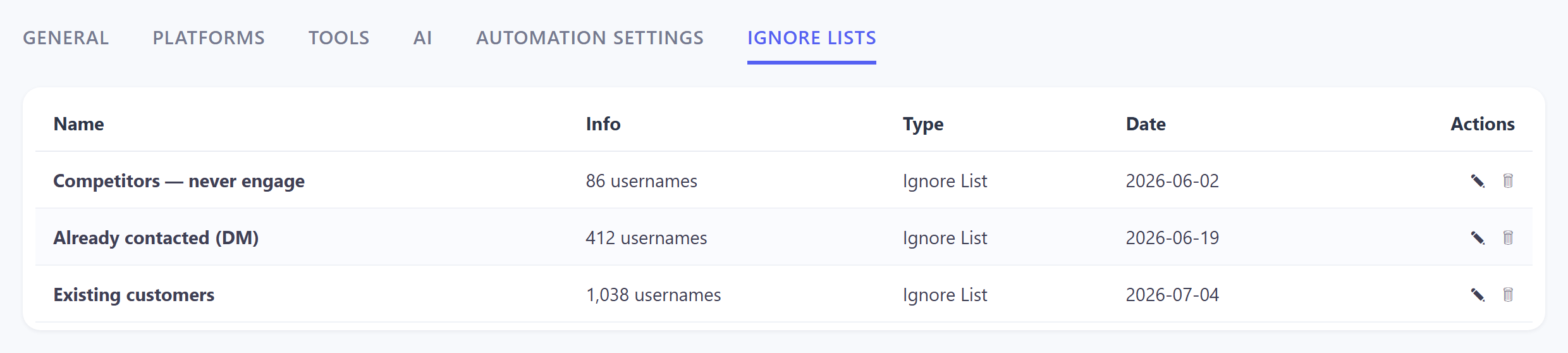
Illustrative example: reusable Ignore Lists under Settings → Ignore Lists keep tools away from competitors, existing customers, or anyone you’ve already contacted.
Ignore Lists are permanent exclusion lists — accounts that SM Tasker will never interact with, regardless of which tool is running or which source pool surfaces them. They function as a blacklist (accounts to skip entirely) and, in the context of the Unfollow tool, as a whitelist (accounts to never unfollow).
What Ignore Lists Are For
The core use cases for an Ignore List:
- Protecting relationships — clients, partners, colleagues, personal connections. Any account you have a real relationship with should be on the Ignore List so no automation tool accidentally unfollows them, sends them a DM they don’t expect, or interacts in an unexpected way.
- Excluding competitor accounts — you generally don’t want SM Tasker following or liking posts from direct competitors. Add their accounts to the Ignore List to keep them out of your automation activity.
- Excluding your own accounts — if you manage multiple accounts, add all of them to every account’s Ignore List to prevent cross-account interactions that would look unusual.
- Excluding previously blocked users — accounts that have previously blocked or reported you should be added to the Ignore List to prevent re-engagement attempts.
Ignore Lists and the Unfollow Tool
The Ignore List has a specific and critical role in Unfollow tool operation. Any account on the Ignore List will never be unfollowed — regardless of how the Unfollow tool is configured (non-followers only, timed, or otherwise). This makes the Ignore List the mechanism for protecting your genuinely valued following relationships from automated cleanup.
Before running the Unfollow tool for the first time, export your current following list, identify the accounts you want to keep regardless of whether they follow back, and add them to the Ignore List. This is a one-time setup step that prevents the Unfollow tool from removing accounts you didn’t intend to unfollow.
See The Unfollow Tool for the full Ignore List integration in the context of ratio management.
Managing Your Ignore List
Ignore Lists are found under Settings > Ignore Lists in the SM Tasker dashboard. You can create multiple named lists and assign different lists to different automations, or maintain a single global list applied across all tools.
Accounts can be added to an Ignore List manually (by username) or imported in bulk. Review and update the list periodically — especially if you’ve added new business relationships, changed which competitor accounts you’re tracking, or onboarded new managed accounts that need cross-account exclusion.
How the Three Layers Work Together
The safety system is designed to operate without active management once it’s configured correctly at setup. The practical workflow:
- At setup — configure Restrictions for each automation based on your target audience profile; build your Ignore List with protected and excluded accounts; leave Auto-Suspend on its default settings.
- During operation — all three layers run silently in the background. Restrictions filter targets before any action is taken; Auto-Suspend responds to any block; Ignore Lists exclude protected accounts from every tool.
- When a block occurs — Auto-Suspend activates; review the dashboard to see which tool was suspended; assess whether limits need adjusting; let the cooldown complete; keep all other tools running.
- Periodically — review Restrictions to ensure follower ranges still match your target audience as the account grows; update the Ignore List when your network relationships change; check Auto-Suspend history for patterns that suggest limits need recalibration.
Common Mistakes
| Mistake | Why It Hurts | What to Do Instead |
|---|---|---|
| Manually restarting a blocked tool immediately after it suspends | Overrides the Auto-Suspend cooldown; repeated blocked actions signal automation to the platform and escalate the block severity | Let Auto-Suspend complete its cooldown; only restart after the full cooldown has elapsed |
| Pausing all tools when one tool gets blocked | Unnecessarily halts safe, low-risk tools that have no connection to the block; drops the account’s activity pattern during the cooldown period | Only the blocked tool pauses; keep all other tools running through any suspension |
| Not building an Ignore List before running Unfollow | Unfollow tool removes accounts you didn’t intend to unfollow — clients, partners, personal contacts — damaging real relationships | Build the Ignore List before enabling Unfollow; add all protected accounts before the first run |
| Not adjusting limits after repeated suspensions | Repeated blocks on the same tool signal that current limits are too aggressive; continuing at the same rate after each cooldown produces the same result | After two suspensions on the same tool within a short period, reduce limits by 20–30% and run at the lower rate for at least two weeks before reassessing |
| Setting no follower range restriction | Tools waste actions on mega-accounts that won’t notice, inactive accounts with no followers, and bot accounts — reducing targeting quality and ROI per action | Set a follower range (1K–100K as a default starting point) on every engagement tool; refine based on your niche’s typical account sizes |
What to Do Next
- Daily Action Limits: What’s Safe for Each Platform — The safety layer works best when it’s defending limits that were already set conservatively. Review the platform-specific daily caps and make sure your automation settings are within those boundaries.
- Building Your Growth Stack: The Pro Workflow — With the safety layer understood, return to the stack configuration guide to make sure your full tool setup is calibrated for both performance and protection.
- Account Warm-Up: The First 7 Days Schedule — Safety features matter most during warm-up, when the account is most vulnerable to early blocks. Review the warm-up schedule to make sure the safety system is configured correctly from day one.