The Unfollow Tool: Keep Your Ratio Healthy Without Losing Momentum
If the Follow tool is what builds your audience, the Unfollow tool is what keeps your account looking like a real one. As you follow new people for growth, your…
This guide walks you through the four steps to use the Unfollow tool well — configure, add sources, activate, and monitor — with every setting and every source explained as you go.
Quick Wins From This Article
- Always pair Unfollow with Follow. Following without unfollowing inflates your following count over time and damages your account’s credibility. The two tools work as a pair.
- Always tick Do not unfollow followers. This single checkbox is the difference between cleaning up your following list and accidentally removing the people who already chose to follow you back.
- Set a real holding period. Unfollowing someone the same day you followed them is a clear automation signal. A 5–10 day holding period gives them time to follow back and looks much more natural.
Just adding the Unfollow tool for the first time? The basic flow is the same four steps below: set conservative limits, set the holding period, tick Do not unfollow followers, enable the Unfollow previously followed users source, then flip Active to ON. Come back to the deeper detail when you’re ready to fine-tune.
Step 1: Configure the Settings
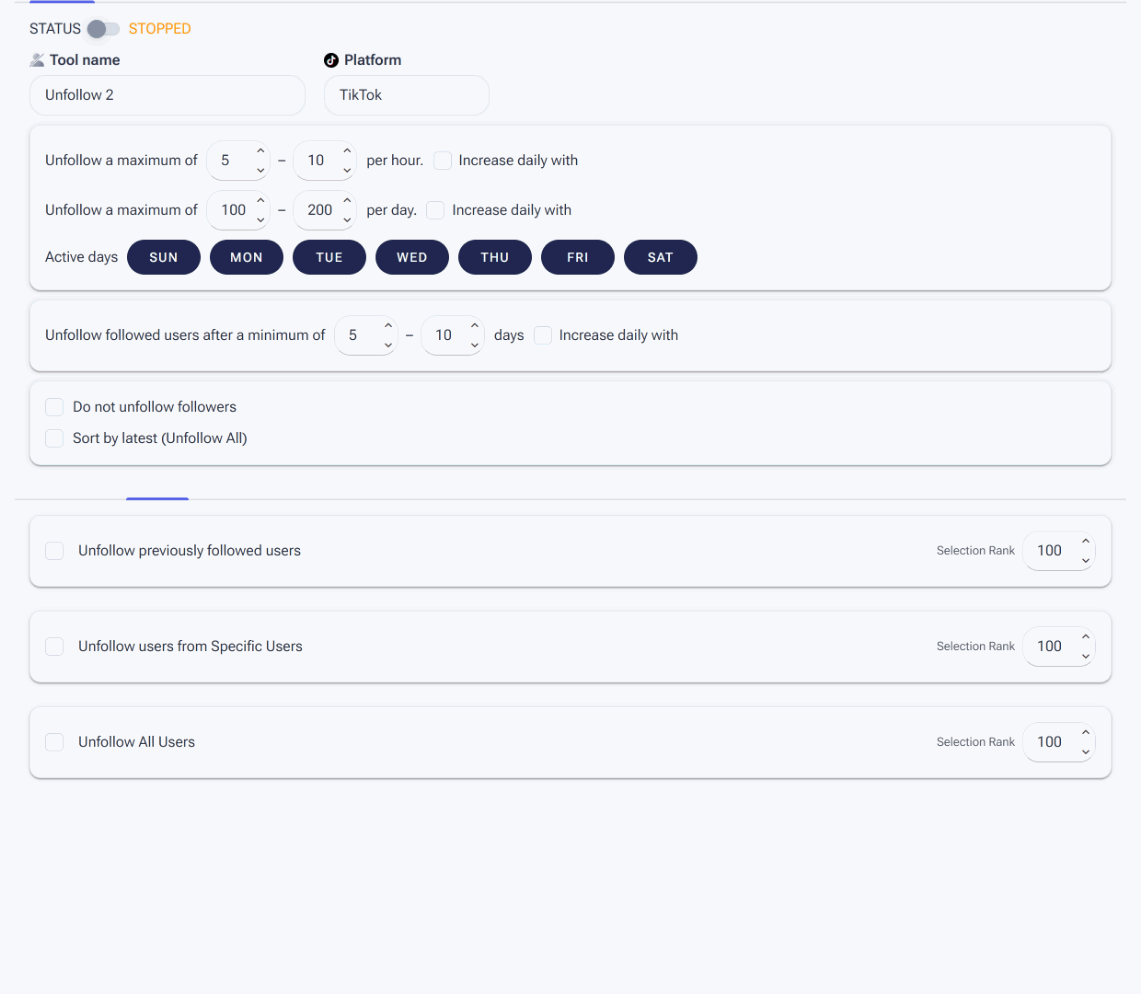
A quick tour of the Unfollow tool — its Settings and Sources tabs.
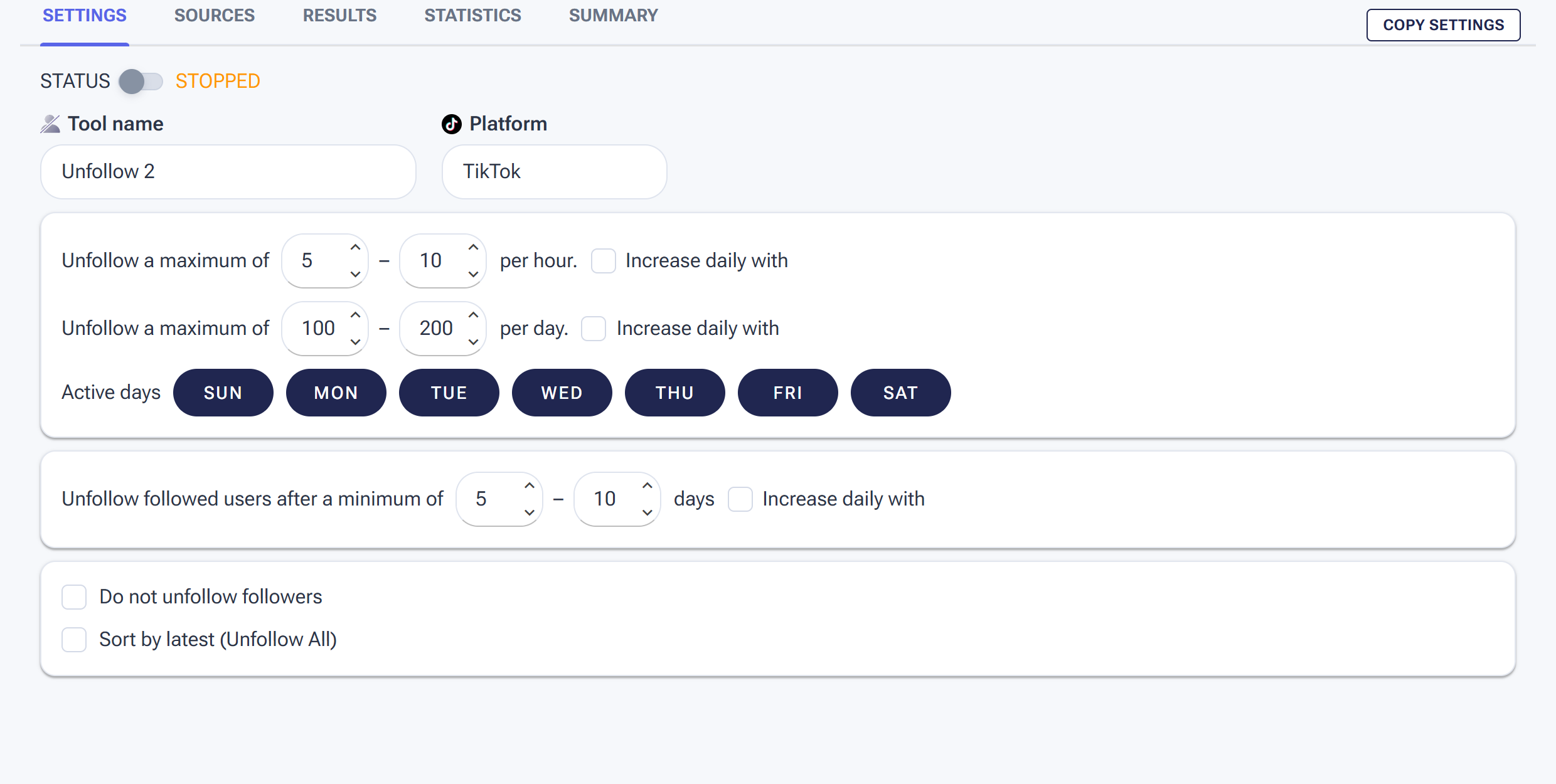
The Unfollow tool’s Settings tab — limits, timing, and who to keep.
Open the Unfollow tool and click the SETTINGS tab. Here’s every setting, in the order they appear:
1. Tool name and Platform
The tool name field defaults to “Unfollow 1” and is just a label — rename it if you’re running multiple Unfollow setups on the same account and want to tell them apart in the dashboard. Platform is read-only and is set when you add the tool.
2. Tool maximums per hour and per day

Keep unfollow limits in the same safe ranges as your follow limits.
SM Tasker randomizes its unfollow actions within the ranges you set here. Every hour, it picks a number between your minimum and maximum and executes that many unfollows. Same logic for the daily ceiling — once the maximum is reached, the tool pauses and resets at midnight.
The range matters more than the ceiling. A wide min/max gap (say 4–10 instead of 8–10) creates a more natural pattern. Aim to roughly match your Follow tool’s volume — if you’re following 80 accounts a day, you want to unfollow at a similar pace over time so your following count stays stable rather than ballooning.
Increase daily with
Tick the Increase daily with checkbox next to either the per-hour or per-day line to auto-scale that limit. SM Tasker bumps the range by a random percentage each day until it reaches a target ceiling. The fields read: Increase daily with X – Y percent until it reaches X – Y. Set the percentage to 1–5% per day for a gentle ramp.
This is the cleanest way to handle warm-up — start small, let SM Tasker scale you up automatically, and you don’t have to remember to update limits manually.
3. Active days
Toggle which days of the week the Unfollow tool runs. No real person manages their following list seven days a week — giving the Unfollow tool one or two rest days is one of the simplest safety improvements you can make.
If you’re running a full engagement stack, stagger the rest days across tools. If Follow rests on Sunday, have Unfollow rest on Wednesday. The varied pattern across tools is much harder to flag than every tool going dark on the same day.
4. Unfollow followed users after a minimum of X – Y days

Give people time to follow back — unfollow only after a minimum number of days.
This is the holding period: how long an account you followed must remain in your following list before the Unfollow tool is allowed to remove them. The fields are a min/max range — for each follow, SM Tasker picks a random number of days within that range as the holding period.
A holding period of 5–10 days is a sensible default. It gives the followed account time to notice you, view your profile, and follow back. Unfollowing someone the same day you followed them is one of the clearest automation signals you can produce — set this range to give every follow a fair chance to convert.
5. Do not unfollow followers

Protect the people who followed you back, and choose the order the tool unfollows in.
This is the most important checkbox in the Unfollow tool. When ticked, the tool skips any account that has followed you back — meaning you only unfollow people who chose not to follow you. Ratio management without losing the audience you’ve built.
Leave this on unless you have a very specific reason to remove followers.
Step 2: Add Sources
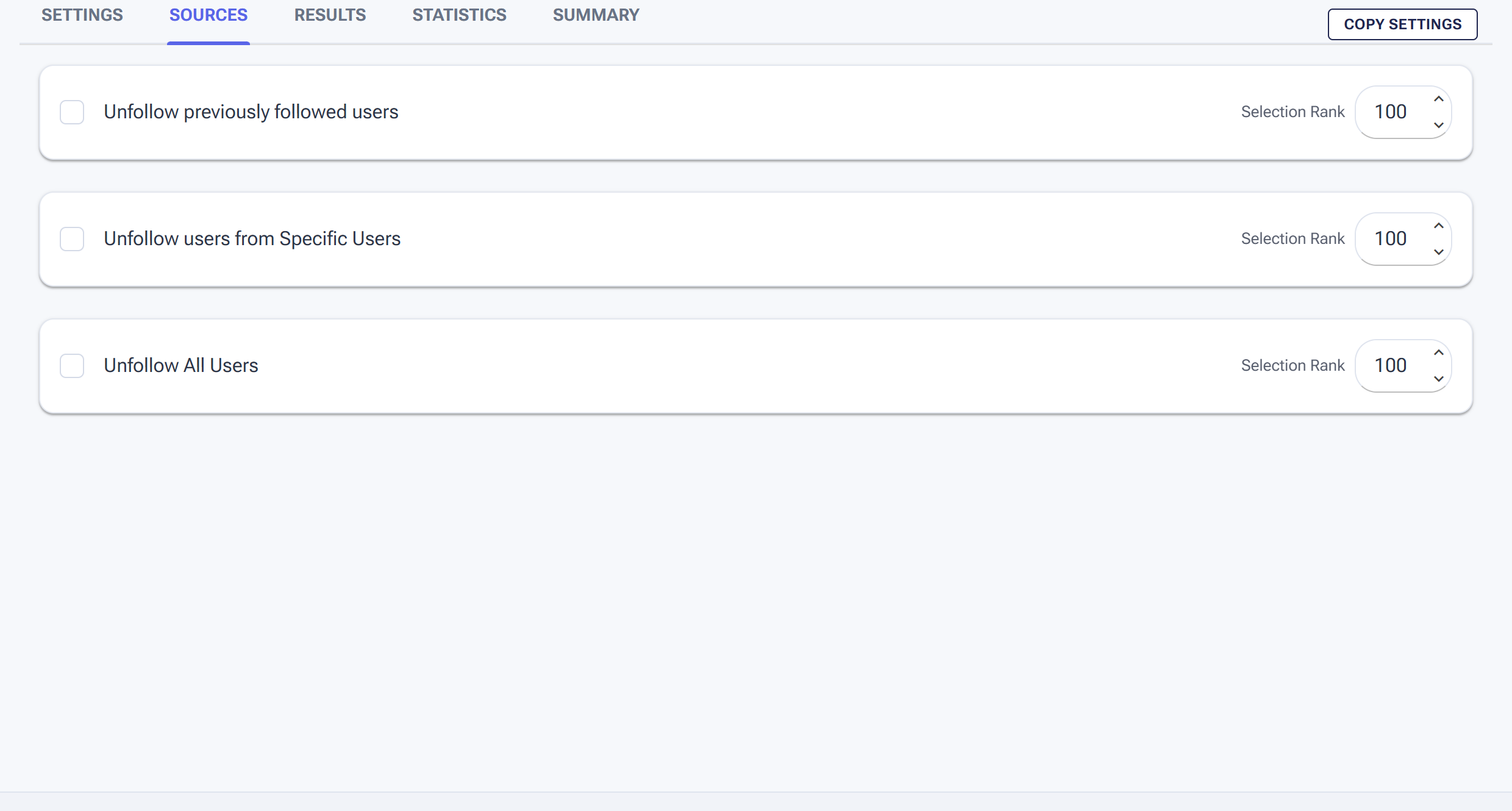
The Sources tab — choose which users the tool unfollows.
Open the SOURCES tab. Each available source has a checkbox to enable it and a Selection Rank field that lets you prioritize one source over another when multiple are enabled. The Unfollow tool has four source types — fewer than the Follow tool because Unfollow only works on accounts you’ve already followed.
Unfollow previously followed users
Acts on accounts you previously followed through SM Tasker. SM Tasker keeps a record of every follow it executed inside the Follow == Results tab, and this source taps into that history to walk back through the list and unfollow non-followers (or all of them, depending on your settings).
Unfollow users from Specific Users
Acts on an exact list of usernames you provide. No discovery — just the specific people you want to unfollow.
Useful when you’ve decided to clean up a particular set of accounts (former competitors, old prospects, accounts that turned out to be off-niche) without disturbing the rest of your following list.
Unfollow users from Following List
This source targets every account in your following list with no filtering, intended for use cases where you want to clear or substantially reduce your following list — for example, when retiring an account or rebuilding from scratch.
When this source is enabled, three additional Settings checkboxes become relevant:
- Sort by earliest (Unfollow All) — process the oldest follows first.
- Sort by latest (Unfollow All) — process the most recent follows first.
- Target least interacted with (Unfollow All) — prioritize accounts you’ve had the least mutual engagement with.
Use Unfollow from Following List carefully. Pair it with Do not unfollow followers if you want to preserve the accounts that already follow you back — without that checkbox enabled, this source can clear your entire following list.
Step 3: Activate the Tool
Once Settings and Sources are configured, return to the Automations dashboard (or stay on the tool’s page) and toggle the Active switch to ON. SM Tasker will start executing unfollows on your phone according to the schedule, holding period, and limits you set.
Pair with the Follow tool from day one. Unfollow on its own just shrinks your following list — the value comes from running it alongside Follow as a continuous loop: follow new prospects, give them the holding period to notice you and follow back, unfollow the ones who didn’t. That’s how a healthy ratio compounds while your audience grows. Set up the Follow tool alongside Unfollow so the two work as a pair.
Step 4: Monitor Performance
Once the tool is running, three tabs let you see exactly what it’s doing and how well it’s performing. Open these every few days during the first weeks, and weekly once the setup is stable.
Results tab
The Results tab lists every account the tool has unfollowed, with the source it came from, the date of the action, and the account’s status. Each row shows the username, display name, posts/followers/following counts when available, and whether the account had followed you back.
Use this to confirm the tool is removing the right accounts. If you see followers being unfollowed when they shouldn’t be, double-check that Do not unfollow followers is enabled on the Settings tab.
The EXPORT button downloads the result list — useful for record-keeping or analyzing which accounts didn’t convert. REMOVE ALL clears the history.
Statistics tab
The Statistics tab shows a graph of actions per day over time. The Y-axis is the action count; the X-axis is the date. With a few days of data, the line tells you whether the tool is hitting your daily target consistently or whether some days are coming up short.
If the line is flat at zero on days the tool should be running, check three things: Is the Active toggle on? Is the device online? Is your holding period set so high that no eligible accounts have crossed it yet (e.g., you set 30+ days but only started following 10 days ago)?
Summary tab
The Summary tab is a chronological activity log of everything the tool has done — preparation events (“X actions scheduled”), completion events (“X actions done. Executed for N seconds”), and errors. Each entry shows the source it ran on, the result, and the timestamp.
Use Summary when you want a more granular view than Statistics provides. If a day shows fewer actions than expected, the Summary log will tell you why — a session ended early, the source returned no eligible accounts (typically because of the holding period), or a block was hit. The Activity column has a filter, so you can narrow to errors only or to a specific source.
Platform-Specific Notes
Instagram’s unfollow limits are similar to its follow limits — keep them in the same range. Mass-unfollow patterns get flagged the same way mass-follow patterns do, so the wide min/max range and the holding period are just as important here as on the Follow tool. If a block lands, see Safety Features Built Into Your Automations for what happens next.
TikTok
TikTok’s unfollow limits are generally more lenient than Instagram’s for established accounts, but still proportional to your follow volume. If you’re unfollowing far more than you’re following on TikTok, the tool stops looking like ratio management and starts looking like list pruning — set Unfollow’s limits a little below Follow’s to keep the volumes naturally aligned.
Threads
Threads unfollows are tied to your Instagram account. Aggressive unfollow activity on Threads can affect the standing of the linked Instagram account, so maintain the same conservative limits you’d use on Instagram.
Common Mistakes
| Mistake | Why It Hurts | What to Do Instead |
|---|---|---|
| Forgetting to tick Do not unfollow followers | The tool starts removing real followers — exactly the audience you spent effort building | Tick the box first thing on every Unfollow setup; treat it as a default-on setting |
| Setting a 0–1 day holding period | Same-day follow-then-unfollow is one of the clearest automation signals | Set 5–10 days minimum; the holding period also gives the followed user time to follow back |
| Running Unfollow at much higher volume than Follow | Lopsided action ratios look like list pruning, not natural account behavior | Roughly match Unfollow’s daily volume to Follow’s; let the holding period regulate the loop |
| Setting the tool and never checking back | A misconfigured setup can quietly remove people you wanted to keep | Open the Results tab after the first 24 hours; verify the unfollowed accounts match the intent |
What to Do Next
- The Follow Tool: How to Build a Targeted Audience on Autopilot — Unfollow without Follow doesn’t grow your audience. Set up Follow alongside it so the two work as a continuous loop.
- Safety Features Built Into Your Automations — Ignore Lists and other account-level protections that complement the per-tool safety toggles like Do not unfollow followers.
- Mastering the Automations Dashboard — Where you’ll spot whether your Follow + Unfollow loop is running balanced — the #Actions Today column for each tool tells you in seconds.
- Account Warm-Up: The First 7 Days Schedule — If the account is brand new, hold off on Unfollow for the first warm-up window. The Follow tool’s holding period gives you a natural buffer.
Bottom Line
Unfollow is the quiet half of every healthy growth setup. It doesn’t add followers, but it keeps your account looking like a real one — a balanced ratio, a clean following list, no signs of mass automation. Configure conservative limits, set a real holding period, always tick Do not unfollow followers, and let it run as the natural counterpart to your Follow tool.