How to Connect ChatGPT to SM Tasker (AI Configuration)
Two tools in SM Tasker can generate content using AI: the Comment tool generates unique, contextually relevant comments for each post it interacts with…
This article covers the setup only: where to get your API key, how to connect it, and how to confirm it’s working. For how to actually use AI inside each tool — writing effective prompts, structuring comment styles, generating captions by platform — see The Comment Tool and The Publish Tool.
Why SM Tasker Uses Your Own API Key
SM Tasker doesn’t bundle a shared AI service. Instead, it connects to your personal OpenAI account through an API key you generate yourself. This approach has three meaningful advantages:
- Cost control — you only pay for what you actually use. OpenAI charges per request, and for typical automation volumes the cost is very low. You’re not paying a flat fee for AI access you may not fully use.
- Model flexibility — as OpenAI releases new models, you can switch to them from your OpenAI account without waiting for SM Tasker to update. You’re always able to use the latest available model.
- Privacy — your content, prompts, and API usage stay within your own OpenAI account. No third-party intermediary sees your data.
What You Need Before You Start
- An OpenAI account — create one at platform.openai.com if you don’t have one yet
- A funded OpenAI account — API usage requires billing to be set up. Go to Settings > Billing in your OpenAI account and add a payment method. OpenAI also offers a small free credit for new accounts.
- An API key — generated from your OpenAI account (steps below)
Step 1: Generate Your OpenAI API Key
- Log in to your OpenAI account at platform.openai.com
- Click your profile icon in the top-right corner → select API keys (or navigate directly to platform.openai.com/api-keys)
- Click Create new secret key
- Give the key a name — something like “SM Tasker” so you can identify it later
- Click Create secret key
- Copy the key immediately — OpenAI only shows the full key once. If you close the window without copying it, you’ll need to delete it and create a new one
Step 2: Connect the API Key in SM Tasker
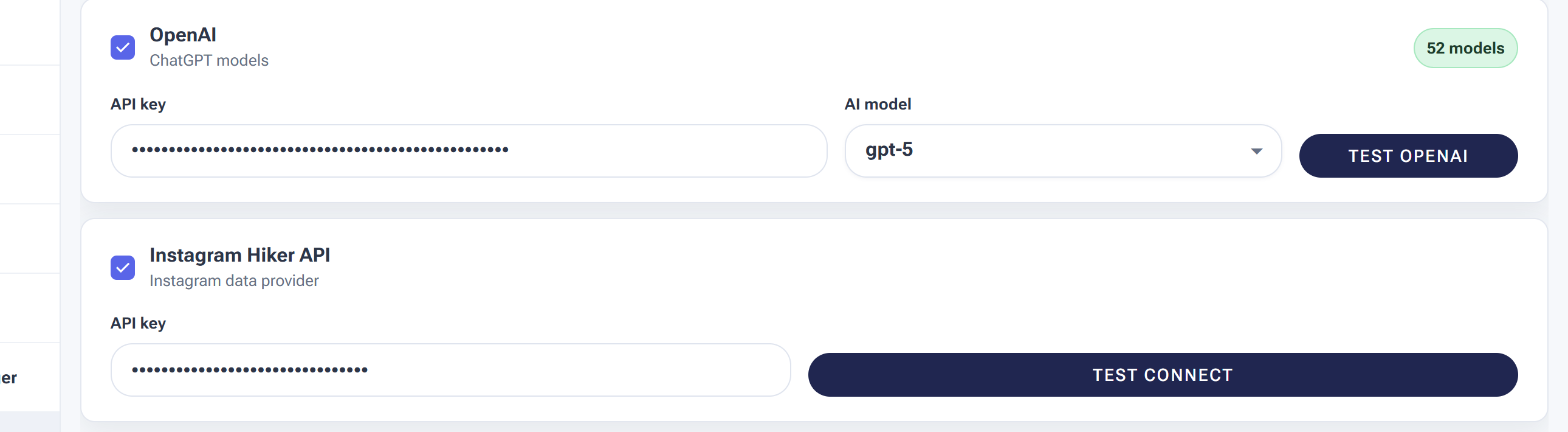
The Settings → AI tab — paste your OpenAI key here; the Comment and Contact tools use it for generation.
- Open the SM Tasker dashboard at app.smtasker.com
- Go to Settings in the left sidebar
- Click the AI tab
- Check the OpenAI API – ChatGPT option to enable it
- Paste your API key into the field provided
- Save your settings
You’ll also see an option to enable Use Instagram Hiker API on the same screen. This provides additional intelligence about the accounts and posts your tools interact with, helping SM Tasker make smarter targeting decisions. It’s optional — the core AI functionality for Comment and Publish works without it.
Step 3: Choose Your Model
Once your API key is connected, SM Tasker will use OpenAI’s language models to generate content. The model you use determines the quality of the output and the cost per request.
| Model | Output Quality | Cost per Request | Best For |
|---|---|---|---|
| GPT-4o mini | Good | Very low | High-volume comment generation; most users’ default |
| GPT-4o | Excellent | Moderate | Higher-quality captions and comments where output nuance matters |
| GPT-3.5 Turbo | Adequate | Very low | Budget-conscious setups running very high comment volumes |
Recommended starting point: GPT-4o mini. It produces natural, varied output at a cost that makes high-volume comment generation practical. For most automation setups, a month of active comment generation with GPT-4o mini costs a few dollars at most. You can always upgrade to GPT-4o for specific use cases where output quality is the priority — for example, AI-generated captions for a brand account where the writing needs to be polished.
What to Expect on API Costs
API costs are measured in tokens — roughly, the amount of text processed per request. A typical AI-generated comment uses a small number of tokens; a longer caption prompt uses more. At GPT-4o mini pricing, running 100 AI-generated comments per day across your accounts would cost well under $1 per month for most niche types.
You can monitor your usage and set spending limits directly from your OpenAI account under Settings > Limits. Setting a monthly usage limit is a good practice — it ensures that if something is misconfigured and generates unexpected API volume, you won’t receive a surprise bill.
Troubleshooting Common Issues
| Issue | Likely Cause | Fix |
|---|---|---|
| AI comments not generating; Comment tool falls back to templates | API key not saved correctly, or OpenAI option not checked | Go to Settings > AI, confirm the OpenAI option is checked and the key is saved. Re-paste the key and save again. |
| “Invalid API key” error | Key was copied incorrectly, or the key has been revoked in your OpenAI account | Go to your OpenAI account → API keys → verify the key is still active. If revoked, create a new one and update it in SM Tasker. |
| “Quota exceeded” error | Your OpenAI account has hit its usage limit or has no remaining credit | Go to your OpenAI account → Settings > Billing → add credit or raise your spending limit. |
| AI output is generic or repetitive despite the prompt | Prompt is too vague, or the model being used has limited capacity for nuance | Refine the prompt — see the prompting guidance in The Comment Tool. Consider upgrading to GPT-4o for better output quality. |
| API connection works but AI captions don’t appear in Publish | AI captions may need to be enabled within the Publish tool settings specifically | Open the Publish tool → Settings tab → confirm AI captions are toggled on and a caption prompt is entered. |
What to Do Next
- The Comment Tool: AI-Powered Commenting That Builds Real Relationships — Now that your API key is connected, learn how to write effective prompts and get the most out of AI comments inside the Comment tool.
- The Publish Tool: Build a Content Calendar That Runs Itself — See how AI captions work inside the Publish tool, including platform-specific prompt strategies for Instagram, TikTok, and Threads.