Let the useful part be heard
Audiogram Maker
Turn a short audio excerpt into a real video with a clear headline, moving waveform and your own next step. Create it locally, then download the MP4.
A clear home for a useful excerpt
Sound, context and one next step.
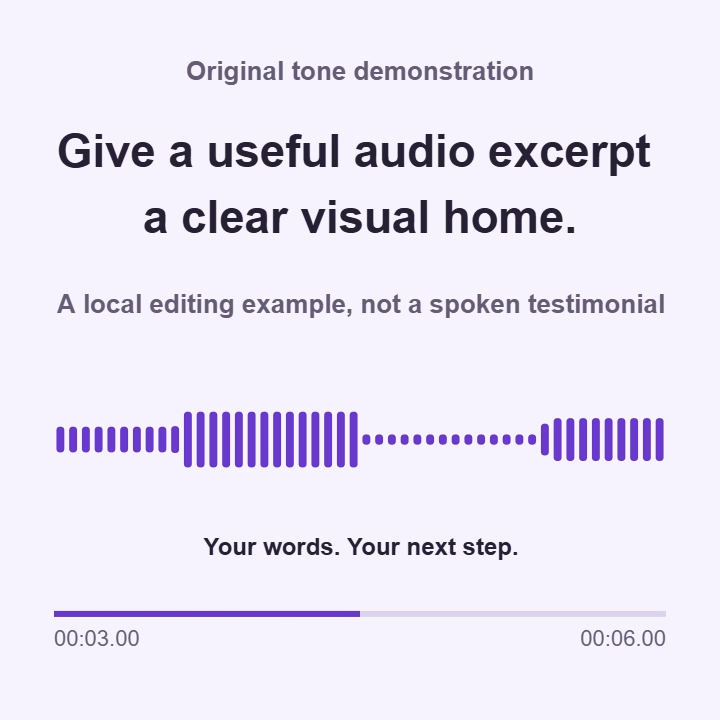
Actual frame from our original tone example. Not an automatic transcript or a customer testimonial.
Build from your own local audio
Choose the excerpt. Give it a visual home.
Select 1-60 seconds, write a short headline and choose a canvas. The waveform follows audio levels, not words. No automatic captions or transcription.
Your excerpt and design
No audio selected.
Your design preview
Choose audio to preview a waveform. Create video to produce and verify a real MP4. Playback is manual.
Changing any project choice invalidates the previous video and reports. The preview timer is a design check, not a saved edit or playback seek.
Your audio stays in this browser. Choose audio-only media up to 32 MiB and 180 seconds, mono or stereo. Output is H.264/AAC MP4, up to 60 seconds and 64 MiB. Native codec support is required; there is no silent-video fallback. AAC is lossy and its padding can slightly extend the container duration.
Settings and JSON reviews contain no recording or original filename. PDF shows an actual encoded frame, authored text, waveform and measurements; review it before sharing. Reports are rasterized and include settings/review JSON, not audio/video attachments. No automatic subtitles, publishing, hosting, cloud backup or autosave. Reloading requires reselecting the source; ordinary website assets still load.
How the video is made
One excerpt. A readable design. A real video.
A deliberate audio selection
Start with a continuous excerpt, set its level and shape the ends with linear fades. Your original file stays unchanged.
A waveform tied to the sound
Sample-peak bars move through a two-second window. Your own headline and byline supply the context.
An encoded result, checked again
The downloaded video is decoded to inspect its frames and audio. The cover PNG comes from its actual first frame.
Give the listener a reason to press play
An audiogram turns a piece of audio into a video people can recognize before they hear it. The headline names the subject. A short label explains the series or occasion. The waveform gives the sound a visible rhythm, while the byline identifies the voice or project. These parts serve different jobs. A moving shape cannot explain an unfamiliar topic, and a large title cannot make an incomplete sentence meaningful. Begin with the question a listener might bring to this recording. Then choose a passage that answers it without needing the entire interview, talk, or episode around it.
For a hypothetical example, imagine Walk Slowly, an independent audio project about noticing ordinary places. Its editor has an eighty two second recording from a walk leader. The useful passage says, “We take the longer path because the quiet part starts after the bridge. Stop there for a moment, and you can hear how the river changes under the trees.” These are invented project details and sample words, not a customer story. The editor wants a short invitation to the full walk recording. The task is to communicate that listening experience, not to suggest that a waveform can show the route.
The initial acceptance test is simple: a new viewer should understand that this is an audio walking story, recognize who is speaking, and know where the longer recording can be found. The title might be “The quiet part starts after the bridge” rather than “New episode out now.” That choice gives the clip a subject before asking for attention. Keep the destination in the surrounding post or another appropriate place you control. A footer line inside the video is visible text, not a clickable link. The finished video should make sense even when it is separated from your original editing notes.
Bring a source that is ready for a short video
Use Choose audio to open a local recording that you have permission to reuse. The tool accepts an audio only source with one audio track, subject to actual browser decoding support. A familiar file extension is not enough to prove that its contents will work. The source must be no larger than 32 MiB and no longer than 180 seconds, with mono or stereo audio. A video file containing a speaker is not an audio source for this workflow. Obtain a suitable audio export from your existing production process first. The original file is not rewritten when you prepare a clip.
Listen to the source manually before deciding where the video begins. In the Walk Slowly example, the opening includes greetings and a question that makes sense in the full conversation. The useful answer starts later. The editor writes down a possible opening near eighteen seconds and an ending near forty two seconds, then listens across both boundaries. That gives a twenty four second working selection. It is not a recommendation that all audiograms should have that length. A different speaker may finish the same idea in twelve seconds, while a careful explanation may need much longer to remain fair and understandable.
Load example is useful for trying the controls before opening your own recording. Its original synthesized tones demonstrate sound and movement; they are not a spoken sample or a transcript waiting to appear. If the real source needs a separate audio preparation step, the Audio Trimmer can serve that different job. Return here when you need a video with an authored message, not merely a shorter audio file. Keep the clean source in your own storage. Local processing avoids sending the chosen recording through this tool for rendering, but the normal website still loads its ordinary page resources.
Choose a complete thought, then set its boundaries
Start time (s) and End time (s) select one continuous passage from the prepared source. The selected interval must be at least one second and no longer than sixty seconds. These are tool choices, not the native duration rules of any social platform. Leaving End time empty means the prepared source ends there; it does not mean the tool will choose a convenient closing sentence. If that produces an interval that is too long, enter a suitable end yourself. An end beyond the available source or a reversed interval is refused rather than quietly moved to a different point.
For the walking story, eighteen to forty two seconds is only a first listening pass. Suppose the first consonant begins just before eighteen seconds. Move the start earlier enough to retain it, then review the new duration. Suppose the final word is followed by a useful breath and then an unrelated question. Leave a little natural space after the sentence without carrying the question into the clip. You are editing the meaning as well as the timing. Do not remove a qualification merely because the shorter version sounds more confident. The headline should stay faithful to what this selected passage actually says.
Write the chosen times in your production notes if another person must approve them. Ask that person to hear the sentence before and after the selection in the original recording. That small context check can reveal a reply aimed at a different question or a statement that depends on an earlier exception. This tool does not assemble several nonadjacent moments into a new sentence. When the idea needs multiple cuts, images, or a longer structure, use an editing workflow built for that work. A single clear excerpt is the strength of this audiogram, not a substitute for every kind of audio or video edit.
Write four lines that share the work
The four text fields let you establish a small visual hierarchy. Headline allows eighty characters, Small label forty, Byline sixty, and Footer line sixty. Each is plain text on one line in the input. They are authored display fields, not a caption track that follows speech. For Walk Slowly, the headline names the quiet place, the label reads “Walk Slowly / Audio postcard,” the byline reads “Mara Ellis, walk leader,” and the footer reads “Hear the full walk in the accompanying post.” All names and wording in this example are fictional. Leave a secondary field empty when it adds no useful information.
Choose a Canvas for the intended viewing situation. Portrait is 720 by 1280 pixels, Square is 720 by 720, and Landscape is 1280 by 720. These are preparation canvases, not native platform presets or promises of acceptance. Preparing for records the platform context; it does not connect an account or inspect a destination. Try the same wording in the chosen shape and inspect its visual balance. The tool fits the complete text, but a line that technically fits can still ask too much of a small screen. Shorten a crowded title by making its idea more specific, not by removing essential context.
Violet, Forest, Rose, Ocean, and Ink offer different fixed palettes. Pick one that lets the message feel clear and appropriate rather than treating color as a measure of performance. The walking editor tries Forest because it suits the project, then checks that every field remains comfortable to read at a realistic viewing size. There is no image or logo upload in this design. Recognition comes from the words, palette, and consistent authorship. If a photograph or a changing series of visuals is essential to the story, plan that in another editor instead of expecting the waveform to carry information it cannot show.
Adjust the sound without pretending to master it
Level (dB) changes the selected audio level from minus twenty four to plus twelve decibels. Start at zero and listen before adding gain. A quiet delivery may need a different source mix rather than a large increase that also raises background noise. If the processed samples exceed the allowed peak, the tool refuses the render and asks for a lower level. That check is not a limiter that repairs clipping. It also cannot restore detail already lost in the original recording. Keep the decision practical: can the intended listener follow the voice comfortably, without abrupt surprises, at a normal playback volume?
Fade-in (s) and Fade-out (s) can soften a boundary when the source has enough room. Each can run from zero to ten seconds, and they must not overlap within the selection. For the walking passage, a very short entrance fade may soften background ambience before the first word. A long fade would hide that word and weaken the invitation. The ending needs the same judgment. Listen for the final consonant and leave it audible before the sound falls away. Linear fades affect the whole selected signal, including voice and ambience together. They are not a separate control for background noise or music.
Treat the waveform as a view of changing sample peaks in the processed selection. Forty eight bars show a two second window around the current video time. Taller bars mean stronger peaks in that window, not clearer speech, more emotion, or more important words. It is not a frequency spectrum, speech detector, or loudness certificate. The tool does not normalize, remove noise, compress dynamics, or measure a finished master in LUFS or true peak. AAC encoding is lossy and can alter peaks. Your listening review of the actual video remains necessary even when the displayed waveform and preparation checks look sensible.
Review the actual video, not only its design
The design preview helps you inspect the authored text and the waveform at different moments. Preview time changes that view; it is not a new trim boundary and is not saved as an export setting. When the selection and design are ready, use Create video explicitly. The result is an H.264 video with AAC audio in an MP4 container, with a target of twenty four frames per second. Source preparation and AAC audio use 48 kHz, which can involve resampling. Browser support for the required codecs varies. An unavailable audio encoder should produce an error, not a successful looking silent video.
Play the completed MP4 manually and listen from beginning to end. Check the first word, the natural pause inside the thought, and the final sound. Then watch without relying on the original source player. The actual file may include a small timing difference from the requested selection because of the last video frame and AAC padding. Review the reported values rather than treating a rounded player duration as a new editorial cut. For Walk Slowly, the important question is whether the invitation still sounds complete and whether the text remains readable while the voice and waveform move together through the finished clip.
A headline is not an accessible replacement for every spoken word. If the clip needs supplied timed captions, prepare and review those separately, then use the Add Subtitles to Video workflow with its required inputs. Nothing here transcribes the recording or passes a caption project into another tool automatically. Recheck the resulting captioned video after that additional render. Also inspect the actual destination composer before publishing. A portrait canvas does not prove that interface controls will leave every line visible, and an MP4 export does not certify a platform upload or guarantee the way a preview will be cropped.
Save a handoff that another person can understand
Save the MP4 as the deliverable people will watch. The PNG cover is the actual encoded first frame, not an unrelated mockup of the design. It can help with review or a later thumbnail task, but a destination decides whether and how an uploaded cover may be used. The PDF includes an actual encoded midpoint frame, the settings and metrics, and preparation guidance. CSV, TXT, and copied review notes provide other ways to share the details. Choose the smallest useful handoff for the recipient. Someone approving the words may need the video and notes, while a producer rebuilding the design also needs the settings.
Settings JSON stores the design and processing choices, not the source audio, original filename, or result metrics. Importing settings keeps the currently selected audio, so inspect the range again rather than assuming the saved times suit it. A valid new source preserves the design but resets timing, level, and fades. Invalid imports and canceled choices preserve the existing work. For the walking editor, the handoff folder therefore contains the approved MP4, a settings file, the separately stored source, and a short note identifying the approved passage. The JSON by itself is not an archive from which the recording can be recovered.
Review privacy across every exported item, not only the audio file. The PDF contains a visible output frame with your text and waveform, plus complete settings and review JSON attachments, even though it excludes audio, video, and the original filename. Its pages are rasterized rather than a fully accessible text document. If the report cannot fit its six page or twenty MiB budget, follow the clear fallback instead of expecting a shortened report to contain everything. TXT and CSV can remain useful companions. Do not share a private speaker name, draft headline, or internal invitation simply because the export is called a review.
Make the saved clip part of a deliberate release
Before leaving the page, save the MP4 and settings separately. Editing any project field makes the previous outputs stale, so create a fresh video after a change and replace the old handoff deliberately. The page is not an autosave service. Leaving it releases decoded audio and result resources. A cached page may retain the chosen File and offer Restore audio explicitly, but a reload requires selecting the source again. Keep your own files somewhere dependable. For Walk Slowly, the editor names the reviewed export with a clear version and sends that version to the person writing the accompanying post.
The surrounding post should explain what the excerpt is and make its next step practical. In the walking example, it names the longer recording and gives a real route to it in a placement the editor has checked. Avoid claiming that the audiogram contains a map, captions, or the full conversation when it does not. If the same recording will become several different pieces, use the Content Repurposing Planner to keep their briefs distinct. A short listening invitation and a detailed route article serve different needs. They do not become a useful campaign merely because both came from the same file.
Complete the handoff with a named reviewer and a publishing decision outside this tool. Check the destination account, audience, accompanying words, and actual uploaded preview yourself. Nothing is automatically published, hosted, scheduled, or added to SMTasker when a render completes. For recurring supported account actions, SMTasker can be considered as a separate workflow after the media is ready. Keep that account work separate from responsibility for the clip itself. The useful end point here is concrete: one understandable excerpt, a video you have actually watched and heard, and the files another person needs to use that approved version without guessing.
Choose your publishing context
Platform and production guides
Each guide follows a different audio-to-video task. Canvas choices prepare an asset; check your actual destination after export.
Instagram Audiograms
Give a spoken craft lesson a specific headline and enough context to make sense without demonstration footage.
Read the guideTikTok Studio Tips
Prepare a sound-led printmaking insight without confusing a moving waveform with accurate captions.
Read the guideYouTube Archive Stories
Shape a short archive story around a complete explanation, checked credit and the evidence behind it.
Read the guideFacebook Audiograms
Answer one practical question about a community event in the organizer’s voice, with current details.
Read the guideLinkedIn Audiograms
Share an operational lesson without turning one process observation into an unsupported universal promise.
Read the guideThreads
Turn a repair-cafe explanation into a focused discussion starter that invites a useful response.
Read the guideX (Twitter)
Keep the observation and its qualifications together in a concise event-debrief soundbite.
Read the guideSnapchat Workshop Updates
Make a workshop or costume-swap voice note clear enough to understand before choosing where to share it.
Read the guideGive a keyboard sound comparison the spoken setup and accurate labels that a useful discussion needs.
Read the guidePodcast Interview Clips
Choose an interview excerpt with a real beginning, middle and ending, rather than a loud but contextless peak.
Read the guideDesign and Waveforms
Use full-scale sample-peak bars and legible text without confusing sound level with a transcript or spectrum.
Read the guideQuestions about making an audiogram
Does the audiogram maker write captions from my audio?
No. You write the headline, label, byline, and footer. They stay on the video as authored text. Timed captions require a separate supplied-caption workflow.
What audio can I use?
Choose a local audio only file with one audio track, up to 32 MiB and 180 seconds, in mono or stereo. Actual format support depends on your browser. Select one continuous passage of 1 to 60 seconds.
Is the waveform based on my recording?
Yes. It uses peaks from the actual selected, processed audio. It shows changing signal strength, not words, frequencies, emotion, or a measure of speech quality.
Will the MP4 upload to every selected platform?
No guarantee is made. Preparing for identifies context, while Canvas chooses the output shape. Check the actual destination and current requirements, including the fixed 24 fps target, before publishing.
Can I reopen the entire project from settings JSON?
The settings file does not contain audio or video. Select the source separately, open the settings, and review the time range. Save your source, approved MP4, and settings before leaving the page.
A reviewed clip comes first
Build a dependable routine around each release
Consider SMTasker for ongoing supported account actions. The audiogram remains a separate local export, with no automatic import, hosting, or publishing.