A clear name for every file in the batch
Bulk File Renamer
Give photos, videos and documents consistent names without changing their contents. Preview every target, catch duplicates and download renamed copies with an exact handoff map.
Make the next file easy to identify
One naming system. A traceable batch.
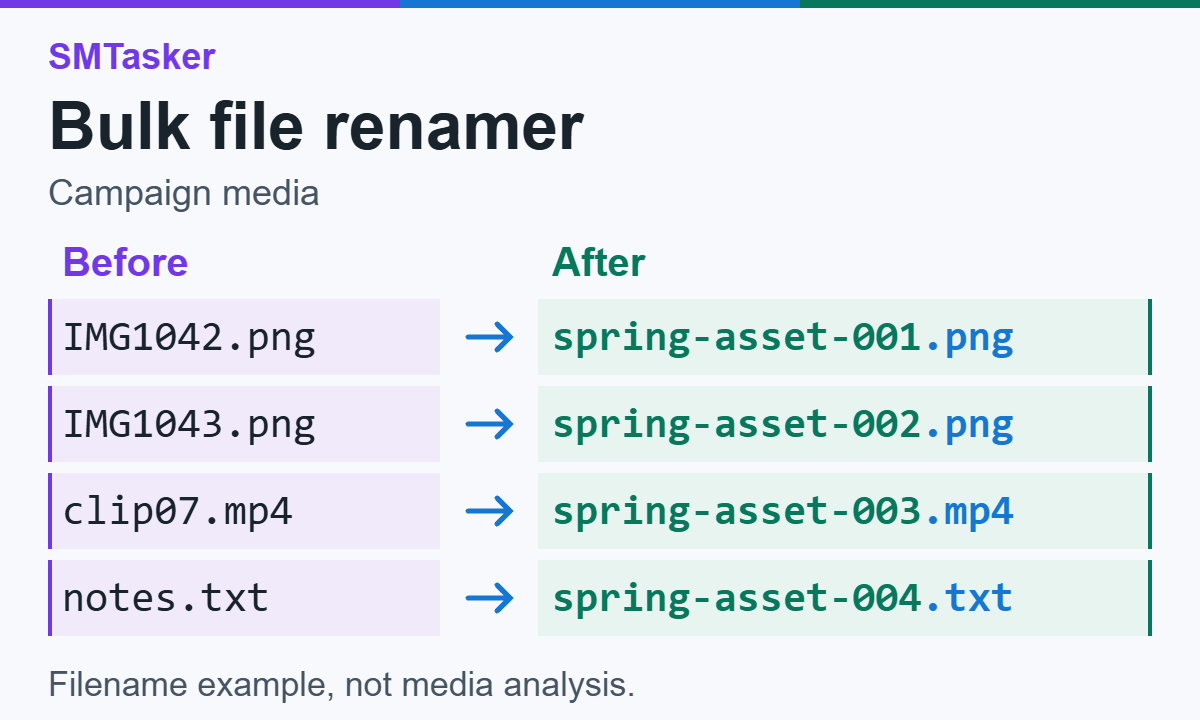
Use a shared base, a meaningful prefix and an ordered sequence. Keep the source-to-copy mapping when you hand the files to someone else.
Choose the batch, then review the names
Build a consistent set of filenames
Choose individual local files. Apply naming rules or an exact CSV map, review the complete batch and save renamed copies.
Choose and order your files
Choose a batch to see each original name and its place in the sequence.
Use the arrows to change sequence order. Files are not read for image content, EXIF dates or video details.
Your planned filenames
- Selected
- 0 files
- Name changes
- 0
- Input size
- 0 B
A local preview, not a disk rename.
Set naming rules below or apply an exact CSV map. Your originals remain on your device.
A custom base replaces the whole generated base, up to 80 Unicode code points. The original final extension stays; complete targets must fit within 180 UTF-8 bytes.
Build names around your batch
Find/replace and case affect the base, not the extension. Prefix and suffix keep the case you entered. A sequence is appended after the suffix in the current file order.
Use exactly old_name,new_name as the two headers. Every selected original filename must match once. This mode replaces naming rules; it does not guess matches or change extensions.
Download renamed copies, not a changed source folder
Safe CSV may prefix formula-like fields with an apostrophe. It never changes actual filenames. Turn it off only for an exact map you intend to reimport; spreadsheet applications may interpret literal names as formulas.
Choose files to begin. Filename previews update locally; only a download creates renamed copies.
Exports include the entire selected batch, not just the currently visible page. CSV and JSON maps contain original and target filenames; review them before sharing.
No API, file upload, account login, automatic saving or rename history. Names and contents stay in this browser’s workflow. Ordinary website delivery and analytics remain; downloads can include private filenames or naming text.
Working limits and what stays unchanged
Up to 200 individual files, 50 MiB per file and 100 MiB in total. ZIP output is capped at 110 MiB with a two-minute processing deadline. Targets are limited to 180 UTF-8 bytes and checked for portable component names, reserved names and conservative NFC/case-insensitive collisions. This is not certification for every filesystem, path length or receiving application. Only the final extension is protected: archive.tar.gz has the final extension .gz. No folders or nested paths, disk renaming, format conversion, content analysis or metadata removal. ZIP timestamps use a fixed date, not original filesystem dates. The copied file contents and embedded metadata are unchanged. Saved rules retain naming text, but not the file list, contents, CSV map or custom row names.
Start with the real selection
The tool uses the files and order you choose. It does not infer campaign meaning, inspect EXIF dates or guess what a video contains.
Your chosen batch, not an assumed folderReview before making copies
Names are planned locally. Duplicates, reserved names, incompatible characters and mismatched CSV rows block the export until corrected.
No silent repairs or overwritten targetsKeep the mapping with the files
The ZIP contains copied file bytes, an exact JSON map, a CSV map and notes. Renaming is separate from format conversion or media optimization.
New names, unchanged file contentsTechnical details & licenses
Batch rename local files with prefixes, replacement text, case changes, and sequence numbers, or supply an exact CSV map. Review the planned names before downloading a ZIP of renamed copies. Your source files stay unchanged, and their contents are not converted.
Use the Bulk File Renamer for a flat batch of up to 200 files within the size limits below. Choose files builds a local working list; Download renamed ZIP is the separate action that creates your copies. Find other preparation tasks in the free tools directory.
Start with one flat batch and a clear delivery purpose
Decide which files belong in the delivery before deciding what their names should be. A useful batch might contain approved product photographs, a small set of review clips, or documents for one client handoff. Mixing unrelated jobs makes a common prefix less useful and increases the chance of sharing an unintended file. Choose files or drop local files into the tool, then review the Original list. You can append another batch, remove an unwanted item, and move entries up or down. This is a working list of selected files, not a view of your entire computer or a synchronized folder.
Keep the batch flat. The renamer does not ingest a folder hierarchy, walk through subfolders, or reconstruct directories in the output. If two files came from different source folders, that distinction is not a destination folder rule. Include a meaningful project or role in their planned names when the recipient needs that context. Do not put slash-separated paths into a prefix or a CSV target to simulate folders. The copied files will share the renamed-files folder inside the ZIP. Plan separate exports when separate deliveries would make review easier, and retain your own source organization outside this tool.
Check the selection limits: at most 200 files, no file over 50 MiB, and no more than 100 MiB in total. Zero-byte files are allowed; confirm that an empty placeholder belongs. MiB means 1,048,576 bytes, so rounded sizes elsewhere may look different. Input filenames allow 512 UTF-8 bytes. Load example contains four files: two real PNG images, a TXT file, and a CSV file. Its prefix is spring-, its base is asset, and its sequence runs from 001 to 004. Preview updates automatically; only Download renamed ZIP creates copies. Replace this demonstration with your intended selection before preparing a real handoff.
Separate the editable base from the protected final extension
The name is split at its final qualifying dot. In Meeting Notes.PDF, the editable base is Meeting Notes and the protected extension is .PDF. Base-name case can change the first part without lowercasing that extension. The original spelling of the final extension is appended exactly, including its case. A leading dot alone does not create an extension, so .env is treated as a base. A trailing dot is not a protected extension either and may leave an invalid target that needs your attention. Review the whole planned filename rather than assuming every dot has the same role.
Multiple dots deserve a deliberate check. For bundle.tar.gz, only .gz is protected; bundle.tar is the editable base. A new base of delivery therefore plans delivery.gz, not delivery.tar.gz. If the intermediate .tar label matters, retain it in the base yourself. This same rule applies to version labels such as brief.v2.docx: .v2 is ordinary base text. The tool does not identify compound formats or decide which intermediate labels are important. A filename convention must account for that final-dot behavior before it is applied across a mixed batch.
Renaming changes a label, not the bytes stored under it. An image is not resized, a document is not converted, and a video is not recompressed. The tool treats selected files as opaque content rather than interpreting their subjects or checking their internal formats. Preserving a supplied extension does not prove that the source already has the correct extension. If a mislabeled file needs conversion or repair, use the appropriate separate application and inspect its result first. Embedded metadata remains in the copied bytes, so a simpler public name does not remove location data, author information, captions, or other details contained inside the file.
Build names in the same order as the naming rules
Use New base name (optional) only when you want a shared replacement base rather than the existing individual bases. Otherwise, leave it empty and work with the current names. The transformation order is fixed: literal find and replace on the base, then the selected base case, then spaces-to-hyphens, then prefix plus base plus suffix, then the optional separator and sequence, and finally the original extension. This order matters because the affixes are added after the case and spacing operations. Enter a lowercase prefix yourself if lowercase is your convention; do not expect Base-name case to rewrite every control’s text.
For a separate worked example, suppose your photograph is named Panel Draft.JPG and leave New base name empty. Set Find text to Draft, Replace with to Approved, Base-name case to lower, and enable Replace spaces with hyphens. Enter prefix launch-, leave Suffix empty, and enable a sequence starting at 7 with padding 3 and separator -. The base becomes Panel Approved, then panel approved, then panel-approved. The final planned name is launch-panel-approved-007.JPG. The uppercase .JPG remains untouched. Read that result in the preview before extending the rule to other files.
Find text is literal text, not a regular expression or a template language. It does not interpret a date token, inspect an image, or infer a customer name. Choose a search string narrow enough to avoid changing an unrelated part of another base, and compare all affected rows. A repeated fragment can be replaced in more than one position, so checking only the first filename is not sufficient. Naming text fields each accept up to 80 code points, while the sequence separator accepts up to 8. Prefer a few meaningful components over a long label that repeats the project, department, destination, and status several times.
Make displayed order and custom names intentional
Sequence numbers follow the current displayed order. They do not read capture dates, a production timeline, or embedded metadata. File name A-Z and Z-A sort by filename; other choices restore selection order or place smaller files first. None is a capture-time command. Use up and down controls to establish the sequence you actually want before approving the preview. Removing an entry or moving another entry changes which number later rows receive. For a delivery organized as cover, detail, and instructions, arrange those roles explicitly. A recipient should not need to guess whether a low number means earlier creation, higher priority, or simply the first position in your export.
Start number can range from 0 to 999999, and Number padding can range from 1 to 6. Padding adds leading zeroes to shorter values; it is not a maximum digit count that cuts larger values down. A three-place sequence beginning at 98 can continue as 098, 099, and 100. The last value must still be no more than 999999. Choose enough visual width for the expected batch and explain the numbering purpose in your delivery notes if it is not obvious. Do not rely on number order to preserve an external relationship that you have not separately recorded.
Custom base name is a complete per-file override, not an extra suffix. It replaces the whole generated base, including any global prefix, suffix, and sequence that would otherwise appear on that row. A custom base accepts up to 80 Unicode code points; the complete filename including its extension must also fit within 180 UTF-8 bytes. If you override the example with launch-cover, the original extension produces launch-cover.JPG. Enter the base without that extension to avoid repeating it. Overrides persist when global controls change, which is useful for exceptions but easy to overlook during a revision. Use Reset custom names when returning to a uniform rule, and inspect the affected rows again after that reset.
Choose an exact CSV map when every target needs its own name
Switch Naming mode to CSV map when the batch cannot be described sensibly by one rule. Supply UTF-8 CSV with exactly the headers old_name,new_name, either through CSV map text or Open CSV map, then choose Apply CSV map. Each original filename must match exactly, including its extension and case. Every selected file needs one mapping, and every mapping needs a selected file. Missing rows, unmatched rows, duplicate old-name keys, and ambiguous duplicate original filenames block the job. The map is not a fuzzy lookup, and it cannot distinguish two identically named sources merely because they came from different folders.
For example, a two-file selection containing receipt 18.pdf and diagram.png could map to event-expenses.pdf and assembly-overview.png. These targets are full filenames, unlike the Custom base name field. Their final extensions must match their respective sources exactly. CSV mode does not stack the naming rules on top of mapped names, so a prefix left in the rules panel is not an additional CSV transformation. A manual base override can correct an individual mapped target, but it still replaces the complete base. The CSV import is limited to 256 KiB and 200 data rows; prepare only the current batch.
Keep the purpose of a CSV download separate from exact reimport. Download map CSV uses Spreadsheet-safe CSV by default, prefixing formula-like fields so spreadsheet applications are less likely to interpret them as formulas. That protective prefix changes a CSV field, never the actual filename in the ZIP. Literal CSV is an explicit alternative when exact filename text is needed for reimport, but opening literal fields in a spreadsheet can trigger interpretation. Review that tradeoff before switching protection off. The ZIP also includes an exact JSON map, which records original and planned names without spreadsheet-oriented prefixes. Keep the appropriate record for the next application rather than assuming all exports are interchangeable.
Resolve every target error without silent repairs
A valid plan needs unique, portable filename components rather than paths. Reserved names, forbidden characters, empty targets, and trailing characters that violate the validation rules need explicit correction. A label such as sales/november.pdf is not a request for a subfolder. Replace that structure with an approved single-component name or divide the work into separate batches. The renamer does not quietly remove punctuation, shorten a target, append a deduplication counter, or discard a troublesome row. This makes the preview useful as an approval record: the name you approve is the name intended for the copied file, not an undocumented repair.
Targets are limited to 180 UTF-8 bytes, including the extension. Bytes are not the same thing as visible letters, so names with accented text or other Unicode characters can reach the boundary sooner than a simple character count suggests. Shorten the least useful components rather than abbreviating every word until the result is unreadable. The duplicate check compares targets conservatively using NFC normalization and case-insensitive comparison. Two names that appear different only through case, or through equivalent Unicode forms, may therefore conflict. This is a cautious handoff check, not a certificate that every filesystem, archive extractor, application, and complete destination path will accept the result.
Review the reported issue on each conflicting row and decide which distinction belongs in the name. If overview.pdf and Overview.pdf represent different documents, changing capitalization alone does not give the recipient a reliable distinction. Add a truthful role such as overview-budget.pdf and overview-schedule.pdf. If the rows are actually accidental duplicates, remove the unwanted source deliberately. Recheck the complete batch after any fix, because a correction can collide with another existing target. Export remains blocked while any issue remains. A missing or invalid rules or CSV import should preserve the current draft rather than replacing it with a partially accepted job.
Download a copy package with a separate naming record
Download renamed ZIP is the explicit copy-producing action. Automatic preview updates do not write files back to disk. A completed archive places each copied file under renamed-files/ using its validated target name, with renaming-map.csv, renaming-map.json, and README.txt outside that folder. These companion records describe the handoff; they are not additional versions of your assets. The tool does not extract an input ZIP or follow names as paths. If you select an archive as an ordinary file, its bytes are copied as one selected item, subject to the same naming and size checks.
The ZIP uses STORE, so packaging is not compression and does not make large source media substantially smaller. The output cap is 110 MiB and the export deadline is 120 seconds. Keep enough room for the archive and its companion records, and use Cancel export when you no longer want the current operation. A cancelled or timed-out build is not a completed delivery. Split a batch by a meaningful project boundary if it cannot fit, rather than assuming that fewer visible rows always means less data. Download map CSV can provide a separate naming record for a valid plan, but it does not create the renamed asset copies.
Copied content bytes remain unchanged, including embedded metadata, but do not extend that statement to every timestamp. ZIP entry dates are fixed to 2000-01-01; original filesystem creation and modification times are not promised in the downloaded package. An image’s embedded capture information and an archive entry’s displayed date are different kinds of information. Record a meaningful shoot date or source version separately when the recipient needs it. After download, open the archive and inspect its folder structure and names before extracting into a fresh destination. Avoid combining it immediately with an older delivery where an external extraction program could overwrite matching names.
Approve the handoff and retain only useful reusable settings
Check the downloaded files against the plan, not just against an attractive naming pattern. Confirm the asset count, open a representative file from each format, and verify that every important exception has the right new name. For a sensitive delivery, check all files rather than relying on a sample. The mapping record should let you trace a recipient’s question back to the original filename. That record does not establish approval, ownership, or content accuracy by itself. Keep your own clear note of who approved the assets and which package was delivered, especially if another person will later replace a subset of the batch.
Save rules downloads the naming controls for reuse; it does not save the selected files, a CSV map, manual overrides, or a complete project. Open rules can restore valid controls from a rules JSON file up to 32 KiB. Entered naming text is included, so a private client name in Prefix remains private information in that settings file. Review it before sharing a reusable preset. There is no autosave or conversion history to recover an unfinished batch after closing the page. Retain the downloaded package, the relevant map, and your source files in your own storage rather than treating a saved rules file as a backup.
File selection, planning, and ZIP preparation run locally without uploading the selected file contents to a renaming service. The website still delivers ordinary resources and may use normal analytics, so this is not an all-purpose network or device-safety guarantee. Use filenames suitable for the audience receiving the package. Once naming is settled, the next task may be asset approval, publishing preparation, or simply archiving the delivery in a known place. Keep those decisions separate from the renamer: it does not publish posts, infer image descriptions, improve rankings automatically, or connect a filename change to a promised engagement result. A clear package is the useful outcome to verify here.
A naming job for each stage of production
File naming and handoff guides
Plan campaign photos, video versions, sequential labels, exact CSV maps and a clear delivery. Each guide addresses a different naming decision.
Batch Rename Photos
Prepare campaign photo names around real subjects, selected views, and delivery order. Keep source references, handle paired files deliberately, and check the downloaded package before sharing.
Read the guideRename Video Files
Name review clips and production deliveries with clear versions, languages, and roles. Protect editor references, coordinate companion files, and verify the renamed copies after ZIP download.
Read the guideSequential File Numbering
Build an ordered file set with a clear start, consistent padding and protected extensions. Check reordering, exceptions and later additions before downloading renamed delivery copies.
Read the guideRename Files from a CSV Map
Prepare an exact two-column filename map, match every selected source once, resolve targets and choose between spreadsheet-safe review copies and literal CSV for exact reimport.
Read the guideImage Filenames for Web Publishing
Replace vague camera names with concise descriptions of subjects and views. Preserve extensions, prepare separate alt text and coordinate changes to already published image URLs.
Read the guideWindows and Mac Filenames
Prepare filenames for mixed Windows and Mac teams. Understand reserved names, Unicode, byte limits, case collisions, extension handling, and practical checks before distributing renamed file copies.
Read the guideClient Asset Handoff
Build a client asset handoff with consistent identifiers, reviewed version labels, an exact rename map, clear package boundaries, and a practical acceptance check after extraction.
Read the guideQuestions about bulk file renaming
Will selecting files rename the originals on my computer?
No. Selection and preview create a local plan. Only Download renamed ZIP creates renamed copies, and the source files stay unchanged. There is no native disk rename or folder-write operation.
Why did changing a rule leave one planned filename unchanged?
That row may have a Custom base name override. It replaces the entire generated base and persists through global edits. Clear that override or use Reset custom names, then inspect the preview again.
Is the whole .tar.gz ending protected?
No. Only the final .gz extension is protected in archive.tar.gz. The .tar portion belongs to the editable base. Include it deliberately when replacing that base if the compound label must remain.
Can the CSV map contain two sources named invoice.pdf?
Not as two distinct selected files in CSV mode. Matching uses the exact original filename, so identical source names are ambiguous. Use separate batches or an appropriate naming-rules workflow instead of relying on source folders to disambiguate them.
Does Spreadsheet-safe CSV change the names inside my ZIP?
No. Protection prefixes risky CSV fields only. Asset filenames remain the validated planned names, and the JSON map records exact names. Literal CSV is available for exact reimport, with the separate risk of spreadsheet formula interpretation.
After the files are ready
Explore SMTasker for ongoing social workflows
Keep this free naming task separate from account operations. Review SMTasker plans when you are ready to organize ongoing social media work.