YOUR DATA, YOUR WORDS, REVIEWED TOGETHER
CSV Template & Bulk Text Personalizer
Create plain-text drafts from a CSV and one reusable template. Review missing values, inspect each complete result, and export locally without sending or publishing anything.
A fictional sample
Brightlane Studio draft review
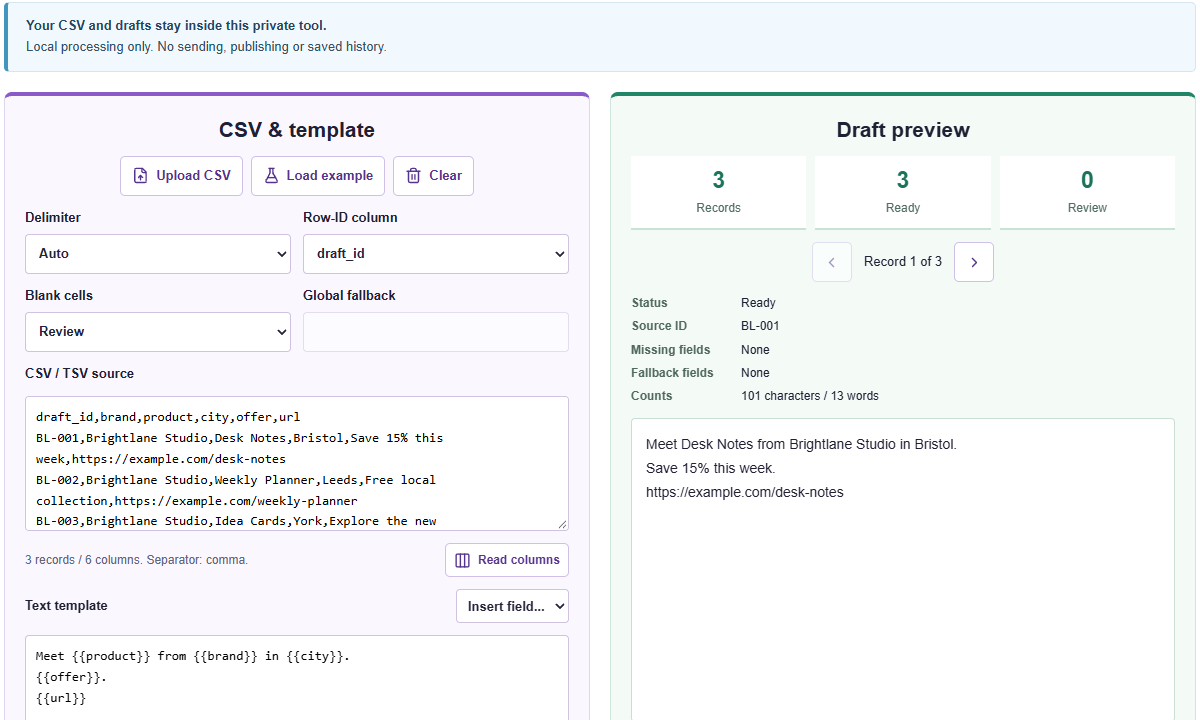
One template, reviewed record by record
CSV template personalizer
Use exact {{Column}} variables to create plain-text drafts from your own CSV or TSV.
CSV, templates and drafts are processed locally inside this isolated workspace. Only its height is shared with the surrounding page, where ordinary website assets and analytics still run.
Limits and export method
UTF-8 CSV, TSV or TXT: up to 1 MiB, 1,000 data records and 50 columns. Templates: 8,000 UTF-16 units, 200 placeholder occurrences and 50 distinct fields. Each draft: 20,000 UTF-16 units; all draft text: 8 MiB UTF-8. Final exports: 16 MiB; ZIP working input: 32 MiB. Actions have a 10-second read/compute/export deadline.
Review CSV includes all source records. Spreadsheet-safe CSV prefixes formula-like cells with apostrophes; check the receiving spreadsheet import and re-save behavior. Combined TXT and individual TXT ZIP require every record to be Ready. No sending, translation, AI writing, account connection, project history or cloud save.
Technical details & licenses
The CSV Template & Bulk Text Personalizer replaces exact column variables with values from your own records. It is a deterministic text merge, not an AI writer, translation service or messaging system. Begin with the fictional example, check the source and template together, and keep human approval between a generated draft and its eventual use.
Start with one repeatable writing task
Bulk personalization works best when the sentence structure stays consistent and a small set of factual details changes. Product names, locations, offers and approved links are useful candidates. Put one intended draft in each source record and keep the surrounding wording in a single template. This separates the facts you need to check from the language you want to reuse. Before preparing a large batch, write one complete draft by hand and identify precisely which pieces differ. A clear example exposes missing columns, awkward punctuation and assumptions that otherwise become harder to notice across hundreds of outputs.
The fictional Brightlane Studio example contains three complete product records: Desk Notes in Bristol, Weekly Planner in Leeds and Idea Cards in York. Each record has draft_id, brand, product, city, offer and url columns. The template begins with “Meet {{product}} from {{brand}} in {{city}}.” and places the offer and URL on separate lines. The first draft therefore describes Desk Notes from Brightlane Studio in Bristol, followed by the supplied discount and product link. These are invented product details for inspection, not a customer story or evidence that any offer is available.
Use this pattern for a bounded drafting job, such as preparing product announcements or adapting an approved event paragraph. The tool does not decide whether the source facts are true, whether a recipient agreed to receive a message, or whether a platform will accept the result. It also does not add creative variations, translate sentences or choose an audience. Those decisions remain with the person preparing the batch. For a different writing structure, revise the template deliberately and generate again. A constant template without any variables is permitted when every source record intentionally needs the same text.
Prepare a rectangular source without losing important text
Paste CSV or TSV into the source editor, or use Upload CSV to choose a UTF-8 CSV, TSV or TXT file. The input limit is one MiB of UTF-8 text, with up to 1,000 data records and 50 columns. The header is required and every record must have the same number of fields. Auto can detect the delimiter; Comma, Tab, Semicolon and Pipe are available when you know the source convention. A spreadsheet workbook, ZIP archive or remote URL is not a supported input. Export a suitable text file from its original application first.
Keep identifiers that require leading zeros as text in the source application before exporting. The personalizer preserves nonblank cell values literally; it cannot recover zeros already removed by a spreadsheet. Quoted commas and quoted multiline fields belong inside valid CSV quoting rather than being repaired by hand after generation. Real blank records and malformed rows are not silently skipped. Only the synthetic final parser row caused by a terminal newline is removed. If the file fails validation, inspect its field structure instead of assuming that the last visible line or an empty row will simply disappear.
Each header must be unique, nonblank and between one and 80 UTF-16 units. Header names cannot contain braces, controls or line breaks. Cell values have an 8,192-unit limit, and unsupported NUL or unpaired-surrogate text is rejected rather than quietly changed. File import validates a candidate before replacing committed source data, so an invalid or cancelled import preserves the working source. Original file line endings are retained internally until an actual edit changes the source; the appearance of text in an editor is not itself a byte-preservation guarantee. See preparing a personalization CSV for a focused preparation workflow.
Match template variables exactly to the header
Write ordinary text and insert variables using double braces, such as {{product}} or {{city}}. A variable name is an exact, case-sensitive match for a header, including its spaces. The tool does not trim the name inside braces to rescue an approximate match. If the header is product, {{Product}} and {{ product }} do not refer to that column. Read columns after preparing the source, then use Insert field to insert an exact available token. This is especially helpful for a header with spaces or dots, where retyping a familiar-looking name can introduce an unnoticed difference.
Dotted names remain literal header names, not instructions to search nested objects. A column named product.name can therefore be used as {{product.name}} without requiring a special JSON structure. The renderer maps permitted names to internal safe aliases before substitution. Template syntax is deliberately limited to ordinary text and supported double-brace tokens. Sections, loops, comments, partials, triple braces, delimiter changes, functions and JavaScript are not part of this workflow. Values substituted from the CSV are never treated as another template. A cell containing braces stays text; it does not create a second round of variable expansion.
The template accepts up to 8,000 UTF-16 units, 200 placeholder occurrences and 50 distinct fields. Reusing {{brand}} several times counts as several occurrences but one distinct field. An unknown column stops the whole request rather than producing a partially successful batch with unexplained gaps. Correct the token or the header and generate again. Keep punctuation outside variables only when it makes sense for every possible value. A URL token is literal text, not a fetched resource or an automatically tested destination. The CSV template variables guide explores exact names and sentence construction in greater detail.
Choose how known blank cells should be handled
The default Blank cells setting is Review. When a referenced, known column contains an empty or whitespace-only value, that record needs attention and does not receive a ready draft. Review prevents a plausible-looking sentence from quietly losing an important fact. It is different from an unknown token: a missing value belongs to a real column, while an unknown token is a template error affecting the whole request. An unused empty column does not automatically make the draft incomplete. The relevant question is whether the template needs that value for this particular record to be usable.
Use fallback is an explicit alternative for known blank cells. Enter a global fallback between one and 200 UTF-16 units, then generate again. The same text replaces every referenced blank cell, so choose it only when one phrase genuinely fits all those positions. “Available locally” might fit a location phrase but would be nonsense as a replacement product URL. A fallback never fixes a typo or an unknown column. The record metadata continues to name fields where fallback was applied, allowing you to distinguish a complete source record from a draft made ready through an agreed substitute.
For Brightlane Studio, imagine that only the offer for the Weekly Planner is missing. With Review, that record is withheld while the two complete records can still be inspected. A review CSV can document the entire batch, but combined TXT and ZIP remain unavailable until every record is Ready. You can fill the missing offer in the source or deliberately choose a suitable fallback and regenerate. Do not insert invented discounts just to remove a warning. Nonblank values are not trimmed, so a source value with leading spaces remains visibly different from a cleaned version, even when both contain real words.
CHECK THE WHOLE BATCH
Turn one approved sentence into reviewable drafts
Load the fictional example or your own supported CSV, match exact field names, and inspect the complete output before choosing an export.
Inspect complete drafts and their review metadata
Generate drafts creates a reviewed result in source-record order, without deduplicating repeated entries. The Records, Ready and Review totals describe the whole generated batch. Use the selected-record navigation to inspect one complete draft, its status and the accompanying metadata. Choosing a Row-ID column adds a supplied identifier to review context; it does not change the text unless the template also references that column. A useful identifier lets a colleague find the original record after receiving a review file. It is not treated as a trusted filename, a unique key or proof that two matching identifiers are the same item.
Record review displays a bounded table of 25 records per page. Its excerpts help scanning, but they are not the complete output and are not a substitute for the selected preview. Long source IDs may be shortened explicitly in the table, while the selected record retains its complete identifier. The character count uses Unicode code points, and the word count uses whitespace-separated groups. These are local descriptive counts, not a platform-specific acceptance calculation. Inspect URLs, line breaks, unusually long fields, repeated punctuation and wording around every optional fact before treating a Ready result as editorially approved.
Ready means the requested substitutions completed within the tool’s rules; it does not mean the draft is accurate, persuasive or cleared for publication. A single draft is limited to 20,000 UTF-16 units, and all generated draft text together is limited to eight MiB of UTF-8 data. A short source can still create a large output if a long value appears repeatedly in the template. Reduce the source batch or simplify the wording when a bound is reached. No over-limit content is silently clipped into an apparently complete deliverable. For a separate length review, use the social media character counter.
Select the export that matches the handoff
Review CSV includes every source record, not just the selected record or the visible review page. It contains status, source ID, missing and fallback field names, counts, and the ready draft where one exists. A Review record has a blank draft field so a receiver cannot mistake an incomplete substitution for usable copy. Spreadsheet-safe is the default CSV mode. It prefixes formula-like cells with apostrophes for spreadsheet review; how the spreadsheet imports or later re-saves them still needs checking. This changes the serialized value. Literal mode preserves literal CSV field values instead; choose it consciously when exact text matters and handle spreadsheet formula risks separately.
Combined TXT creates a readable bundle with record and ID separators. It is useful for a human reviewer who wants one file, but it is not a sequence of untouched draft bodies without context. Individual TXT ZIP is the option for separate draft files containing only each exact generated text. Names follow the fixed draft-0001.txt pattern; private CSV values do not become paths. The ZIP also includes review.csv and a method README. Both TXT and ZIP require zero Review records. CSV mode applies to the review CSV, not to the exact text inside individual draft files.
Copy selected ready draft uses the browser clipboard when permitted. A denied clipboard action is not a successful copy; use the offered selection fallback and copy the displayed text manually. Final export files have a 16 MiB limit. ZIP preparation also has a 32 MiB working-input cap to keep archive construction bounded, which is separate from the final downloadable size. Save exports in a location appropriate for their contents, because downloaded files and clipboard copies are outside the workspace’s clearing controls. Read the personalized draft export guide before designing a repeatable handoff for another person or application.
Keep private work inside the local workspace
CSV, template text and generated drafts are processed within an isolated browser workspace. They are not uploaded to a personalization service or sent as input messages to the parent page. The only permitted frame-to-parent message reports a bounded workspace height. Imported URLs and other values remain inert text, not resources to visit automatically. Ordinary assets and analytics can still run on the surrounding SMTasker website, so this local-processing statement applies to the tool’s private input and output path, not to a claim that the entire website is offline or makes no network requests.
There is no saved history, autosave, cloud project, account connection or background sending queue. Clear removes the local working view and cancels active work. Leaving the page or a browser freeze lifecycle event also stops work and clears private tool state; ordinary blur does not erase a CSV while you switch applications. Each import, generation or export operation has a combined ten-second deadline, and Cancel is available during work. An invalid candidate import does not replace committed source data. Any real input edit invalidates older results and exports so an earlier draft cannot quietly remain the active deliverable.
These controls do not guarantee secure erasure from browser memory, operating-system buffers, extensions, screenshots or a shared device. They also cannot revoke a clipboard write or remove a file already downloaded. Use only data you are entitled to process, keep unnecessary personal information out of the source, and follow your own retention rules for exports. The tool is not a secure messaging system or evidence-preservation service. A small file with appropriate fields is easier to review and handle responsibly than an indiscriminate export containing unrelated contact details, private notes and columns that the template never needs.
Move approved drafts into a separate operating workflow
Treat personalization as one preparation stage. After generating, check the facts and tone, confirm the target use, and decide who approves the result. The personalized caption guide focuses on local details and editorial checks, while plain-text mail merge separates draft preparation from delivery. Neither workflow sends messages from this page. Keep recipient selection, permission, scheduling and any platform-specific requirements in the system where those actions actually happen. A CSV that rendered correctly is not proof that those later conditions have been satisfied.
If your source includes different languages or regions, supply the approved wording yourself rather than expecting the template to translate it. The localized product copy guide explains how to keep language, prices and place-specific claims coherent. For a dated campaign, the content calendar generator can help organize the next planning step. Links that need campaign parameters can be prepared separately with the UTM link builder. These are separate tools with their own inputs, not automatic integrations or hidden transformations applied to the CSV you loaded here.
SMTasker can be the optional next operating layer when approved copy needs to become part of a broader social workflow. Explore the relevant product workflow before assuming a particular CSV import, sending action or scheduling integration exists. This free personalizer does not connect its output to an account or publish on your behalf. Keep the source, template and review export together under your own process when an approver needs to understand how a batch was produced. The useful outcome is a set of understandable drafts with visible review decisions, followed by a deliberate handoff, not a promise that generating more text automatically produces better results.
Plan the next draft batch
CSV personalization guides
Prepare a trustworthy source, choose literal variables, and hand off reviewed drafts.
Personalized Social Media Captions
Turn approved product, location, and offer details into caption drafts, then review wording, blanks, and channel suitability before use.
Read the guidePlain Text Mail Merge
Prepare individual text messages from approved event details, with clear handling for greetings, missing cells, record IDs, and draft downloads.
Read the guideCSV Template Variables
Match case-sensitive column names, understand literal dotted and spaced headers, and distinguish unknown fields from known blank cells.
Read the guidePrepare a Personalization CSV
Prepare UTF-8 delimited text with exact headers, rectangular records, quoted multiline values, and leading zeros kept as text.
Read the guideLocalized Product Copy
Assemble approved product wording, market prices, and destination text without automatic translation or locale conversion.
Read the guideExport Personalized Drafts
Choose review CSV, a labeled text bundle, individual ZIP drafts, or current-draft copy with clear completeness and fidelity rules.
Read the guideQuestions about bulk text personalization
Does this tool send emails or publish social posts?
No. It creates and exports plain-text drafts locally. Sending, recipient selection, scheduling and publishing happen separately in a system you choose.
Are template variables case-sensitive, and are spaces ignored?
Names are exact and case-sensitive, including spaces. For a header named product, use {{product}}. {{Product}} and {{ product }} are different names and are not automatically corrected.
Can I export when some records need Review?
Review CSV includes every record, including Review rows with blank drafts. Combined TXT and individual TXT ZIP require every record to be Ready. A selected ready draft can be copied separately.
Does fallback replace unknown columns or translate values?
No. The explicit global fallback applies only to referenced known columns whose cells are empty or whitespace-only. Unknown variables stop generation, and no translation or AI writing is performed.
Is my CSV uploaded or saved as a project?
No. Private inputs and drafts stay in the isolated local workspace, with no autosave or cloud history. Ordinary website assets and analytics still run outside it. Clear cannot remove copies already downloaded or written to your clipboard.
AFTER THE COPY IS APPROVED
Plan the next operating step
Keep this free tool for local text preparation. Explore SMTasker separately when approved copy needs a broader social media workflow; no automatic import, sending or publishing is performed here.