Your photos. Your signature.
Bulk Watermark & Logo Adder
Add a logo or text signature to a whole photo batch. Fine-tune the placement, keep a reusable preset and download watermarked copies without uploading your originals.
A consistent mark, without covering the subject
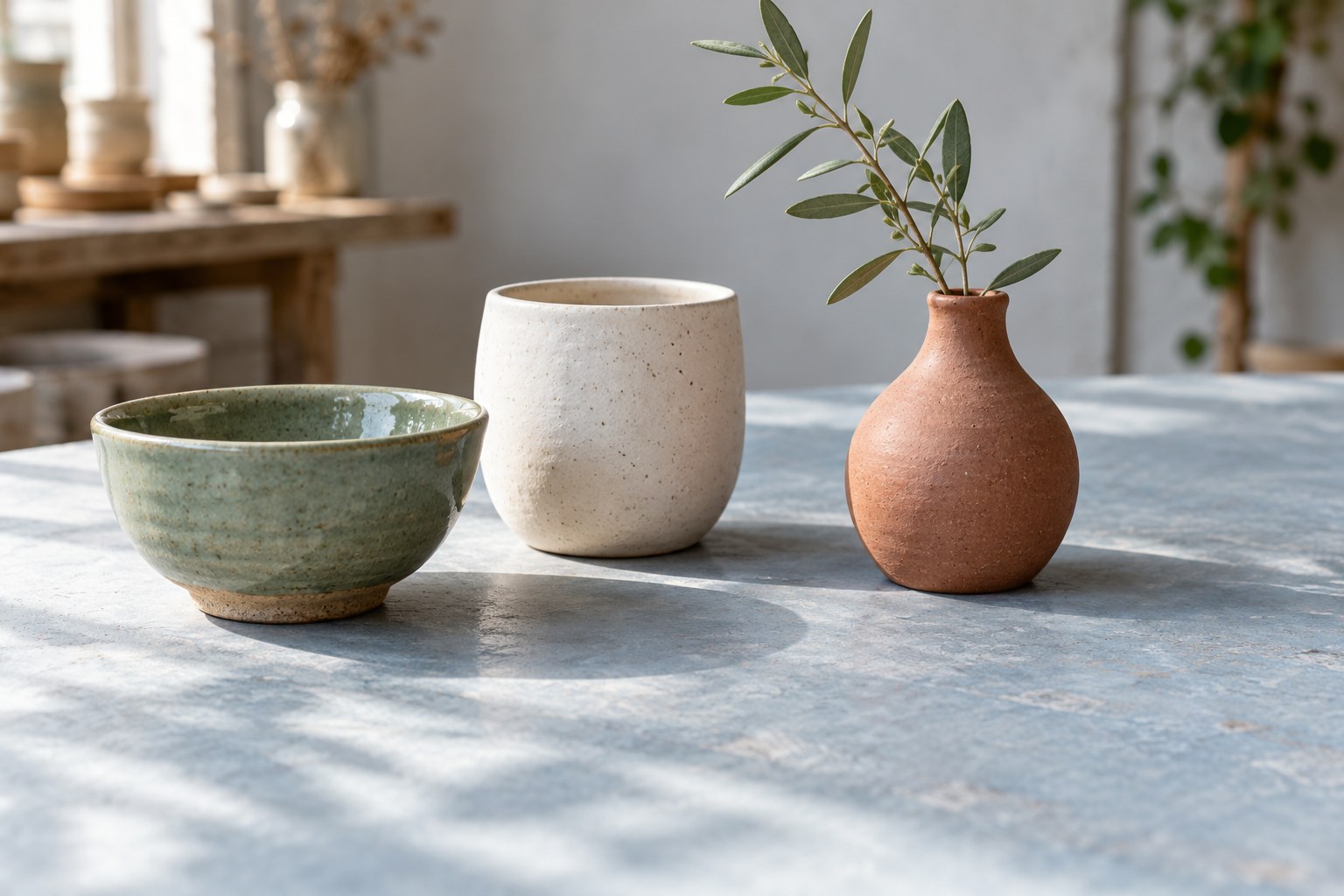
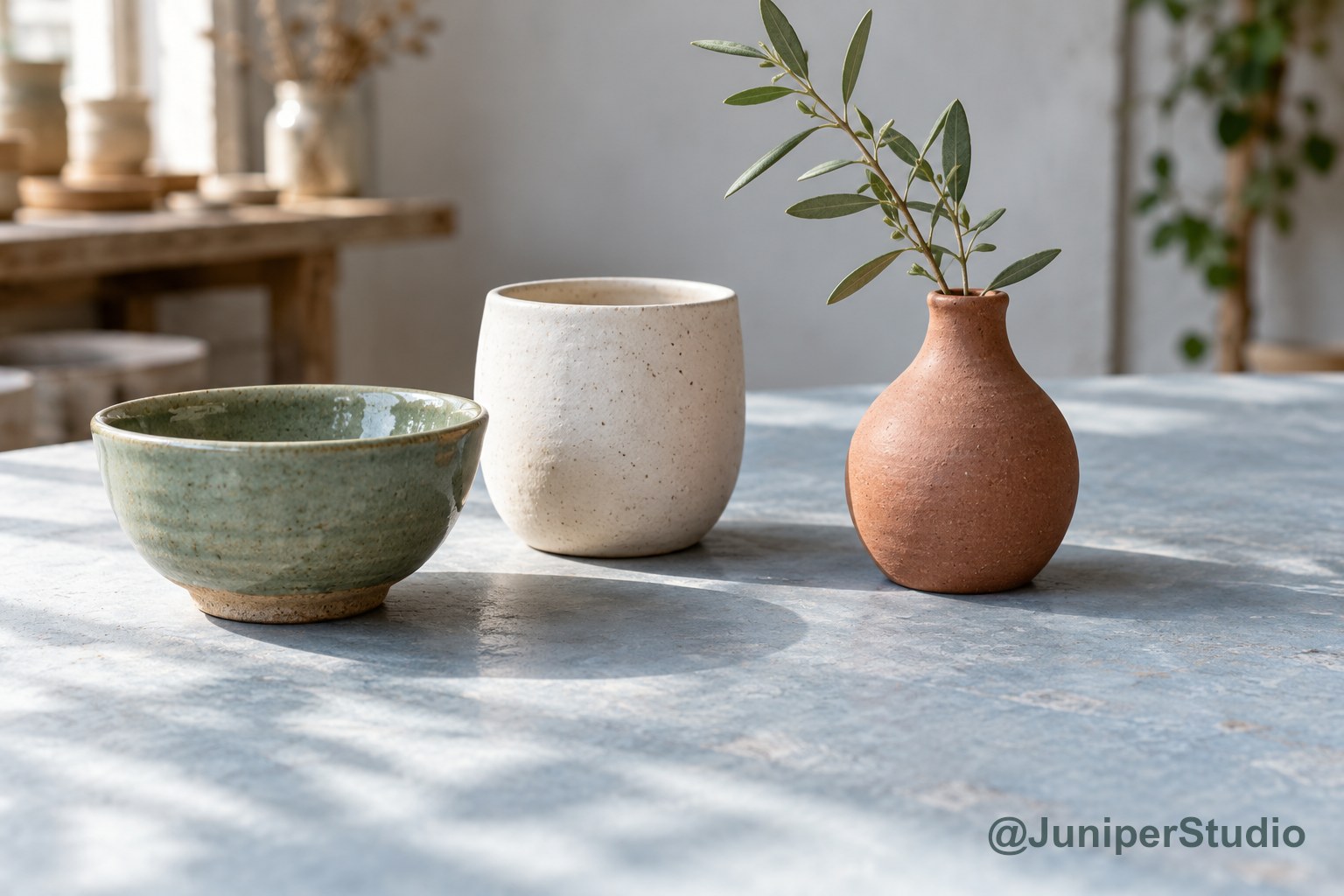
The example is a fictional studio signature. Your exports use only the text or logo you choose.
Brand the copy. Keep the original.
Add a mark to your photo batch
Choose your photos, set a batch style, then inspect each composition. Make a photo-specific adjustment only where the common placement needs it.
Your watermark style
A transparent PNG is useful. Logos are prepared at up to 2048 pixels per edge and 2 MiB; the prepared size is shown above.
Width is a share of the output photo width. Margin is a share of its shorter edge. The whole mark fits inside those margins.
Position inside the image
0 is the near edge; 100 is the far edge within the margins. Drag the mark in the result preview to position it for this photo.
The backplate is part of the mark and follows the same opacity setting.
Output copies
No automatic crop or enlargement. PNG keeps transparency; JPG places transparent areas on the chosen background. Canvas exports do not preserve the original metadata or color-profile payloads.
Your before-and-after proof
Add a local photo.
Your proof will appear here.
The proof is downscaled. The image download uses your chosen output pixel dimensions.
Check that a mark stays clear of faces, labels and important detail. Your exported copy is a visible brand mark, not a guarantee against reuse or cropping.
Your photo batch
Take the finished batch with you
ZIP: processed photos, manifest and review notes, not originals. PDF: scaled visual proofs with complete review data and a reusable preset attached. The PDF is rasterized, not selectable/searchable or accessibility-tagged text. Save preset keeps batch settings and the prepared logo, not photos or individual overrides.
Up to 12 still JPG, PNG or WebP photos, 15 MiB each and 60 MiB total source files. Source limit: 12000 pixels per edge and 40 megapixels. No animated images or SVG. Native browser capacity varies; choose a smaller output if encoding cannot complete. No private image upload, autosave or automatic publishing.
One style, room for judgment
How your watermark batch is built
Keep original dimensions
Each source stays unchanged in memory. Output copies are redrawn locally, at original dimensions or an explicitly smaller longest edge.
Original file → new raster copyScale the whole mark
Relative width, margins and optional backplate define a mark that fits inside the image without changing the logo aspect ratio.
Chosen width → fitted mark boundsReview the batch
Inspect each composition, change an individual photo where needed and export the complete set in its current order.
Shared style + selected overridesWatermark a batch without losing control of each image
A small product shoot rarely produces twelve identical compositions. Follow Juniper Studio as a ceramics photographer signs a mixed set while keeping glaze, shape, and handmade detail easy to see.
Choose the twelve photographs that belong together
Juniper Studio has finished a small ceramics shoot and needs a signed delivery set. The photographer chooses five clean catalog views, three close details, two styled table scenes, and two workshop photographs. That makes twelve images with a common owner but different visual jobs. A cup handle needs space around its curve. A glaze detail needs an unobstructed surface. A workshop frame may include hands near the lower edge. The goal is a recognizable Juniper Studio signature that respects those differences, not an identical patch of text covering the same useful part of every picture.
Finish the selection before using Add photos. Export still PNG, JPEG, or WebP files from the working edits, with the intended framing already decided. This tool adds a visible mark; it does not crop a scene or rotate a crooked product. Put rejected angles and unfinished color edits aside so they cannot enter the delivery by mistake. Give each chosen photograph a useful filename such as juniper-cup-side or juniper-glaze-detail. The working limit is twelve photos, so this example fits one batch. Larger shoots need separate groups, ideally divided by collection or intended use.
Keep an untouched source folder outside the browser and treat downloaded watermarked files as delivery copies. Processing happens in the current tab, without sending the photos to a server, but the tab is not a permanent project archive. There is no autosave to recover a closed session. Load example can help you explore the controls before bringing in the selected shoot. Once the real files are loaded, inspect the whole set briefly. Confirm that the catalog views, detail shots, styled scenes, and workshop images are all present before spending time on the signature. Compare the selection with the delivery request, especially similar angles that could easily be confused when the cups share one glaze.
Give Juniper Studio a clear, modest signature
Begin in Batch style with a single line reading Juniper Studio. A short studio name is easier to place than a long sentence about photography, a website address, and a release date combined. Text stays on one line, so adding more words makes the same chosen width carry more characters. Judge the actual lettering rather than the number alone. For this shoot, the signature should be readable without looking like a second product label. Try a straightforward text treatment first, then decide whether the studio needs its supplied logo instead of typed lettering.
Width is measured against the output image width, not against the cup or the empty background. As a worked starting point, a width of sixteen percent gives a mark about 384 pixels wide on a 2400 pixel image. At the same percentage, a 1600 pixel wide portrait gives it about 256 pixels. These are examples of relative sizing, not recommended social platform dimensions. The difference matters when a landscape table scene and a narrow portrait sit in the same batch. A percentage can create a coherent family while still needing a visual adjustment on an unusual frame.
If Juniper Studio already has a logo, supply a clean raster version with useful transparent space around the lettering, not a screenshot of a business card. The tool shows the prepared logo dimensions after processing it. Those prepared pixels are the source for the mark, so a warning about enlarging beyond that resolution deserves attention. Use a better source logo or a smaller applied width instead of expecting sharper edges from enlargement. The logo colors remain as supplied. Text color can be chosen here, but a colored logo must be changed in its source artwork. Check for an unwanted opaque border around the asset, since the dark workshop background will reveal one that white catalog shots can hide.
Find room beside the ceramics, not across them
Look for a quiet region before choosing an anchor. In the catalog views, that may be the background below the cup rather than the cup itself. In a table scene, it might be a clear area of cloth away from a spoon. Start with one of the nine positions and inspect the space around the complete mark, including any backplate padding. A neat corner placement can still look crowded when the product nearly touches that corner. The visible relationship between signature and subject is more important than keeping a favorite position on every image.
Margin uses a percentage of the shorter image edge. With a short edge of 1600 pixels, three percent represents 48 pixels of margin. That gives the photographer a way to compare spacing across differently shaped pictures without inventing a separate pixel value for each one. It does not reserve space around the product. If the handle reaches into the margin area, choose another anchor or adjust that photograph. Custom X and Y position the mark within the available movement inside the margins. They are not coordinates tied to a feature of the ceramic piece.
Check the signature over both pale clay and dark glaze before settling on opacity. A faint mark that looks tasteful on a bright background may vanish against a pale highlight. A heavy mark can hide subtle crazing or make a smooth glaze look patterned. A solid backplate can separate the signature from a busy surface, but it also adds a visible shape. Use it deliberately rather than as a cure for poor placement. In the Juniper set, moving the signature onto plain cloth may preserve more detail than adding a large opaque rectangle across the bowl. Keep the rim highlight visible too; its uninterrupted curve helps the photograph describe the shape without another graphic cutting through it.
Let the difficult frames depart from the batch
After the general treatment works, inspect the close details individually. One photograph shows a stamped maker mark near the lower right corner. Another fills the frame with blue glaze. The workshop picture has a hand where the shared signature would sit. Select each exception and work in This photo. Change the position, width, opacity, or text treatment for that frame while leaving the other photographs on the shared treatment. The purpose is a consistent impression, not forced geometric sameness. A small move that reveals the maker stamp is worth more than perfect corner alignment across the contact sheet.
Dragging the mark in the preview creates an individual photo override. That override is a complete style snapshot, not just a remembered position. If the photographer later changes the global text color, an overridden image may retain its earlier color along with its special placement. This explains why a batch can look partly updated after a late style change. Select the affected photograph and review its controls before assuming the export is wrong. An overridden photo opens its own settings, which helps distinguish a deliberate exception from a frame that still follows the shared batch treatment.
Use batch style returns the selected photograph to the current common settings. Use batch style on all photos removes every individual override, so reserve that action for a genuine decision to start the exceptions again. Do not use it merely to refresh the preview. For Juniper Studio, it may be sensible after replacing a long signature with a much shorter one, since the old exceptions were designed around different lettering. After that reset, revisit the maker stamp, the glaze closeup, and the workshop hand. These frames remain composition problems even when the shared style has improved. Compare these exceptions side by side with the plain catalog view so the special placements still feel like one studio treatment.
Ready for a placement test
Try the lightest and darkest frames first
Bring in the ceramics selection and establish a signature that survives both backgrounds. Then give the detail shots their own careful pass.
Choose output settings for the actual delivery
Leave the output at original dimensions when the delivery needs the source pixel sizes. The tool keeps those dimensions unless an output resize is explicitly chosen. Its resize choices limit the longest edge and do not enlarge smaller originals. They also do not turn a portrait into a square or create a crop for a particular destination. If Juniper Studio needs a different shape, prepare that framing before applying the signature. The separate image resizer can be a useful next stop when dimension work is part of the brief, but keep the final framing decision separate from watermark placement.
Choose the file format for the receiving workflow. JPEG is a practical candidate for opaque photographs, while PNG can retain transparency when the source needs it. JPEG flattens transparent areas onto the chosen background color. This is easy to miss when a cutout product photograph looks white in a preview but actually has an alpha channel. WebP is another available output, subject to what the recipient can use. The quality control affects JPEG and WebP encoding; PNG does not use that quality setting. Compare actual files before choosing a delivery format for the entire shoot.
Every processed output is a new raster image. The original file is not rewritten, and its EXIF, ICC, and other metadata are not carried into the download. Keep the source files if the studio needs those records or an editable master. Color handling may differ after browser canvas processing; a familiar preview does not promise matching color management everywhere. For color sensitive glaze work, inspect a downloaded sample in the intended review environment. A signature that looks clean is only one part of approving a product photograph for delivery. Pay particular attention to pale green and blue pieces whose subtle differences matter when the catalog photographs are viewed together.
Approve the signature with useful evidence
Start the final review with three deliberately different photographs: a light catalog background, the darkest glaze, and the busiest workshop scene. Compare before and after to see what the mark has changed. Ask whether the product still reads first, whether the studio name is legible, and whether a signature stroke resembles a scratch or decoration. Then examine the other nine images rather than treating the three samples as automatic approval. A batch rule can be sound while one composition still fails. This is especially likely when hands, handles, and rim highlights approach an edge.
The on-page before and after views are downscaled proofs. They help with placement and visual balance, but they are not the full production image. Download image gives the selected photo a separate final-file check. Open it at a useful viewing size and inspect the lettering edges, backplate boundary, and surrounding ceramic texture. Do this before exporting the entire batch if a supplied logo looks soft. A small proof may hide a low resolution logo problem that becomes obvious in the delivered file. It can also make a fine text stroke seem stronger than it really is.
Download PDF is useful when another person needs to review the set and its settings together. Its before and after images are scaled proof views too, not a replacement for the production photographs. Share it as a visual approval aid, with the finished image files when detailed inspection is needed. Copy review provides a text record of filenames, settings, and planned geometry. Download CSV offers that information in a tabular form. Neither should be read as a measurement of final encoded file sizes. Keep the review purpose distinct from the artwork and from the original camera files. Ask the reviewer to identify the filename when requesting a move, rather than referring only to the similar-looking blue cup.
Save a repeatable look without confusing it with a project
Once Juniper Studio approves the common treatment, use Save preset to download its reusable JSON configuration. Name that file clearly in the studio archive. The JSON carries your shared watermark treatment, chosen output configuration, and platform context. It also carries the prepared logo when supplied. It does not contain the twelve photos, their filenames, or any individual photo overrides. That makes it useful for repeating the general look on next month’s collection, but not for reopening this exact delivery with every exception intact. Keep the finished files and any review records separately if you need to remember how this particular shoot was handled.
Open preset changes the common configuration while preserving the photographs already in the tab. Existing overrides also remain. This is useful when comparing a studio treatment against a loaded shoot, but it requires attention: the maker stamp exception may still carry the previous signature style. Review the preserved exceptions before deciding whether to keep them. If the intention is to apply the newly opened preset uniformly, choose the explicit batch reset action for all photos and then rebuild any necessary exceptions. Opening a preset alone is not an instruction to erase the work already done on individual frames.
Clear photos removes the current photographs and their overrides while retaining the style and prepared logo for another group. Reset style does something different: it resets the global and output settings plus overrides, while retaining the photos and prepared logo. Choose the action that matches the task instead of using either as a general restart button. Before closing the tab, save the reusable preset and download the actual delivery. The preset cannot recover missing photo files later, and a review PDF cannot supply full resolution source images. Those are separate assets with separate jobs in the studio archive. Store them with the collection name so a future assistant can distinguish the reusable studio look from this shoot’s approved results.
Deliver a signed set that stays easy to identify
Use Download ZIP after every image has passed the visual review. The archive contains numbered watermarked copies, a manifest.csv, and a README.txt, rather than the untouched originals. Confirm the intended twelve pictures are there before handing the archive to a client or moving it into the delivery folder. Open a few files from the archive itself, including an overridden image, so the review covers the package that will actually leave the studio. Keep the source folder separate from this signed set. That separation makes later requests for an unmarked version much easier to handle.
The whole-batch actions validate the set together. If one photograph has a problem, resolve it before expecting the ZIP or proof to represent a complete delivery. Download image checks only the selected photo, which makes it useful for investigating an exception without treating the rest as finished. Keep a short approval note outside the tool if a client asks for a particular placement on one image. The review exports can preserve the relevant settings, but they do not become an editable photo project. A clear handoff names the approved files and explains which folder contains the originals.
For the next ceramics collection, begin with the saved studio treatment and a fresh composition review. A new bowl shape or darker backdrop can make yesterday’s ideal corner unsuitable. The practical value of bulk watermarking is less repeated setup, with enough control left for the photographs that need care. The signature is a visible credit, not an invisible identifier or a guarantee against removal. Keep the photographer’s source archive and delivery records alongside it. After downloading, plan any captions, descriptions, and account work as separate tasks; this utility prepares images and does not transfer the batch into SMTasker. The artwork itself carries only the marks you configured, so the delivered ceramics photographs do not gain an imposed SMTasker advertisement.
Make the mark suit the image
Platform and watermarking guides
Use the destination as context, then work with the actual photograph. These guides cover different composition, branding and delivery decisions.
Instagram Jewelry Photos
Place a studio mark on Instagram jewelry photos without hiding the small details that help someone understand the piece.
Read the instagram jewelry photos guideTikTok Recipe Photos
Sign a recipe photo series while leaving ingredients, textures, and prepared step labels clear. This workflow works with still pictures, not video.
Read the tiktok recipe photos guideYouTube Repair Thumbnails
Add a workshop signature to prepared tutorial thumbnails and companion images without obscuring the repair detail or competing with the headline.
Read the youtube repair thumbnails guideFacebook repair album watermarks
Add a small workshop signature to a Facebook bicycle-repair album while keeping hands, tools, and the finished repairs easy to see.
Read the facebook repair album watermarks guideLinkedIn architecture image credits
Prepare credited architecture illustrations for a LinkedIn project portfolio. Keep plans, material details, and project labels readable around the mark.
Read the linkedin architecture image credits guideThreads street-photo signatures
Place a photographer signature across a Threads street-photo essay without breaking sightlines, swallowing reflections, or filling every quiet space.
Read the threads street-photo signatures guideX fencing club photo marks
Mark fencing club photographs for X with a readable club name or badge. Preserve the action, check result details, and prepare a tidy volunteer handoff.
Read the x fencing club photo marks guideSnapchat Story Photos
Give a bakery photo sequence a recognizable signature without hiding the crust, filling, or handwritten counter sign.
Read the snapchat story photos guideReddit Progress Gallery
Add a modest painter signature while leaving the highlights, blends, and unfinished areas available for close inspection.
Read the reddit progress gallery guideTransparent Logo Watermarks
Keep a pottery logo free of unwanted boxes, choose contrast deliberately, and understand what PNG or JPEG will preserve.
Read the transparent logo watermarks guideProperty Photo Workflow
Prepare an interior photography handoff with traceable filenames, a shared signature, deliberate room exceptions, and reusable settings.
Read the property photo workflow guideQuestions about watermarking photos
Can one batch contain both portrait and landscape product photos?
Yes. Relative sizing works across mixed shapes, but a narrower photograph may need its own width or position adjustment. Inspect the composition of every frame rather than expecting a shared percentage to create identical visual weight.
Will the Juniper Studio preset reopen the twelve-image shoot?
No. A preset keeps the common configuration and any prepared logo, not the photographs or individual exceptions. Preserve the source folder, completed downloads, and review records separately.
Does the PDF contain delivery-quality photographs?
The PDF contains scaled before and after proofs with review information. Use the image downloads or ZIP for finished raster files. Source photos are not included as PDF attachments.
Can I repeat a logo across the whole photograph?
Tiling is not available. Place one text signature or supplied logo on each photo, using an anchor or a custom position. Rotation is not part of the watermark controls either.
Do I need an account to download my signed images?
No account is needed for this browser utility. Download the files before leaving the session, since the working photos and edits are not autosaved for later recovery.
Beyond the delivery folder
Make room for the rest of your studio work
Explore the five-day SMTasker trial for your wider social workflow after the signed files are ready. Image preparation here remains independent, with no automatic import into the app.