Prepare a local batch with a traceable result
Email List Cleaner & Suppression Matcher
Combine your own contact lists, map their columns, remove duplicates and match the suppression records you supply. Get a clear review and separate export files without uploading your lists.
A transparent decision for every record
One combined list. Four clear queues.
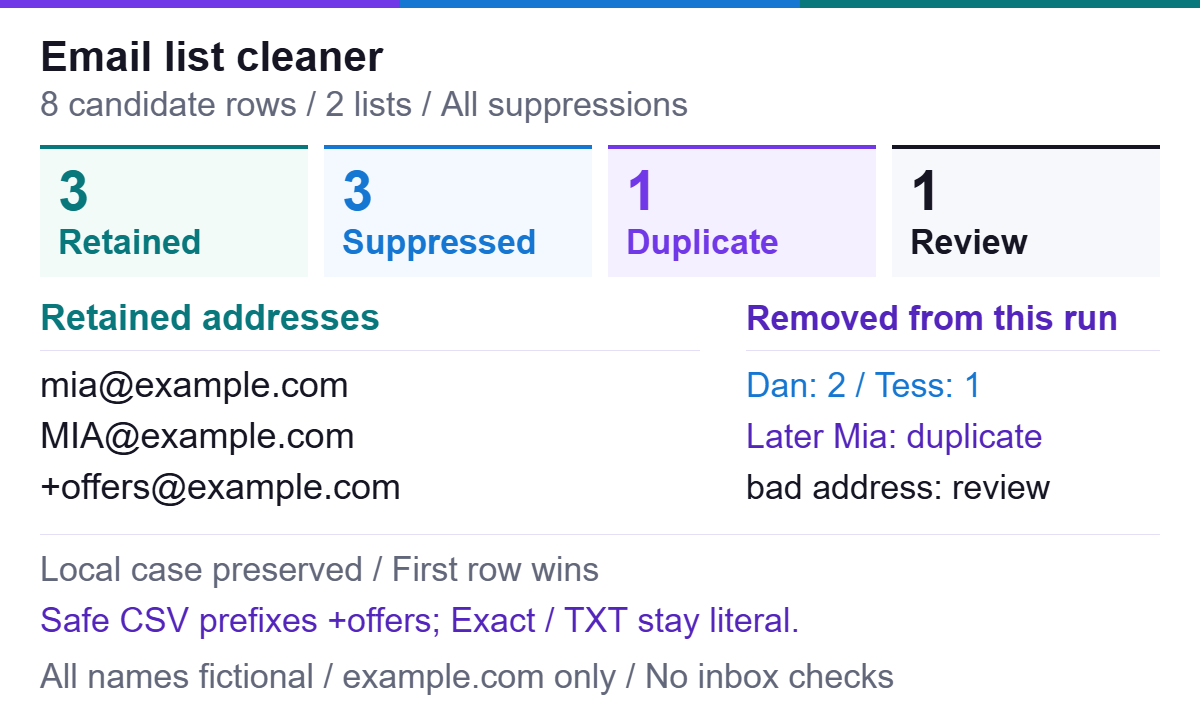
Keep complete contact rows, see which supplied suppression matched, and review questionable formats separately. These are local list decisions, not a prediction that an inbox exists.
Your original lists stay yours
Clean the list, keep the explanation
Read the columns, choose your matching rules, and inspect the review before downloading. No email account login, external API or sending is involved.
The private workspace is isolated from the rest of this page. It keeps no history or local-storage draft. Clear it when finished; downloaded files remain yours to manage. Browser extensions and your device are outside this tool’s control.
Map the contact columns
Choose the email field in each source. Keep selected contact fields, align shared output names and select which complete duplicate row wins.
One output schema, no field backfillApply your suppressions first
Match your supplied global or grouped exclusions before duplicate selection. Active suppression records that need format review block the cleaned export.
Supplied exclusions before duplicate rulesExport with a visible audit
Download the retained list separately from the candidate audit, review queue and suppression log. Choose literal import values or spreadsheet-safe CSV.
Complete queues, not just the preview pageWorking limits and supported files
Up to six candidate and six suppression sources; 512 KiB per source and 2 MiB combined UTF-8 text; 5,000 combined candidate records and 10,000 suppression records. CSV needs headers and an explicit comma, semicolon or tab separator. TXT needs one bare address per line. There are no XLSX, ZIP or provider-specific importers. Each file supports up to 20 columns and 512 Unicode code points per cell. Source labels, output names and scope fields allow 80 code points. Processing has a ten-second deadline and exports a 16 MiB limit; over-limit data is rejected, never silently truncated.
Conventional ASCII email local parts with internationalized domains are supported. Other formats go to review; they are not declared nonexistent inboxes. There are no DNS, MX, SMTP or mailbox checks, no public suppression database, no automatic typo repairs and no consent certification.
Technical details & licenses
Prepare CSV or TXT lists in your browser. Map contact fields, match supplied suppressions, choose a duplicate winner, and download the retained batch with separate audit records.
Open the free Email List Cleaner to prepare a local batch, or browse the Tools directory. This tool does not connect an account, verify a mailbox, infer permission, or send email.
Define the batch before choosing what to retain
A useful cleaning run starts with a bounded question: which supplied rows should remain in this particular working batch? Gather the candidate files, the exclusion records you intend to apply, and a short description of the intended destination. Keep the originals outside the tool. Cleaning can resolve repeated address keys and apply known exclusions, but it cannot establish why an address was collected or whether future contact is appropriate. Treat the retained output as prepared data, not an approved audience. A colleague checking the batch should be able to identify the inputs and explain the settings without reconstructing your decisions from a filename.
Separate candidate material from suppression material before loading either. Candidate lists contains the rows you might retain; Suppressions contains addresses you explicitly want matched for exclusion, with a supplied Reason and optional Scope group. The tool does not discover either category for you. For a workshop booking reconciliation, a registration export belongs among candidates while a documented manual hold belongs among suppressions. A file containing both should be separated deliberately in your source workflow. Do not turn an uncertain contact into a suppression merely to make the result look tidy; uncertainty about address format belongs in Review and needs its own explanation.
Plan within the local limits: up to six candidate sources and six suppression sources, 512 KiB per source, and 2 MiB combined. Inputs must be UTF-8 CSV, tab-delimited or semicolon-delimited text selected as CSV, or TXT with one bare address per line. CSV allows twenty columns; each cell allows 512 code points. The combined record limits are 5,000 candidates and 10,000 suppressions. Processing has a ten-second worker deadline and each export is capped at 16 MiB. A rejected oversized batch is not partially cleaned. Divide work only when each resulting batch can still receive every relevant suppression and duplicate comparison.
Read columns in a concrete workshop example
Consider fictional Juniper Workshop preparing a desk register, not a sending campaign. Its first candidate source, Bookings, has the CSV headers email,guest,session,internal_note. The first data record contains mira@example.com , Mira Sol, Printmaking, and Desk 4. The second contains oren@example.com, Oren Vale, Letterpress, and Desk 2. These are synthetic records using example.com, not real registrations. Label the source Bookings so its origin remains understandable in the audit. Under Candidate lists, choose Add source, then Load file or enter the CSV text, select the actual delimiter, and use Read columns before deciding which column contains email addresses.
Complete Bookings with three more records: mira@example.com,Mira Sol,Screenprint,Revised; tess@,Tess Vale,Printmaking,Check entry; and +kit@example.com,Kit Fen,Bookbinding,Desk 6. The surrounding ordinary spaces in Mira’s first email can be trimmed by the default setting. The later Mira record creates a duplicate comparison, while Tess’s incomplete address creates format review. Kit’s leading plus is intentional and matters when choosing a CSV export mode later. Keep all five records, including the problematic one, for the demonstration. Removing it manually before the run would hide the difference between a supplied candidate and a row that the cleaner placed in Review.
After Read columns, set Email column to email. Confirm that the preview separates four fields per record rather than showing a single long column. If a semicolon file was read with a comma delimiter, correct the choice and read again. CSV needs a genuine header row, unique nonempty headers, and consistent record widths; this is not a header-guessing importer. Properly quoted commas or multiline contact values belong inside a cell. A malformed record should be corrected against its original, not patched by deleting whichever separator looks inconvenient. Changes to raw input, format, or delimiter require another Read columns step before cleaning.
Align only the contact fields the batch needs
Use Map contact columns in Bookings to include guest with target header name and session with target header session. Exclude internal_note. The cleaned CSV will then contain the email column and those two mapped contact fields, not the desk notes. Exclusion also removes that contact column from candidate audit exports; an audit is not a complete backup of every uploaded field. Keep the original Bookings file for any later investigation of Desk 4 or Revised. The mapping determines the information this working batch is allowed to carry, so review it as carefully as the duplicate setting.
Add a second candidate source named Desk additions with headers address,full_name,workshop. Its three records are oren@example.com,Oren Vale,Late slot, uma@example.com,Uma Hart,Bookbinding, and lee@example.com,Lee Arden,Letterpress. Read columns, select address as Email column, then map full_name to name and workshop to session. Matching target names align these source fields in the output. The cleaner does not infer that guest and full_name mean the same thing. Leaving both original targets would produce separate contact columns with blanks where a source does not supply that particular target, even though the values look related.
Keep included target names unambiguous. Two included columns within one source cannot share a target, and email plus the fixed audit metadata names are reserved. Across different sources, the exact same target name is the explicit alignment instruction. Choose a consistent spelling rather than relying on case or visual similarity. Mapping is not data enrichment: if the eventual winning row has an empty session, a later duplicate does not contribute one. A TXT candidate supplies only its email, so its winning row has blank contact fields in a mixed CSV result. Decide whether that loss of context is acceptable before giving an address-only source priority.
Choose matching rules without changing address identity
The default comparison trims surrounding ASCII spaces and tabs from email cells, preserves local-part case, and canonicalizes the domain for matching. Contact cells are not trimmed by that email setting. For example, mira@EXAMPLE.COM can match mira@example.com, while Mira@example.com remains a different key by default. Ignoring local-part case is an optional broader comparison, not a discovery about the receiving system. Record that decision when reproducibility matters. The tool keeps the selected row’s address spelling rather than exporting its internal comparison key as a replacement identity. Trimming can remove the configured surrounding whitespace, but it does not authorize arbitrary address repair.
The optional Gmail alias grouping rule is narrower than a general cleanup shortcut. It lowercases the local part, removes dots, and discards the plus suffix only for the exact canonical domain gmail.com. It does not apply those assumptions to a custom work or school domain, googlemail.com, or every provider with a familiar-looking address. Leave it off unless that grouping is intended for this batch. Neither that option nor case folding establishes that two rows describe the same person. A shared address can represent several contacts, and one contact can use several unrelated addresses; this cleaner does not resolve either relationship.
For Juniper Workshop, retain the defaults and choose First input row for duplicates. Bookings stays ahead of Desk additions, and records remain in their supplied order. First input row keeps Mira’s Printmaking record; Last input row would keep the later Screenprint record instead. A date-looking contact field would not change either decision because dates are not interpreted for winner selection. None disables duplicate removal among otherwise eligible rows. Use the duplicate winner guide when conflicting retained fields are the main issue, or the address matching rules guide before broadening the key used by both suppression matching and deduplication.
Make the preparation decisions visible
Prepare and inspect your local batch
Read columns, align included fields, apply your supplied suppressions, and check all four result queues.
Apply supplied suppressions before counting duplicates
Under Suppressions, add a TXT source named Manual hold containing only oren@example.com. Set Reason to Desk reconciliation hold and leave Scope group empty. This is a supplied exclusion for the fictional exercise, not a finding from an external database. Keep All supplied suppressions selected for the first run. Both Oren candidates will be Suppressed, including the repeated address in Desk additions. Neither becomes a duplicate winner. Suppression matching takes precedence over duplicate selection for accepted candidate addresses, so changing from first to last cannot rescue an address that matches an active supplied suppression. This ordering is essential when reconciling the outcome totals.
All supplied suppressions is the default and applies supplied records regardless of their group labels. Selected group is an explicit narrower choice: it applies sources with an empty group plus sources whose group exactly matches the selected loaded label. Other group entries remain reported as inactive rather than disappearing. A group name is information you supplied, not a provider subscription fetched by the tool. Do not choose a group simply because its name sounds relevant; establish what the source represents first. The suppression matching guide covers reason, source, and scope decisions when several exclusion files need to be reconciled together.
An unreadable active suppression address creates a different risk from an unreadable candidate: it might conceal an exclusion that should have applied. Active invalid suppression entries therefore block Download cleaned CSV and Download emails TXT until corrected or otherwise resolved in the supplied data. Audit and review downloads remain available for investigation. Invalid entries in inactive groups are still reported but do not block the explicitly scoped run. Do not narrow scope merely to bypass an unresolved active exclusion. Preserve suppression controls in the system that owns them; this local tool neither connects to SendGrid or another provider nor updates saved provider state, subscription settings, or account-level records.
Reconcile the four result queues against all eight rows
Select Clean lists after mapping both candidate sources and the Manual hold source. The expected default result is eight candidate records: four Retained, two Suppressed, one Duplicates entry, and one Review entry. Those exclusive outcomes sum to the original eight, not to a reduced count after exclusions. Retained contains Mira’s first Bookings row, Kit, Uma, and Lee. Suppressed contains both Oren rows. Duplicates contains Mira’s later Screenprint row, pointing to the first Mira record as its winner. Review contains Tess’s tess@. These counts describe supplied records; they are not four verified people, four deliverable inboxes, or four contacts cleared for an unrelated purpose.
Inspect the contact fields as well as the totals. Mira should retain name=Mira Sol and session=Printmaking; the later Screenprint value must not silently replace that session. Uma and Lee should occupy the same mapped columns even though their original headers differed. Kit should retain +kit@example.com as the address. The exclusion of internal_note should be visible in the output schema, not merely hidden on a result page. If any expectation fails, revisit source order, selected email columns, included target names, and matching options before editing the data. A plausible total can conceal a mapping error that assigns the wrong field values to every retained row.
Review means the address is outside the supported format or otherwise needs inspection, not that its mailbox is confirmed dead. The checker accepts one conventional bare address with an ASCII local part and a fully qualified domain, including accepted internationalized domains; display names and multiple addresses in one cell are not supported input. No DNS, MX, SMTP, inbox, or API verification happens. Check Tess’s source record through your own authorized records rather than guessing the missing domain. If you change data, mappings, source order, scope, or matching settings, run Clean lists again before exporting. Switching result tabs or moving through pages only changes the view, never the full export scope.
Choose a download for its destination, not its filename
Download cleaned CSV contains only Retained rows, with email followed by the union of included mapped contact fields. Download emails TXT contains only those literal retained addresses, one per line, without contact fields or a header. Download audit CSV covers every candidate, including Suppressed, Duplicates, and Review, with source, record, original email, status, reason, duplicate winner, and matched-source metadata. Download review CSV combines candidate format review with invalid suppression entries. Suppression log covers all supplied suppression records, including inactive ones. None of these downloads is limited to the currently visible result page. Keep exports with different purposes separate so an audit does not accidentally become the candidate import.
CSV mode defaults to Spreadsheet-safe. It can prefix a formula-like cell with an apostrophe, including a valid email beginning with plus and formula-like contact text. Juniper’s +kit@example.com therefore demonstrates why a spreadsheet-oriented CSV is not automatically a literal import file. Exact for import preserves field values without that protective prefix, but opening it in a spreadsheet can interpret formula-like cells as formulas. CSV quoting is not equivalent to formula protection. Choose the mode for the receiving workflow and inspect the result appropriately. Changing CSV mode affects presentation, not matching, queue membership, or TXT; TXT always contains the literal retained addresses regardless of that choice.
For a structured handoff, keep the cleaned data and the reconciliation evidence together in your own controlled location, with a note of source order, mappings, scope, and duplicate mode. The audit does not restore excluded contact columns, so retain originals separately. Avoid treating a successful download as acceptance by the next importer: check its required fields, encoding, and update behavior independently. The email CSV preparation guide explains export choices in more detail, while merging email lists focuses on delimiter and field alignment. An import can be structurally valid yet still be the wrong batch for the destination or missing important source context.
Finish the local session with a deliberate handoff
The working interface runs in a private, opaque-origin iframe and processes supplied lists in the browser. The surrounding page receives frame height, not your contact rows, source filenames, or result counts. There is no account connection, automatic upload, saved project, or run history. This boundary keeps preparation separate from the public page, but it does not make downloaded contact files harmless. A CSV can contain private names, supplied exclusion reasons, and internal group labels. Decide who needs each artifact and store it accordingly. The absence of a server-side list history is a reason to preserve necessary evidence yourself, not to assume the browser is your archive.
Switching browser tabs leaves working data in tab memory, allowing you to consult a local source and return to the same run. It is not a wipe action. Clear removes the current raw and derived working state; navigating away, refreshing, or a page freeze also clears that state. Do not rely on returning through browser history to recover a batch. Cancel stops an in-progress operation rather than creating a saved checkpoint. Download required evidence before ending the session, and verify that the files are present. Clearing the tool does not delete downloads or original files, and this behavior is not a promise of secure erasure from the device.
Close the batch only after four checks: every supplied candidate is accounted for, active suppression review is resolved, retained fields match the chosen row policy, and the export mode fits its next use. Record any unresolved format questions outside the retained list without inventing corrections. A later run with changed sources is a new preparation decision, even if the output count happens to match today’s count. Read email format versus verification before presenting results as mailbox knowledge. This tool does not predict unknown bounces, flag public blacklists, score consent, establish legal compliance, or send email. Its useful result is narrower: a locally prepared batch whose included rows and exclusions can be explained.
Choose the list problem in front of you
Email list cleaning and suppression guides
Work through duplicate selection, exclusions, CSV handoffs and matching decisions in six focused guides.
Remove Duplicate Emails
Choose first or last by input order, preserve the winning row, and inspect conflicting fields without automatic backfill.
Read the guideMatch Suppressions
Compare candidates with your own exclusion records, preserve their reasons, and distinguish all supplied suppressions from one selected group.
Read the guideMerge Email Lists
Combine candidate files with deliberate email selection, aligned contact fields, and a whole-row duplicate winner.
Read the guideAddress Matching Rules
Understand domain case, preserved local parts, optional case folding, and the exact gmail.com boundary before grouping address variants.
Read the guideFormat vs Verification
Interpret format Review correctly and distinguish local list checks from DNS, SMTP, inbox, and permission questions.
Read the guidePrepare Email CSV
Choose retained CSV or literal TXT for handoff, and keep audit, review, and suppression-log files in their proper roles.
Read the guideQuestions about cleaning email lists
Does this cleaner verify that an email address can receive mail?
No. Review concerns supported address format, not confirmed mailbox failure. The tool performs no DNS, MX, SMTP, inbox, or API checks and does not predict unknown bounces.
Where do the suppression records come from?
You supply them as local CSV or TXT sources with a Reason and optional Scope group. There is no public blacklist lookup or provider connection, and saved provider suppression state is not changed.
Will a duplicate fill blank fields in the retained row?
No. First input row or Last input row selects a whole row after suppression matching. Included fields come only from that winner; no automatic backfill or person-level merge occurs.
Why can a cleaned spreadsheet CSV differ from the literal address?
Spreadsheet-safe can prefix formula-like cells, including valid plus-leading emails. Exact for import preserves values but carries spreadsheet formula risk. Download emails TXT always uses literal retained addresses.
Does switching tabs clear my lists?
No. Data remains in tab memory while switching tabs. Clear, navigation, refresh, or page freeze wipes working state; there is no saved history. Downloads and originals remain outside that reset.
Separate social workflows from email preparation
Explore SMTasker for social account work
Review SMTasker plans for your social account workflows. The free list cleaner remains a separate local preparation tool and does not send email.