See the hidden details before you share
Image Metadata Viewer & Remover
Inspect recognized EXIF and GPS fields in a photo, then create a fresh PNG or JPEG copy. Your original stays untouched. Everything happens in this browser.
One picture. Two different files.
Keep the picture. Review what travels with it.
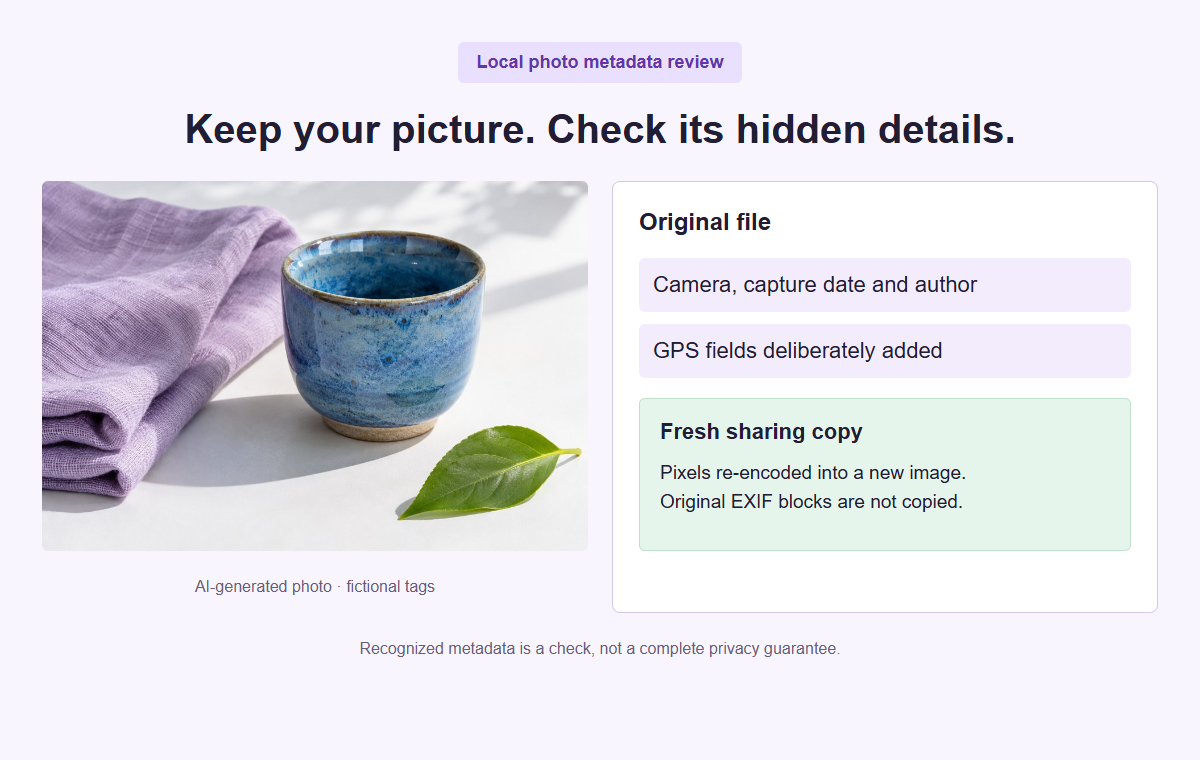
The demo uses an AI-generated product photo with deliberately added fictional camera, author, date and GPS tags. It is not a real person’s location.
Inspect, create a copy, verify
Check the file behind your photo
Choose one still JPEG or PNG up to 15 MiB, 12,000 pixels per edge and 40 megapixels. Recognized tags are a useful check, not a complete privacy certificate.
Your image and output settings
No image selected. Choose your own file or try the fictional example.
PNG preserves alpha. JPEG uses a white background and lossy encoding. The platform is context, not an automatic upload preset.
Visible faces, addresses and text remain in the picture. Re-encoding can change file size and color rendering. Review the exported picture before sharing it.
Your metadata review
Re-encoded sharing copy
A fresh canvas export does not copy the original EXIF, GPS, XMP or IPTC blocks. The encoder may still add basic dimensions or resolution data. An unreadable inspection is never reported as “no metadata”.
The clean image contains the visible picture. Review exports contain only counts, formats, sizes, dimensions and method notes—not the photo, original filename or raw tag values. Settings files contain preferences only. No background saving.
Read what is recognized
Review grouped location, capture, device and author fields. Some images contain no recognized tags; compressed or unfamiliar metadata can remain outside the viewer’s scope.
Write a separate picture
The browser draws the decoded pixels into a new image container instead of copying the original file’s metadata blocks. Your source file is not edited.
Inspect the exported bytes
The tool runs the same reader against the finished copy. Review the result and the visible image. A failed read stays a failed read, not a success badge.
Decide what the shared file should communicate
A photograph contains the scene you can see and may also contain information stored around that scene. Recognized fields can describe location, capture time, a device, an author, or other details. These are different questions from whether the picture looks suitable for a newsletter or social post. Begin by deciding what the recipient needs to receive. A public illustration may need the visible subject without the original capture details. An internal archive may need the source unchanged. Creating a separate sharing copy lets those purposes coexist without treating the public file as a replacement for your original record.
Consider a fictional neighborhood repair group preparing a newsletter photograph of a volunteer fixing a bicycle wheel. The editor has permission to use the image and wants readers to understand the repair demonstration. The source arrived directly from the photographer and might carry a capture date, camera description, or location field. Those details are not necessary for the newsletter illustration. The group keeps its original in the existing private archive and prepares a separate public copy. This example is invented; it is a way to define a useful acceptance test before clicking any controls or interpreting an inspection count.
Write that test in ordinary language: the wheel and repair action remain clear, the exported image opens correctly, and the recognized metadata inspection has been reviewed. Add a separate check for visible people, name badges, documents, and background signs. Re-encoding pixels does not hide those subjects or decide whether permission covers this publication. It also does not establish ownership of a photograph. The editor still needs the right source and a suitable reason to share it. Keeping these checks separate prevents one successful technical step from being mistaken for approval of every other aspect of the image. If the newsletter needs only the repair action, choose a source where that action is easy to see without unnecessary background context. That choice can simplify both the visual review and the later caption.
Open one supported source without changing it
Choose one still JPEG or PNG already on your device. The source limit is 15 MiB, with an edge no greater than 12000 pixels and an area no greater than 40 million pixels. All three limits apply together. A compressed file can be small in bytes yet too large in dimensions, so check the reason given if a source is refused. This tool does not retrieve images from web addresses, inspect a social account, process a folder, or edit a video. Selecting a platform is context for the review, not a connection to that service or a platform compliance test.
The repair group first opens the actual photograph intended for the newsletter rather than a screenshot of a messaging preview. A preview is a different file and may not represent the source the photographer supplied. If a colleague has already edited the picture, decide which version belongs at this stage and keep the distinction in your own production notes. The browser prepares a local preview while leaving the source on disk unchanged. Choosing the wrong version is still possible even when its thumbnail looks familiar, so compare the subject, framing, and displayed dimensions before relying on the inspection.
Load example offers a fictional practice image with clearly synthetic location, camera, date, and author information. Use it to learn how the source and output results differ without supplying a private photograph. Nothing about that demonstration predicts what your own file contains. The page has no autosaved image project or account archive, so keep dependable copies in your own storage and download the result you need before leaving. A saved settings file is not a backup of the photograph. After a reload or a new session, be prepared to choose the local source again and repeat its review.
Read recognized fields without overreading the result
The inspection looks for recognized EXIF, GPS, XMP, IPTC, and PNG text information. Results are organized into location, capture, device, author, and other categories, with a total count. Read the actual field labels and values when they matter to your decision. A location-related field is not necessarily a complete coordinate pair, and an author field does not prove who owns the image. Likewise, an embedded capture date is file information, not an independently verified account of when an event happened. The viewer makes recognized details visible; it does not authenticate the history behind every value it displays.
For the repair photograph, the editor may notice a device model and a capture time that differs from the event timetable. That discrepancy is a reason to ask the photographer which image was supplied, not a reason to quietly rewrite the event date. A source can have useful context even when it should not travel in the public copy. Keep the original available to the person responsible for the archive. Do not paste raw coordinates or personal author details into the newsletter task merely to prove that someone looked at them. Record the decision at the level the task actually requires.
Treat an unreadable inspection as an unresolved result, not as a successful empty result. The recognized scope is not exhaustive, so a readable result with no recognized fields is also narrower than a claim that the file contains no information about its origin. Unusually large parser results are refused rather than silently shortened into an apparently complete list. The tool caps recognized fields and visible text to keep the review bounded. If you cannot obtain a readable result, retain that limitation in the handoff or use an appropriate separate review process. Do not turn a technical failure into a reassurance.
Choose an output that preserves the useful picture
Choose PNG or JPEG according to the image you need to deliver. PNG retains transparency where the source has it; JPEG uses a white background for transparent areas and is lossy. JPEG quality accepts whole numbers from 40 to 100, while PNG does not use that quality setting. A high JPEG value is not a promise of an unchanged picture. Inspect small lettering, fine textures, and strong edges in the actual output. For the bicycle photograph, the editor compares the wheel spokes and the hands of the volunteer, because those details explain the repair better than the background does.
Choose Original dimensions to keep the source size, within 12000 pixels per edge and 40 million pixels overall. The numbered choices, 1080, 1600, 2048, and 4096, only downscale; they never enlarge a smaller image. Every encoded output must fit within the 30 MiB export budget, so retaining dimensions can still produce a file that needs a smaller maximum edge. For the repair newsletter, choose a size that keeps the wheel demonstration clear in its actual layout. The platform context does not supply a sizing recommendation or establish what your newsletter, website, or account composer requires.
Re-rendering can change color appearance, even when the orientation remains consistent with the existing image pipeline. A metadata task still deserves a visual comparison, especially for a product, artwork, or evidence-sensitive photograph. The repair editor keeps enough resolution to show the spoke adjustment and avoids an unnecessarily large download for a modest newsletter illustration. If cropping, covering a name badge, or changing the composition is required, complete that separate job deliberately. The Image Redactor can address manually selected visible details; this viewer does not cover them simply because it creates a new image container.
Create a new copy and inspect its own bytes
Create clean copy renders the prepared image pixels into a new PNG or JPEG. It does not edit the original container in place or return the original file under a new name. Original container metadata is not carried over through that rendering method, but the browser encoder can add information such as dimensions or resolution. That is why the next step inspects fresh output bytes using the same recognized metadata parser. The useful question is what the output inspection actually reports, not whether a button label sounds like a guarantee about every possible field in every possible reader.
Compare source and output inspection status before comparing their category counts. A readable source followed by an unreadable output is not a verified improvement, even if the picture preview looks correct. If the output is readable, review whatever recognized fields remain and decide whether they fit the sharing purpose. The repair group might accept ordinary image dimensions while keeping the original capture details in its private archive. A count describes recognized fields, not a privacy grade. Two fields can matter more than twenty depending on their meaning, and a zero location count does not settle questions about visible landmarks.
Download the new image and open that exact file independently. Check orientation, edges, dimensions, transparency or white background, and the appearance of the subject. A browser preview is useful during preparation, but the downloaded deliverable is what the recipient will receive. Changes to the chosen file or settings invalidate the current export state, so create and review a fresh output after any such change. Earlier downloads do not update when you change a control. In the repair workflow, the approved image is the version opened after the final settings were chosen, not the first promising preview from an earlier attempt. Remove rejected candidates from the publishing selection folder so a familiar thumbnail does not send the editor back to an older choice.
Share a summary without sharing the inspected values
Copy review and the downloadable review formats describe the preparation without reproducing raw metadata values. The summary includes the tool address, selected settings, source and output type, dimensions, byte size, inspection status, category counts, and the method used. It excludes the photograph, source filename, individual metadata field names, and their values. This distinction matters when the original location or author information is exactly what you are trying to keep out of a public handoff. Use the summary as a compact record of what was inspected rather than copying the detailed on-screen field list into another system.
Download CSV provides a structured version of that summary for a production log. Download PDF provides a summary document with category counts, source and output facts, verification status, and a useful review checklist. Its attachments are the safe review JSON and CSV, not an image or a raw metadata dump. The PDF is not a picture proof, so the recipient still needs the approved image if their job includes checking its visual appearance. Neither format certifies anonymity, validates consent, or proves that a capture timestamp was accurate. It records the bounded review performed by this tool on the selected files.
The repair editor sends the approved newsletter image with a review summary only when the production owner needs that record. The untouched source stays in the private archive rather than becoming a convenient extra attachment. Any message written around the summary needs its own judgment: manually typing an address into an email would disclose it even though the exported summary omits coordinates. Avoid screenshots of the inspection panel, which can reveal displayed values. Keep the handoff brief and purposeful, identifying which image is approved and whether output inspection was readable. Do not add unsupported claims to make a routine preparation record sound stronger.
Reuse settings while reviewing every source separately
Save settings records the platform context, format, JPEG quality, and maximum edge in a small JSON file. It contains no photograph, source filename, raw metadata, or personal review notes. Open settings restores those supported choices after validation; it does not recover an earlier image or establish that the current source has been reviewed. The settings schema is strict, versioned, and limited to one MiB, so an arbitrary JSON document is not a substitute for a file saved by this tool. Importing a valid settings file can repair invalid current form choices, but the image still needs its own preparation.
For the monthly repair newsletter, a reusable PNG and maximum-edge choice can reduce repetitive setup. It cannot prove that next month has the same image size, transparency needs, or capture information. A volunteer may submit a phone photograph one month and a designer may supply a PNG poster the next. Review the selected source, inspect its recognized fields, and create a new output for each one. If several images belong in the issue, this remains a one-image-at-a-time process. Do not use the first successful output summary as a blanket record for every attachment in the newsletter folder.
Keep naming and version decisions outside the settings file in whatever production system you already trust. A short approval task can distinguish the private source, candidate copy, and accepted deliverable without exposing original metadata values. If another editor changes the image after this step, inspect the final file again when metadata review remains a requirement. Editing and recompressing can produce a different container with a different inspection result. For an unrelated size task, the Image Compressor is a separate option; return to the actual final file here rather than assuming an earlier review follows it automatically.
Finish with an honest publishing decision
Before sharing, bring the separate checks together: correct source, suitable visible content, acceptable output appearance, readable inspection where required, and the right audience. A new raster file is not forensic anonymity. A recognizable workshop, a street sign, an event caption, or a familiar face can communicate context without any embedded coordinates. Conversely, stripping capture details can make a public copy less useful for someone investigating the original history. Choose the sharing purpose deliberately and preserve the source where that purpose requires it. The tool helps prepare a derivative; it does not make the wider decision on your behalf.
The repair group finishes with one approved newsletter asset and a short internal note identifying the review owner and the inspected output. The caption explains the repair session without repeating private capture details, and the editor checks the image actually inserted into the newsletter draft. If an external editor creates another rendition, visual approval should follow that rendition too. There is no need to predict how a social platform handles a particular tag to make this workflow useful. Control the file you supply, state the limits of your own checks, and review the version you can actually inspect.
The page does not publish the image, connect an account, or keep a hosted copy for later. Download what you need, retain your original appropriately, and leave a clear handoff for the person assembling the final post or article. Browse all free tools when another preparation step is needed. For recurring supported account routines, explore SMTasker as a separate workflow after asset approval. Keep a named person responsible for the final image choice and accompanying words. That simple division makes both the technical record and the publishing decision easier to understand later.
Photo preparation guides
Choose the sharing context that matches your work
Different pictures need different checks. These guides cover practical source-file reviews, not promises about what a social platform strips.
Instagram Photo Metadata
Prepare a handmade product photo while keeping source capture details separate from the public shop image.
Read the guideTikTok Image Metadata
Review local stills for a photo story without confusing capture details, story order, and the files you actually publish.
Read the guideYouTube Thumbnail Metadata
Follow a fictional creator thumbnail from camera source to final artwork, checking embedded details without confusing metadata cleanup with visual editing.
Read the guideFacebook Photo Metadata
Review a fictional community event picture, separating embedded location details from visible signs, organizer permission, and the final delivery package.
Read the guideLinkedIn Image Metadata
Prepare a fictional client portrait and project image with careful attention to embedded author details, visible work information, and approval boundaries.
Read the guideThreads Photo Metadata
Follow a cafe process photo from original capture to a checked sharing copy, with separate decisions for hidden fields, visible details, and team handoff.
Read the guideX Image Metadata
Prepare a supplied news photo for an X post while preserving the original separately, checking visible source clues, and documenting the derivative honestly.
Read the guideSnapchat Photo Metadata
Check a prepared theater photo asset for Snapchat, keeping editor exports, transparency choices, visible rehearsal details, and output verification distinct.
Read the guideReddit Photo Metadata
Prepare a mechanical-keyboard hobby help photo for Reddit, retaining useful close-up detail while checking embedded fields and unrelated personal context.
Read the guideRemove GPS from Photos
Separate a public sharing copy from the untouched source you retain for location and capture provenance.
Read the guideBefore-Sharing Metadata Checklist
Use an eight-stage editorial handoff checklist to select a file, interpret inspection status, verify a rendered copy, and send only the approved package.
Read the guideQuestions about image metadata
Does my photo leave my device for inspection?
The tool processes the supplied JPEG or PNG locally in your browser. It does not upload the image, fetch an image URL, or connect a social account.
Does an empty result prove that no metadata exists?
No. A readable empty result means no fields were found within the recognized scope. An unreadable inspection is a separate unresolved status, not an empty successful check.
Is the original image changed?
No. The tool renders pixels into a separate PNG or JPEG and inspects that output. Keep the original where appropriate and review the downloaded copy independently.
Will this hide an address printed inside the picture?
No. Visible text, faces, signs, and other scene details remain visible. Use a separate image editing or redaction workflow for those pixels.
What is included in the PDF review?
It contains summary facts, counts, verification status, method, and a checklist, with safe review JSON and CSV attachments. It excludes the photo, source filename, and individual metadata keys and values.
After the asset is approved
Organize your recurring account work
Explore SMTasker for supported account routines. Image inspection, source storage, and final publishing approval remain separate responsibilities.