A clear identity starts with the crop
Profile Picture Maker
Give a local photo or mark a deliberate circular composition. Adjust the crop, add a ring and check the small version before you export.
One source. A clearer profile image.
Keep the mark. Give it room.
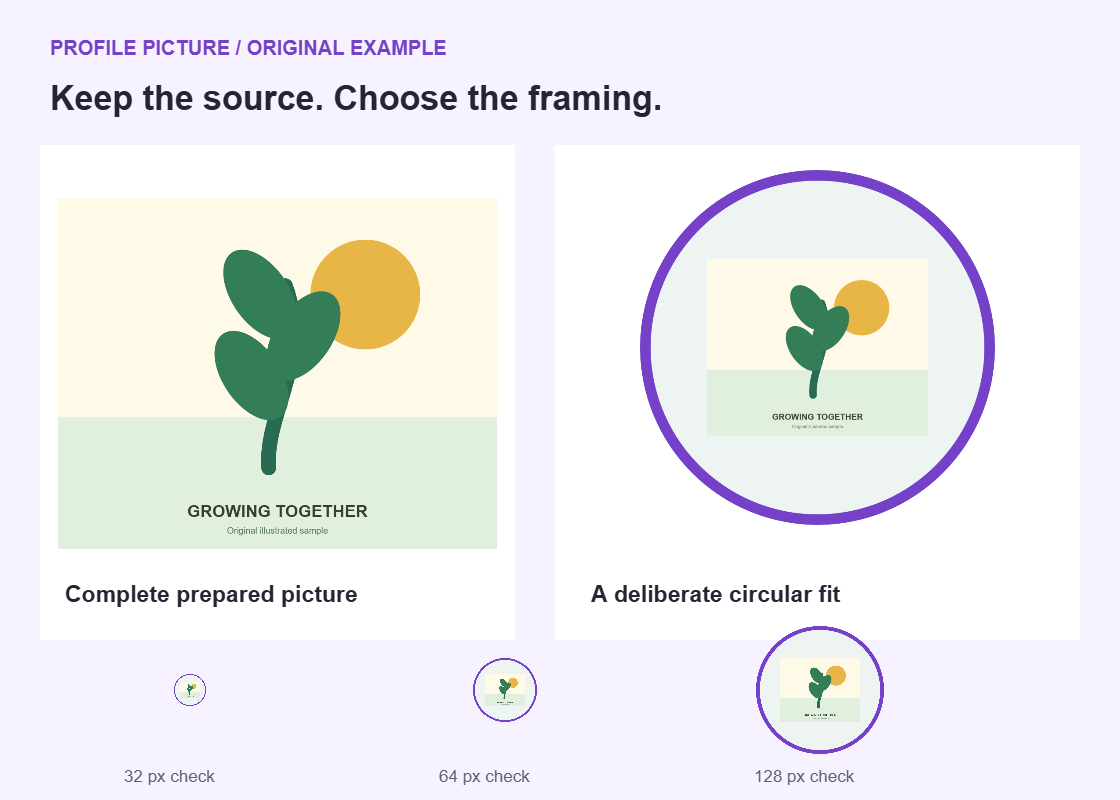
Original illustrated example. Not an AI portrait or an exact social-profile simulation.
Start with your own picture
Frame the part people should recognize
Use Photo crop for manual zoom and positioning, or Fit whole image to retain the complete prepared picture inside the circle.
Picture and framing
No picture selected.
Drag the large preview to position a photo crop. The sliders provide the same control. Whole-image fit retains the source background and keeps zoom/position settings inactive.
Your circular composition
Small checks: 32, 64 and 128 CSS pixels. These are local size tests, not native placement previews.
Ring, spacing and background
The background fills the space around the picture; it does not remove an existing photo background. PNG corners outside the circle are transparent. JPEG fills them with this color.
Review the whole source before sharing a project. JSON and the PDF attachment retain the entire prepared picture, including pixels outside the crop and circle. This is not redaction, background removal or face detection. The original source filename is not stored.
Still PNG/JPEG/WebP up to 15 MiB, 40 MP and 12,000 pixels per edge. Prepared PNG up to 2,048 pixels per edge, 4 MP and 2 MiB. Project JSON up to 4 MiB. Images stay local; ordinary site resources and the public example still load. No private autosave or automatic upload. PDF pages are rasterized; keep text notes for selectable settings.
How the composition is built
Choose the crop. Check the small version.
Crop for a clear subject
Photo crop uses a square source area and a circular mask. Position and zoom are manual, so you choose what stays visible.
Keep a complete mark
Whole-image fit uses space inside the circle to retain every prepared source corner, even when that makes the mark smaller.
Keep the editable source
Export PNG or JPEG for a manual upload. Save a project when the crop, ring or working size may need another revision.
Give the picture one recognizable job
Imagine a local community reading club preparing its first shared profile picture. A volunteer has drawn an open book with a small leaf between the pages. The complete illustration includes the club name below and a handwritten meeting reminder in one corner. Those elements work on a noticeboard, where someone can stop and read them. A small profile picture has a different job: help a reader recognize the club beside a short announcement or reply. Before adjusting any sliders, the volunteers choose the book and leaf as the essential mark. The meeting reminder belongs in accompanying text, not inside the tiny picture.
Write a simple acceptance sentence outside the editor: both book pages and the leaf must remain visible, and the mark must still look distinct in the smallest study. This is more useful than asking whether the image looks professional without defining the task. The group can now compare two compositions against the same requirement. One might fill more of the circle but lose a page corner. Another might preserve the drawing but make it too small. Neither is automatically correct. The decision depends on whether that missing corner changes the mark and whether the remaining shape still communicates the intended identity.
Choose a platform context for the account you intend to update, then keep responsibility for size, fit, and styling with the person preparing the file. The selector does not inspect an account, detect a face, or apply a hidden set of native dimensions. This also makes the same source useful for a later review on another platform without pretending that every destination behaves identically. Save a separate approved image and project before changing that context. The editor contains one current composition, not an archive of all earlier platform versions, and switching a label does not preserve a second finished design for you.
Prepare the complete source before composing
Start with a local still PNG, JPEG, or WebP that you have permission to use. The source limits are 15 MiB, 40 megapixels, and 12000 pixels on either edge; meeting the byte limit alone is not enough. A very large scan can contain few compressed bytes while still exceeding the pixel budget. For the reading club, a clean export of the illustration is more useful than a phone photograph of the whole noticeboard. The maker composes an existing image. It does not draw a replacement emblem, capture a photograph, generate a portrait, or identify which part of the source matters most.
Inspect every part of that source, including corners you expect to crop away. Suppose the volunteer photographed the drawing on a desk beside a membership list. Hiding the list outside the circle is not a privacy edit to the reusable project. Prepare a genuinely cleaned source in a suitable editor before opening it here. The Image Resizer can help with a separate rectangular crop or preparation step, but resizing alone does not remove sensitive content. Reopen the resulting file and inspect it as a whole. The source you supply should already be appropriate for the people who may receive the editable handoff.
During preparation, the image can become smaller than the original. The stored prepared PNG is limited to a 2048-pixel edge, four megapixels, and 2 MiB. Keep your original artwork separately if a future print job or larger composition may need it. Local processing means the picture is handled in the browser, not sent away for portrait generation or account updating. Ordinary website assets still load, so this is not a promise that the entire page runs without network requests. There is also no project autosave. Download a project deliberately before leaving a session that contains choices you want to keep.
Compare a filled crop with a complete-image fit
Photo crop chooses a square area from the prepared source and draws it into the inner circle, clipping the corners. At 100% zoom, that square uses the shorter source dimension. With a prepared illustration measuring 1600 by 1000 pixels, the starting square is 1000 pixels on each side. At 200% zoom, its side becomes 500 pixels. That is a tighter selection, not extra detail being discovered. Move the image manually to decide which portion occupies the circle. Pan percentages describe positions within the available source travel; they are not a promise that a particular percentage places the leaf at the geometric center.
Fit whole image has a different purpose. It fits the whole prepared rectangle inside a square inscribed within the inner circle, keeping the complete picture visible. This clearance protects the rectangle corners but can make the artwork noticeably smaller than a filled crop. For the reading club, the full noticeboard design may fit while its title becomes unreadable. That is a faithful fit, not a useful avatar. A separately prepared source containing only the approved book and leaf can work better. Fit whole image does not stretch the drawing into a circle, erase its paper background, or selectively enlarge the symbol while leaving its surrounding whitespace unchanged.
Compare both modes using the same source before deciding which problem you actually have. If Photo crop removes a meaningful book corner, try a less aggressive crop or use Fit whole image. If Fit whole image leaves a tiny symbol surrounded by empty paper, reconsider the supplied rectangle instead of treating the zoom slider as a universal repair. Photo crop zoom and pan values remain stored when you switch to Fit whole image, but they are inactive there. Returning to Photo crop restores those choices. Save the approved mode explicitly so the next volunteer understands whether complete-source visibility or a larger cropped subject was the priority for this particular version.
Understand what the ring and gap take away
The border occupies space inside the outer circle. The gap then separates that border from the picture area. Both percentages use the full canvas edge as their base. On an 800-pixel canvas, a 3% border is 24 pixels thick and a 3% gap is another 24 pixels. The content radius is 400 minus 24 minus 24, or 352 pixels, giving an inner diameter of 704 pixels. These numbers explain the editor geometry. They are not official platform margins, a native safe zone, or proof that every upload interface will preserve exactly the same visible area around the drawing.
For Fit whole image, the inscribed square inside that 704-pixel circle has a side of approximately 498 pixels: divide the diameter by the square root of two. A 1600 by 1000 source fitted to that square occupies roughly 498 by 311 pixels. Small prepared sources can be enlarged to fit, but enlargement does not recover missing detail. That gives the volunteers a concrete reason why the complete mark looks smaller than expected. The canvas is still 800 by 800; only part of it contains the illustration. Increasing the output size scales this arrangement, but it does not remove the geometric clearance required to keep all four rectangle corners inside the inner circle.
Try a border-free version before choosing decoration. If the book already has a strong outline, another ring may add visual weight without improving recognition. If a ring helps separate pale page edges from a light surrounding area, keep it narrow enough that the leaf does not become secondary. At the 32-pixel study, a 3% border corresponds to about 0.96 CSS pixels of width. That is a useful scale comparison, not a guarantee about physical screen pixels or native rendering. Judge the actual small composition and keep the ring color distinct from both the drawing edge and the chosen background.
Choose output pixels after checking the small picture
The available 400, 800, and 1024 settings are square preparation canvases. They are working choices, not a universal list of social profile requirements. An 800-pixel side contains twice as many samples across as 400, and four times as many total canvas pixels: 640000 rather than 160000. That can be useful when the source contains sufficient information. It cannot turn an indistinct scan into a detailed illustration. If the original leaf is only a few blurred pixels wide, selecting 1024 gives those existing marks more output samples without recovering the original pen strokes or repairing their shape.
Review the 32, 64, and 128 CSS-pixel studies as three deliberately small views of the current composition. At 128, the volunteers may distinguish the book spine and leaf veins. At 64, they may see only the main leaf shape. At 32, the most useful result may be a clear book silhouette with one contrasting accent. The smaller view does not need to preserve every decorative line. It should preserve the agreed identity. These studies do not imitate every native comment row, search result, account menu, device density, or accessibility setting. They reveal scale problems in your artwork without certifying platform presentation.
Use a short comparison that changes one decision at a time. First compare the same crop with and without the ring. Then compare two crop positions at the preferred ring setting. Record why the selected version wins, such as both pages remain distinct at 32 while the leaf is still visible. Avoid choosing a different background, crop, border, and size simultaneously and then guessing which change helped. Open the exported image as well as the editor preview. The actual downloaded file is the object you will transfer and upload; the on-page studies are checks used to prepare it, not substitutes for examining it.
Pick the image format for the intended handoff
Every image export is numerically square, even when the visible artwork is circular. PNG leaves the canvas corners outside the outer circle transparent. JPEG fills those corners with the selected background color because the export is opaque. A transparent corner is not a missing file area; it is a pixel with transparency. For the club mark, save PNG when you want to retain that transparency for later composition. Save JPEG when an opaque square is the intended handoff. Do not rename an extension to change the format. Use the actual export option and inspect the resulting image on a background where its edges are visible.
The background control does not remove an existing paper rectangle or a photographic backdrop. If the illustration was supplied on white paper, that white remains part of the source wherever the source is drawn. Choosing green does not extract the book and leaf from it. A source with appropriate transparency must be prepared beforehand if that is what the composition requires. Likewise, a ring is decoration, not a verification badge or evidence that the account is official. The club should choose its own identifying colors without depending on a viewer interpreting a painted border as a platform status or an interactive control.
Give each approved download a practical revision name on your own device, for example reading-club-mark-r2-800.png. Keep a separate note stating which file the group approved and which account it is intended for. The project does not retain the original source filename, so do not rely on it to reconstruct your archive naming. If you export both formats, distinguish their intended use instead of sending two unexplained alternatives. A volunteer receiving the upload image should not have to guess whether the transparent version, the opaque proof, or the earlier draft is the current approved picture for the club account.
Share an editable project with the right privacy boundary
The JSON project saves the current composition, including its prepared image, fit, crop settings, size, and colors. Its file limit is 4 MiB. It is the reusable working file, not just a list of slider values and not a copy of the untouched original photograph. Most importantly, the complete prepared image remains included, even where the visible crop excludes it. In the desk-photo example, a membership list outside the circle can still be present in that embedded image. Review the whole prepared source before sharing JSON. A clean-looking circular preview is not evidence that the project contains only those visible pixels.
The styled PDF is a review document with a reduced circular proof and the complete project attached. The same hidden-pixel caution therefore applies to the PDF, not only to a separately downloaded JSON file. Its visible pages are rasterized, so keep TXT when someone needs selectable text of the choices. Copy and TXT provide the full choices in text form; they do not replace the editable image project. The PDF is bounded at six pages and 20 MiB. Use it for review and explanation, not as the production picture to upload or a guarantee of full-resolution artwork on its pages.
Split the handoff by need. A volunteer responsible only for uploading the approved image can receive that image and a short instruction identifying the account. A trusted designer who must adjust the crop may need JSON and the original illustration stored separately. A committee reviewer may need the PDF, but only after its attached source is suitable to share. Test a saved project by reopening it and checking the intended fit and colors before deleting a working session. An invalid file or cancelled import retains the previous valid design; an invalid manual draft needs correction before export rather than an assumption that the last preview is exportable.
Finish in the destination account and keep a useful record
Upload the chosen image manually using the destination account controls available to you. The maker does not sign in, connect an account, or change a profile picture on your behalf. Review any native crop and the saved result there, because the destination may crop or recompress the file again. Check that the book corners and leaf survived, then inspect a relevant smaller placement when available. If the result differs, revise the local composition and export a new file. Do not treat a platform label in the editor or a successful download as confirmation that an account has accepted or displayed the picture correctly.
Keep the full club name, meeting details, and joining instructions in appropriate profile text rather than shrinking them into the mark. The Bio Formatter offers a separate place to prepare wording you supply. There is no automatic transfer from this picture project into a profile introduction. The volunteers can maintain a small external approval note with the image revision, upload date, account, and reviewer. That record explains why the mark changed without requiring the next coordinator to reverse-engineer a folder of similarly named downloads. It also prevents a seasonal draft from quietly replacing the stable club identity.
Revisit the image when the underlying identity changes or a real viewing problem appears, not because a larger canvas or brighter ring promises more followers. Recognition is a design objective here, not a measured growth outcome. Save the final project before leaving, since the page does not autosave the work. When the club later needs recurring account actions, schedules, limits, and activity review, evaluate SMTasker separately. This free composition does not import directly into that product or trigger an avatar update. The finished image, the editable project, and any ongoing account workflow remain separate items with separate review and ownership.
Choose the relevant profile context
Platform and profile-picture guides
Work through a distinct portrait or mark example, then return to the same local editor with that context selected.
Instagram Profile Picture
Frame a ceramicist portrait for recognizable small comments without confusing a new background color with background removal.
Read the guideTikTok Profile Picture
Give a repair creator a clear identity image that still reads beside a short clip.
Read the guideYouTube Channel Picture
Choose between a symbol and a full channel wordmark before checking the small avatar.
Read the guideFacebook Page Picture
Prepare a repair-cafe Page image that a volunteer can hand over with the crop choices intact.
Read the guideLinkedIn Photo Crop
Balance an independent consultant headshot without stretching or automatically retouching the face.
Read the guideThreads Profile Picture
Connect a nature-notes identity to conversational replies while reviewing each destination manually.
Read the guideX Profile Picture
Keep an indie podcast mark legible beside posts and separate it from the header artwork.
Read the guideSnapchat Public Profile Photo
Prepare a Public Profile photo, not a Bitmoji, Snapcode or promise of access for every account.
Read the guideReddit Profile Picture
Work on a custom account image without confusing it with a community icon or an editable Snoo.
Read the guideCircle Crop Guide
Understand which corners a circle removes and when a complete-image fit is a better choice.
Read the guideBorder and Size
Compare ring width, inner spacing and small-size readability without inventing extra source detail.
Read the guideQuestions about your profile picture
Does the platform selector choose the correct upload size for me?
No. It records context. You choose a 400, 800, or 1024 square preparation canvas, the fit, and the styling. Check the destination account requirements and its own crop before completing an upload.
Why does Fit whole image make my complete logo smaller?
It fits the entire prepared rectangle inside an inscribed square within the inner circle. That corner clearance, plus any border and gap, reduces the available space. Whitespace already inside the source also remains.
Is the downloaded file round or square?
The canvas is square. PNG has transparent corners outside the visible circle. JPEG fills those corners with the chosen background. Neither choice removes a background already present in the source picture.
Can someone recover cropped-out details from a project or PDF?
The complete prepared image is retained in JSON and in the project attached to the PDF. Pixels hidden by the circular crop can therefore still be included. Clean the source before composition when those details must not be shared.
Will my picture be saved or uploaded automatically?
No. Save the project and image deliberately. Picture processing is local while ordinary site assets still load. Updating a social account is a separate manual step; this maker does not connect to it or send the image to SMTasker.
A separate step for ongoing account work
Try a manageable social account routine
Test SMTasker for 5 days with Android devices and a Windows or macOS client. Review supported actions across nine platforms; this picture project is not a direct import or an automatic avatar update.