The QR is on your screen. Read it here.
QR Code Reader & 2FA QR Decoder
Read a QR from a screenshot or saved image without a second device. Inspect the text or recover a standard authenticator setup key from an image you already have.
A published example, not a private login
From an image to a result you can inspect
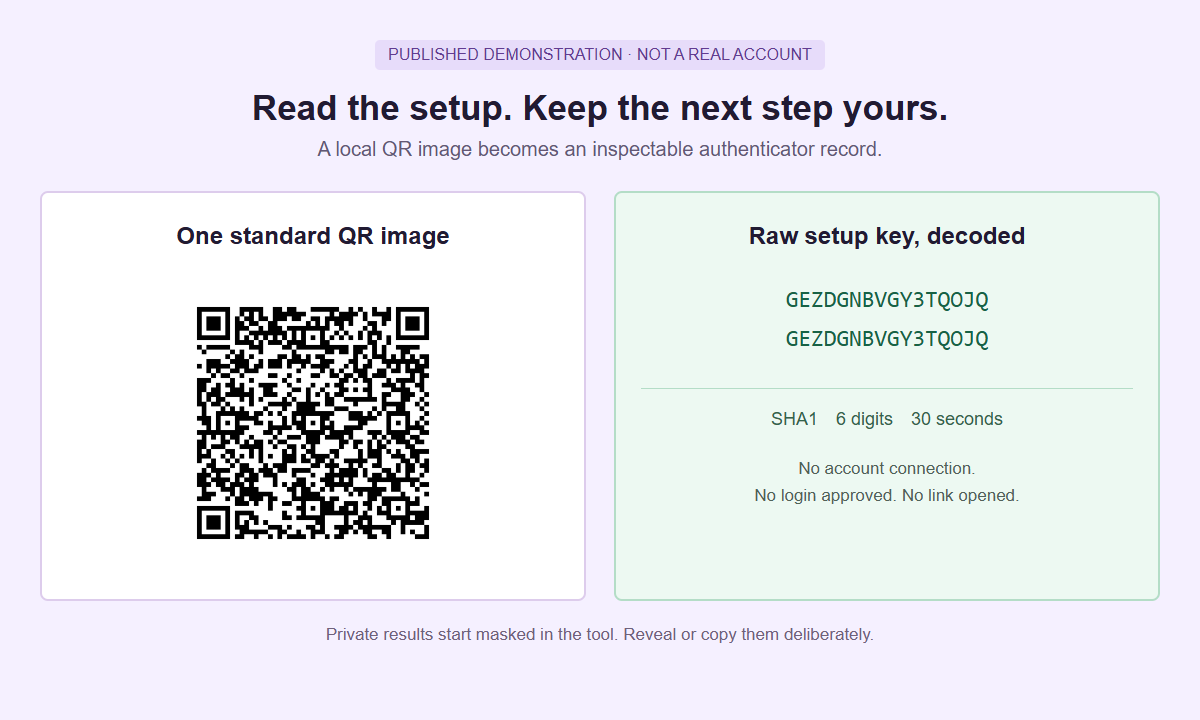
Links remain text. Authentication data stays inside the isolated reader. Nothing is sent to a destination simply because its QR was recognized.
One image. One readable code.
Choose a QR screenshot or picture
Use a static JPEG or PNG containing one standard QR. Keep the complete square and its clear border; crop unrelated content first when the code is small.
The image, decoded text and setup key are processed inside the isolated reader, not sent to the page around it. Normal website traffic is separate. Open the reader on its own if needed.
Start with the QR pixels
Choose an image from your device. The reader prepares a bounded local scan and looks for one standard QR, including ordinary rotated or inverted examples.
Inspect what was encoded
Reveal text deliberately. A standard TOTP setup record receives separate key and parameter fields; a login request or proprietary code is not treated as an authenticator key.
Copy only what you need
For a compatible TOTP record, copy the raw key before switching tabs. Use the 2FA authenticator separately and match its settings yourself.
Read the image, not the account behind it
A QR image carries data, not proof of trustworthiness. A profile card may contain a public address, a poster plain text, and an authenticator image a reusable secret. This reader extracts and classifies a payload from the pixels. It cannot establish who created it, who owns the named account, or whether a service accepts it. A familiar logo beside the code does not verify the encoded data.
Select a local file, not a pasted image address. The reader cannot fetch remote pictures, request camera access, accept PDFs, call a decoding API, or connect accounts. After decoding, addresses remain text rather than clickable links; nothing opens or requests a destination automatically. Compare the contents with the purpose of the image before deciding what to do elsewhere. Reading is separate from following instructions.
Scope matters when a design includes several symbols. The result is one recognized QR payload, not an inventory of every code in the picture. Finding one does not prove that no others exist, and a different crop could produce a different result. Crop the intended symbol externally before selecting the file, keeping its whole outline and clear border. This is a reader, not a QR generator or an image repair service. It cannot replace missing pixels, manufacture an enrollment, or turn a proprietary platform symbol into a standard QR code.
Prepare a sharp, complete image
Select one JPEG or PNG at most 10 MiB, at most 8,000 pixels per side, and at most 16 million pixels overall. All limits apply independently: small compressed files can exceed pixel limits, and panoramas can exceed side limits. Detected animation is rejected. Renaming a file with a PNG extension does not convert it. For document material, prepare a suitable local image externally; this reader has no PDF import.
After header validation, the browser decodes the native bitmap. Images larger than the processing size are downscaled so the longest side is at most 2,000 pixels; smaller images are not enlarged. That makes an external crop especially useful when a small QR occupies one corner of a large screenshot. For example, reducing a whole 6,000-pixel-wide capture to 2,000 pixels also reduces a 240-pixel-wide code to roughly 80 pixels. Cropping the original first can preserve more of the useful symbol detail during processing. It does not add information that was absent from the source.
Keep a clear margin around every side rather than trimming directly against the outer dark modules. Standard QR guidance calls for a quiet zone four modules wide, where a module is one small square in the symbol. Prefer an original download or a crisp screenshot over a repeatedly compressed forwarded image. If the squares blur together, find a better source instead of stretching the thumbnail. The QR image troubleshooting guide explains how to separate file-limit problems from unreadable geometry without guessing at the encoded contents.
Inspect the payload before taking any action
A successful decode begins with masked contents. Reveal only when appropriate and copy deliberately. A URL result is an address, not a security verdict. Compare its actual host and path with the intended destination. Brand text in a path or before an authority @ symbol does not identify the host; an embedded-credentials notice describes URL syntax, not reputation. The reader does not follow redirects, inspect a destination or check its certificate. Copying an address does not make it safe to visit.
Other payloads can contain instructions, contact details, application-specific values, or command-like text. The reader displays data without executing it or promising harmless interpretation elsewhere. Do not paste unfamiliar contents into a terminal, address bar, or account workflow simply because decoding succeeded. An unexpected result is a reason to check the crop for a neighboring symbol or an outdated version of the artwork.
Distinguish profile links from login/session QR codes and authenticator enrollment material. Reading a session challenge neither approves nor validates it. An enrollment image may contain a reusable secret rather than a temporary login number; a branded badge may use an unsupported proprietary format. Similar-looking images can have different consequences. Keep sensitive results out of presentations, issue trackers, routine documents, and support screenshots.
Read TOTP fields without silently changing the enrollment
For a standard otpauth://totp enrollment URI, the reader checks syntax and the canonical Base32 secret before treating it as an accepted TOTP payload. Repeated known parameters are rejected instead of choosing whichever value happens to appear first or last. Parsed issuer and account labels describe what the image says; they are not proof of service identity or ownership. An accepted structure also says nothing about whether the enrollment is still active. This page does not calculate current one-time passwords, test account acceptance, approve a login, or recover a missing secret.
The TOTP panel shows the raw setup key and calculation settings; it deliberately omits issuer labels, account names and the original enrollment URI. Check account context at the trusted source instead. Missing algorithm, digit count or period values are shown as SHA1, six digits and 30 seconds, with their default status identified. Supported algorithms are SHA1, SHA256 and SHA512 with six or eight digits. An explicit period must be positive. A valid period outside 30 or 60 seconds is inspectable here but is not supported by our separate generator.
Never convert an unusual period to the closest available choice. A 45-second enrollment is not a 30-second or 60-second enrollment. Copy setup key is available only for valid, accepted TOTP data. If manual use is appropriate, copy before changing tabs, then enter the raw key and match every setting yourself in the separate 2FA authenticator. Never put a secret or enrollment URI into an address bar, query or fragment. Nothing transfers automatically. HOTP and otpauth-migration packages remain unsupported. The authenticator QR inspection guide explains the distinction.
Understand local processing and its privacy boundaries
Image reading and parsing run inside an isolated browser sandbox with a locally bundled decoder. Decoding uploads neither the image nor its contents and requires no external worker, CDN script, or runtime decoding request. The preview is drawn locally, not fetched externally. This describes the reader operation; visiting the surrounding website can still involve network requests. Local decoding does not mean that the entire website operates offline.
The surrounding page receives only fixed, bounded height messages for layout. The reader does not send it the image, decoded text, account labels, setup secrets, or calculation settings. Sensitive values are not added to the page address, error messages, logs, analytics, or reader-to-parent messages. There is no reader-managed history, saved account list, persistent result storage, PDF report, JSON export, or downloadable project. Local processing should not be mistaken for a credential archive: a result remains temporary working data that you must deliberately handle or clear.
These controls have limits. They do not guarantee secure erasure of every browser-memory copy or remove content already copied to the system clipboard. Clipboard managers, extensions, screenshots, and compromised device software can retain or expose material outside the reader. An untrusted parent page can replace the interface, so sandbox isolation is not protection against every compromised website experience. Use an environment you trust and avoid displaying real enrollment data during screen sharing. If an active secret has been exposed elsewhere, clearing this reader cannot revoke that enrollment at its provider.
Finish the inspection before switching away
The reader clears its working image and result when the page becomes hidden and on pagehide, pageshow, and freeze events. Returning to the tab or restoring a page does not restore an inspection session. Copy any needed value before changing tabs, then expect to start again if you return. Clear is also an explicit way to finish while the page stays visible. Browser bitmap decoding may still need to settle internally after clearing; that cleanup boundary is not a reason to expect canceled image data to reappear as a result.
Use the public URL and authenticator demos for walkthroughs or checking reveal and copy behavior. Their intentionally shared contents must never protect real accounts or be treated as evidence of service access. Inspect a demo, clear it, and confirm that another read is needed. This rehearses the workflow without putting an active credential into a support conversation or training document.
When your own image fails, change one observable feature at a time: confirm the file type and limits, crop from the original with margin intact, then retry a clearer source if available. Do not respond to a decode failure by repeatedly trying account passwords or changing authentication settings. When the image succeeds but contains an unsupported payload, stop at inspection and use the appropriate trusted workflow elsewhere. The reader gives you a controlled opportunity to examine one image; decisions about visiting a site, enrolling an authenticator, or accepting a login remain separate.
Choose the kind of QR in front of you
Platform and QR-reading guides
Profile addresses, sign-in images and authenticator enrollment records have different jobs. Follow the relevant context or solve an image-quality problem.
Instagram and Threads QR Codes
Inspect a saved profile QR, distinguish login challenges from setup secrets, and understand which login a Threads profile actually uses.
Read the guideTikTok QR Code Reader
Inspect a TikTok QR image without confusing a public profile link with a sign-in request or private authenticator setup.
Read the guideYouTube and Google QR Reader
Check a printed channel resource or screenshot, and tell public YouTube links apart from Google sign-in and TOTP enrollment.
Read the guideFacebook QR Code Images
Check a Facebook profile or Page QR image, recognize account-access material, and keep personal enrollment keys out of team handoffs.
Read the guideLinkedIn QR Code Reader
Inspect a profile QR from an event badge or workplace introduction without confusing networking with account verification.
Read the guideX / Twitter QR Codes
Read a standard QR image, compare the X handle or post address, and keep enrollment secrets separate.
Read the guideSnapchat QR and Snapcode Limits
Distinguish proprietary Snapcodes from standard QR images, inspect public Snapchat links, and keep login and authenticator material separate.
Read the guideReddit QR Codes
Inspect QR images pointing to Reddit communities, profiles, posts, or comments without confusing them with 2FA setup.
Read the guideQR Codes From Screenshots
Capture, crop, and inspect one QR code on the same device, with practical image-size and source-quality checks.
Read the guideDecode Authenticator QR Codes
Identify TOTP enrollment fields, distinguish explicit settings from defaults, and recognize unsupported authenticator packages.
Read the guideFix an Unreadable QR Image
Separate rejected files from unreadable QR geometry, then check cropping, scale, sharpness, contrast, and unsupported formats.
Read the guideQuestions about reading QR images
Can I scan a camera feed, PDF, or remote image URL?
No. It accepts only one local JPEG or PNG within the stated file and pixel limits.
Does a decoded URL prove the destination is safe?
No. It displays the address without visiting it, verifying ownership, or assessing its safety.
Can the reader generate a current 2FA code?
No. It inspects TOTP data only. Generating codes requires a separate tool with matching settings.
Will it list every QR code in a screenshot?
No. Crop one intended standard QR externally, preserving its whole symbol and quiet zone.
Why did my image and result disappear after changing tabs?
Lifecycle changes clear working data. Copy before switching tabs. Clipboard contents are not erased.
One image, one inspection
Read before taking action
Inspect a clear local crop. Destinations stay unopened and setup secrets never transfer automatically.