Originally published April 6, 2026. Substantially updated October 21, 2026.
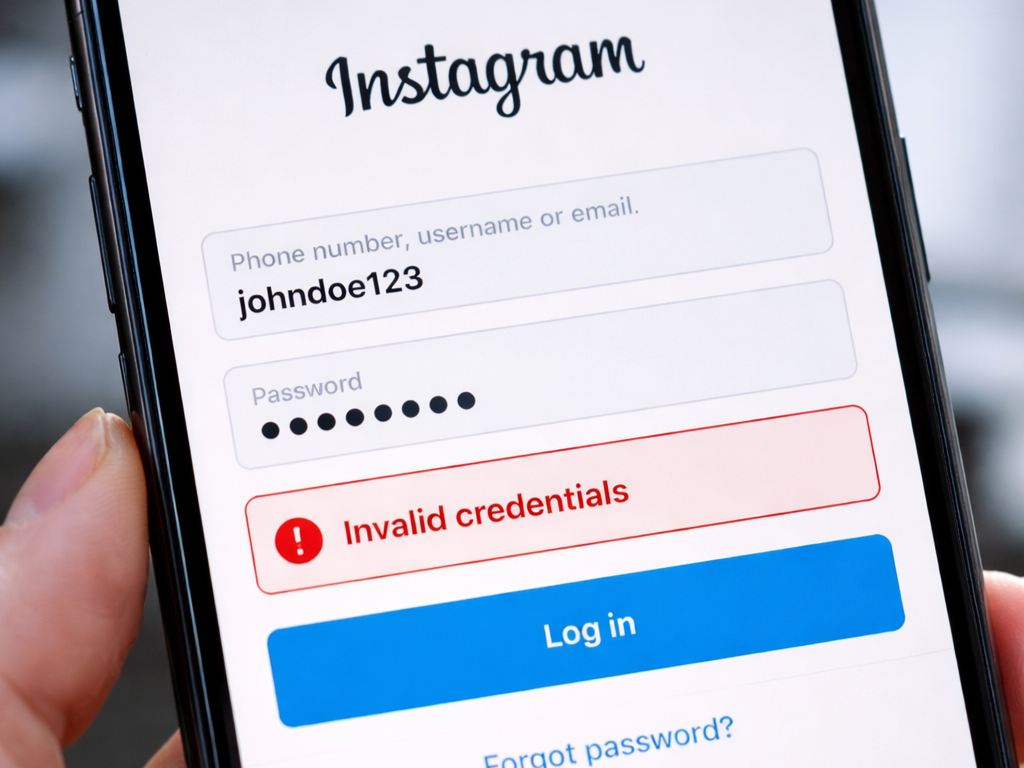
An Instagram invalid credentials error means the attempted sign-in was not accepted. The message alone does not establish whether the password is wrong, the account needs an additional security check, or the current app or browser session is failing. A useful troubleshooting process separates those possibilities while preserving any working access you still have.
Start with the official Instagram app or website and make one controlled change at a time. Keep account recovery details available, avoid repeated guesses, and record what changes the result. This guide explains a practical sequence for checking login details, using official recovery, comparing sessions, and identifying when the next step must come from Instagram’s security or support process.
Identify the exact screen and account
Read the complete message and note where it appears. A rejected username and password, a request for an authentication code, a disabled-account notice, and an error inside a separate service require different responses. Take a screenshot for your own records, with passwords, codes, personal contact details, and account identifiers appropriately concealed before sharing it.
Confirm that you are signing into the intended account. Teams managing several profiles can accidentally use the right password with the wrong username or confuse an old handle with the current one. Check the account record maintained by the owner rather than repeatedly testing combinations from memory. Keep the distinction between a platform account and a separate management-tool account clear.
If Instagram remains signed in on another trusted device, preserve that session while investigating. Use it to inspect the account details and available security or recovery settings where appropriate. Signing out everywhere, clearing every device, and reinstalling the app at the outset can remove a useful route to understanding the account’s current state.
Check the credential entry carefully
Re-enter the account identifier and inspect the password manager entry selected for the official Instagram domain or app. Look for an outdated password, unintended spaces, keyboard-language changes, and capitalization errors. If the interface provides a password-visibility control, use it privately to verify the entry without exposing the screen to someone else.
Check whether a colleague or account owner recently changed the password or username. A shared team record can lag behind the live account, especially after a security review. Obtain the current authorized details through the team’s established secure process. An error after a password change does not necessarily mean the account has been restricted.
Make a single careful attempt after correcting an identified problem. If the result is unchanged and you do not have a reason to believe the details are correct, move to recovery rather than continuing to guess. Repeated attempts create a noisier investigation and may lead to additional checks or temporary limitations.
Use the official password recovery route
Open Instagram directly and use the recovery or forgotten-password option provided on its login screen. Follow the current prompts for the account identifier and the recovery method available to you. Interface labels can vary, so rely on the live official flow rather than a screenshot that assumes every account sees the same buttons.
Inspect the destination Instagram indicates for the recovery message. Check the relevant inbox or phone and the spam folder where appropriate. Avoid repeatedly requesting messages in quick succession, since delays or older messages can make it unclear which link is current. Use the latest valid instruction from the recovery process and complete the steps in the same deliberate sequence.
After changing the password, update the correct password-manager entry and test one official sign-in. Other sessions or connected workflows may need renewed authorization. Record which account was changed and when, without placing the actual password in a troubleshooting document. This helps the rest of the team avoid continuing with obsolete credentials.
Recognize security verification as a separate step
If the password is accepted and Instagram asks for a second factor or another verification step, follow that process. A one-time code, a login approval, and a password serve different purposes. Enter the requested type of information in the official screen and keep it private. A code should never be sent to an unsolicited helper in a message.
Meta’s account-support update describes adaptive recovery and trusted-device recognition. Recovery options can therefore depend on the account’s situation. A method shown to another user is not a guarantee that the same method will be offered to you, and no outside troubleshooting guide can promise a successful recovery time.
When a recovery email or phone number is unavailable, use the alternatives the official process actually offers. If details changed unexpectedly, treat that as an account-security issue and follow Instagram’s account-recovery guidance. Keep any available trusted session and relevant account history intact while you work through the instructions.
Compare the app and browser in a controlled way
Once the credentials or recovery outcome are understood, test one alternative official surface. For example, compare the installed app with a current browser on a trusted device. Record whether the same account reaches the same screen. A difference can help isolate a local session problem, while failure everywhere suggests that clearing one browser is unlikely to be the complete answer.
Check that the app and browser are current through their normal update channels. Restart the affected app before making broader changes. If the problem appears during an embedded login inside another service, first establish whether direct official Instagram access works. That separates a platform sign-in failure from an integration or authorization problem.
Use a familiar, stable connection for the comparison. A routine network change can reveal a connectivity problem, but constantly switching networks or locations complicates the investigation. A failed attempt does not prove that an IP address has been permanently flagged, and network rotation should not be presented as a way to defeat a security challenge.
Reset local data only when it is useful
If the evidence points to a specific browser session, consider clearing cookies and site data for Instagram rather than deleting all browsing data. Confirm that you can complete recovery and any second-factor request first, since removing the session can sign you out. Keep unsaved work from related pages before proceeding.
Mozilla’s site-data guidance explains how to target a website’s stored data in Firefox. Use the equivalent current controls in the browser you actually use. Afterward, open a fresh official login page and make one test so you can interpret the result of that specific change.
For an app-specific issue, follow the operating system’s current storage and update controls. Cache clearing and removal of app data are different operations, and reinstalling can remove local drafts or require a fresh sign-in. Preserve anything important before choosing the more disruptive option. Reinstallation cannot resolve a password you do not know or an incomplete security check.
Respect explicit restrictions and service messages
If Instagram displays a temporary limitation, an appeal route, or a required verification step, follow that instruction. Keep the wording and relevant time information for your records. Avoid a universal promise to wait exactly twenty-four hours: different situations have different causes, and a generic countdown cannot establish when an account will regain access.
If several authorized users or accounts encounter the same problem at once, consider whether there is a broader service issue before changing every password. Compare what is happening and avoid making unrelated account-wide changes without evidence. A short incident log can prevent several teammates from independently repeating the same unsuccessful actions.
Restore connected work after direct access succeeds
Confirm the correct profile is accessible in the official app and that the intended account is active. Then inspect any authorized management workflow separately. A working Instagram login does not by itself confirm that a connected device, publishing task, or third-party authorization has returned to the expected state.
For SMTasker-specific setup questions, use the Knowledge Base and provide a clear description of the failing step. Support can investigate product configuration, but it cannot bypass Instagram’s authentication or ownership checks. Distinguishing those responsibilities makes the request easier to route and resolve.
Prepare a useful escalation summary
Record the exact message, the account’s current access state, the device and app versions, the approximate start time, and the controlled checks already completed. State whether recovery messages arrived and whether another trusted session still works. Share only the information the official support route needs, with sensitive details redacted.
Exclude passwords, session cookies, backup codes, and complete authentication links from screenshots and logs. Anyone promising recovery in exchange for those secrets creates another problem rather than a dependable solution. Keep ownership verification inside Instagram’s official process and use the contact options presented for the account’s situation.
Reduce repeated login problems
Maintain an accurate password-manager record, appropriate recovery contacts, and a clear owner for account-security changes. Use two-factor authentication where available and keep recovery material accessible to the authorized owner through a secure process. Team members should know how to report a change without placing credentials in shared chat history.
The best troubleshooting outcome includes an explanation of what restored access and which connected workflows were checked afterward. Keep that short record for the next incident. A careful sequence protects useful access, limits unnecessary changes, and makes an invalid credentials error easier to investigate without pretending that every rejected login has the same cause.
ga bisaa ubah kata sandi selalu “kredensial tidak valid”
Can’t change password, always says “invalid credentials”
tidak bisa mengubah kata sandi ig
can’t change ig password
Thank you for the detailed guide! I was struggling with the “Invalid Credentials” error for days, and your step-by-step instructions made the process so much clearer. I finally resolved the issue, and I really appreciate the screenshots you included. Keep up the great work!