How to Sync Your Cloned Apps
Make your cloned apps show up in the Add Accounts Package dropdown — enable cloned apps for a platform, match them by exact name or wildcard, then sync.
Cloned apps are how you safely run more than one account on a single phone. Each clone is a separate copy of the app that changes its device details, so every account looks like it’s on its own phone — which is why we recommend one account per cloned app. (The Adding Accounts guide covers that choice in the Package step.)
Before you can point an account at a cloned app in the Add Accounts → Package dropdown, though, SMTasker has to know that clone exists on your phone. Syncing is how you tell it — and this guide walks through it.
Quick bit of background: every Android app has a unique ID called a package name. The normal Instagram app is com.instagram.android, and each cloned copy has a slightly different one — like com.instagram.androig or com.instagram.androii. Syncing scans your phone for those cloned package names and registers them in SMTasker.
Step 1: Open your platform’s settings and turn on cloned apps
Go to Settings in the sidebar, open the Platforms tab, then pick your platform — here, Instagram. Make sure Is Active is ticked, then tick Use Cloned Apps. (Leaving Automatically Sync Accounts every 24–30 hours on is a good idea too — it re-syncs on a natural, randomised schedule so your accounts stay fresh.)
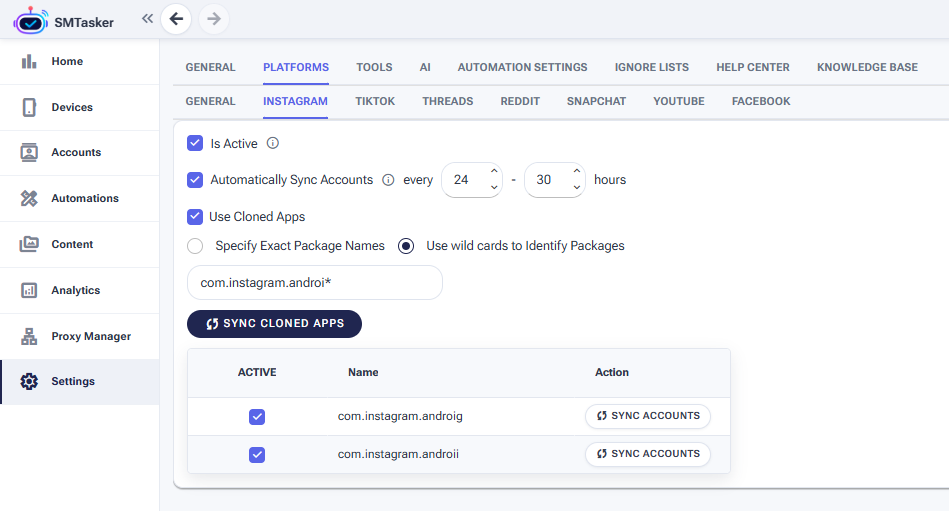
The Instagram tab with Use Cloned Apps enabled and the wildcard option selected. Once a sync succeeds, your clones appear in the table at the bottom.
Step 2: Choose how SMTasker finds your clones
You have two ways to tell SMTasker which cloned apps to look for:
- Specify Exact Package Names — you type the full package name of each clone (
com.instagram.androig, and so on). Precise, but you need every exact name and have to keep the list up to date as you add clones. - Use wild cards to Identify Packages — you type one pattern with a
*at the end, likecom.instagram.androi*. The*means “anything,” so a single pattern matches all your Instagram clones at once — and picks up new ones automatically.
com.instagram.androi* catches every clone you have — and every clone you add later — without you tracking each exact name.One wildcard pattern matches every cloned package — no need to list them one by one.
Finding your package name
The cloned package name is set by your cloner app, so that’s where to look:
- Most cloner apps show — or let you set — the cloned app’s package name in the clone’s settings or app info.
- For a wildcard you usually don’t need the whole name, just the part your clones share. For Instagram clones that’s
com.instagram.androi*; for another app, take its original package name and put a*where the clones differ.
Step 3: Click Sync Cloned Apps, then watch it finish
Hit the Sync Cloned Apps button. It doesn’t run instantly — it schedules the sync as a quick task on your phone, and you’ll see a confirmation:
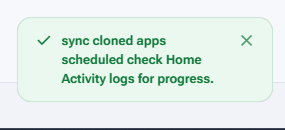
The sync is queued as a task — now open the Activity Log to watch it run.
Open Home → Activity Log (filter by the platform if you like) and you’ll see the task run through — Prepared for execution → Session started → 1/1 done (100%) — ending with “Sync Cloned Apps finished successfully — N package names synced.”
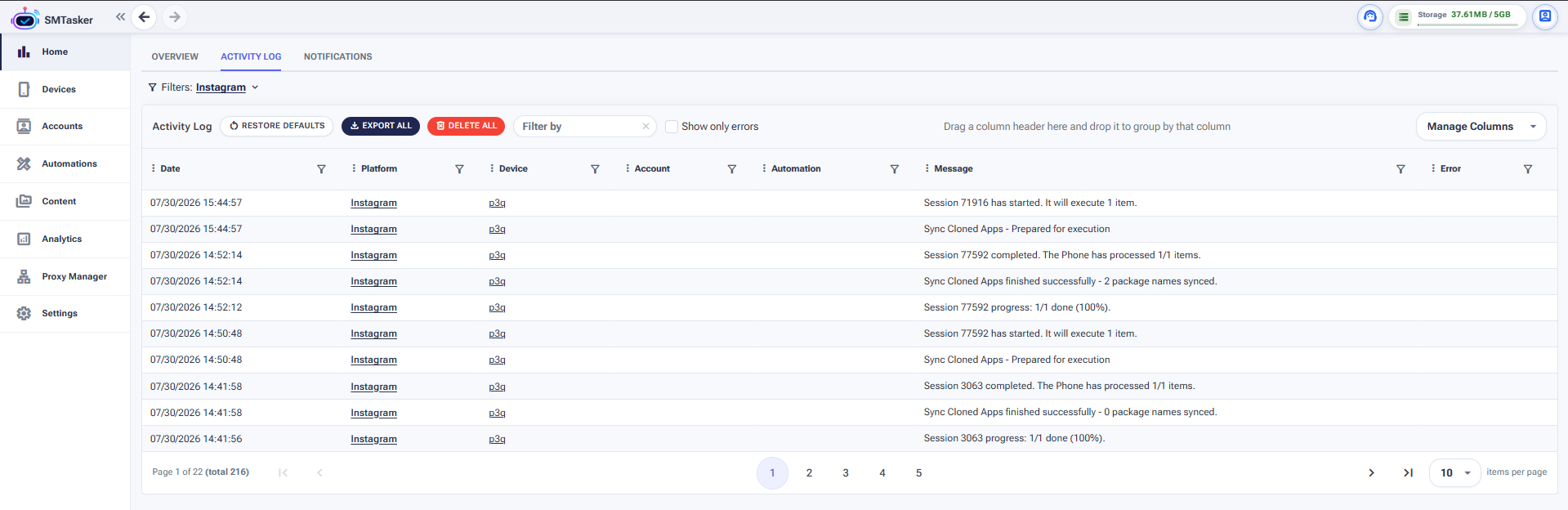
In Home → Activity Log, the run ends with “finished successfully — N package names synced.” N is how many clones it found.
When it finishes with at least one package synced, you’re done: your clones show up in the table under the button, and in the Package dropdown when you add accounts.
If it says “0 package names synced”
The sync can finish “successfully” but with 0 package names synced. That means it ran fine but found nothing to match — and that’s almost always a wrong package name or wildcard.
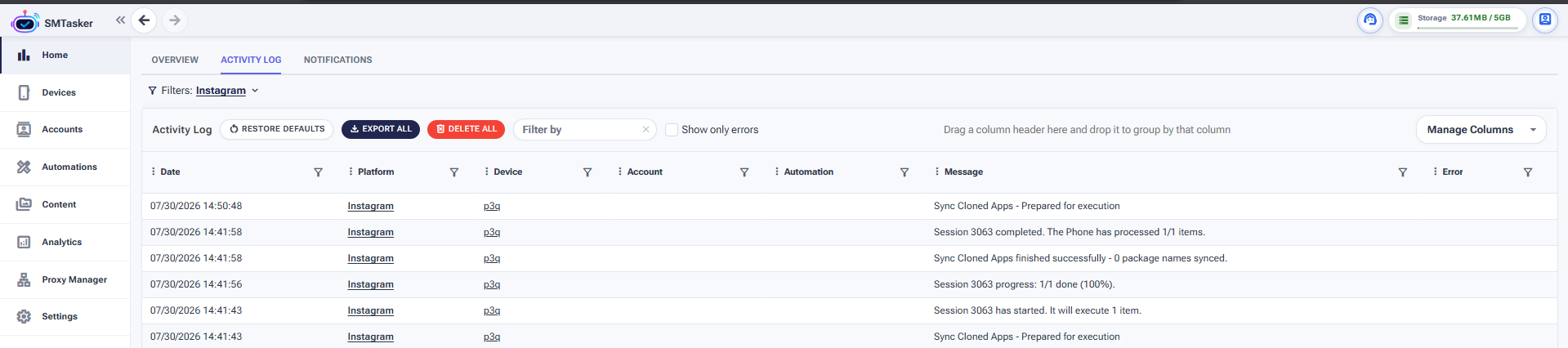
“0 package names synced” = the run worked, but your package name or pattern didn’t match any app on the phone.
Double-check that your exact name — or the part before the * — really matches your cloned apps; a single wrong letter is enough to match nothing. Still zero after fixing it? Confirm the clone’s real package name with your cloner app’s support, or contact SMTasker support and we’ll take a look.
What’s next
With your clones synced, head back to Adding Accounts and point each account at its own cloned app in the Package dropdown — one account per clone.
You’ll also notice each synced clone has a Sync Accounts button in the table. If an account is already logged in inside that clone on the phone, that button pulls it straight into SMTasker — the same auto-sync shortcut described in Managing Your Accounts, but per clone.