How to Manage and Automate Multiple Instagram Accounts for Clients
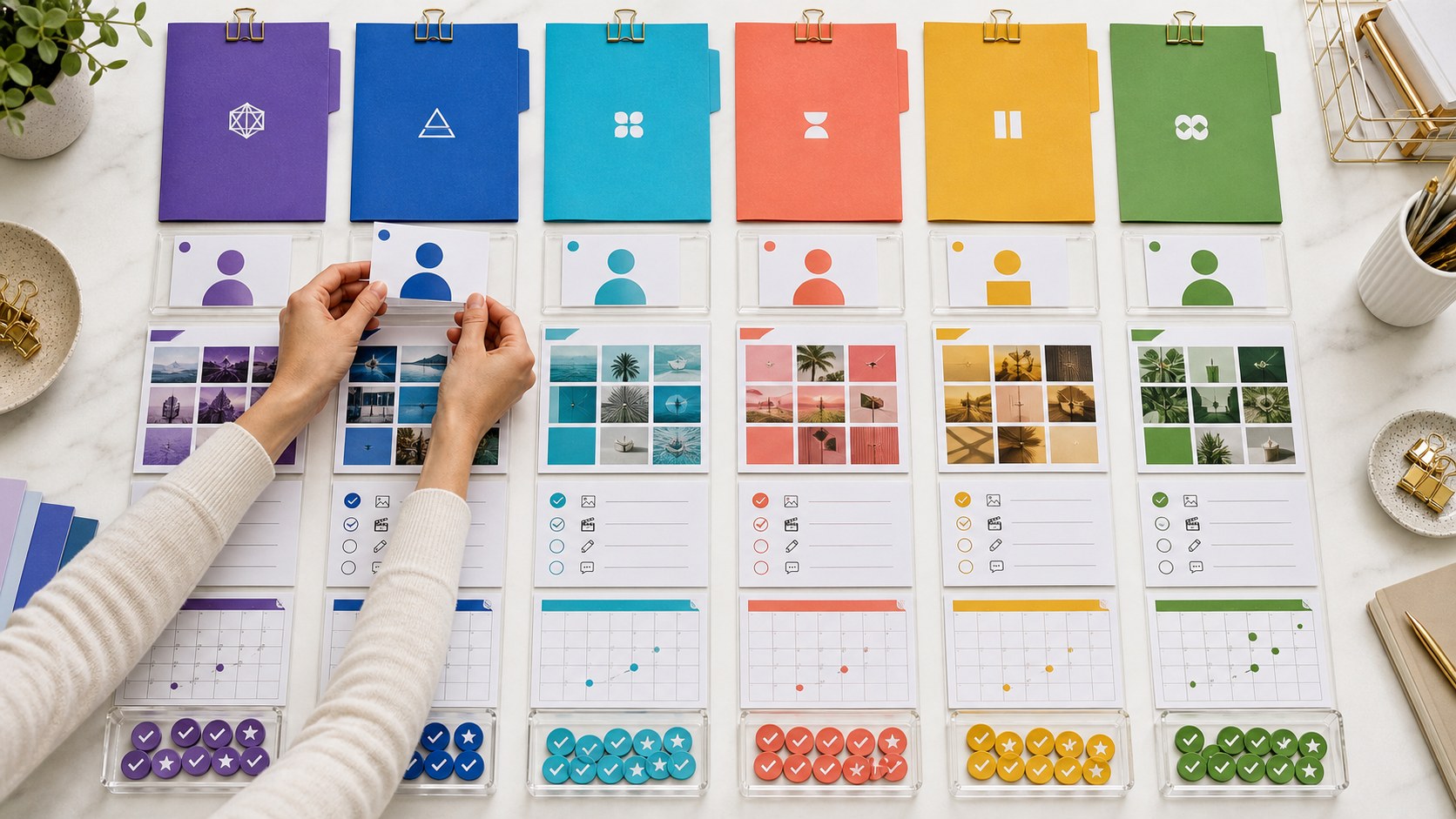
Managing one Instagram account is mostly a list of tasks. Managing ten client accounts is an operations problem. You have more logins, content folders, target lists, messages, devices, and reports. The difficult part is no longer one action. It is remembering which action belongs to which client.
This is why people search for how to manage multiple Instagram accounts for clients. Constantly logging in and out is slow. It also becomes easy to open the wrong profile, use the wrong message, or publish the wrong media.
A better system gives every client a clear place. It should tell you which phone runs the account, which profile holds the login, which workflows are active, and where to check the results. Once that map exists, automation can remove much of the repeated work.
Why Multiple Client Instagram Accounts Get Messy
The number of accounts is not the only problem. The number of moving parts grows with every new client.
- Each client has a different audience and campaign goal.
- Each account needs its own login session and device assignment.
- Content must stay inside the correct client folder.
- Messages, comments, and source lists need the right brand voice.
- Team members need to know what is running and what needs attention.
- Reports need to show results for one client, not a mixed total.
You cannot fix this with a longer spreadsheet alone. The spreadsheet may hold the plan, but the operating setup must also separate the accounts on the devices and inside the automation dashboard. Good Instagram account management for agencies starts with that separation.
If you run an agency, the useful question is not only “How many accounts can I add?” The better question is “Can another operator understand this setup without asking me where everything is?”
Choose the Right Layout Before Adding Accounts
There are three practical ways to organize client accounts with Android phones. The best one depends on how much separation you want, how many phones you have, and how often each account runs.
| Setup | How it works | Main benefit | Best fit |
|---|---|---|---|
| Separate physical phones | One account or one client group lives on its own phone | Clear physical separation and easy troubleshooting | Important clients, busy accounts, and larger agencies |
| GrapheneOS user profiles | Several isolated Android user profiles share one compatible phone | Separate app data and login states with less hardware | Smaller portfolios and accounts with lighter workloads |
| Hybrid | Dedicated phones for key clients and profiles for the remaining accounts | Balances separation, cost, and device count | Most growing agencies |
Do not choose by account count alone. Think about how much work each account does. One active client may deserve a full phone. Four lighter accounts may fit neatly into separate profiles on another phone.
Option 1: Use Separate Android Phones
A dedicated Android phone is the clearest setup. The Instagram app, login state, media, and automation work stay on one physical device. When something needs attention, you know exactly which phone to open.
You can assign one phone per account or one phone per client. A client with several related accounts can use separate profiles on the same client phone. A larger account can remain alone.
This layout costs more because it needs more hardware, cables, and charging space. In return, it gives you a setup that is easy to label and easy to hand to another operator.
A simple naming system helps:
PH01-ClientName-MainPH02-ClientName-LocalPH03-Agency-Pool-A
Use the same name on the physical label, in SMTasker, and in your account map. The label should tell you enough without unlocking the phone.
Option 2: Run Multiple Instagram Accounts in GrapheneOS Profiles
If you want multiple Instagram accounts on one phone, separate user profiles are cleaner than placing every login inside one app instance.
Android supports multiple users by separating user accounts and app data. Each user gets its own workspace and app state. The official Android multi-user documentation explains that app data in one user is separated from app data in another.
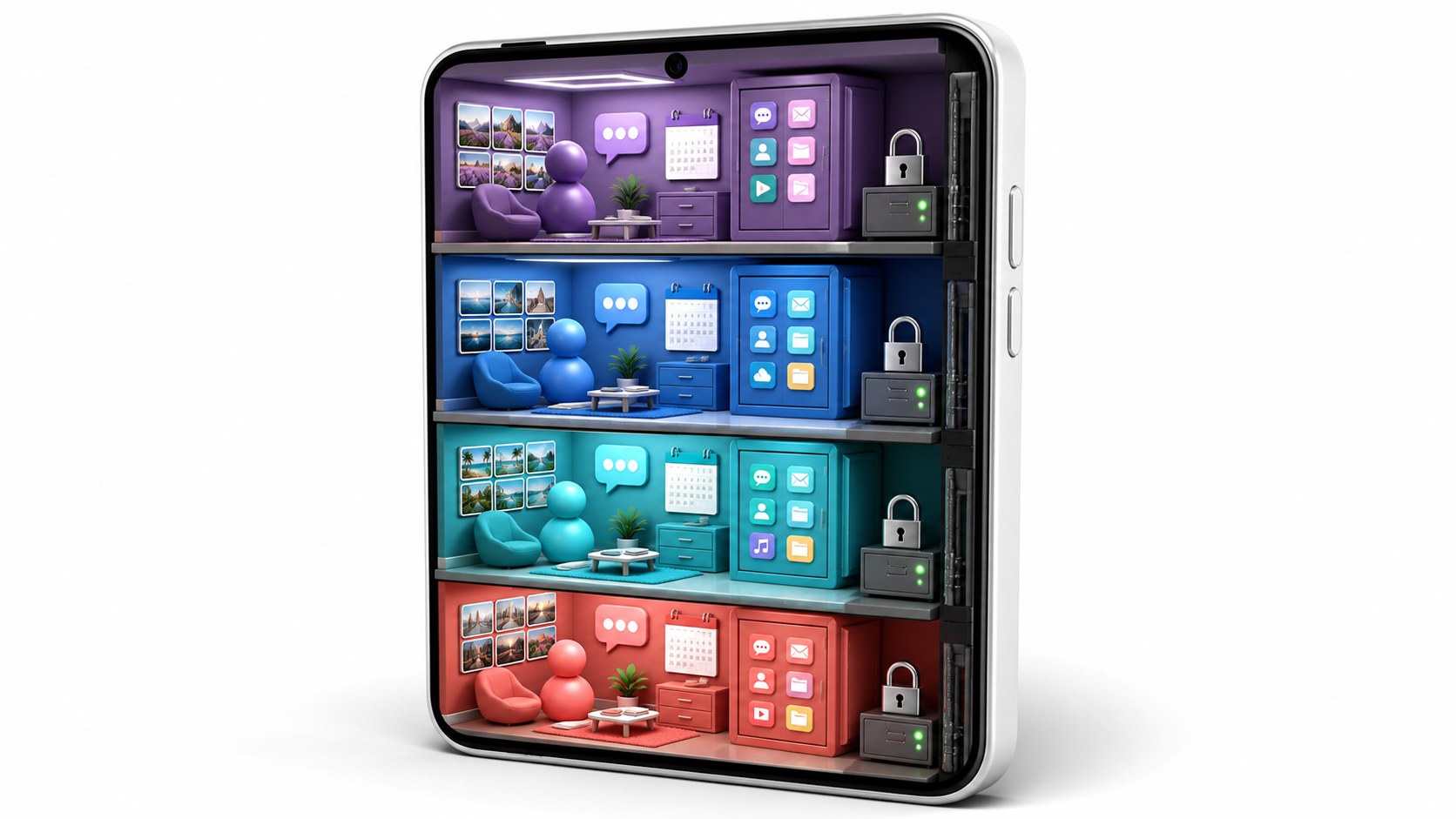
GrapheneOS improves this model. Its user profiles have their own app instances, app data, contacts, media storage, home directory, and encryption keys. The project also makes profile switching and profile management more useful. You can read the details in the official GrapheneOS profile documentation.
For an agency, that means one compatible phone can contain several separate Instagram installations. Each profile can hold its own login and media. You can name the profiles after clients or account groups, then assign the correct device and profile inside SMTasker.
A user profile is still part of the same physical phone. The profiles share the hardware and some system-wide settings. If the phone is offline, every account on that phone is affected. This is why profiles reduce hardware needs but do not replace a well-planned device layout.
Option 3: Build a Hybrid Multi-Account Setup
The hybrid setup works well for most agencies. It gives high-value or high-workload clients a dedicated phone. Smaller clients use separate GrapheneOS profiles on shared phones.
You can divide the portfolio like this:
- Dedicated phone: a large client, several campaigns, frequent publishing, or a busy inbox.
- Dedicated client phone with profiles: one client owns several brands, regions, or niche accounts.
- Shared profile phone: several smaller clients, each inside its own GrapheneOS profile.
- Spare phone: ready for testing, migration, or replacing a device that needs maintenance.
This structure can grow without forcing you to rebuild everything. When a client becomes busier, move that account from a shared profile phone to a dedicated phone and update the assignment in your map.
SMTasker can also work with Android emulators, but physical Android phones should be the main production setup here. Real phones and GrapheneOS profiles are generally easier to keep stable and easier to troubleshoot. An emulator can remain a test option rather than the center of a client operation.
Build an Account Map Before You Log In
An account map is the source of truth for the agency. Create it before connecting phones or building automations.
| Client | Instagram account | Device | Profile | Purpose | Owner |
|---|---|---|---|---|---|
| North Fitness | @northfitness | PH01-North | Owner | Local leads | Ana |
| Oak Studio | @oakstudio | PH04-ClientPool | Client-A | Engagement | Dan |
| City Homes | @cityhomes | PH04-ClientPool | Client-B | Property inquiries | Ana |
Add more columns when needed:
- SMTasker account tag;
- automation names;
- source list name;
- media folder name;
- campaign start date;
- reporting day;
- last device check;
- notes for manual follow-up.
Never use names such as Phone 1, Instagram 2, or New Client once real client work begins. Clear names prevent wrong-account mistakes.
How to Add Client Accounts to SMTasker
Once the map is ready, connect each Android phone to the computer running the SMTasker local client. The computer can run Windows or macOS.
There are two ways to bring an Instagram account into SMTasker:
- Auto-sync: connect a phone where Instagram is already logged in. SMTasker detects the session and adds the account.
- Add Accounts wizard: enter the account credentials, choose the phone and profile, review the assignment, and let SMTasker complete the login.
The complete screens are shown in the Adding Social Accounts guide. The important agency step is the assignment. Check the client, username, device, and profile together before finishing.
A clean onboarding order looks like this:
- Create the client tag in SMTasker.
- Prepare and label the Android phone.
- Create the GrapheneOS profile when the phone will hold more than one account.
- Install Instagram and sign in inside the correct profile, or use the Add Accounts wizard.
- Connect the phone and confirm it appears online.
- Add or sync the Instagram account.
- Assign the client tag.
- Add the first automation and give it a clear name.
- Open Live View once and confirm the right device and profile are active.
The Managing Your Devices guide explains device status, Live View, and active sessions. The Managing Your Accounts guide covers tags, filters, and bulk account organization.
How to Automate Multiple Instagram Accounts Without Mixing Clients
Automation becomes useful only after account separation is clear. Every client should have its own objective, sources, messages, media, and reporting view.
SMTasker can run repeatable Instagram work such as:
- targeted Like workflows;
- Follow and Unfollow routines;
- Comment and Like Comments workflows;
- Story and Reels viewing;
- Save Posts tasks;
- Contact workflows for selected users, new followers, and incoming messages;
- publishing from prepared media folders.
Do not create a generic setup called Instagram Automation and copy it blindly across the portfolio. Name tasks so the account, action, and campaign are obvious.
A useful naming pattern is:
Use a separate source list for each audience. A fitness client and a property client should never share the same target list. The Using Lists guide shows how one list can feed several automations while remaining easy to update.
Keep publishing assets separate too. Give every client a clear folder tree:
ClientName/ReadyClientName/PublishedClientName/NeedsApproval
For the publishing workflow, use the Media Folders guide. Folder names should match the names used in your account map.
Reuse Good Workflows Without Rebuilding Everything
When agencies try to automate multiple Instagram accounts, setup time can become another bottleneck. Configuring the same tool ten times is slow. A practical multi-account Instagram automation system needs a way to reuse good work. SMTasker offers two:
- Copy Settings: copy one tool’s configuration to the same tool type on other accounts.
- Clone With: copy an account’s complete automation stack to selected accounts.
Start with one reference account. Build the workflow, check that the right source is used, confirm the action output, and clean up the task names. Then copy the structure.
After copying, replace the client-specific parts:
- source lists;
- message templates;
- AI prompts;
- media folders;
- campaign names;
- active hours and work volume;
- client tags.
This gives you a repeatable agency template without making every client sound or behave the same. The Automations Dashboard guide explains filters, grouping, naming, and Copy Settings in detail. The Growth Stack workflow explains how to turn one working setup into a larger account portfolio.
Use a Simple Daily and Weekly Review Routine
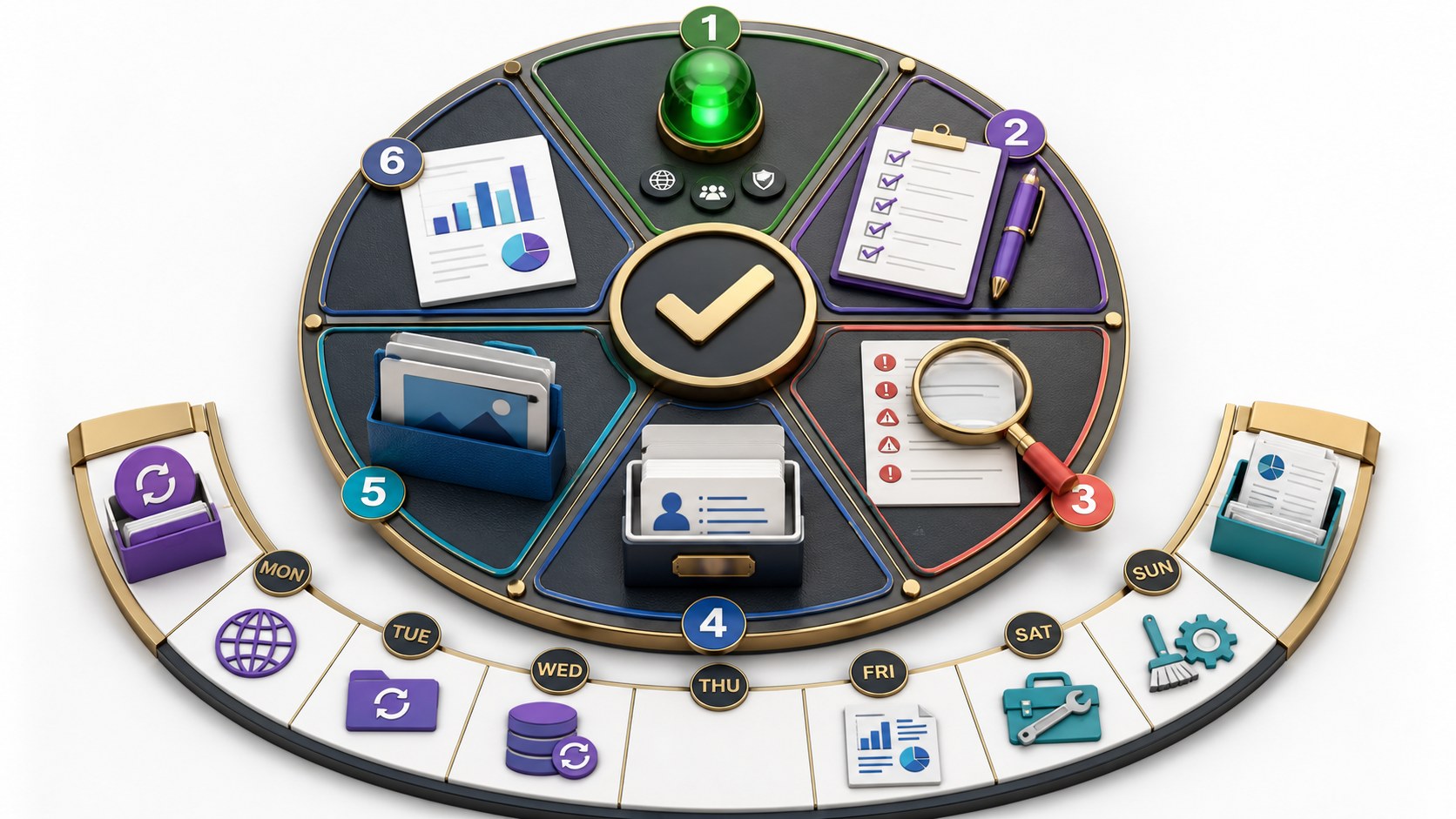
A large account list does not need a long daily meeting. It needs a short check in the same order every time.
Daily review
- Open Devices and check that each required phone is online.
- Filter Automations by client tag or device.
- Check #Actions Today for the workflows that should be active.
- Open the Activity Log and filter to errors when something looks wrong.
- Review messages or results that need a human reply.
- Check that the next publishing folders contain the correct client media.
Weekly review
- Open Results for the raw action history.
- Use Statistics to compare activity across days.
- Read Summary for complete run history and issues.
- Refresh source lists and campaign notes.
- Prepare a short client report with work completed and useful outcomes.
- Check phones, cables, charging stands, free storage, and app updates.
The Results and Statistics guide explains the three reporting tabs. For troubleshooting across all accounts, use the filters in the Activity Log.
Organize Team Access and Client Credentials
Do not place client passwords in an open spreadsheet, chat history, or shared text file. Use a password manager with separate client records and multi-factor authentication. NIST recommends password managers because they can generate and store long, unique credentials, and it recommends protecting the password manager with MFA. See the official NIST password guidance.
For every client, record:
- who owns the account;
- who may change credentials;
- where recovery details are stored;
- which operator manages the automation;
- which device and profile contain the login;
- who handles messages that need a personal reply;
- what happens when the client leaves.
Offboarding should be just as clear as onboarding. Stop the client’s workflows, export any agreed reports, remove client media, remove the account from the assigned profile, and update the device map. Do not leave an old client login hidden on a shared phone.
How to Scale Instagram Account Management for an Agency
You do not need the final device setup on day one. Build a layout that can grow in stages.
Stage 1: one to three client accounts
Keep the layout simple. Use dedicated phones for the busiest accounts or a small number of clearly named GrapheneOS profiles. Create the naming and tagging system now, even if it feels unnecessary.
Stage 2: four to ten client accounts
Move to a hybrid setup. Group phones by client or workload. Add a charging station, numbered cables, one spare phone, and a complete account map. Use tags and filters every day.
Stage 3: a larger client portfolio
Standardize onboarding. Use a setup checklist, a device naming pattern, a profile naming pattern, client folder templates, and reference automation stacks. Connect groups of phones to reliable Windows or macOS computers running the local client. Keep one operator responsible for device health and another responsible for campaign review when the team grows.
The goal is not to make one phone carry everything. The goal is to make new accounts easy to place. When a client arrives, your team should already know which device group, profile pattern, tag, folder structure, and workflow template to use.
Common Mistakes When Managing Multiple Instagram Accounts
- No account map: the device setup exists only in one person’s memory.
- Weak device names: operators cannot tell which phone belongs to which client.
- Too many logins in one app instance: account switching becomes slow and confusing.
- Mixed media folders: content can be selected for the wrong brand.
- One generic source list: unrelated clients end up targeting the same audience.
- Unclear automation names: a dashboard full of “Like 1” and “Comment 2” is hard to review.
- Copying everything without customization: templates, sources, and media still belong to the reference client.
- No daily device check: an offline phone can leave several profiles waiting.
- No spare hardware: one cable or phone problem interrupts client work.
- No offboarding process: old client data remains inside devices and folders.
FAQ
What is the best way to manage multiple Instagram accounts for clients?
Map each account to a client, device, profile, tag, source list, content folder, and operator. Use separate Android phones for the cleanest layout. Use separate GrapheneOS profiles when several accounts share a phone. Monitor everything from a central dashboard.
Can SMTasker automate multiple Instagram accounts?
Yes. You can connect several Android devices, add accounts, assign each account to a device and profile, attach different automation tools, and review their status and results from one SMTasker account.
Do I need one Android phone for every Instagram account?
No. A dedicated phone gives the clearest physical separation, but several accounts can also use separate GrapheneOS user profiles on one compatible phone. Many agencies use both methods.
Why use GrapheneOS profiles for multiple Instagram accounts?
Each profile has its own app instance, app data, media, and login state. This keeps client sessions easier to organize while reducing the number of physical phones needed. The profiles still share the same hardware, so record both the phone and profile in your account map.
Should an agency use Android emulators for client accounts?
They can be useful for testing, but this setup should focus on physical Android phones. Dedicated phones and GrapheneOS profiles are usually easier to keep stable, identify, and troubleshoot during daily client work.
How do I stop client content and messages from getting mixed?
Use a unique client tag, automation naming pattern, source list, message template, and media folder. Filter the dashboard by client before editing or reviewing anything. Keep the same names in the dashboard and account map.
Can I copy an Instagram automation setup to other client accounts?
Yes. Copy Settings can reuse one tool configuration, while Clone With can reuse a full stack. After copying, replace every client-specific source, message, prompt, folder, tag, and campaign name.
How can I report Instagram automation work to each client?
Filter by client account or tag. Use Results for individual actions, Statistics for activity over time, Summary for run history, and the Activity Log for errors. Export or summarize only the information that belongs to that client.
Build the Structure Once, Then Add Clients Faster
To manage multiple Instagram accounts well, make every account easy to identify. Decide where it lives. Name the phone and profile. Give it a client tag. Separate its sources, messages, and media. Then connect the repeated work to a dashboard your team can review.
SMTasker brings the devices, accounts, automations, filters, Live View, logs, and results into one operating system for the agency. You can start with one Android phone, learn the workflow, and expand into dedicated devices or GrapheneOS profile groups as the client list grows.
Explore the complete Instagram automation overview, or start your five-day SMTasker trial and build the first client setup.