Managing Your Devices
The Devices page is where your connected phones live — check status, watch a phone live, review sessions, and edit each device.
The Devices page lists every phone (or emulator) connected to your account. It’s where you confirm a device is online, watch what it’s doing, and manage its settings.
The device table
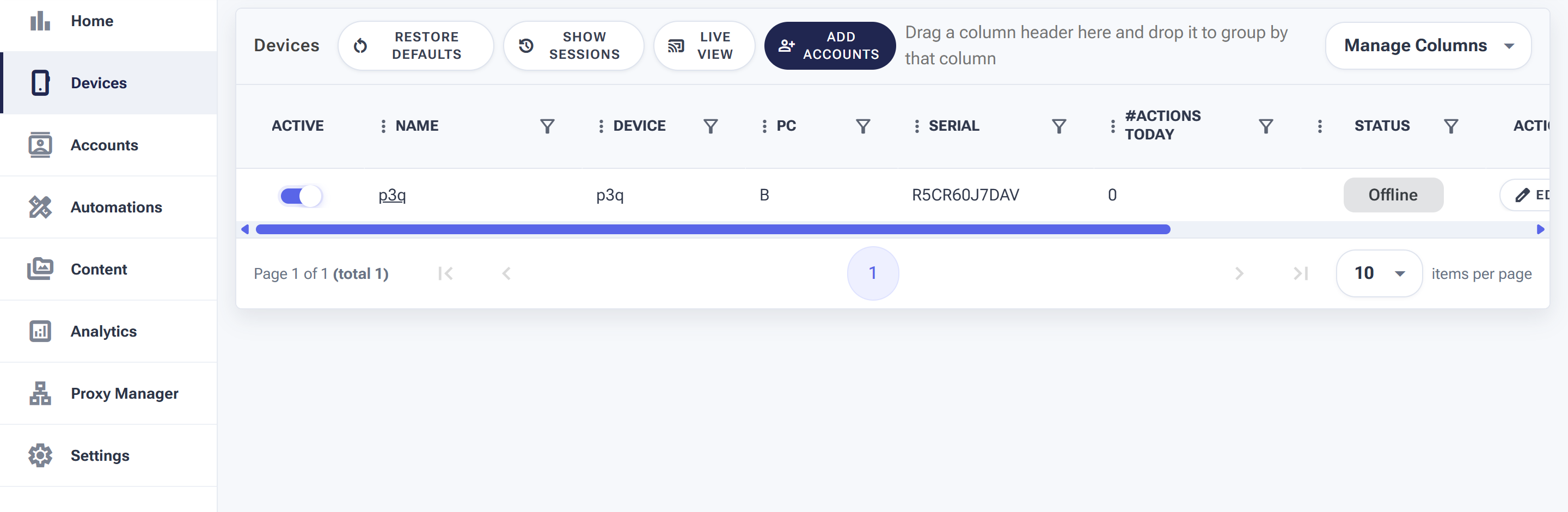
Each row is one phone — its name, the computer (PC) it’s connected through, serial, actions today and online status.
For each phone you’ll see the Active toggle, its Name, the PC (the computer running the local client), the Serial number, #Actions Today, and a Status (Online / Offline). The pencil Edit icon opens that device’s settings.
The toolbar buttons
- Live View — mirror the phone’s screen in real time to watch an automation as it runs. The best way to see exactly what SMTasker is tapping.
- Show Sessions — review past automation sessions for the device.
- Add Accounts — attach social accounts to this phone.
- Restore Defaults / Manage Columns — reset the view or choose which columns show.
Live View: watch a phone in real time
Click Live View to mirror a connected phone’s screen right in your browser. It’s the best way to see exactly what an automation is doing — every tap, scroll and type as it happens.

Press Add Stream to open a device’s screen; Refresh Devices re-scans for connected phones.
Click Add Stream and pick a device to start mirroring it. You can open more than one stream at once to keep an eye on several phones side by side.
Show Sessions: what’s running now
Show Sessions opens the Active Sessions panel — a live view of which devices are currently publishing or executing a task.
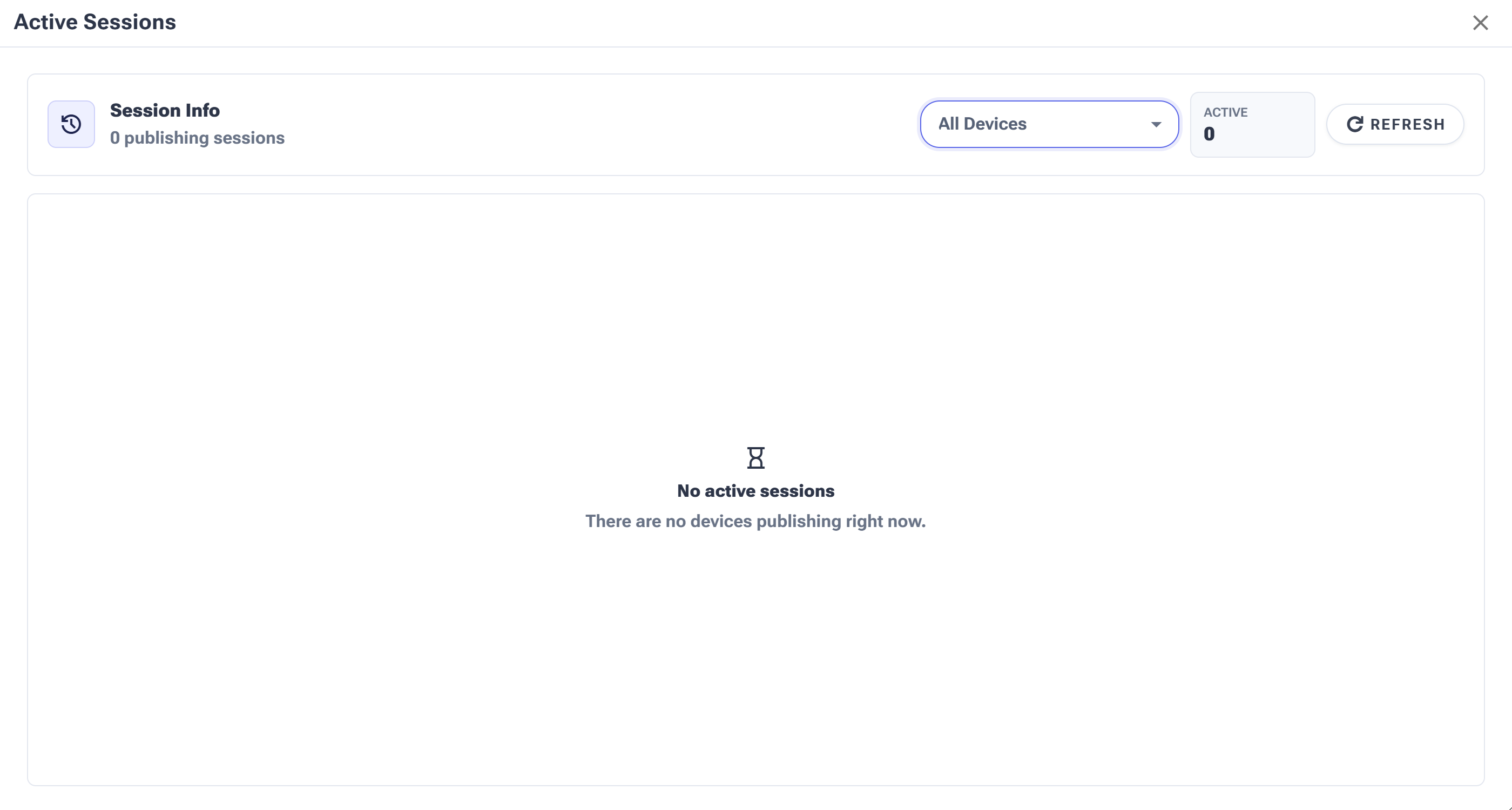
Filter by device with All Devices, watch the Active count, and hit Refresh to update. When nothing is running you’ll see “No active sessions” — normal when your automations are stopped or your phones are idle.