App Settings Explained
A tour of the Settings tabs — theme, time zone, sleep schedule, platforms, tools, AI, and the global ignore lists.
The Settings page holds the account-wide options that apply everywhere. It’s organised into tabs: General, Platforms, Tools, AI, Automation Settings, Ignore Lists, plus Help Center and Knowledge Base links.
General
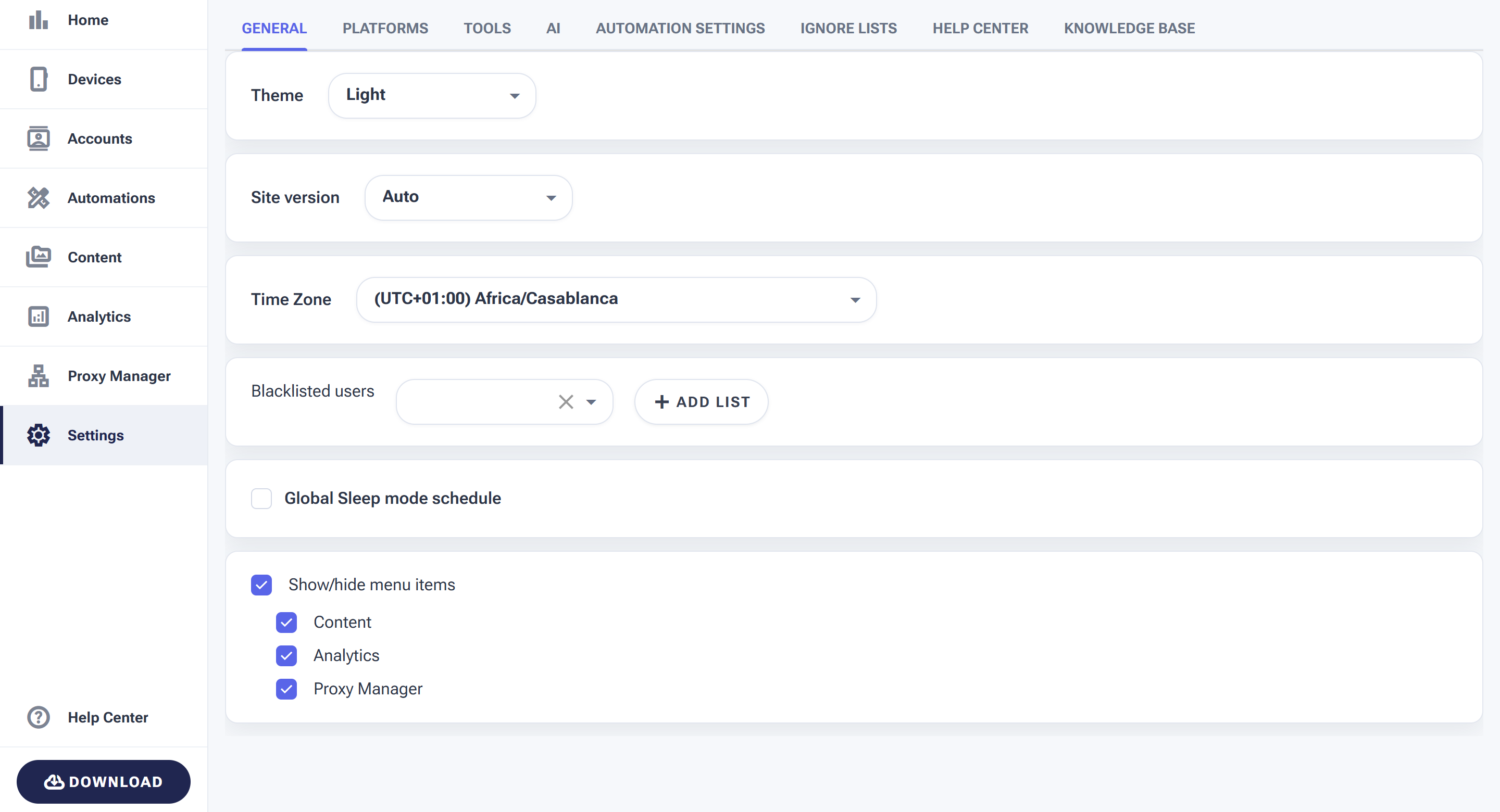
General controls the app-wide basics — the ones you’ll actually change.
- Theme — switch the app between Light and Dark.
- Time Zone — the clock your schedules and “active days” run on. Set this to your real timezone so tools run when you expect.
- Global Sleep mode schedule — a quiet window where all automations pause (great for looking human overnight).
- Blacklisted users — accounts you never want any tool to interact with.
- Show/hide menu items — tidy the sidebar by hiding sections you don’t use.
Platforms
The Platforms tab controls how SMTasker splits its time between networks. On the Processing time split, you give each active platform a percentage of the scheduler’s attention — the weights always add up to 100%, and platforms you don’t use drop out.
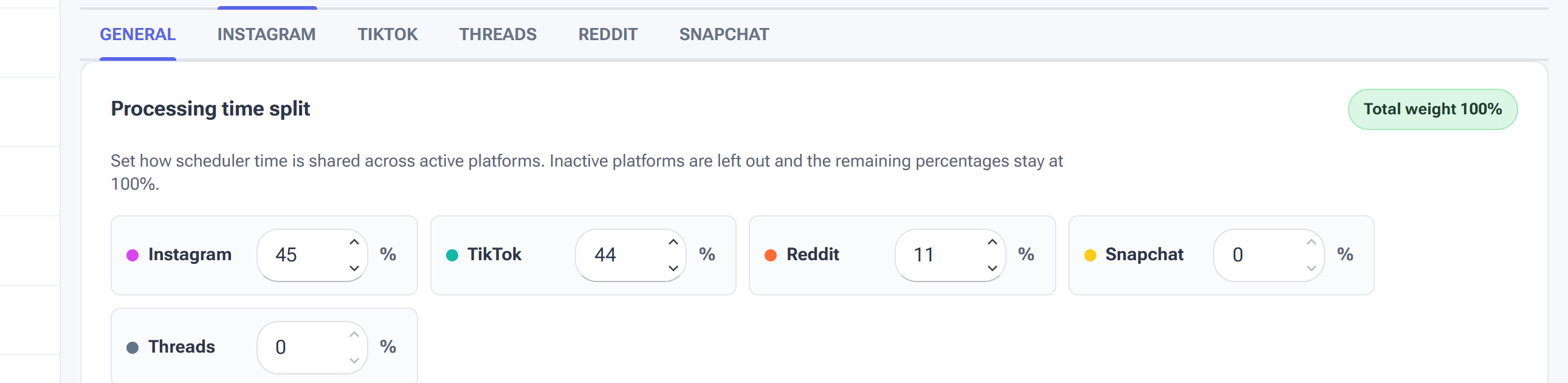
Give each platform a share of the scheduler’s time — here Instagram 45%, TikTok 44%, Reddit 11%. The per-platform sub-tabs hold that network’s own defaults.
The sub-tabs (Instagram, TikTok, Threads, Reddit, Snapchat) let you set defaults specific to each network.
Tools
The Tools tab sets how SMTasker reacts when a platform pushes back — the account-wide safety brake behind every automation.

- Suspend when temporarily blocked — pause the affected tool for a random window (e.g. 15–60 minutes) when a platform throws a soft block, so it backs off like a human would.
- Suspend on second block — a much longer cool-down (e.g. 600–1600 minutes) if it gets blocked again, to protect the account.
- Send notification after X consecutive errors — get alerted when something keeps failing.
AI
The AI tab is where you connect the AI services that power SMTasker’s content and commenting features.
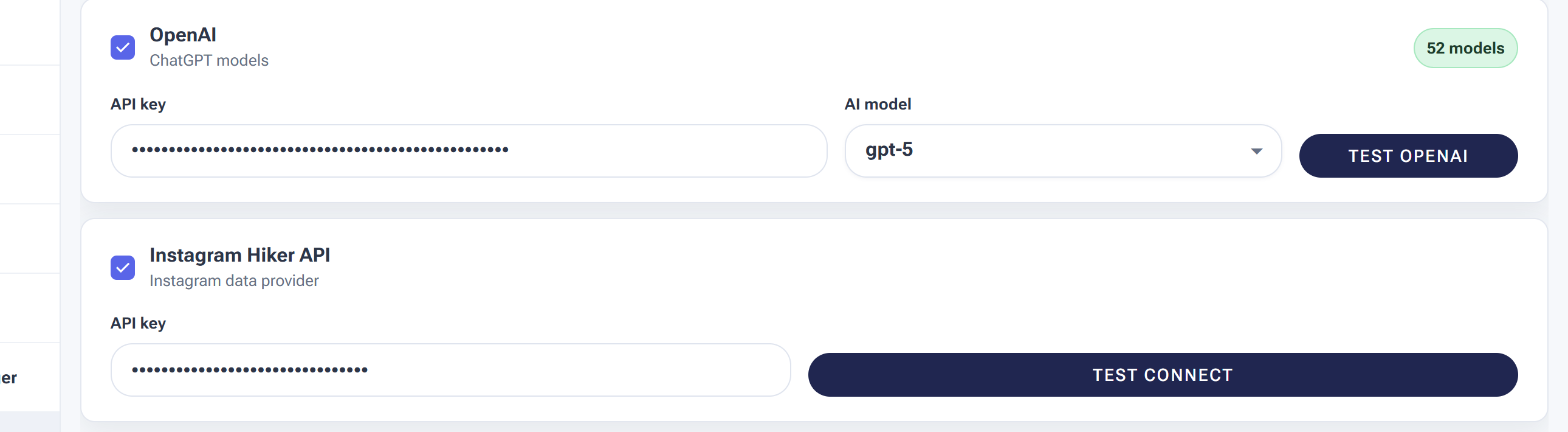
- OpenAI — paste your API key and choose a model to power AI comments and captions. Use Test OpenAI to confirm the key works. (Full walkthrough: Connecting ChatGPT.)
- Instagram Hiker API — an optional data provider; paste its key and press Test Connect.
Automation Settings
The Automation Settings tab holds global behaviours that keep your data fresh across all tools.

- Automatically update followings — refresh each account’s following list on a schedule, so tools like Unfollow always work from current data.
- Automatically update followers — do the same for your followers list.
Ignore Lists
The Ignore Lists tab holds reusable “never touch these” lists — accounts every tool should skip, no matter what.
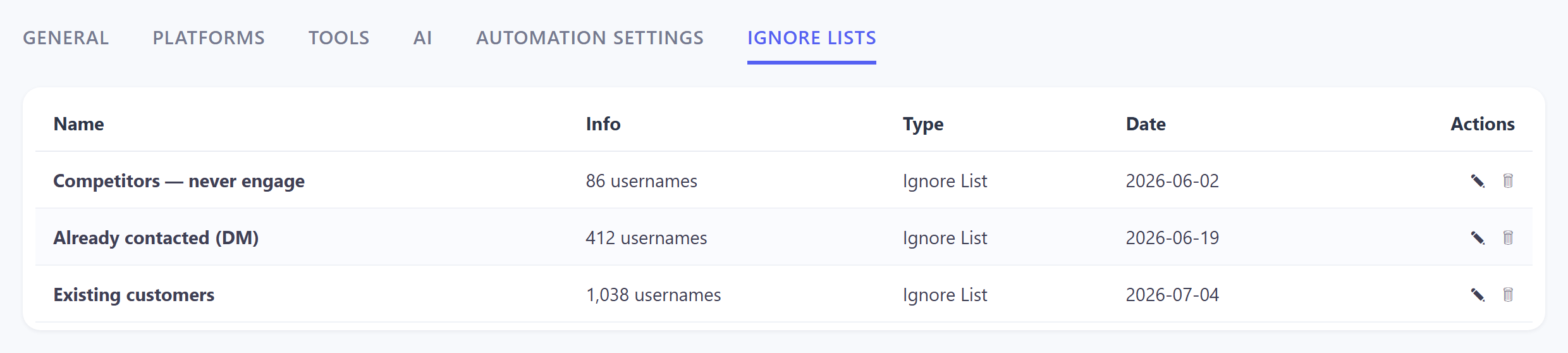
Build a list once here and every tool respects it — handy for protecting VIPs, your own accounts, or competitors you don’t want to engage.