Your Home Dashboard: Reading Device Status
The Home page is your control tower — read every phone’s status, queue and recent actions at a glance across three tabs.
Whenever you open SMTasker you land on Home. It’s your control tower — one live card per connected phone, plus two tabs that show exactly what your automations have been doing. Home has three tabs: Overview, Activity Log, and Notifications.
Overview: your phones at a glance
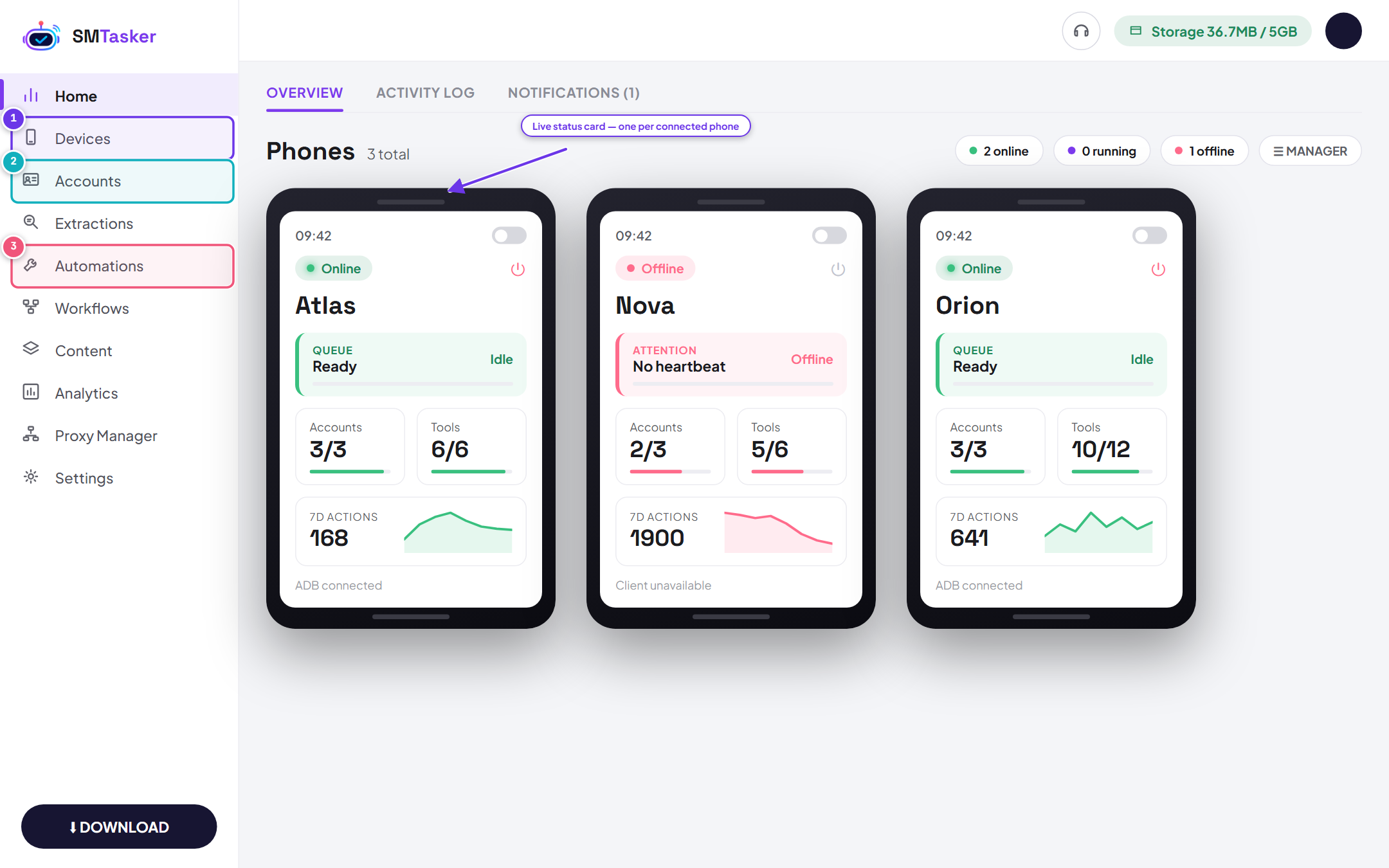
Every connected phone gets its own live card. The sidebar entries — Devices, Accounts, Automations — are the three building blocks behind it.
Each phone card tells you, at a glance:
- Status badge — a green Online means the phone is connected and ready; a coral Offline means SMTasker can’t reach it (check the cable and the local client).
- Queue — whether the phone is Idle / Ready or actively running a task.
- Accounts and Tools — how many social accounts and automation tools are attached to that phone.
- 7-day actions — a mini-chart of how much the phone has done this week.
The pills at the top (online, running, offline) summarise your whole fleet, and Manager switches to a denser list view when you run many phones.
The 60-second morning check
Home is built to answer one question fast: is everything running? Make this scan a daily habit:
- Pills first — offline should read 0. If it doesn’t, fix the connection before looking at anything else; every minute offline is missed action budget.
- Queue lines — during your active hours you want to see phones cycling between Ready and running. A phone that’s been idle all day usually means its tools have no active sources.
- 7-day mini-charts — the shape matters more than the number. A chart that fell off a cliff mid-week is your cue to open the Activity Log and find out what happened that day.
Activity Log & Notifications
The Activity Log tab is a searchable feed of everything your automations do — covered in its own guide. The Notifications tab (with an unread count) surfaces the alerts that need your attention, like a phone going offline.

Use Mark all as read to clear the badge, Delete all to empty the list, and Settings to choose which events notify you.