Managing Your Accounts
The Accounts page is where your social profiles live — organise them with tags, check restrictions, and attach automations.
The Accounts page lists every social profile you’ve added, across all platforms and devices. It’s where you organise accounts and attach tools to them.
The account table
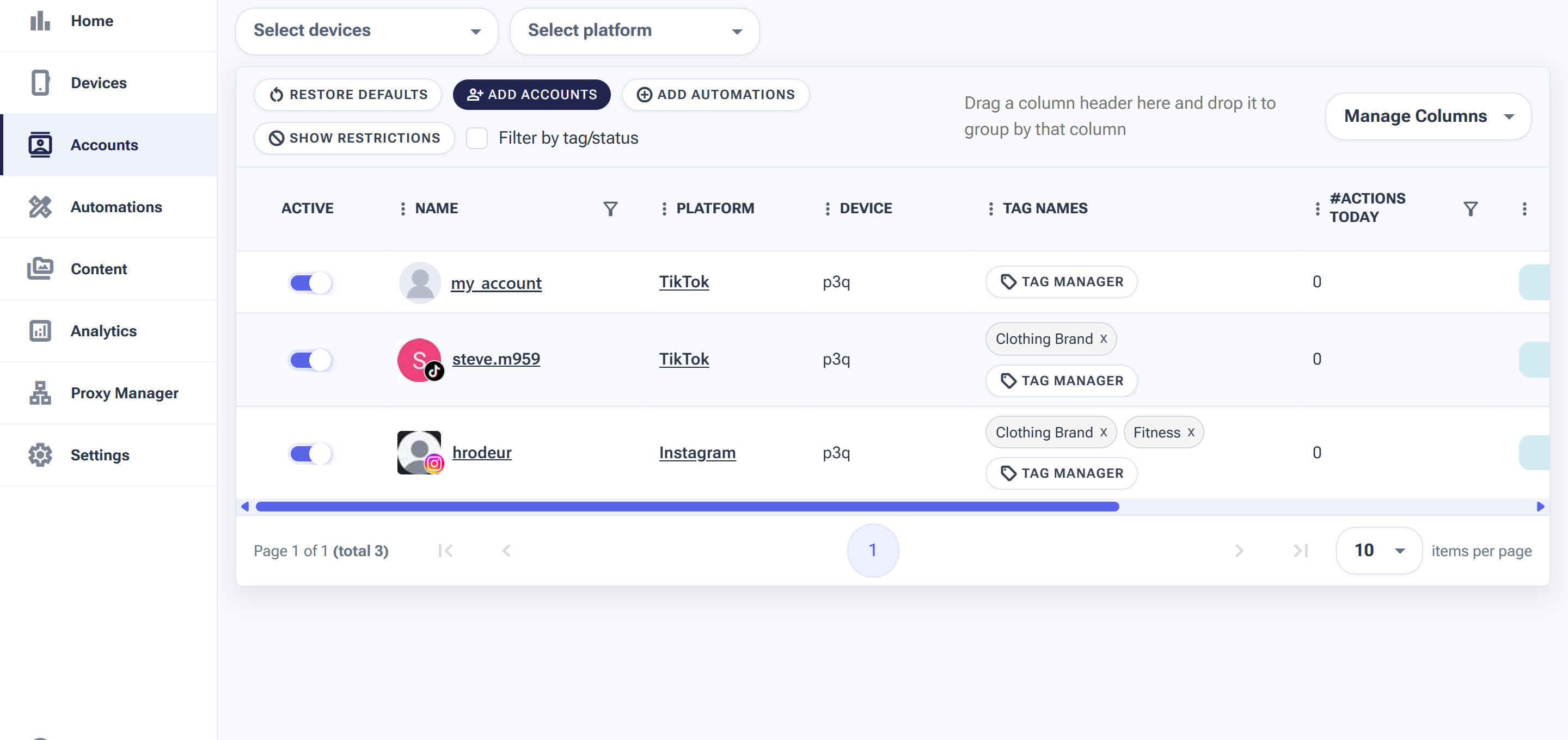
Each account shows its platform, the device it runs on, its tags and how many actions it did today.
Each row shows the account’s Active toggle, its Name and avatar, the Platform, the Device it’s assigned to, its Tag Names, and #Actions Today.
The controls
- Add Accounts — add new social profiles (see Adding social accounts).
- Add Automations — attach tools like Follow or Publish to the selected accounts (see Creating automations).
- Restore Defaults — reset the table back to its original columns and layout.
- Manage Columns — show, hide or reorder columns; drag a column header into the grey bar to group the list by it.
- Filter by tag/status plus the Select devices and Select platform pickers narrow the list.
Tag Manager: group accounts to manage them in bulk
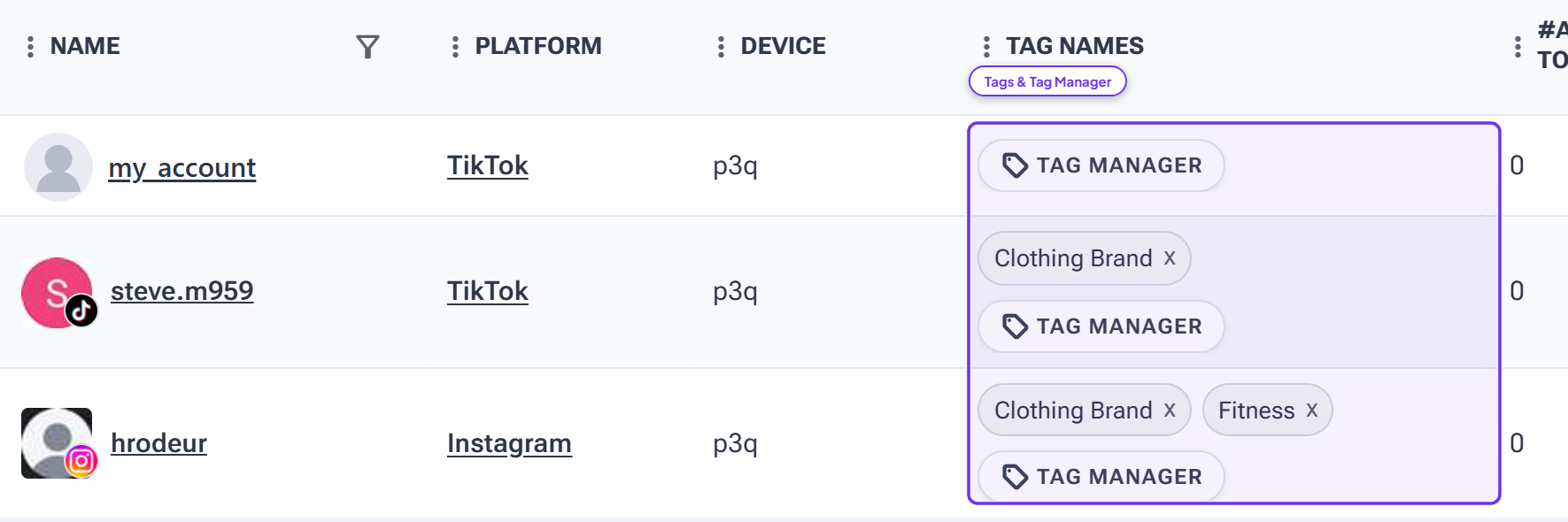
Each row has a Tag Manager button; once you add tags they appear as removable pills right in the Tag Names column.
Tags are how SMTasker turns a long, flat list of accounts into organised groups you can act on together. In the Tag Names column, click Tag Manager on any account to:
- Create a tag — type a name like Clothing Brand, Fitness or Client A and it becomes reusable across every account.
- Assign one or more tags — an account can carry several tags at once (see how hrodeur has both Clothing Brand and Fitness).
- Remove a tag — click the small × on any pill to detach it from that account.
Once accounts are tagged, tick Filter by tag/status at the top to show just one group — then start, pause or add automations to the whole group in a single action instead of one account at a time.
Show Restrictions: catch blocked or limited accounts early

The Show Restrictions button lives in the top toolbar, next to Add Accounts.
Click Show Restrictions to filter the list down to only the accounts the platform is currently action-blocking or limiting. It’s your early-warning panel: instead of scanning every row, you see at a glance which accounts need a rest.
When an account shows up here, the safe move is to pause it with its Active toggle and let it recover before automating again. For exactly what a restriction means and how to recover, see What to do if you get action-blocked.