Check Your Workspace with AI
Ask for a read-only workspace check and turn the findings into one clear next step.
Not sure what needs your attention? Ask your AI assistant to check SMTasker and turn its findings into one clear next step—without changing your setup.
Step 1: Ask for a check, not a change
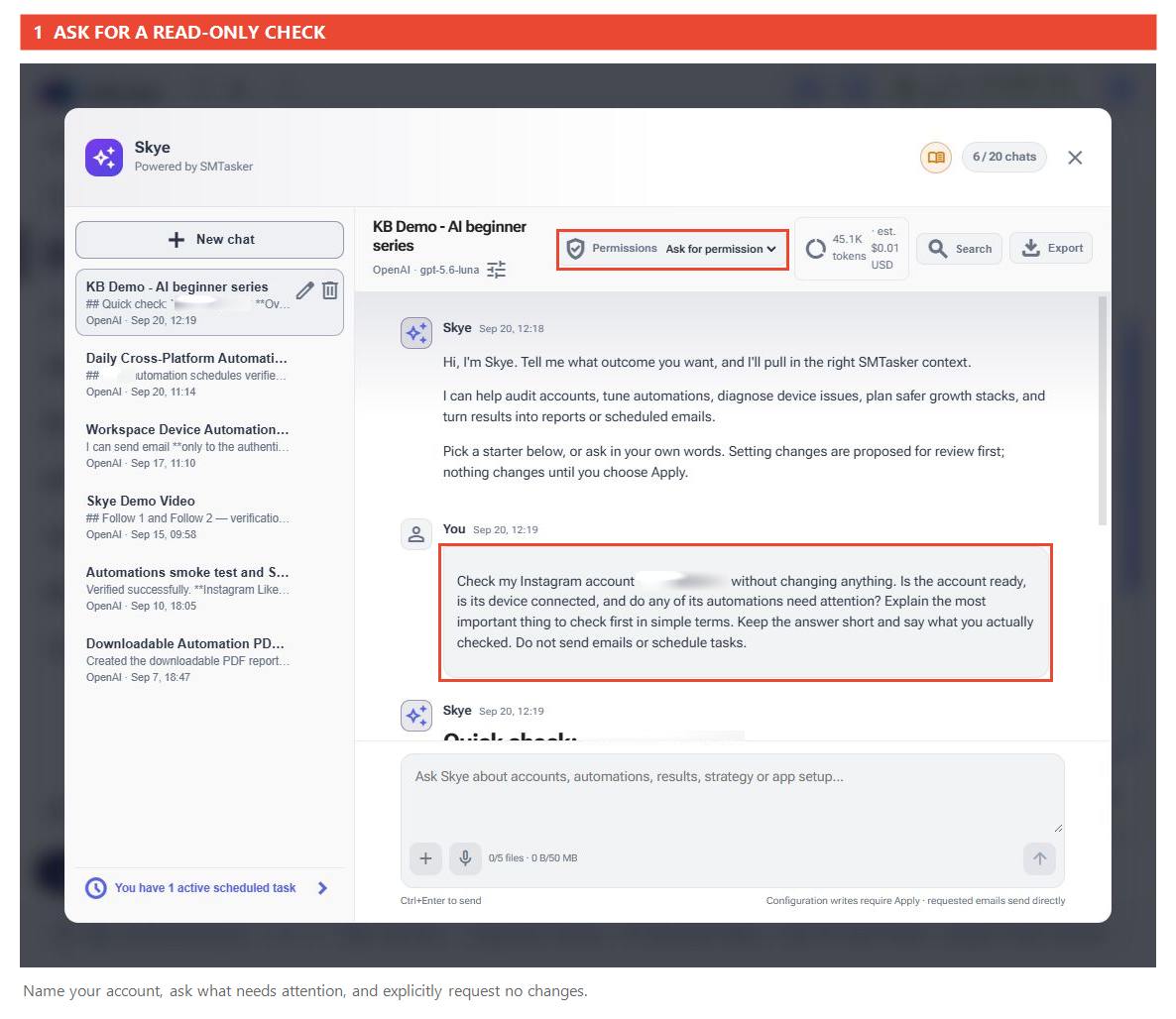
Where to type: use the Codex task with your SMTasker connection. If you chose Skye instead, open the purple sparkle button at the bottom-right of the SMTasker app, choose New chat, and use its message box.
Open your connected assistant and start with one account so the answer is easy to follow. Replace ACCOUNT_NAME with your username, not its password. This is the prompt used in our real Skye example; for another social network, replace Instagram too.
Check my Instagram account ACCOUNT_NAME without changing anything. Is the account ready, is its device connected, and do any of its automations need attention? Explain the most important thing to check first in simple terms. Keep the answer short and say what you actually checked. Do not send emails or schedule tasks.
For MCP, keep Read data access only. In Skye, keep Ask for permission selected. These are different controls; both routes should receive the explicit request not to make changes.
Step 2: Turn the answer into a priority
You do not need to fix everything at once. Look for three things in the reply: what needs attention, why it matters, and where to check it.
An inactive automation is not automatically broken. You may have paused it deliberately, or its schedule may not allow it to run right now. Ask the assistant to distinguish a problem from an intentional setting.
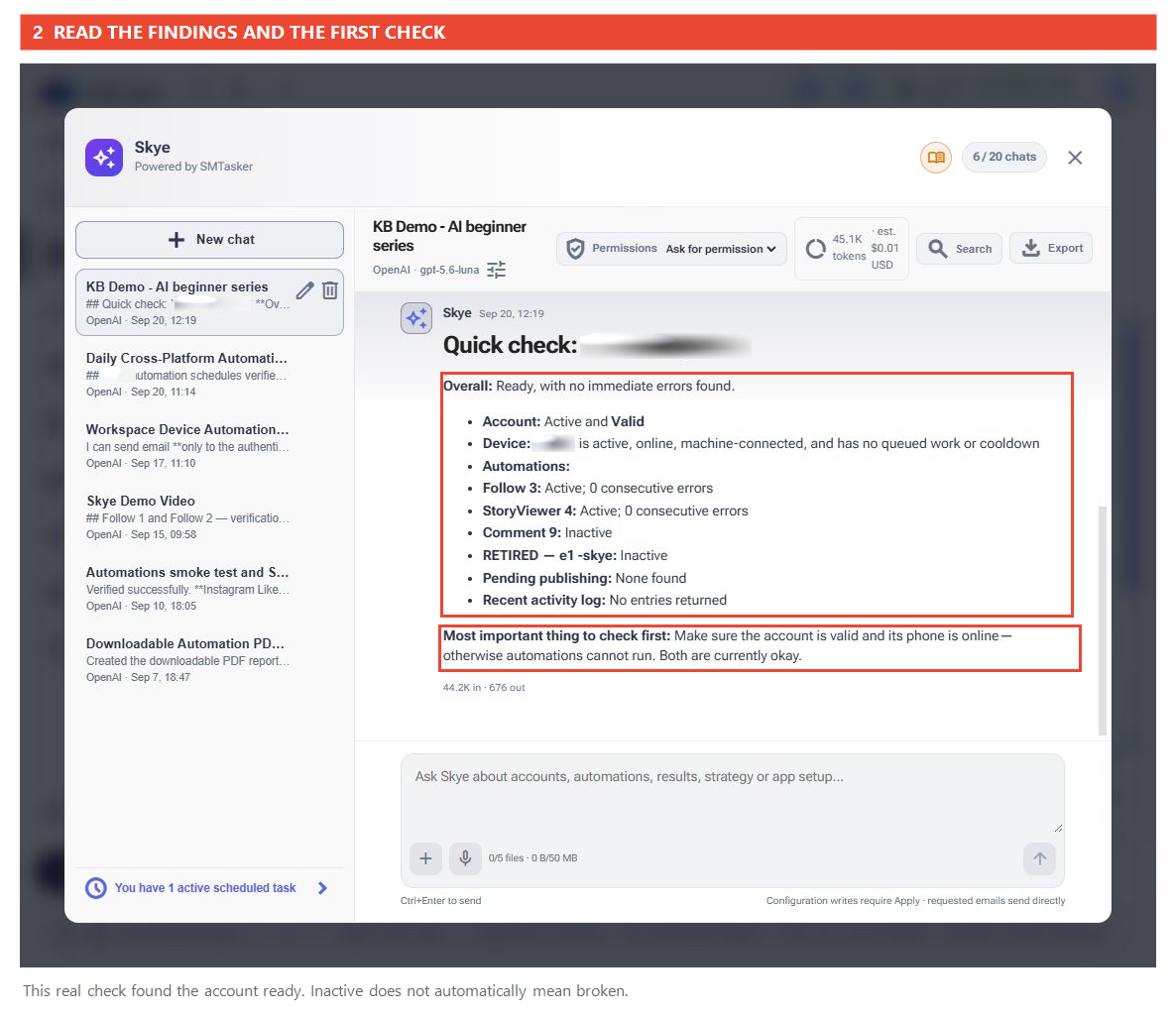
If your reply does not give a clear next step, ask this follow-up. It is optional; our example already identified the account and device checks.
Which finding should I check first, and why? Tell me where to open it in SMTasker. Do not make changes. If a stopped automation could be intentional, say so.
Step 3: Check the finding in SMTasker
Return to SMTasker and open the destination named in the answer. For example, use Accounts in the sidebar for an account-status issue, or Devices for a device-connection issue.
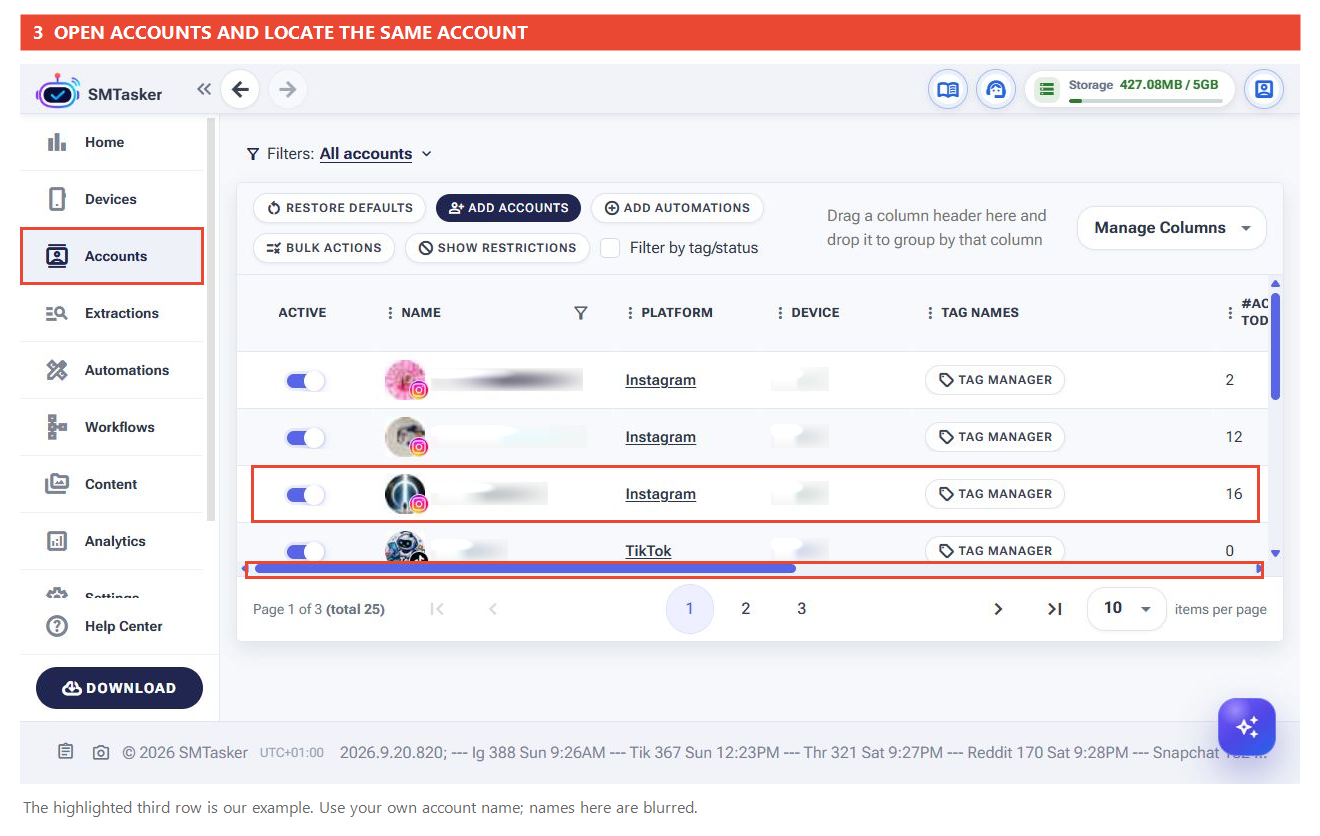
If Status is off-screen, move the table’s horizontal scrollbar to the right. Check the same row: ours shows Valid, matching the reply.
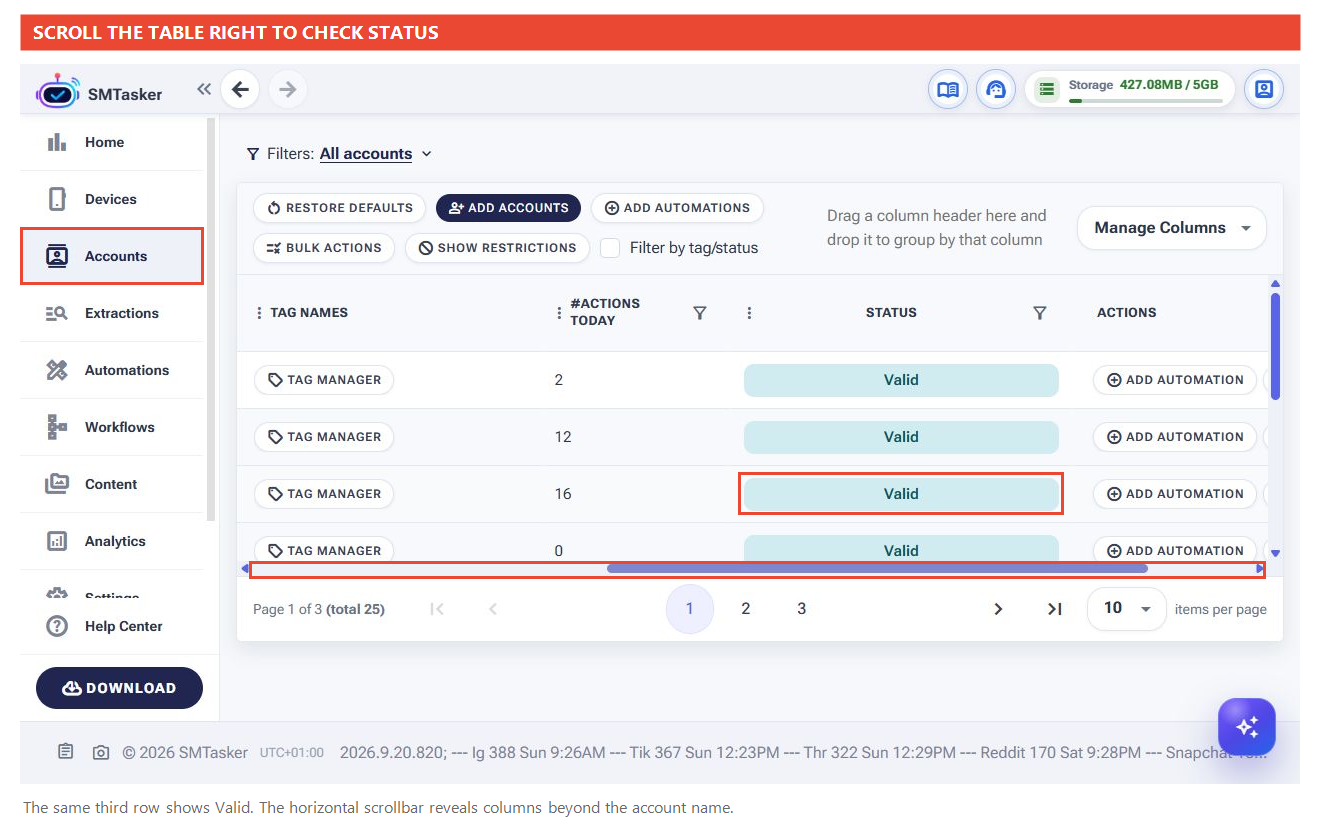
Check that the item and its current status match the reply. If they do not, ask the assistant to refresh its information before deciding what to do. A past screenshot or an older reply is not a live status check.
If everything looks healthy: stop there—no fix is needed just to complete the lesson. If something needs attention: follow the specific check, or ask for an explanation before considering a change. A request to check your workspace is not permission to start an automation.
If the answer is unclear, ask: “Explain this as if I am using SMTasker for the first time. Give me one thing to check, and tell me what I should see.”
What a useful check should leave you with
- A finding based on information the assistant actually retrieved.
- A simple explanation of why it matters.
- One place to inspect in SMTasker.
- No unexpected changes to your workspace.
If the assistant only gives general advice, ask whether it used the connection. If it could not connect, return to the connection checks rather than treating its advice as a workspace diagnosis.
A healthy result is useful too. Once this feels familiar, ask for a wider workspace check. Next: Let Your AI Make Changes.