Fix AI Connection Problems
Find the next useful check when your AI connection is missing, rejected, read-only or interrupted.
If your AI assistant cannot reach SMTasker, start with the symptom you see. This guide helps you find the next useful check without rebuilding your setup or sharing your private key.
First, find where it stops
Which description matches your situation? Read that section first—you do not need to work through every possible problem.
- My AI cannot find SMTasker.
- The connection is rejected.
- I only get general advice.
- Reading works, but changes fail.
- It worked before, or stops partway through.
Before changing anything: keep the error message and the time of the attempt. Do not delete working connections, disable security controls or enable write access just to test whether reading works.
My AI cannot find SMTasker
In your AI app: check that you are using the same computer and setup where you added the connection. A saved connection in one environment is not proof that a different task can use it.
For Codex, use the local setup from Connect Codex to SMTasker. Ask:
Check whether the SMTasker connection is available in this task. Do not change any settings or display secrets. If it is missing, explain whether I need to finish setup, restart the app or open a new local task. Give me one step at a time.
In SMTasker: open Settings → API & MCP Access. Compare the Server URL with the address saved in the assistant. Use the address shown in your own workspace, not the website login page or a URL copied from someone else’s account.
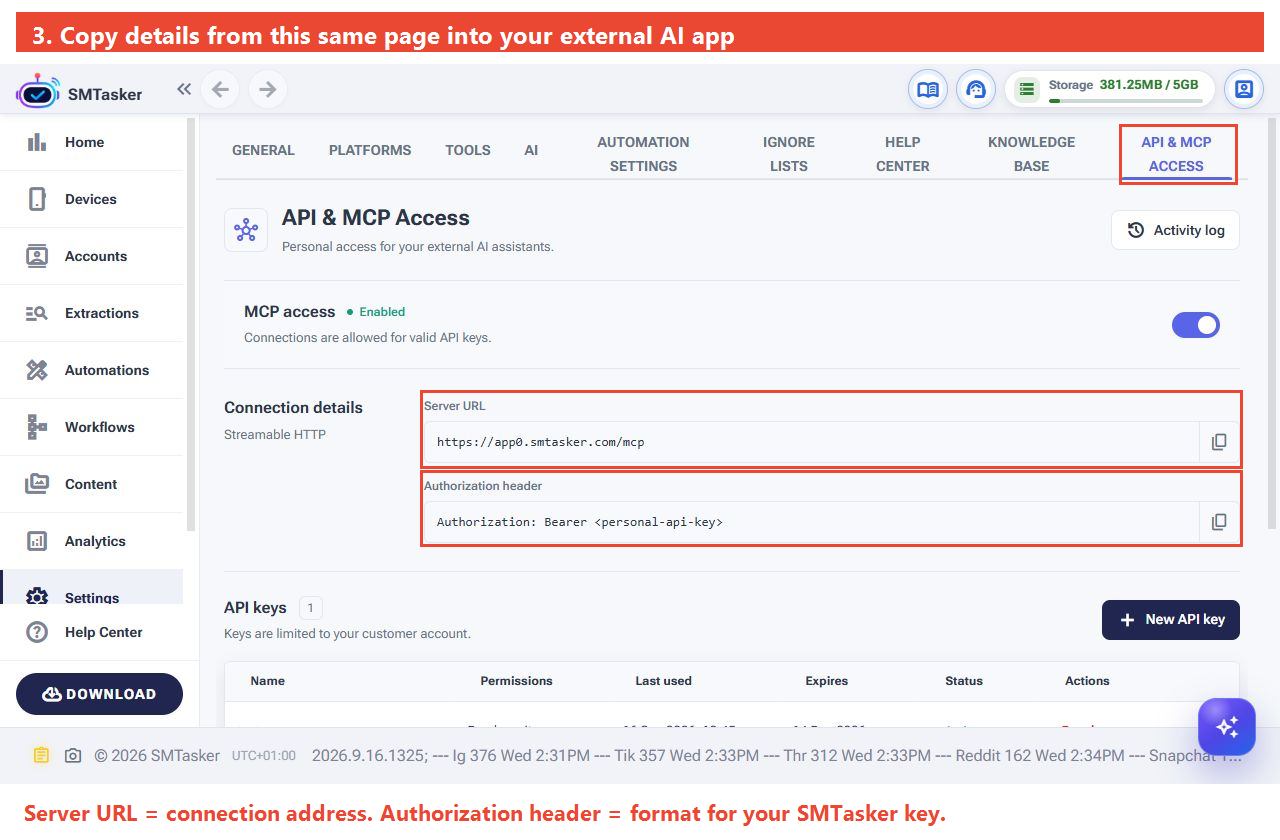
Then try: ask the assistant to retrieve one workspace detail. If it still cannot find the connection, keep its exact explanation for support rather than creating several duplicate connections.
The connection is rejected
A rejection means the request was not accepted. It does not, by itself, prove your key expired.
- Check MCP access. On the same Settings page, confirm it is enabled. If someone deliberately disabled it, ask the workspace owner before turning it back on.
- Check the intended key. Scroll to API keys and find the name you created for this assistant. Check its expiry and whether it has been revoked.
- Check the credential type. The assistant needs your generated SMTasker API key—not your password, OpenAI key, or the example placeholder in the header template.
- Check how it is supplied. Follow the setup guide’s private entry method. If a field asks only for the key, do not paste the entire header template into it.
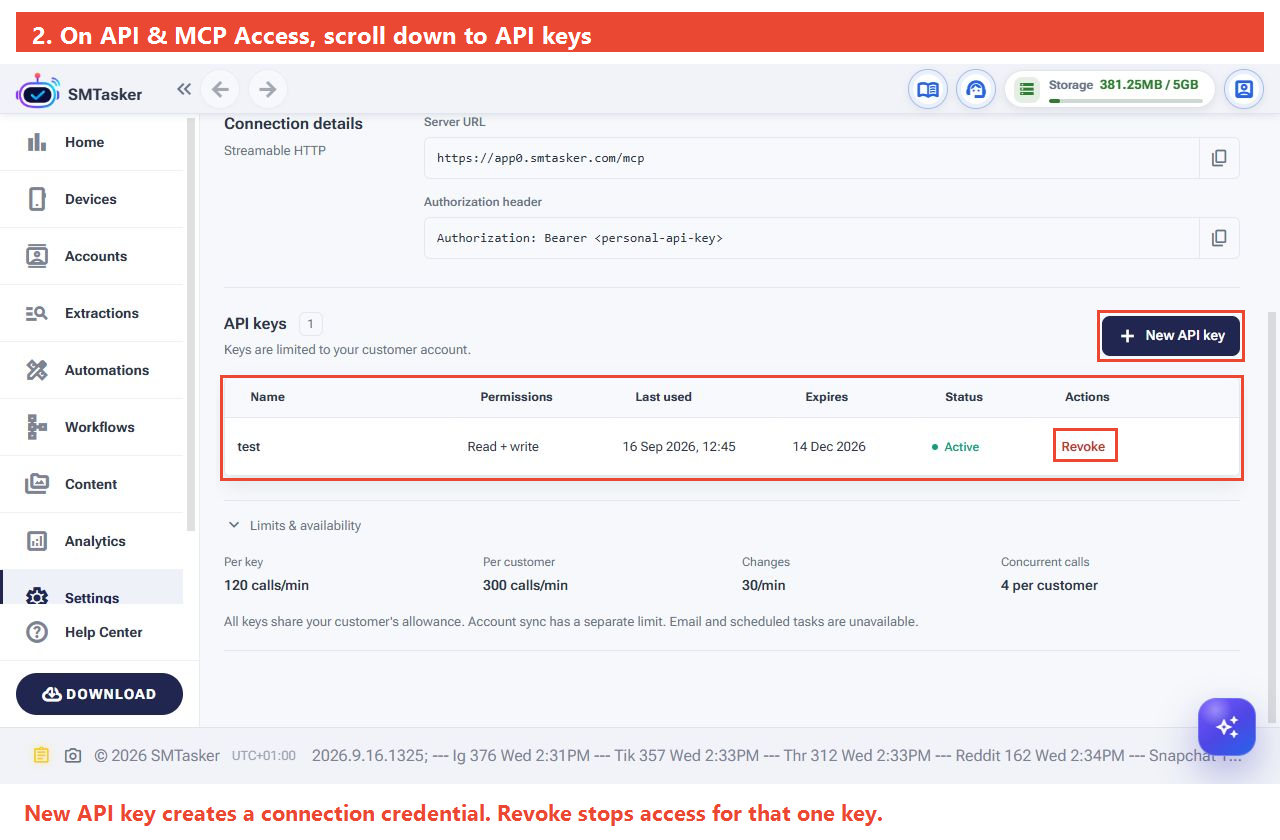
If you need a replacement, follow the connection guide. Creating a new key does not automatically update your assistant: enter the replacement privately in its connection setup, then repeat a read-only test.
I only get general advice
An assistant can explain SMTasker without actually reading your workspace. Ask it to make the distinction:
Use my SMTasker connection to check one current workspace detail. Tell me what you actually retrieved and where I can verify it in SMTasker. Do not change anything. If you cannot access the connection, say so instead of giving general advice.
Compare the answer with the product. If the account or automation is not yours, stop before allowing changes and check the intended workspace and connection.
For an extra check: go to Settings → API & MCP Access → Activity log, then click Refresh. Look for the time of your attempt and the key name.
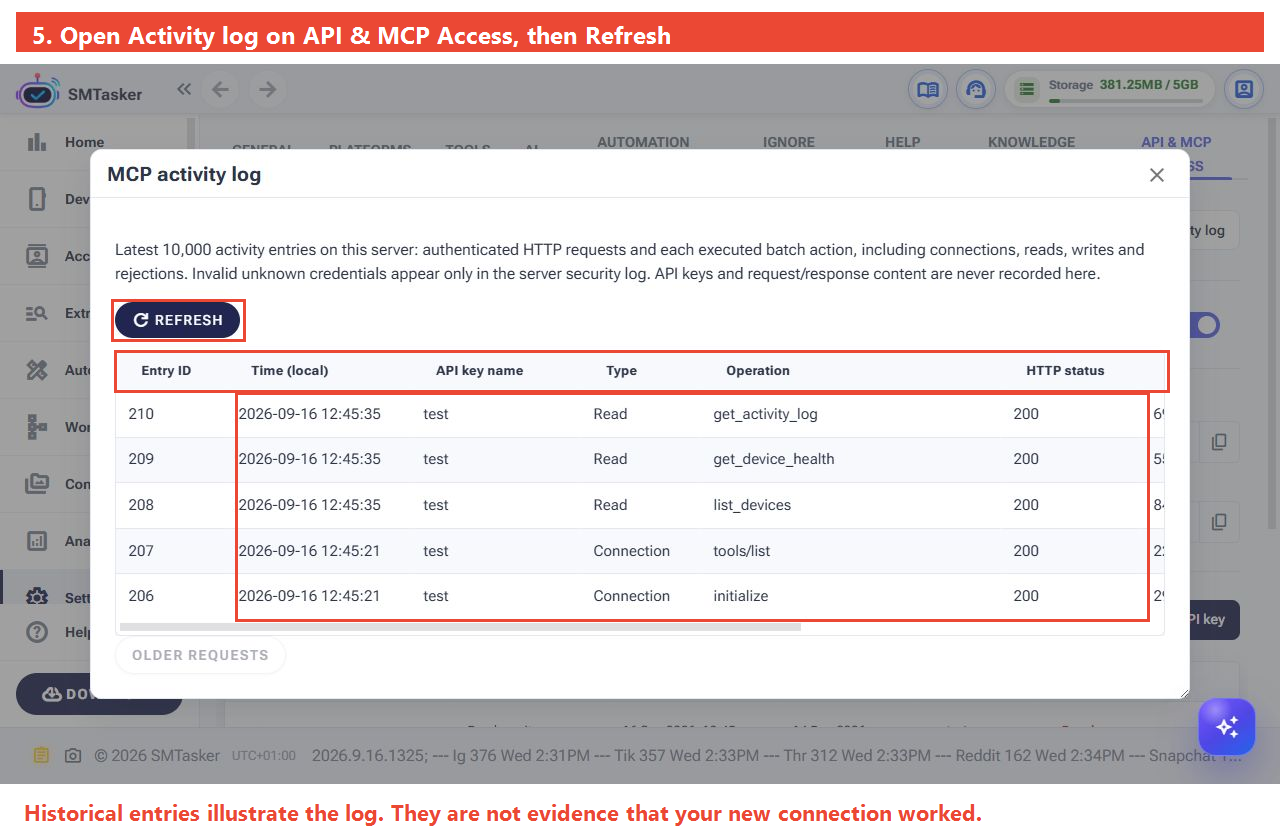
A log entry helps show that a request reached the logged service; inspect its result as well. No matching entry is a clue, not a diagnosis—it may be the wrong time, key, filter or an attempt that failed before reaching the service.
Reading works, but changes fail
This can be expected if you started with a read-only key. Read data allows inspection; Make changes allows supported edits. Your assistant may also ask for approval separately.
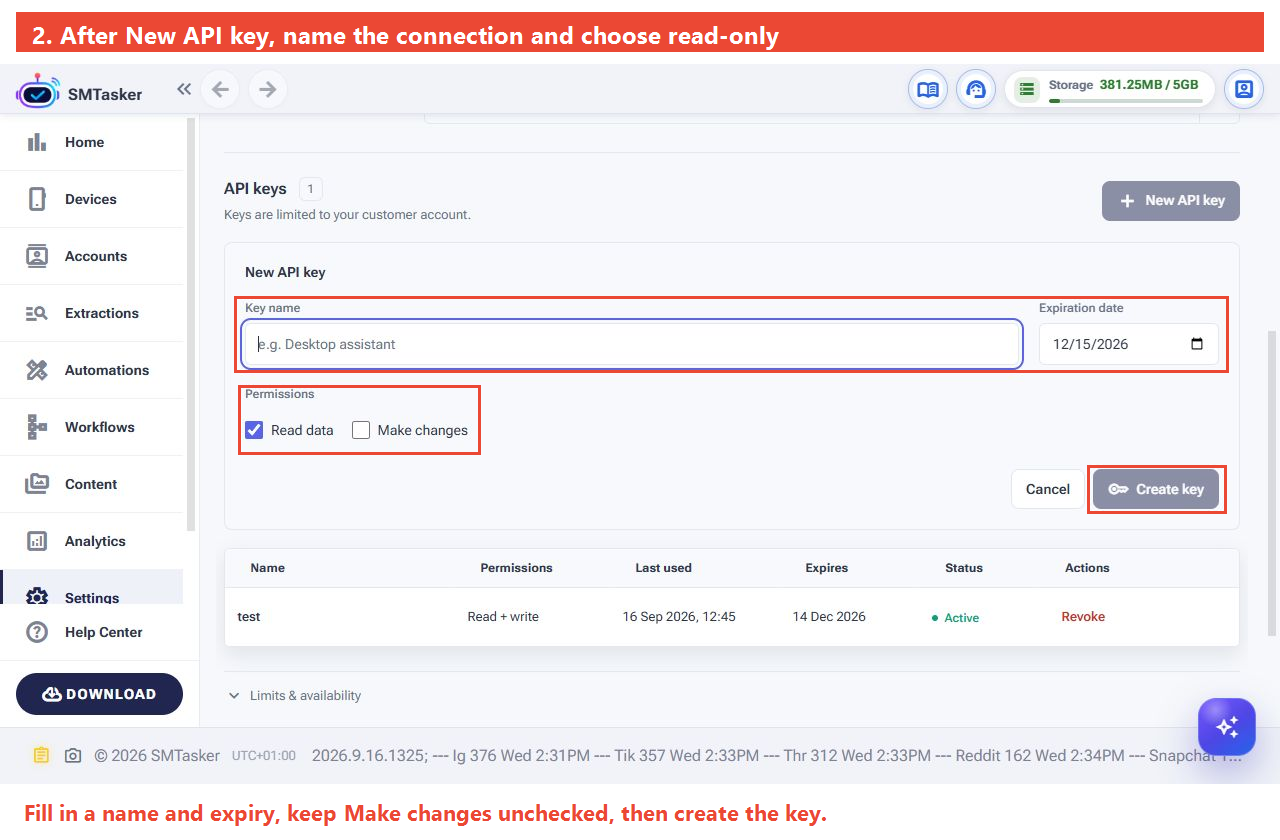
If you intentionally want the AI to edit, follow Let Your AI Make Changes. Check that the assistant is actually using the intended write-enabled key, not the old read-only one.
If it still cannot perform a particular action, ask whether that action is supported for the platform and tool involved. Broader permissions do not add an unsupported feature. Do not disable approval controls to work around an unexplained failure.
Important: “saved” and “running” are different outcomes. An automation intentionally left stopped is not a failed connection. Verify the saved field in SMTasker before investigating device readiness or execution.
It worked before, or stops partway through
- After restarting Codex: ask whether the private key is available to the current session. A reference to a locally stored secret is not the secret itself. Do not ask the assistant to print its value.
- An expiry or access error: check the key and access settings above before replacing anything.
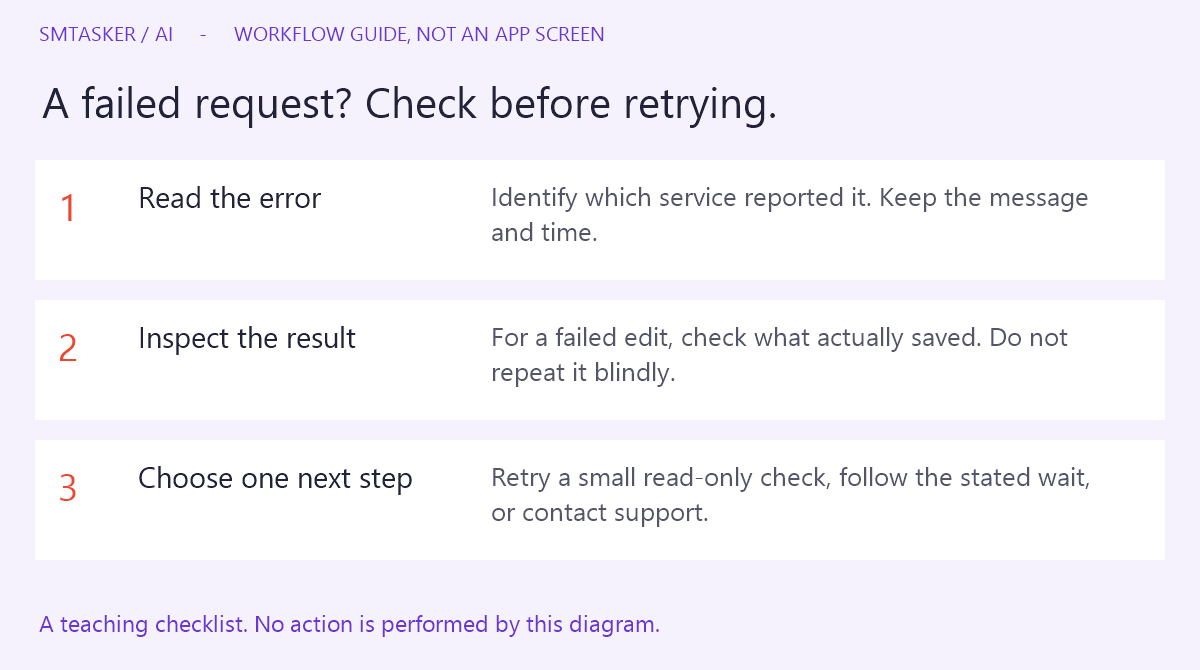
- A timeout or temporary service error: note the error and try one small read-only request after the indicated wait, if any. Do not repeatedly resend a write request.
- A usage limit: read which service reported it—your AI app and SMTasker are different services. Follow the stated reset or limit instructions; replacing a key is not a general solution.
- A change only partly completed: ask what was saved and inspect it in SMTasker before retrying. Otherwise, you may create a duplicate or repeat an action.
The previous request did not finish. Inspect the named automation without changing it. Tell me what was saved, what is still missing, and the smallest next step. Do not repeat the original write request.
Still stuck? Send a useful support message
Contact SMTasker support with the AI app you are using, the step that failed, the exact error and time, and whether read-only requests work. Include a full-context screenshot with secrets and private names concealed. Never include passwords, API keys or a complete Authorization header.
I am using [AI app] with SMTasker. The problem occurs at [step]. At [time and timezone], I received [error]. Read-only requests [work / fail / have not been tested]. I have checked [checks completed]. What should I try next?
You are finished when the assistant retrieves a current workspace detail you can verify. You do not need to start an automation to prove the connection works. Continue with Check Your Workspace with AI or return to the series.
Codex connection reference: official OpenAI MCP documentation. Client-specific controls may vary; this guide does not show a newly captured Codex connection test.