Improve an Existing Automation with AI
Improve one existing automation, review the exact change and verify the saved result without starting it.
You do not need to rebuild an automation to improve it. Ask your AI assistant for one focused change, review the wording, and check the saved result while everything stays stopped.
Choose one thing to improve
Our Comment instructions already ask for short, relevant replies. We will make them more specific: one natural sentence, one detail from the post, and no invented personal experience.
This improves the instructions—not a measured engagement result. We are not running the automation or posting comments during this lesson.
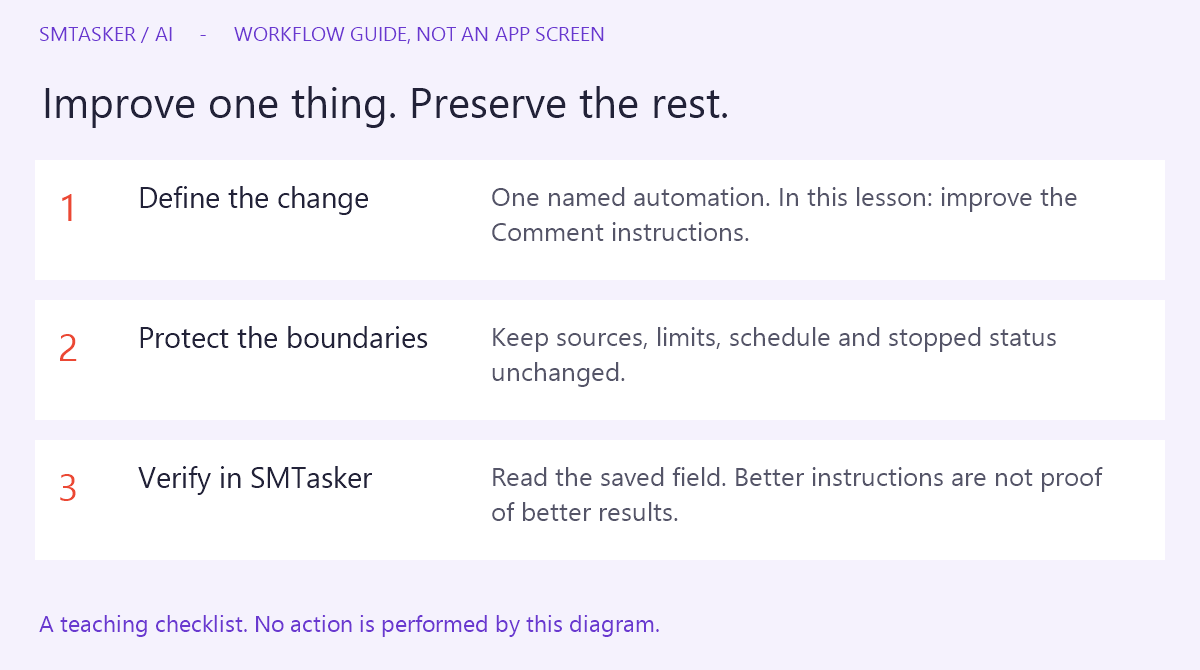
You need: a named, already-stopped automation and an assistant that can inspect it. For MCP edits, follow Let Your AI Make Changes first. For Skye, keep Permissions → Ask for permission. If your automation is running, choose a stopped practice example rather than editing an active campaign just to follow along.
Step 1: Read what is there now
In SMTasker: open Automations, select your Comment automation, then open its Settings tab. Our example is KB Demo – Fitness Comments. Check the name and STOPPED status before proceeding.
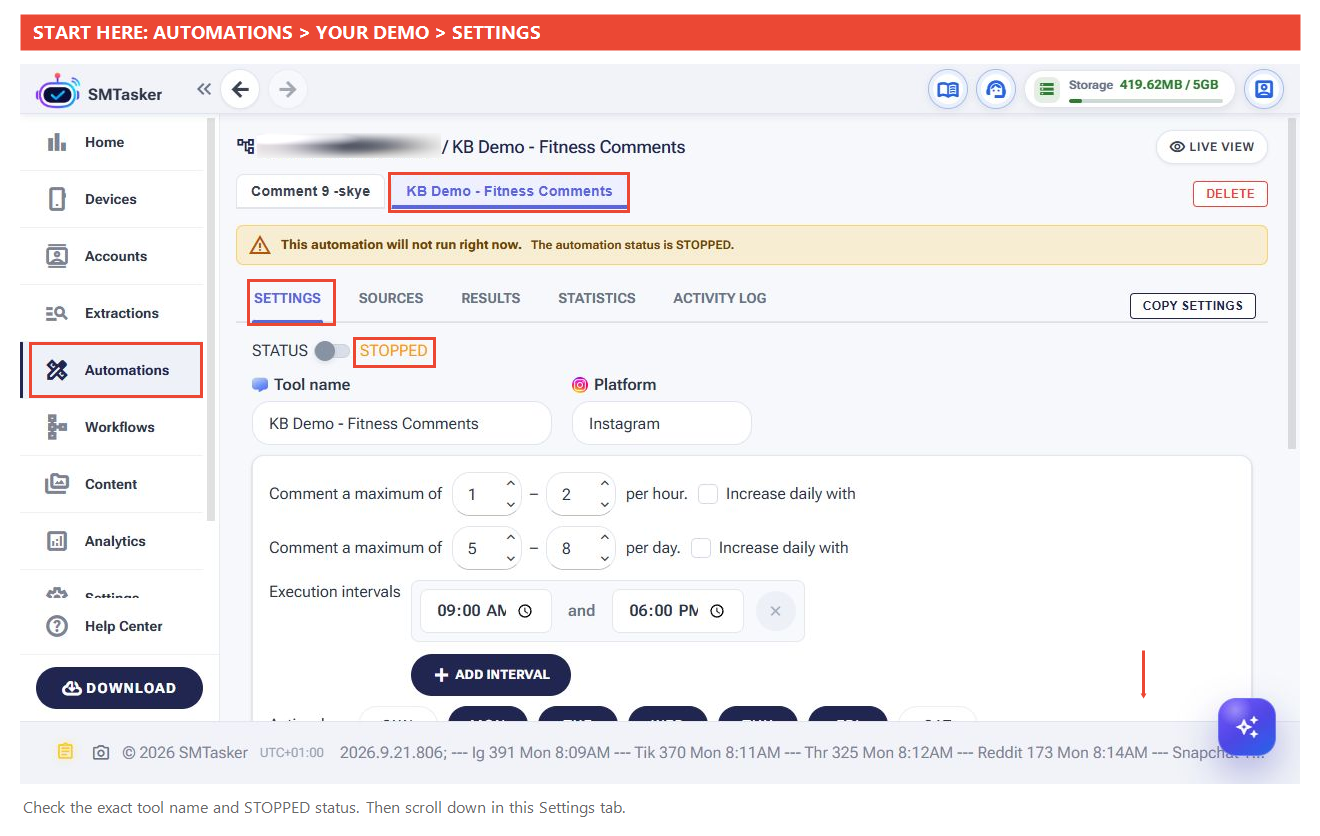
Scroll down on that same page to Comment. Read the saved instructions and keep a copy before changing them.
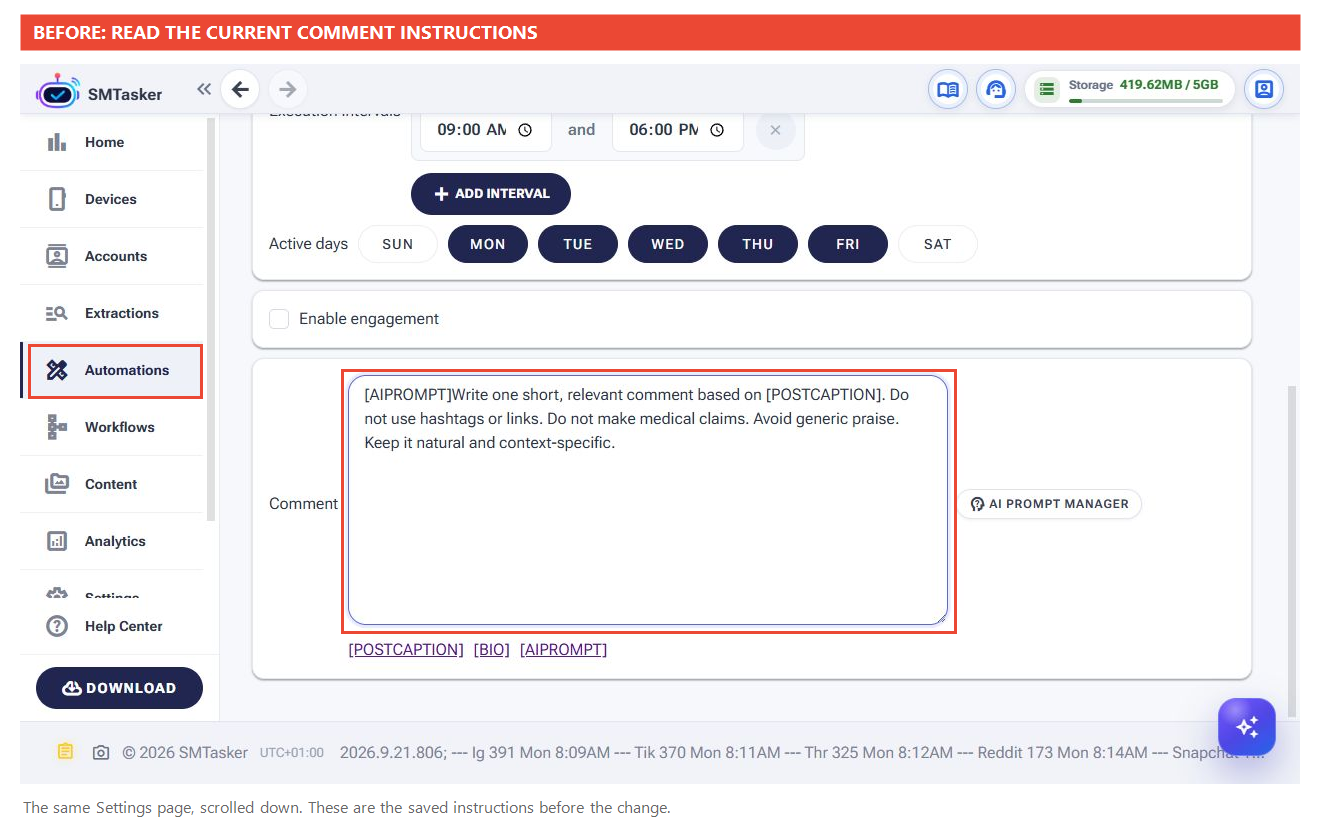
[AIPROMPT]Write one short, relevant comment based on [POSTCAPTION]. Do not use hashtags or links. Do not make medical claims. Avoid generic praise. Keep it natural and context-specific.
[AIPROMPT] asks SMTasker to generate text using AI; [POSTCAPTION] supplies the post’s caption. Keep these tags if you want the replies to remain AI-generated and grounded in that caption.
Step 2: Ask for a proposal, not a full rebuild
In your AI conversation: name the existing automation and the improvement. With Skye, click the purple sparkle button, open New chat, choose your configured provider/model and click Start chat. Type in the message box. With Codex, use your connected local task.
Here is the request used in our demo, split into paragraphs for readability. Replace the demo name and ID with your own target; do not use our ID in your workspace.
Inspect only the existing Instagram Comment automation named KB Demo – Fitness Comments (ID 118). Do not change anything yet. Confirm it is stopped and show its current Comment instructions.
Then propose a wording-only improvement: make each reply one natural sentence, mention a specific detail from [POSTCAPTION], and avoid inventing personal experience. Preserve [AIPROMPT] and [POSTCAPTION] and the existing restrictions on hashtags, links, medical claims and generic praise. Show the before and proposed after text.
Leave the name, account, sources, limits, schedule, active days, tags and stopped status unchanged. Do not create an automation, start anything, send email or schedule tasks. If it is not stopped or the target is ambiguous, stop and ask.
If you do not know the ID, give the account and exact automation name and ask the assistant to identify it first. Do not guess an ID.
Step 3: Agree on the exact replacement
Read the full new text before approving it. The assistant should explain what changes and what stays untouched.
Our example needed a clarification. Skye’s first chat summary rephrased the proposed wording rather than reproducing it exactly. We dismissed that proposal without applying it, then asked for a new proposal containing the exact reviewed replacement. You can do the same if the summary and proposed action do not match.
The final replacement we agreed was:
[AIPROMPT]Write one natural sentence based on [POSTCAPTION] that mentions a specific detail from the post. Do not invent personal experience. Do not use hashtags or links. Do not make medical claims. Avoid generic praise. Keep it relevant, natural, and context-specific.
To resolve a similar mismatch, ask:
Prepare a new proposal for this same automation. Replace only the Comment instructions with the exact text I have approved below. Show the complete replacement. Leave all other settings and the stopped status unchanged. Do not apply yet.
Paste your reviewed replacement below that request. In Skye, the proposed action may call this setting MessageText; it is the Comment field you saw in Settings.
Step 4: Approve that one change
Check the target and the complete proposal. In our final proposal, there is one action: update the Comment instructions. There should be no new automation, source replacement, schedule change or start instruction.
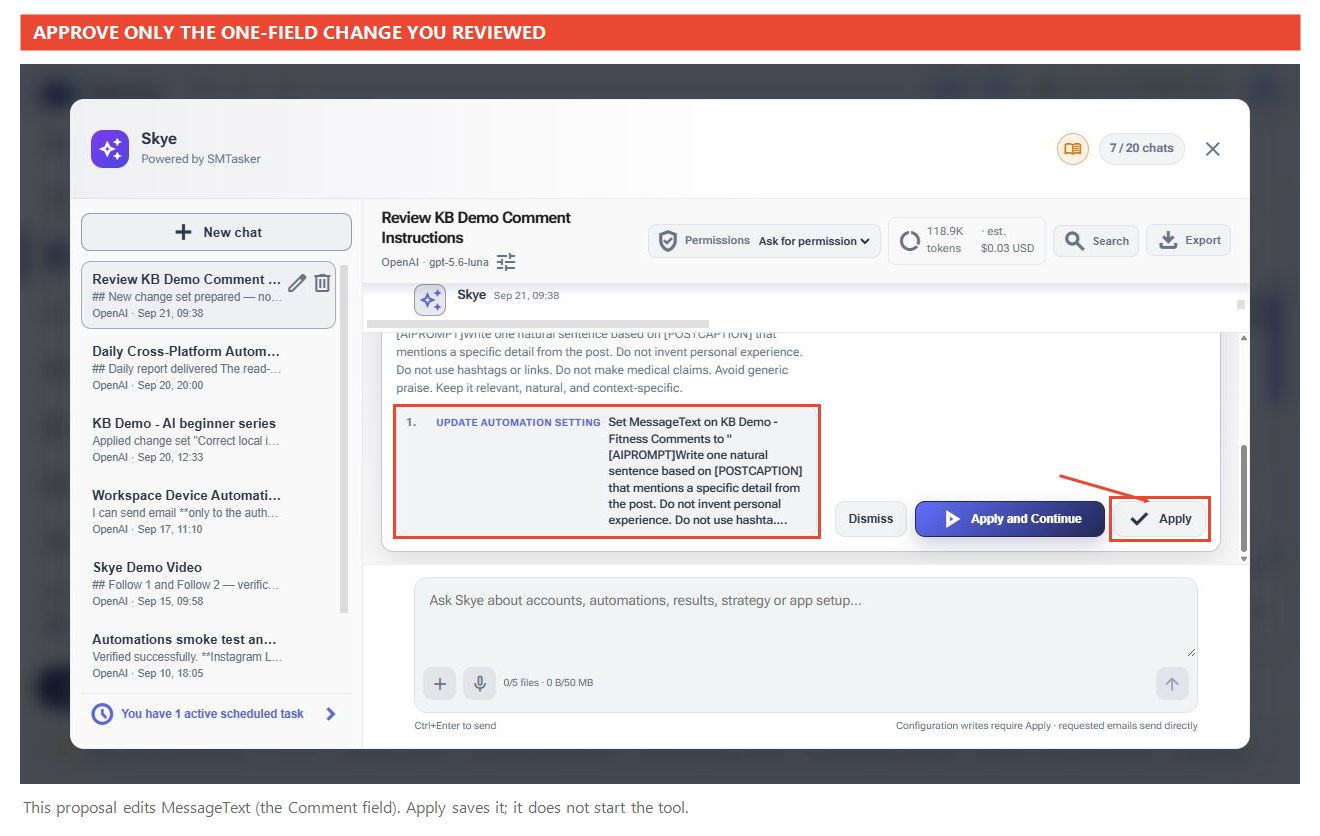
In Skye, click Apply when satisfied, or Dismiss if it is wrong. In an external assistant, review its own permission request. Wait for completion before sending another instruction.
Our completion message reported one applied change. That is useful confirmation, but the saved field is the next check.
Step 5: Check the saved result
Close Skye with the X, then return to the same automation’s Settings → Comment field. Reload or reopen it if you had it open before the change.
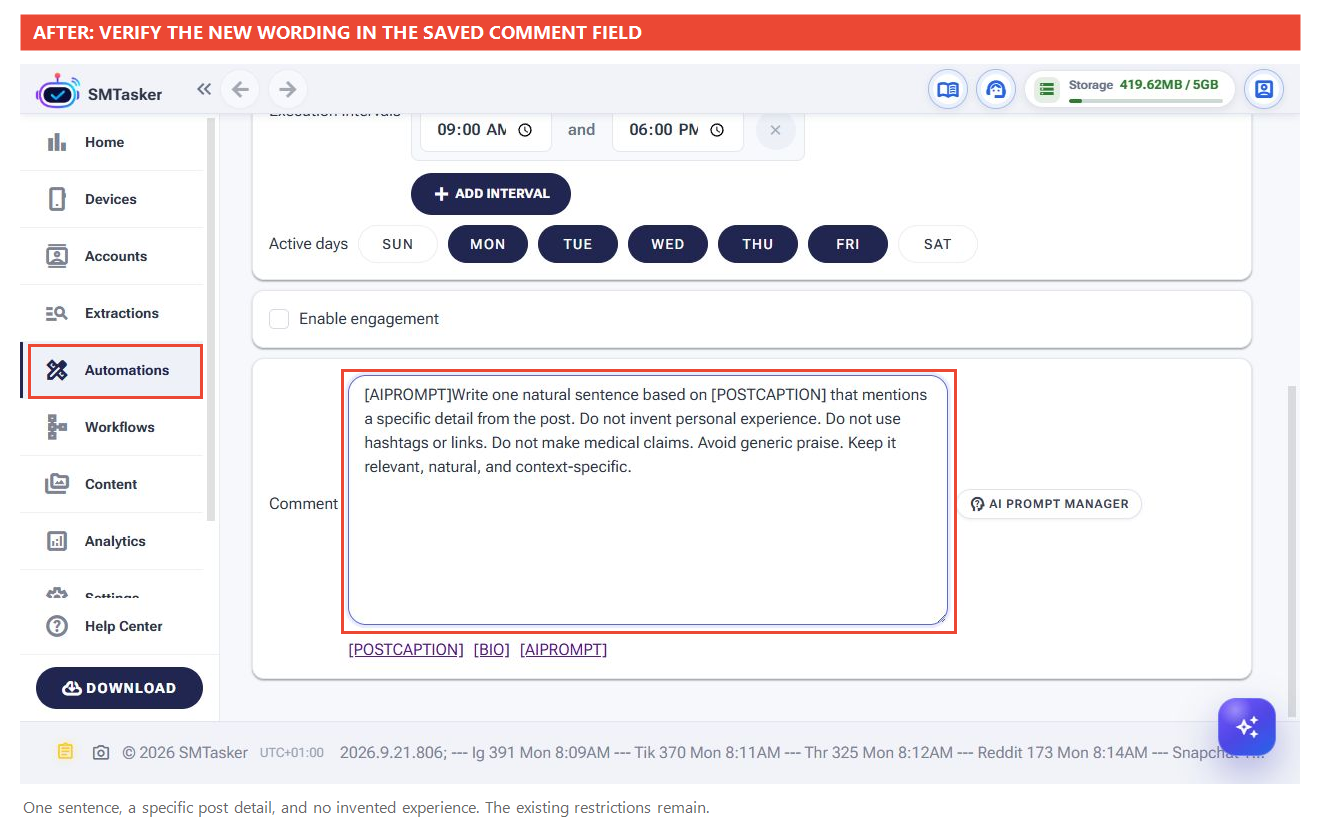
Compare the new wording with the earlier screenshot. Check the preserved settings too. In our demo, the automation remained stopped, with 1–2 comments/hour, 5–8/day, Monday–Friday, 09:00–18:00. The enabled Specific Users source still contained crossfit and nike.
If something differs, name the exact field and ask the assistant to inspect it before proposing a correction. Do not ask it to recreate the whole automation.
What should you improve next?
You have made and verified one controlled edit. Use the same pattern for a relevant source adjustment or a schedule change later—but tackle one goal at a time so you can tell what changed.
Do not assume better wording guarantees better comments. AI-generated text still needs review, and performance has not been tested here. Running AI comments also requires the configured provider in Settings → AI; an MCP connection does not replace it. Leave the demo stopped until you are ready to make a separate decision about running it.
If the assistant cannot connect or the edit fails, use Fix AI Connection Problems. Otherwise, return to Use AI to Manage SMTasker.